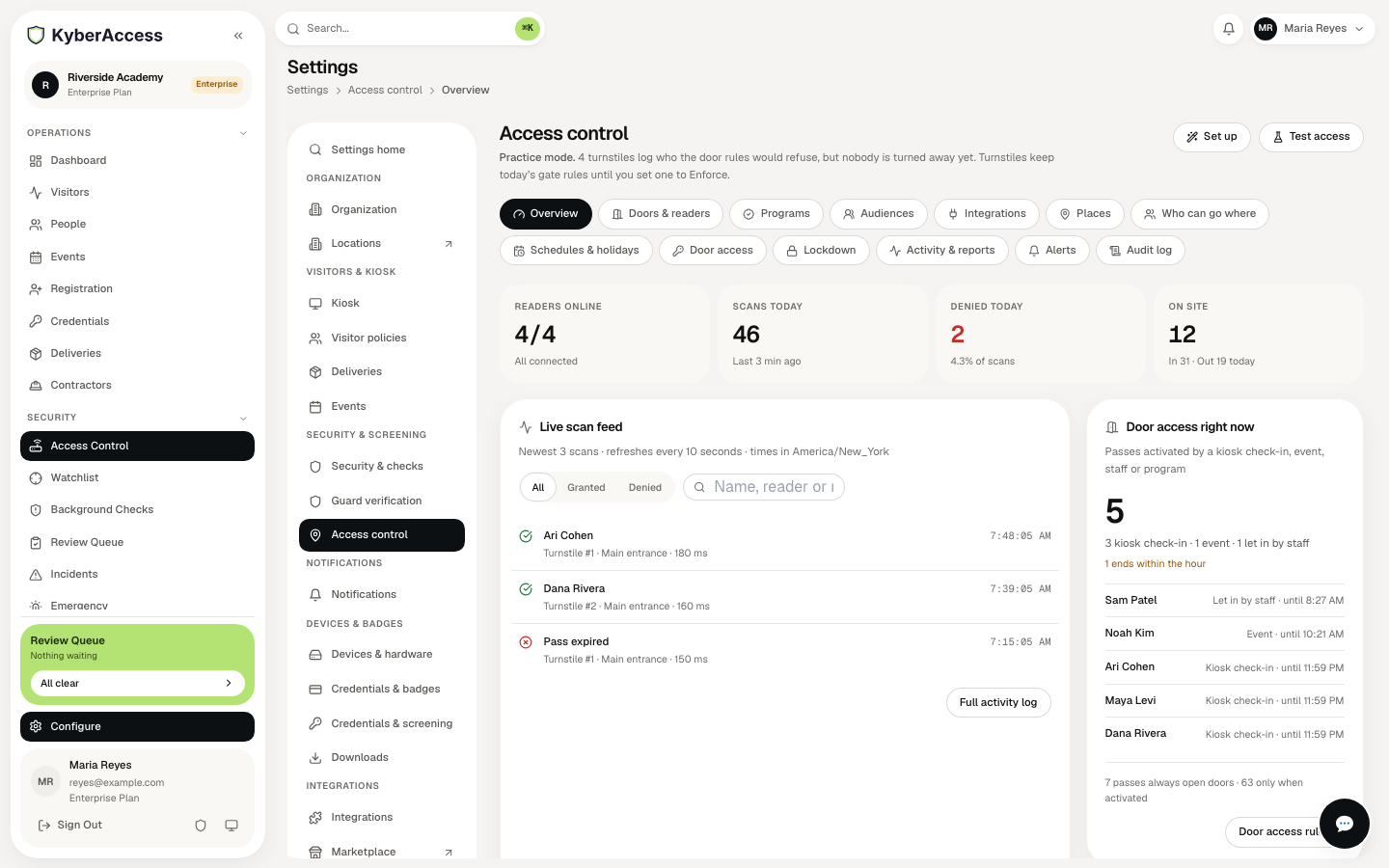
Access control is where you map your doors, decide who may open your turnstiles and when, and watch every scan. Each turnstile runs in one of three modes: Off (today's gate rules only), Practice (today's gate rules, plus a record of what the new rules would have done) or Enforce (the turnstile refuses anyone the rules say no to). Every door starts on Off. You move one turnstile at a time, and you can stop enforcing at a whole site in one tap.
Who this is for
Owners and admins. These pages are in Settings, which only owners and admins can open. Security, guards and front desk staff can activate a pass (Activate now) from the pass itself, but can't change door modes or rules.
Before you start
- At least one scan point to see live data: a KyberAccess Gateway with turnstile readers, a check-in iPad, or an Avigilon Alta intercom.
- Open Apps › Access (classic menu: Access Control in the sidebar, under Security, or Configure › Access control). With the app launcher, Overview, Programs, Doors & readers, Who can go where, Activity and Lockdown are pages in the Access app; Places, Schedules & holidays, Door access, Alerts, Audit log and Access hardware (classic: Integrations) are in Settings › Apps › Access.
Menus: steps show the app launcher first and the classic menu in brackets. See Find your way around to tell which one you have.
What the header tells you
The line under Access control always says where you stand:
| Header | What it means |
|---|---|
| Watch-only. | No turnstile is in Practice or Enforce. Turnstiles keep today's gate rules. Nothing refuses anyone because of the new rules. |
| Practice mode. | Some turnstiles record who the new rules would refuse, but nobody is turned away yet. |
| N turnstiles on Enforce. | Those turnstiles refuse passes the door rules say no to. Other doors keep today's gate rules. |
What enforcement changes, and what it doesn't
| On a turnstile set to Enforce | Not affected, in any mode |
|---|---|
| Each credential pass is checked against its door access setting: Always (staff), Only when activated or Never opens doors. | One-time kiosk visitor passes, printed badges, event tickets and pre-registration QR codes work exactly as before. |
| A pass set to Only when activated opens only after a kiosk check-in, an event it was invited to, a staff member's Activate now, or (if you turn it on) a review queue approval. | Intercoms can run in Practice only. They can't enforce. |
| For passes that follow group rules (an access policy linked to a group), zone, schedule and temporary access rules also refuse. Active lockdowns and Locked entry states refuse too. | Doors on Off or Practice keep today's gate rules. |
| The refusal reason shows on the turnstile screen, for example CHECK IN AT KIOSK. | Today's own refusals (expired, suspended, watchlist, background check) happen as before. |
Full details: Choose who opens the turnstiles: Always, Only when activated, Never.
Turn on enforcement
- Set each credential type's door access on Settings › Apps › Access › Door access (classic menu: Configure › Access control › Door access). Staff types usually stay Always (staff); visitor, parent and guest types usually use Only when activated.
- On Apps › Access › Doors & readers (classic menu: Configure › Access control › Doors & readers), select Door control on one turnstile and choose Practice. Select Save.
- Let it run for a while. Door control lists Latest scans checked by the rules, marked Practice: would refuse or Practice: same as today.
- When the list looks right, open Door control again and choose Enforce. Review everyone the rules would have refused at that turnstile in the last 30 days, tick the review box, pick If the check can't run, and select Turn on enforcement.
- If anything goes wrong, select Stop enforcing at this site in the green bar on Doors & readers. Every enforcing turnstile at that site goes back to today's gate rules right away and keeps recording in Practice.
Step by step: Set up doors and readers.
The tabs
| Tab | What it's for |
|---|---|
| Overview | Readers online, scans and denials today, people on site, the live scan feed (refreshes every 10 seconds), Door access right now and Came in through the turnstiles today. |
| Doors & readers | Every reader, iPad and intercom with its health and its mode. Door control switches a turnstile between Off, Practice and Enforce. |
| Programs | Give a whole group a credential for a set period. Needs the Enterprise plan or the add-on for Pro. |
| Audiences | Saved lists of people from your school data, like "Grade 1 parents". |
| Integrations | What each connected system (Veracross, Infinite Campus, Google Workspace, CSV) provides. |
| Places | Your map: site, building, zone, door. |
| Who can go where | Groups, the zones each group may use, and on which schedule. Also Temporary access. |
| Schedules & holidays | When: school hours, after-school, 24/7, holidays and exception days. |
| Door access | Default door access per credential type, activation rules (kiosk, events, review approval), and Change many at once. |
| Lockdown | Entry states and lockdown plans. On an enforcing turnstile, a lockdown or a Locked state refuses passes. |
| Activity & reports | Every scan, with Why? on denials, plus reports. |
| Alerts | Reader health alerts and alert rules, optionally by email. |
| Audit log | Every change to who can open doors, with CSV downloads. |
Two buttons sit above the tabs: Set up (the guided setup) and Test access (ask what the rules decide for a person or a door at any moment).
On the Overview
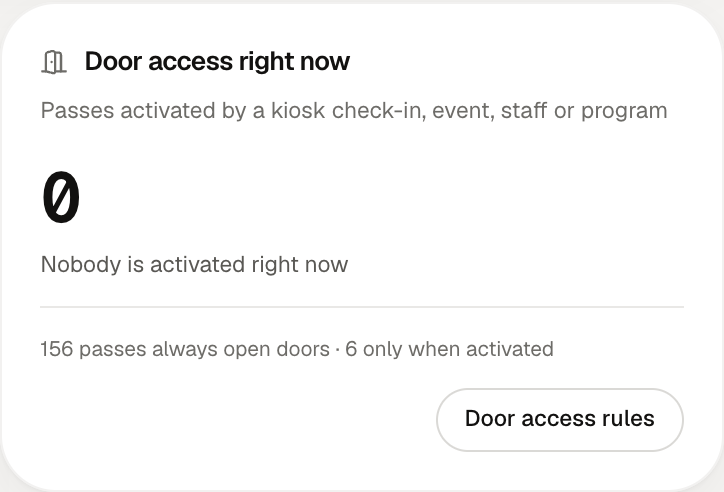
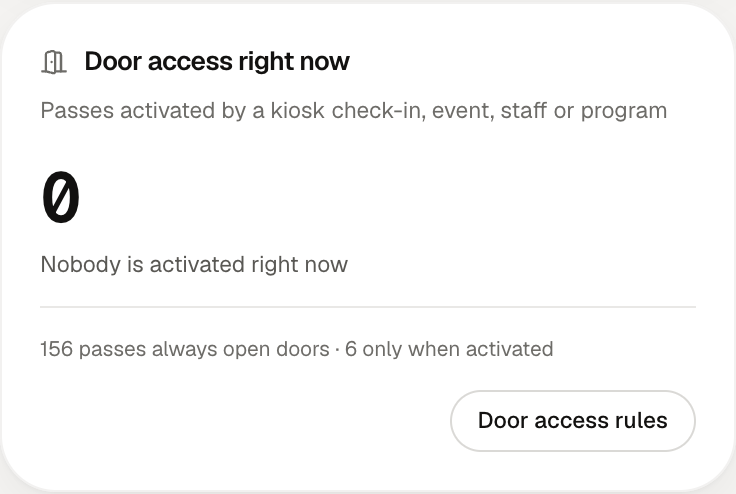
- Door access right now: how many passes are activated, by what (kiosk check-in, event, staff or program), which end within the hour, and how many passes always open doors. Select a name to open its pass. Door access rules opens the Door access tab.
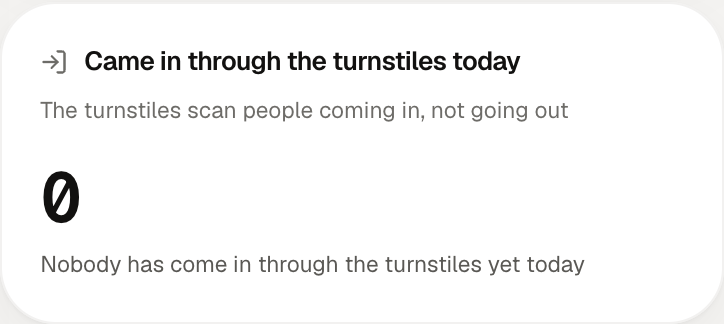
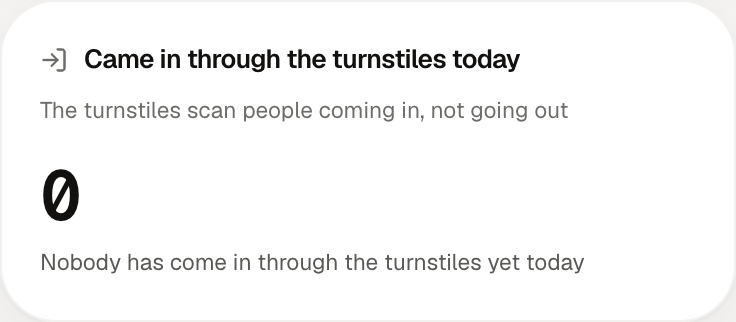
- Came in through the turnstiles today: how many people came in, scans per turnstile, and a list with times. Turnstiles scan people coming in, not going out. Roll call list (CSV) downloads everyone A to Z.
The Audit log
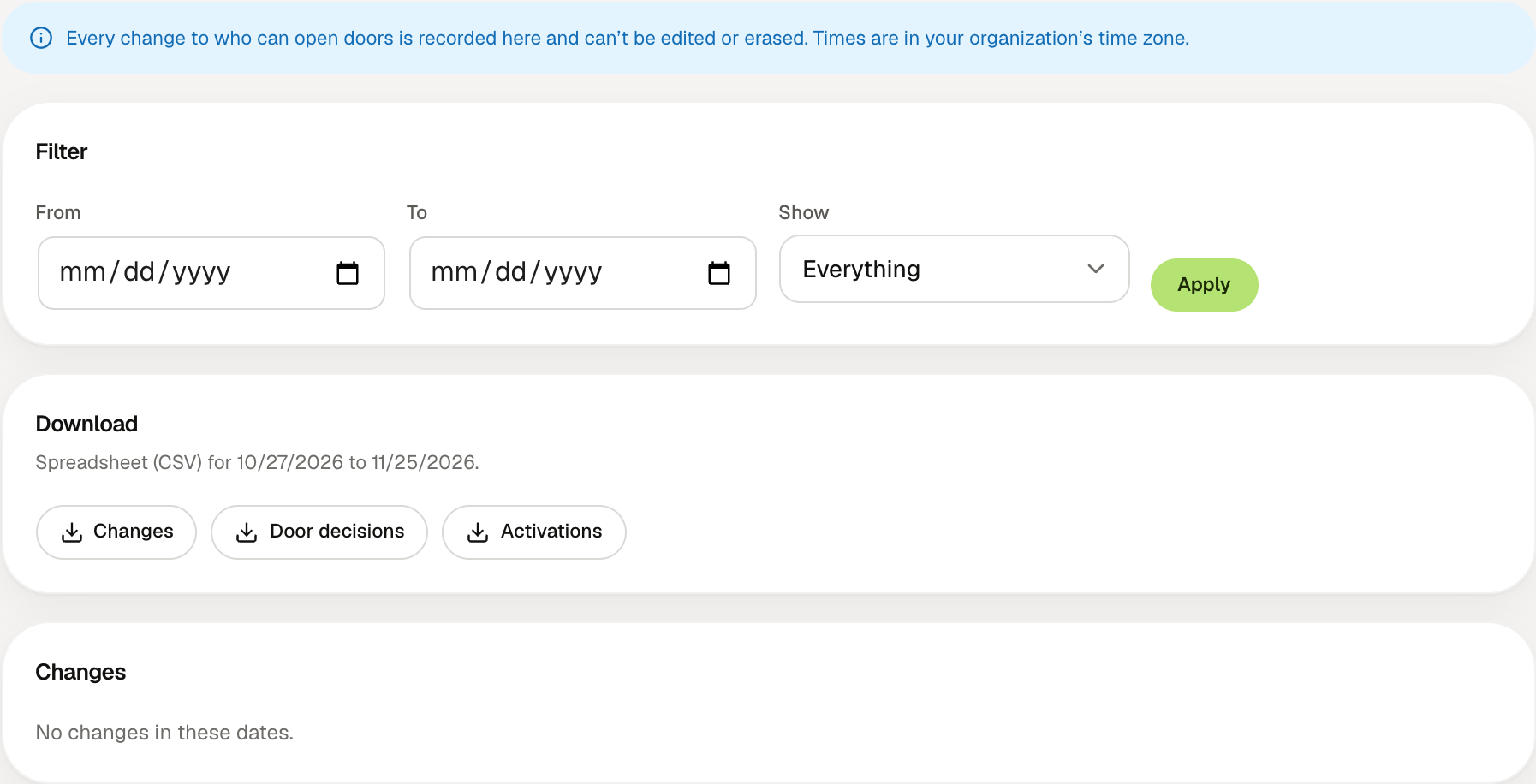
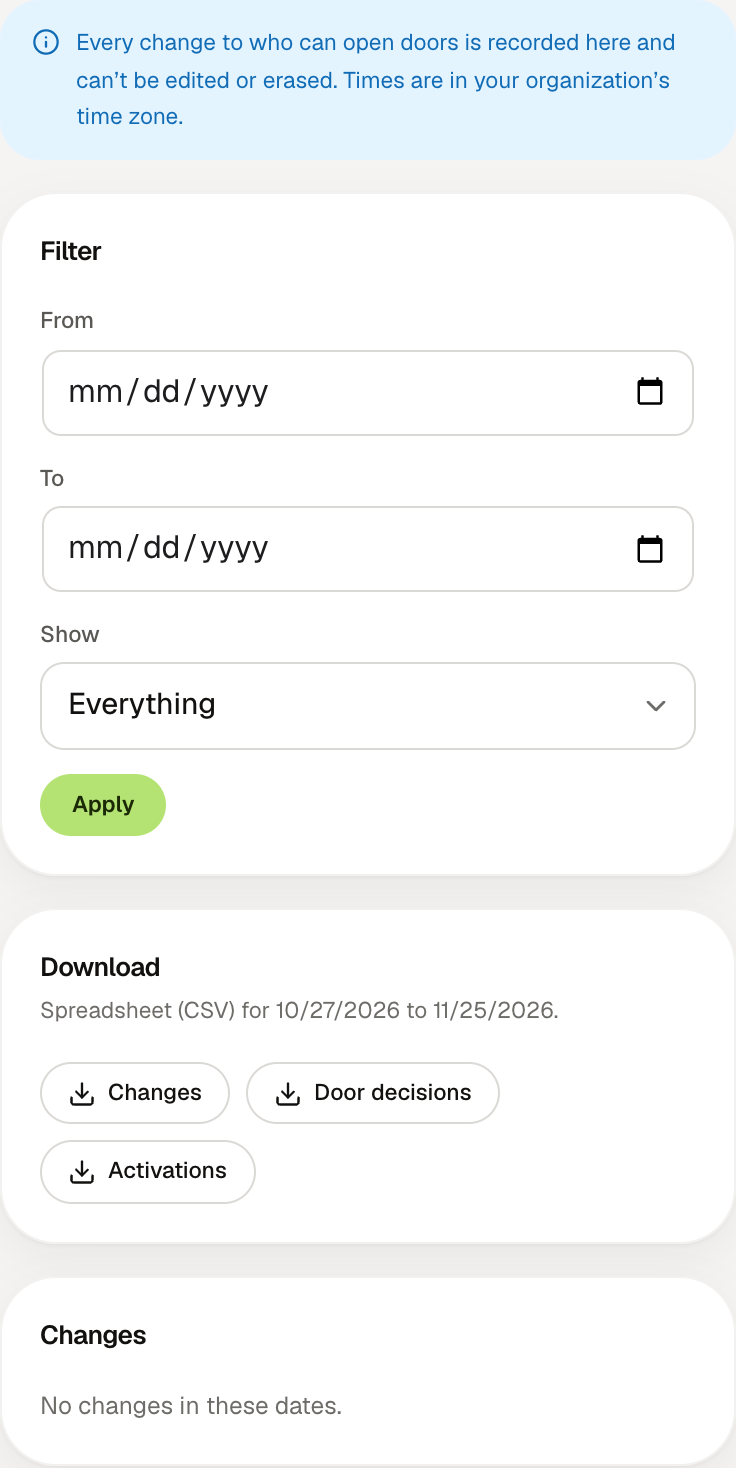
Settings › Apps › Access › Audit log (classic menu: Configure › Access control › Audit log) lists every change to door access: a pass's setting, activations, door modes, and credential types and rules. Entries can't be edited or erased. Filter by From, To and Show, then select Apply. Under Download, Changes, Door decisions and Activations each save a spreadsheet (CSV) for the dates shown.
Suggested order
- Set up doors and readers and build places and zones.
- Add schedules and holidays and decide who can go where.
- Choose who opens the turnstiles.
- Put one turnstile in Practice, check Test who would get in and the activity, then Enforce.
- Turn on access alerts, including email for the rules that matter.
Troubleshooting
- Readers online shows "—" → no gateway has checked in → see Set up doors and readers.
- I set a group to "No access" but the person still got through → that turnstile is on Off or Practice. Only Enforce refuses. To stop someone at every door now, suspend or revoke their credential.
- A visitor was turned away with "CHECK IN AT KIOSK" → expected on Enforce: their pass is Only when activated and has no open activation. See A credential is refused at the door or kiosk.
- Enforce can't be selected → only turnstile readers can enforce; intercoms run in Practice.
- I can't see Access control → it's in Settings, which is for owners and admins only.