Every pass now has a door access setting that decides whether it opens your turnstiles. Staff passes can open them any time. Visitor and parent passes open them only after the holder is activated: they checked in at the kiosk, they are at an event they were invited to, or someone on your team let them in. You try the rules in Practice first, then switch a turnstile to Enforce when you are ready.
Who this is for
- Owners and admins: change type defaults, activation rules, a pass's setting, bulk changes, and each turnstile's Off / Practice / Enforce mode.
- Security, guards and front desk: Activate now and revoke an activation on a pass.
The three settings
| Setting | What the turnstile does |
|---|---|
| Always (staff) | Opens any time, like today. Use for staff, security and long-term contractors. |
| Only when activated | Opens only while an activation is open (see below). Standard for visitor, parent, guest and older QR passes. |
| Never opens doors | Never opens a turnstile. The pass still works as an ID at the kiosk and at events. |
Each credential type has a default. A setting on one pass always wins over its type's default.
What activates a pass
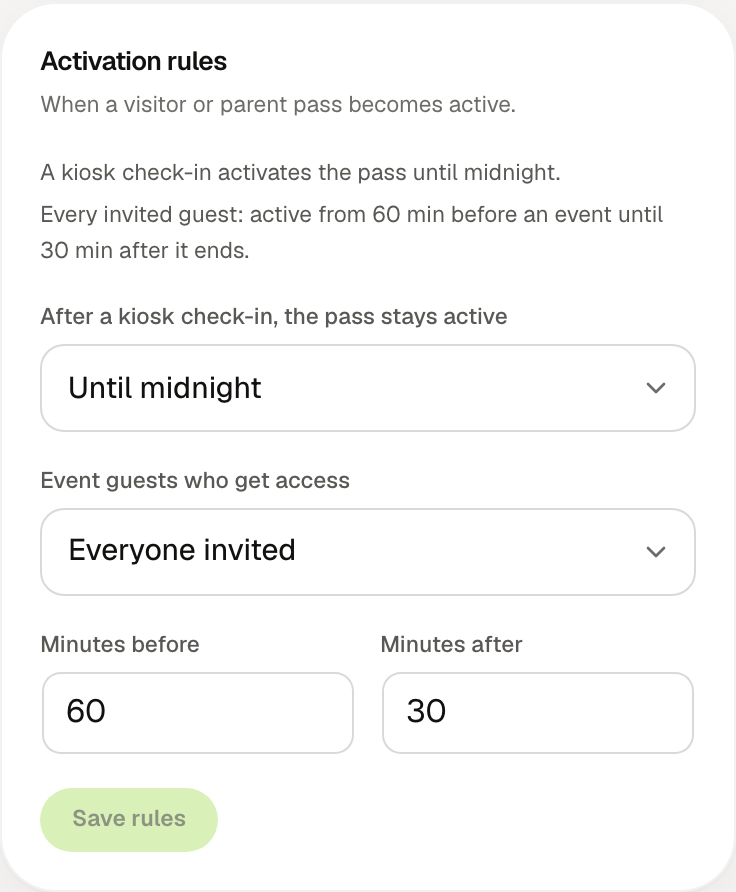
- Kiosk check-in: active until midnight by default. You can change it to "until they check out" or a number of hours.
- Event: active from 60 minutes before an event until 30 minutes after it ends, for guests of that event. Only guests whose pass is fully registered (name and date of birth on file, screening clear) are activated this way.
- Let in by staff: Activate now on the pass, with an end time and a reason.
- Review queue approval (off unless you turn it on): approving someone activates their pass until midnight.
Steps
- Open Configure › Access control › Door access.
-
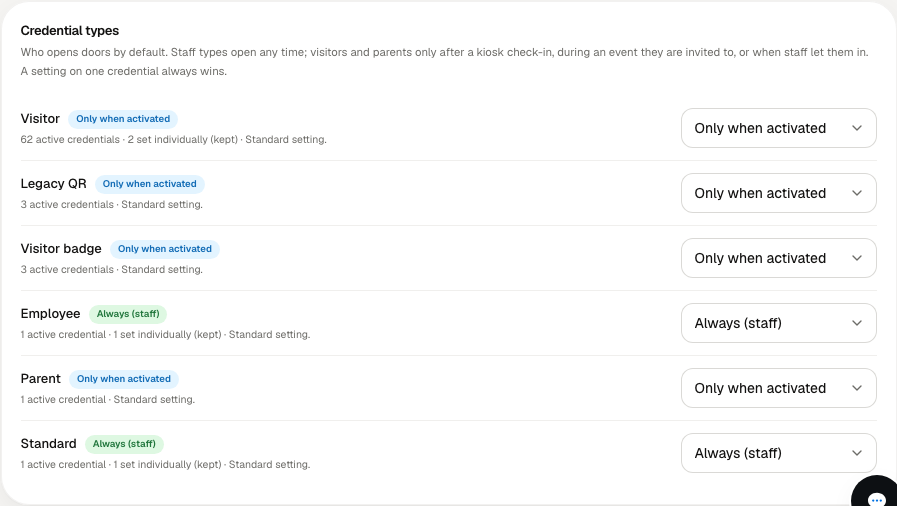
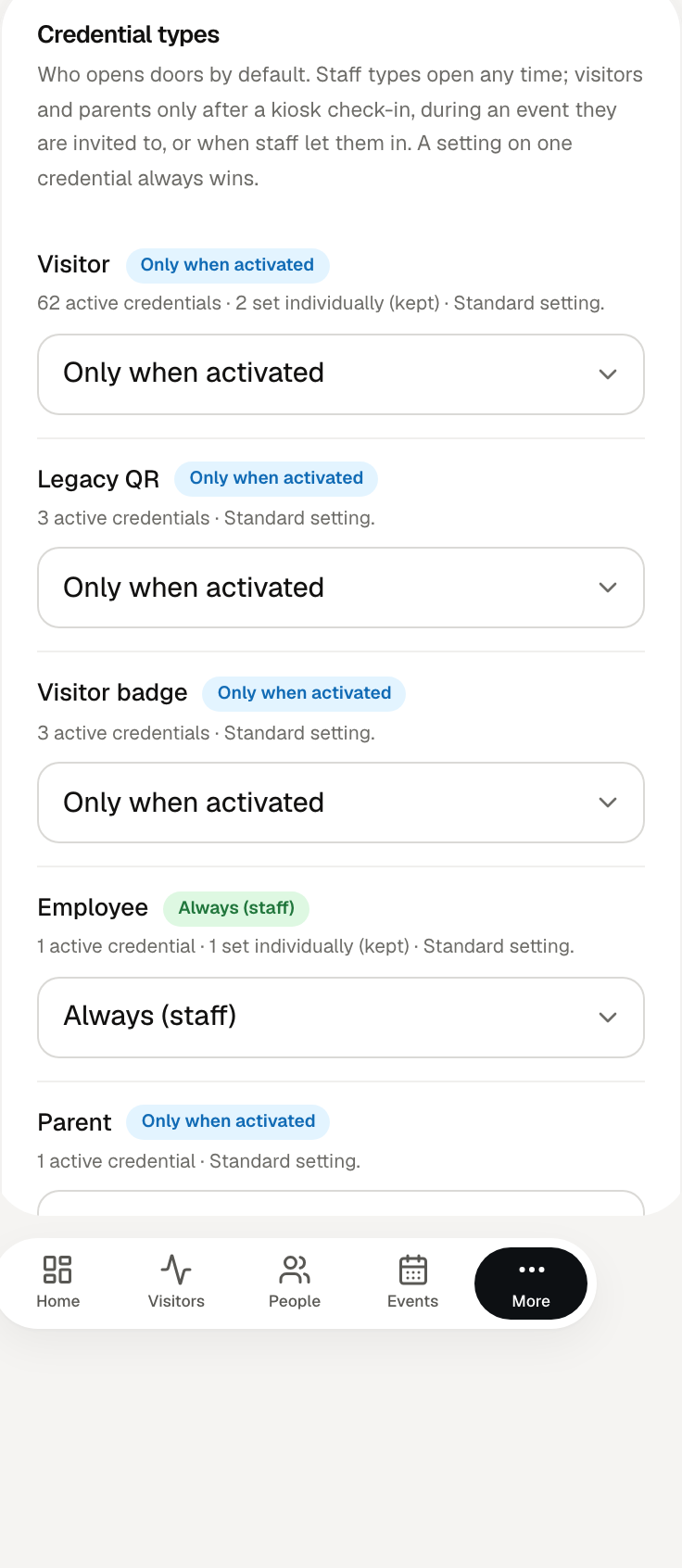
Under Credential types, pick the default for each type: Always (staff), Only when activated or Never opens doors. Confirm the change.
-
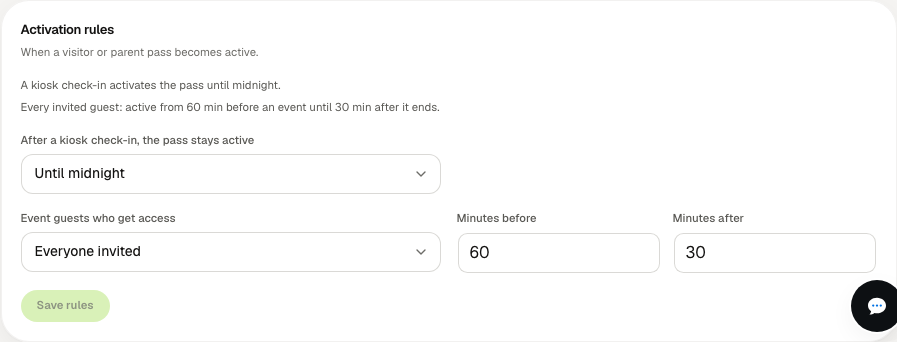
Under Activation rules, choose how long a kiosk check-in keeps a pass active, which event guests get access (Everyone invited or Only guests who registered or RSVP'd), and the minutes before and after an event. Select Save rules.
-
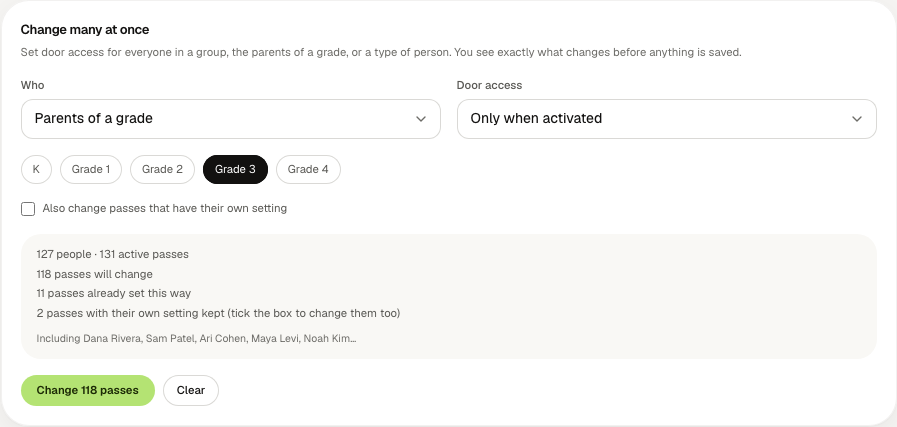
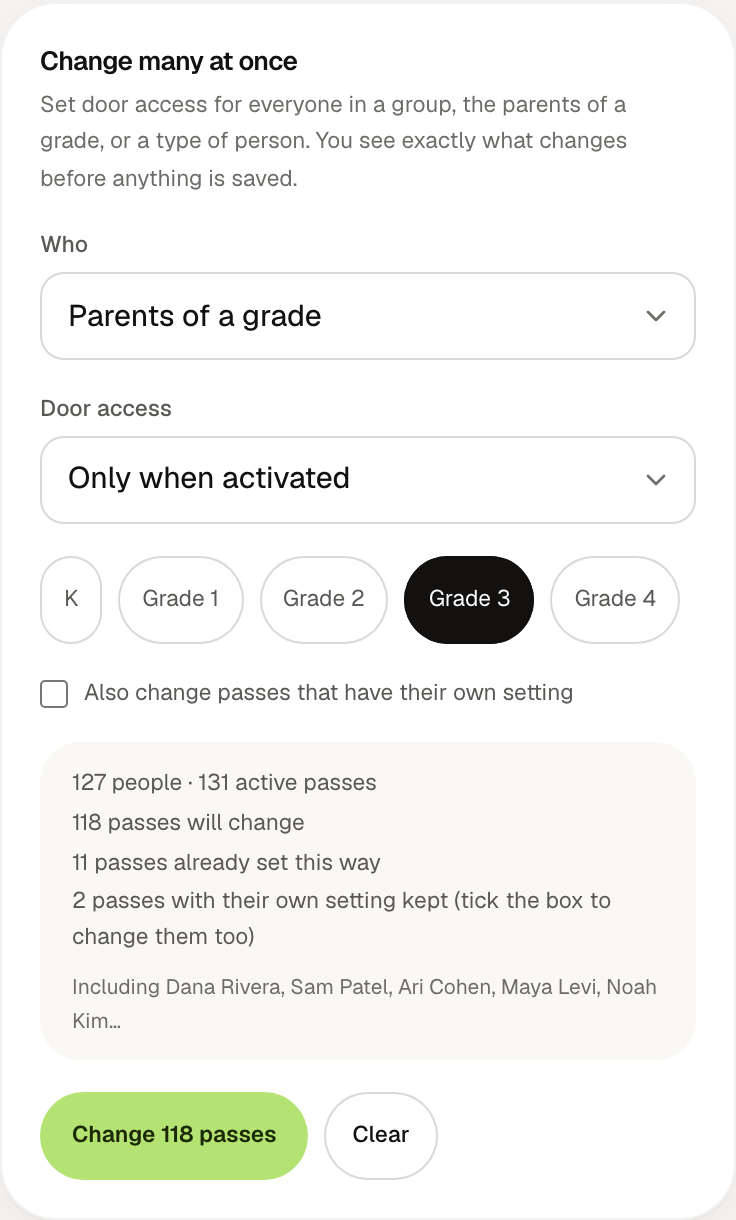
To change many people at once, use Change many at once on the same page. Pick who (a group, the parents of a grade, or a type of person) and the setting. You see exactly how many passes change before you select Change N passes. Passes with their own setting are kept unless you tick Also change passes that have their own setting.
-
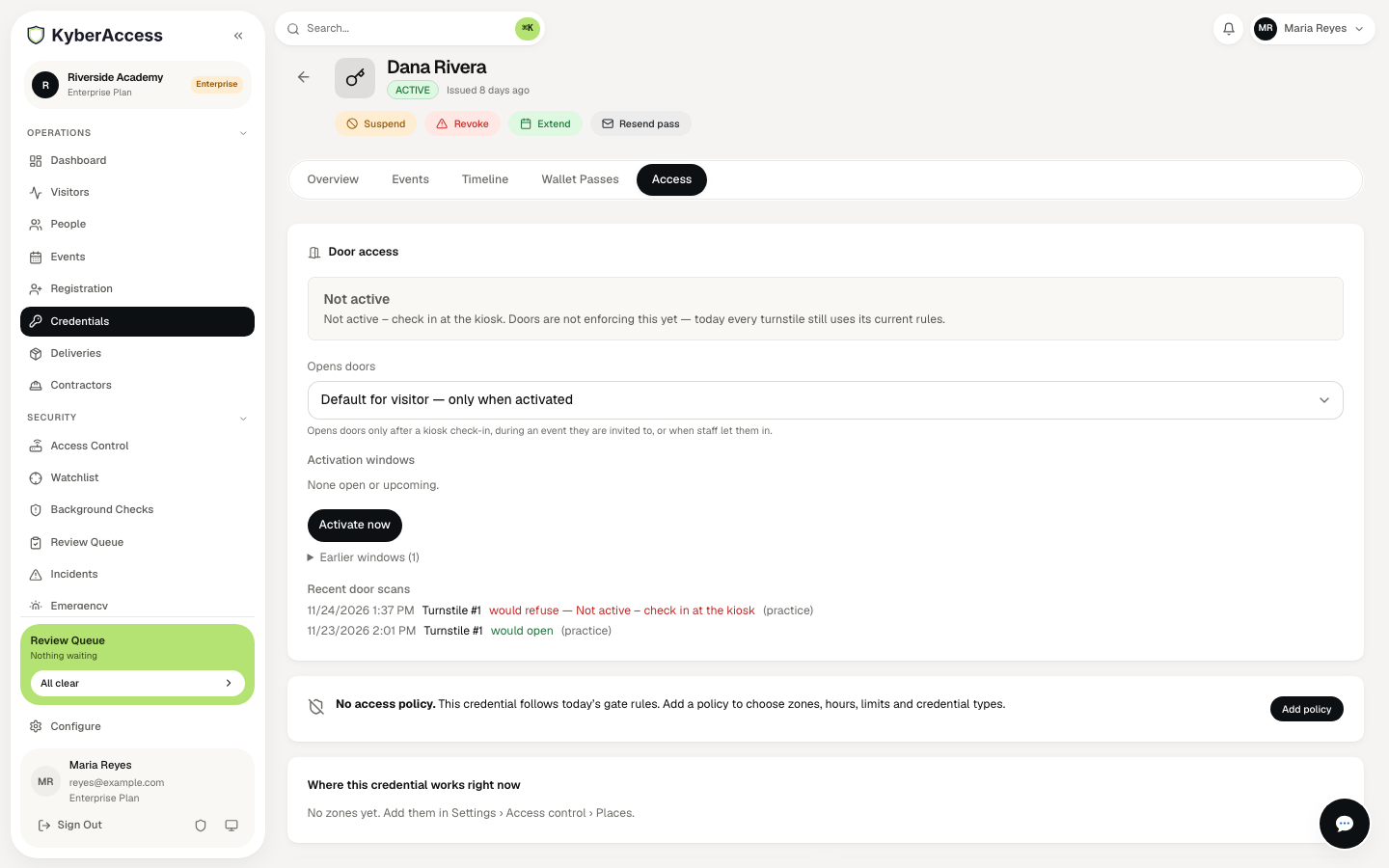
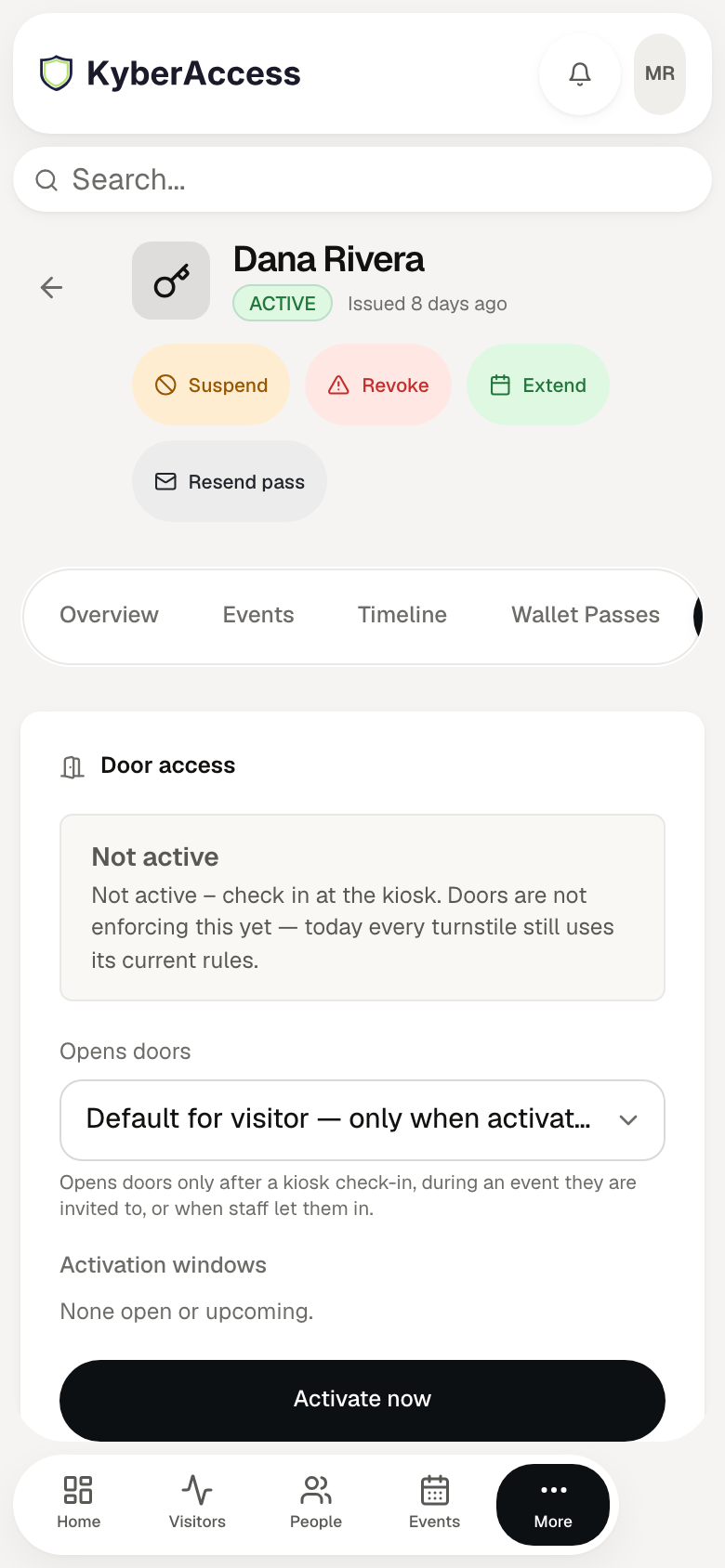
To change one person, open their pass (Credentials, then the pass) and the Access tab. Door access shows Active now, Not active or Always active, the Opens doors setting, open activation windows, Activate now, and the latest door scans.
Practice first, then Enforce
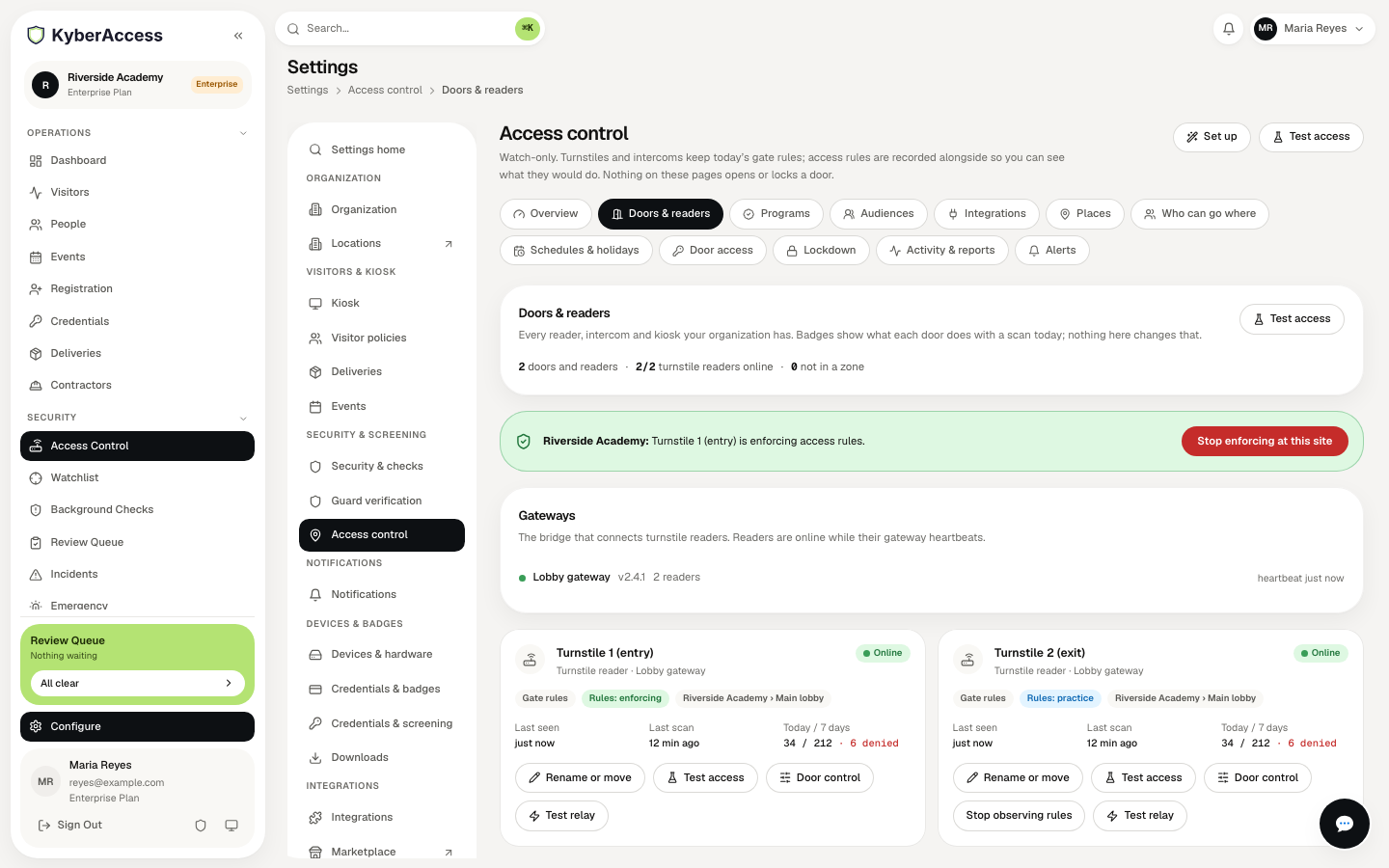
Each turnstile has its own mode. Open Configure › Access control › Doors & readers and select Door control on a turnstile.
| Mode | What happens |
|---|---|
| Off | Today's gate rules only. Nothing is recorded. |
| Practice | The door keeps today's behavior. Every scan records what the new rules would have done. |
| Enforce | The door refuses anyone the rules say no to and shows the reason on the turnstile screen, for example CHECK IN AT KIOSK. |
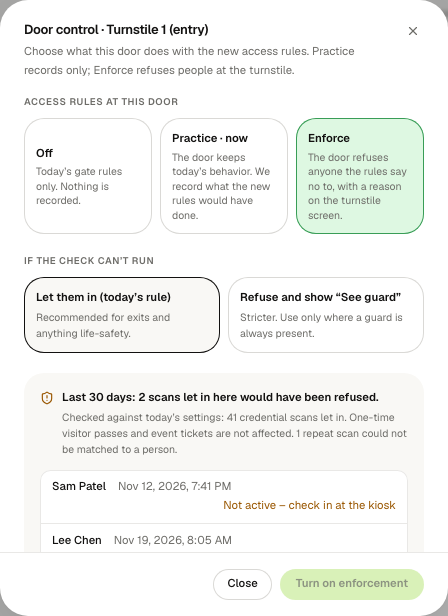
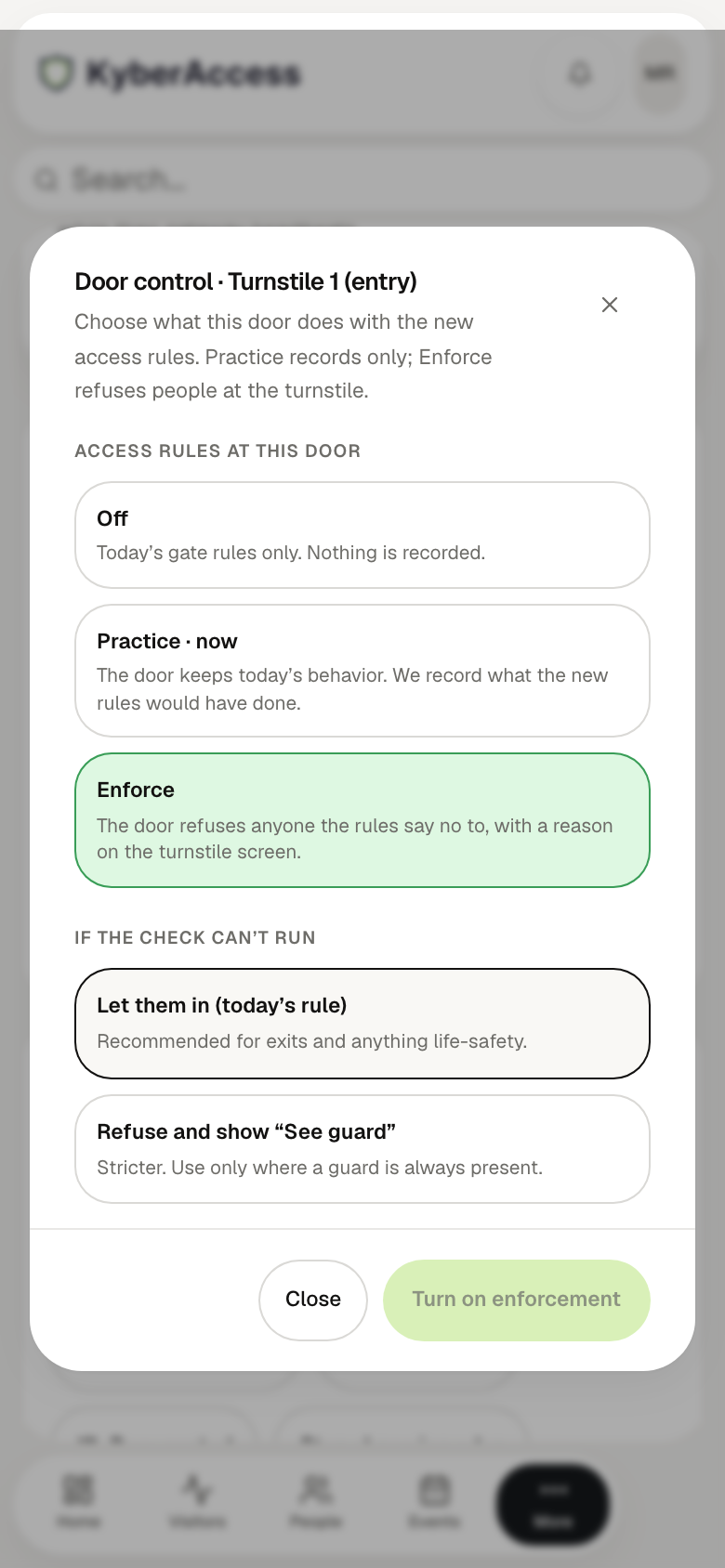
Before you can turn on Enforce, Door control shows everyone the rules would have refused at that turnstile in the last 30 days. Review the list and tick the box to confirm. Also pick If the check can't run: Let them in (today's rule) (recommended) or Refuse and show "See guard" (only where a guard is always present).
Only turnstile readers can enforce. Intercoms can run in Practice.
Stop enforcing in one tap
While any turnstile enforces, Doors & readers shows a green bar with Stop enforcing at this site. It puts every enforcing turnstile at that site back to today's gate rules at once. They keep recording in Practice.
What happens next
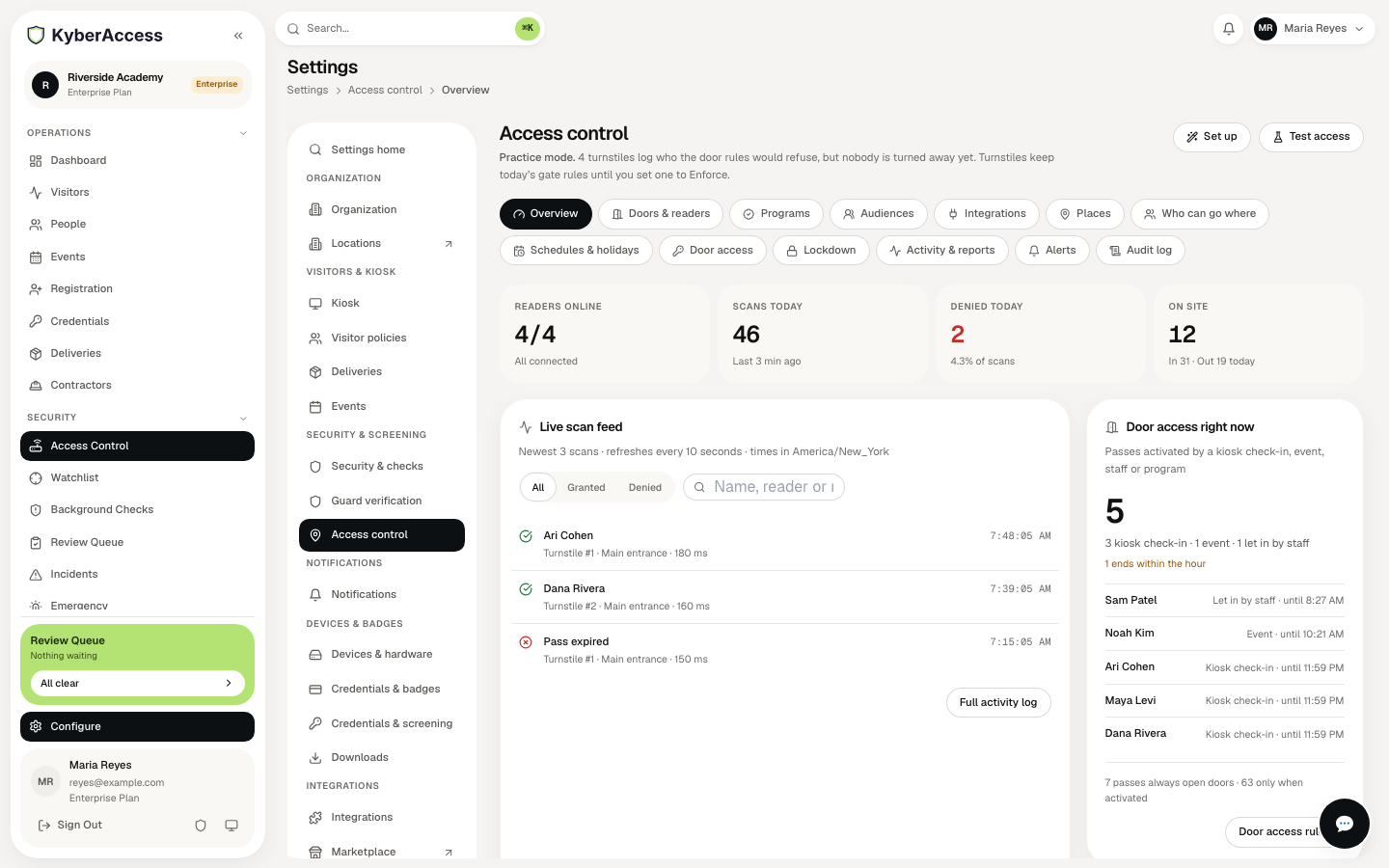
- The header of Access control always says where you stand: watch-only, Practice mode, or how many turnstiles are on Enforce.
- Overview › Door access right now lists who is activated, and why, and whose activation ends within the hour.
- Holders see it too: their pass page and Wallet card say whether the pass opens the turnstiles any time or needs a kiosk check-in, and the guard's Scan a pass screen shows a Turnstiles line.
- Every change is listed in Configure › Access control › Audit log, with CSV downloads of changes, door decisions and activations.
What does not change
Door access applies only to credential passes. One-time kiosk visitor passes, printed badges, event tickets and pre-registration QR codes keep working at the turnstile exactly as before, in every mode.
Settings that change this
| Setting | Where | Default | Effect |
|---|---|---|---|
| Credential type default | Door access › Credential types | Staff types Always; visitor, parent, guest, legacy Only when activated | Door access for passes of that type with no own setting |
| After a kiosk check-in, the pass stays active | Door access › Activation rules | Until midnight | Length of a kiosk activation |
| Event guests who get access | Door access › Activation rules | Everyone invited | Which guests an event activates |
| Minutes before / after | Door access › Activation rules | 60 / 30 | Event activation window |
| Review queue approval activates the pass | Door access › Activation rules | Off | Approval activates until midnight |
| Door control mode | Doors & readers › Door control | Off | Off, Practice or Enforce per turnstile |
Troubleshooting
- A visitor was refused with "CHECK IN AT KIOSK". That turnstile is on Enforce and the pass has no open activation. Check them in at the kiosk, or use Activate now on the pass.
- A staff member was refused. Their pass, or its type, is set to Only when activated. Set the pass to Always (staff) on its Access tab.
- The pass says Not active, but the person still got in. The turnstile is on Practice or Off. Nothing is refused until a turnstile is on Enforce.
- An event guest is not activated. Their pass is missing a name or date of birth, or screening isn't clear. Finish their registration.
- Something unexpected is being refused. Select Stop enforcing at this site on Doors & readers, then review the turnstile's 30-day list.