When a gate, the iPad kiosk or a guard refuses a credential, KyberAccess records why. Find the reason, then fix the credential or the setting behind it. Guards: if you are not sure why someone is refused, do not let them in; call an admin.
Who this is for
- Guards and front desk: reading the refusal at the door.
- Owners and admins: finding the reason and fixing it. Credentials need the Pro plan or higher.
Before you start
Have the person's name, roughly when they were refused, and where (which gate, the iPad kiosk, or a guard's phone or tablet).
Menus: steps show the app launcher first and the classic menu in brackets. See Find your way around to tell which one you have.
Step 1: find the reason
At a gate or door reader 1. Open Apps › Access › Activity (classic menu: Configure › Access control › Activity & reports). 2. Set From and To around the time, pick Denied under All results, and search the person's name. 3. Click Why? on the row. The explanation names the cause and offers a fix button (see Activity, reports and "Why was this denied?").
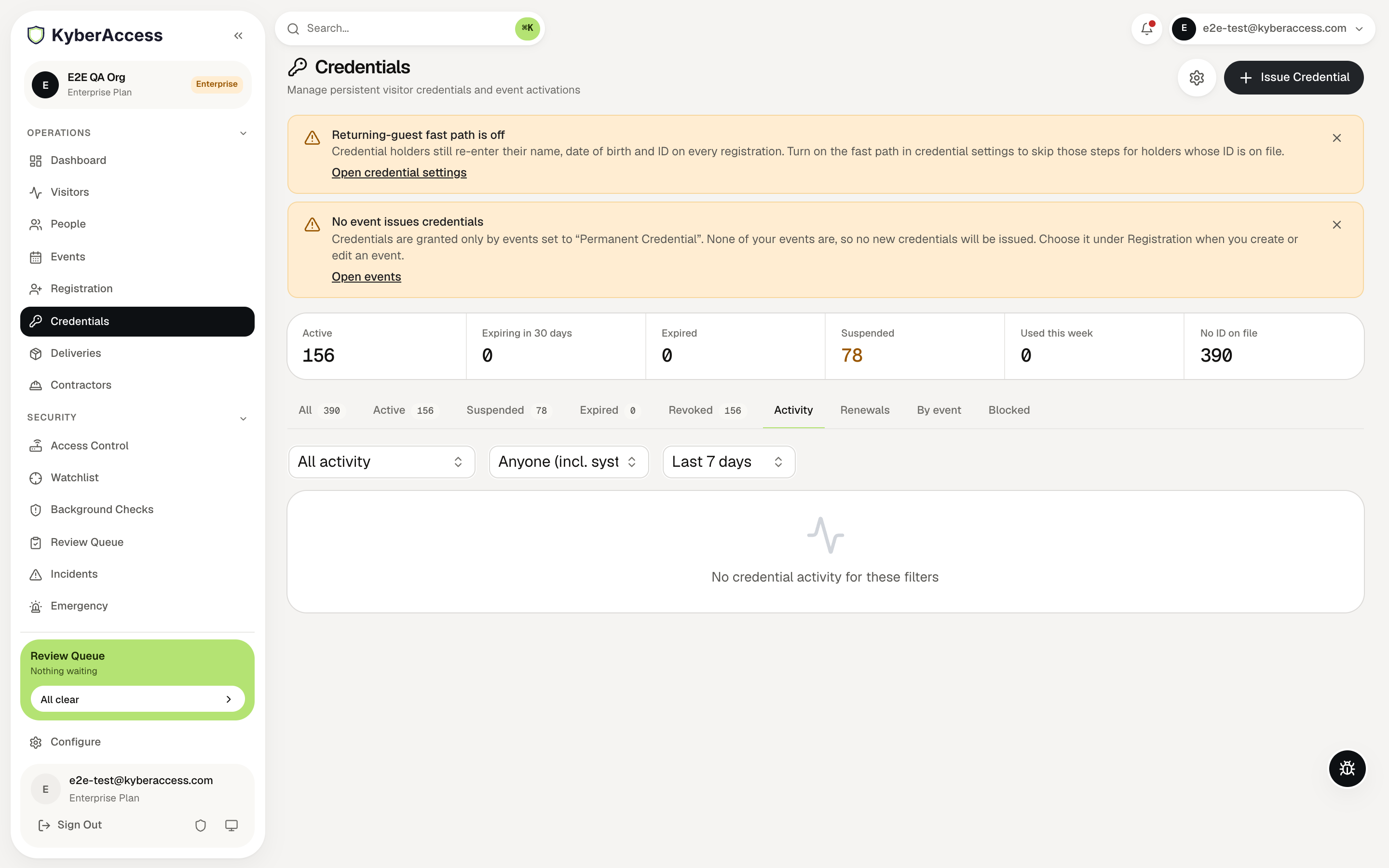
At the iPad kiosk 1. Open Apps › Access › Credentials (classic menu: Credentials under Operations), search for the person and select Open full credential. 2. On the Timeline tab, tick Scans & check-ins only. A refusal shows as Kiosk check-in — refused with the reason.
In guard mode (Quick Scan) A refused pass shows a red DENIED screen with the reason (not valid here, or expired). On guard mode's Scan a pass screen it shows REFUSED — do not admit on this pass. Look the person up in Credentials and check the status. Guard mode scans are not recorded on the credential's timeline.
Step 2: match the reason to the fix
| Reason | What it means | Fix |
|---|---|---|
| Credential expired / Credential has expired | Its expiry date has passed. | Renew it: on Credentials, open Renewals, or edit the expiry on the credential. |
| Credential not active / Credential is suspended / Credential is revoked | Staff suspended or revoked it. | Reinstate a suspended credential. A revoked one must be reissued. |
| Watchlist match (at the kiosk: your watchlist denial message) | The holder's name matched your watchlist. | A guard handles it in person. Remove or correct the entry on Watchlist only if the match is wrong. |
| Background check not cleared (kiosk: your screening denial message) | The holder's check flagged, or a fresh check at the kiosk flagged. | Review it in Review queue / Screening in the Security app (classic menu: Review Queue / Background Checks). |
| We could not complete check-in automatically (kiosk) | A screening could not finish. | Check them in at the front desk (see When screening could not run). |
| Event already over / Event not open yet | An event pass used outside the event's window (30 minutes before start to 30 minutes after end). | Wait for the window, or give them a credential instead of an event pass. |
| Single-use pass already used / This QR pass has already been used | A one-time pass was scanned once already. | Issue a new pass. |
| Code not recognised / QR code not recognized | Not a KyberAccess code for your organization: another system's code, a deleted or replaced credential, or a screenshot of an old pass. | Check they are showing the latest pass. If they lost it, see Handle a lost pass. |
| Belongs to another organization | A valid credential, but for a different school or company. | Issue one in your organization if they should have access. |
| Reader could not reach the server | The gate lost its connection and refused. | Check the reader's network (see Access alerts (reader health)). |
Step 3: check the person isn't holding an old code
Reissuing a credential gives it a new QR code. The old code stops working. If the person still has the old email or Wallet pass, send the new one: open the credential and click Resend pass, or tick it on Credentials and select Resend Pass (owners and admins). It emails the holder their existing QR code; nothing new is created.
What a refusal does not mean
- A background-check flag does not suspend the credential by itself. A flagged person can still be admitted at a gate until staff suspend the credential.
- Turning on Require active (non-expired) credential in Credential Policy changes nothing: expired and inactive credentials are always refused.
Troubleshooting
- No denied row in Activity & reports → the scan never reached KyberAccess (reader offline or the code wasn't read) → check the reader in Doors & readers.
- "Allowed today, rules would deny" → this was not a refusal. The gate let them in; access rules being observed there would have refused. See Test who would get in.
- The credential is active and in date but the kiosk still refuses → read the exact reason on the Timeline: it is usually the watchlist or a screening result, not the credential.
- A guard's scan says "Something went wrong" → KyberAccess could not be reached; this is not a decision → scan again; if it persists, look the person up in Credentials as above.