KyberAccess comes in two layouts. Most of this help center shows both: the app launcher path first, then the classic menu path in brackets. This article helps you tell which one you have, and shows where everything is in each.
- If you see an Apps button (grid icon) at the top of the sidebar, your organization uses the app launcher. The sidebar shows one app at a time, and settings live under Settings.
- If your sidebar lists groups such as Operations, Security and Insights, with Configure at the bottom, you have the classic menu.
Video: tour of the new app menu
Prefer to watch? This video walks through the app launcher in six short chapters. Open the video (2 minutes 36 seconds, captions on). Smaller file for phones: 720p video.
Chapters:
- Home (0:00)
- App button & launcher (0:22)
- Inside an app (1:01)
- People in every app (1:22)
- Search everything (1:46)
- On your phone (2:10)
Who this is for
All staff. What you see depends on your role and your plan. Guards and front desk staff open in guard mode (see below).
Before you start
Sign in at app.kyberaccess.com. See Sign in: SSO, passkeys and two-step verification.
App launcher (computer)
The left sidebar shows one app at a time. At the top are the Apps button (grid icon) and the name of the app you are in, for example Front Desk. Select either one, or press ⌘. (Mac) or Ctrl+. (Windows), to open the Apps panel.
The Apps panel has these parts: - Apps: one tile for each app your organization has and your role can open. Each tile shows a count line and one quick action, such as + Check in a visitor. - Get more (Owners and Admins only): apps your organization doesn't have yet. - Shared records: People, Activity, Places and Devices. These are the same records in every app. - Screens: full-screen views such as Guard, Security monitor, Visitor kiosk, Student kiosk and Lobby display, depending on your role. - At the bottom: Settings, Home and Switch to classic menu (shown while your organization lets people choose their own menu style).
The apps, in order: Front Desk, Events, Students, Security, Access, Deliveries, Workspace, Parking & Vehicles and Insights.
Inside an app, the sidebar lists that app's pages. Below a divider are People and the app's own settings, for example Front Desk settings (shown only if you can open Settings). In this help center, app pages are written Apps › app › page, for example Apps › Security › Review queue.
Home is the dashboard (the same widgets as before) with a Your apps strip at the top. On Home the sidebar shows Today, People, Activity, Places, Devices and Settings.
Where classic pages went:
| Classic menu | App launcher |
|---|---|
| Operations: Dashboard, Visitors, People, Events, Registration, Credentials, Deliveries, Contractors | Home, Front Desk › Visitors, People (Shared records), Events › Events, Pre-register a visitor (Front Desk quick action), Access › Credentials, Deliveries, Front Desk › Contractors |
| Security: Access Control, Watchlist, Background Checks, Review Queue, Incidents, Emergency | Access (Programs, Doors & readers, Who can go where, Activity, Lockdown), Security › Watchlist, Security › Screening, Security › Review queue, Security › Incidents, Security › Emergency & drills |
| Campus: School Setup, Student Pickup, Student Check-In, Hall Pass, Volunteers, Carpool Queue | Settings › Apps › Students › School setup, Students › Dismissal & pickup, Students › Roster & attendance, Students › Hall passes, Front Desk › Volunteers, Students › Carpool |
| Workspace: Desk Booking, Room Booking | Workspace › Desks, Workspace › Rooms |
| Vehicles: Vehicle Registry, LPR Dashboard, Parking Lot | Parking & Vehicles: Overview, Plate reads, Lots |
| Insights: Analytics, Activity Log, Audit Trail, Documents, Email Tracking, Compliance, Reports | Insights › Overview, Activity (Shared records), Insights › Audit trail, Front Desk › Documents, Insights › Email delivery, Insights › Compliance, Insights › Reports |
- Your role hides apps and pages you can't use. See Roles and what each one can do.
- Apps your plan doesn't include are not in the Apps list. Owners and Admins see them under Get more.
App launcher (phone)
On a phone, the bar at the bottom of the screen shows the first four pages of the app you are in, plus Apps. Tap Apps to open the Apps panel and switch app, open Settings, or go Home. On Home, the first tab reads Home.
Settings (app launcher)
Open Settings from the bottom of the Apps panel, from the Home sidebar, or with the gear for an app (for example Front Desk settings).
The Settings rail has Settings home and seven sections: 1. Organization 2. Apps: one entry for each of your apps, for example Front Desk or Access 3. Security & policies 4. People & roles 5. Devices & hardware 6. Integrations 7. Billing & modules
An app's settings are under Settings › Apps › app, for example Settings › Apps › Front Desk › Auto-checkout. Up to four tabs show across the top; the rest are under More. If you opened them from the app's gear, a Back to app button (for example Back to Front Desk) takes you back to the page you were on.
Some settings are shared by several apps and live in one place, for example Settings › Security & policies › Credentials & screening. Each app's settings show a link to them.
Team members and roles are under Settings › People & roles › Team & roles.
Search
Select Search apps, people, settings… at the top of the page, or press ⌘K (Mac) or Ctrl+K (Windows). On a phone, tap the search bar under the top bar. 1. Type part of a name, page or setting. Search finds apps and screens, actions, people, events, credentials, vehicles, pages and every setting. 2. Inside an app, choose All apps or Only that app to narrow the results. 3. Use the arrow keys and Enter, or select a result. Esc closes search.
With the classic menu, search works as described under "Classic menu" below.
Classic menu
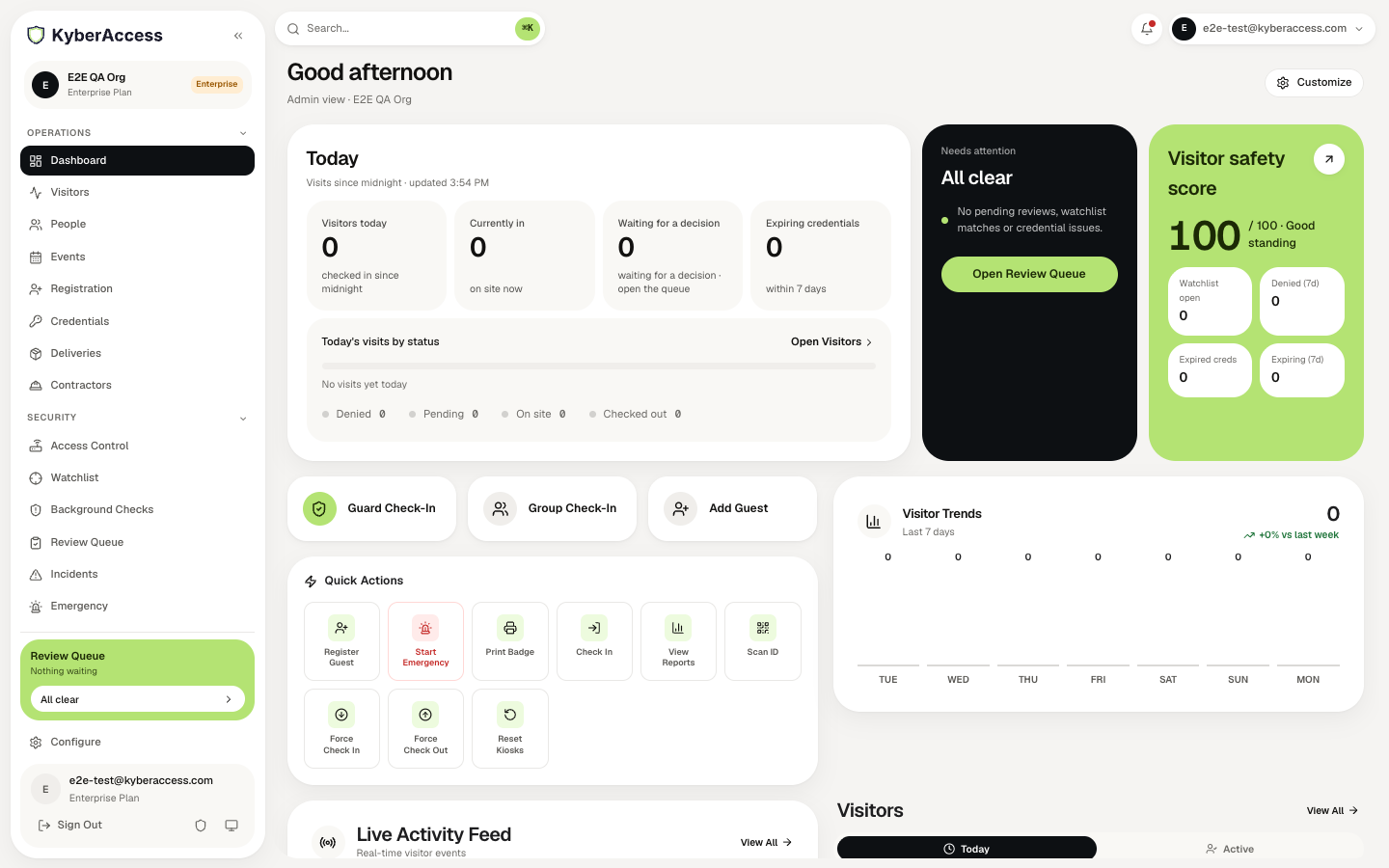
The sidebar (computer)
The sidebar on the left holds the pages you use every day, in groups. Select a group name to fold or unfold it. Select the double arrow at the top to collapse the sidebar to icons.
| Group | Pages |
|---|---|
| Operations | Dashboard, Visitors, People, Events, Registration, Credentials, Deliveries, Contractors |
| Security | Access Control, Watchlist, Background Checks, Review Queue, Incidents, Emergency |
| Campus | School Setup, Student Pickup, Student Check-In, Hall Pass, Volunteers, Carpool Queue |
| Workspace | Desk Booking, Room Booking |
| Vehicles | Vehicle Registry, LPR Dashboard, Parking Lot |
| Insights | Analytics, Activity Log, Audit Trail, Documents, Email Tracking, Compliance, Reports |
- Your role hides pages you can't use. For example, a Viewer doesn't see Visitors. See Roles and what each one can do.
- Your plan locks some pages. Pages that need a higher plan or an add-on stay visible with a lock. Selecting one explains what it needs.
- At the top: your organization name and plan.
- At the bottom: the Review Queue card ("Nothing waiting" or how many people are waiting for a decision), Configure, and your account card with Sign Out and two shortcuts that open in a new tab: the Security Monitor (shield icon) and the Visitor Kiosk (screen icon).
The tab bar (phone)
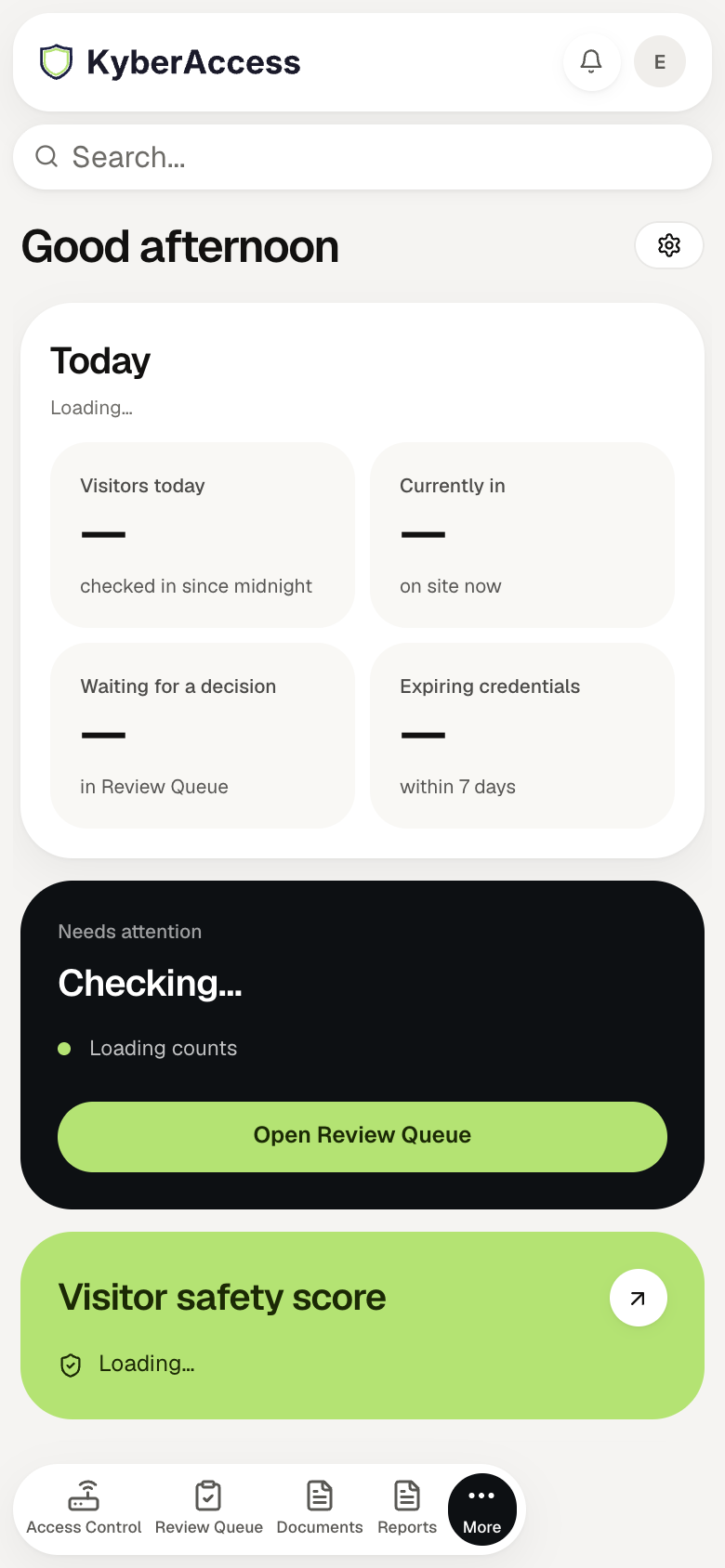
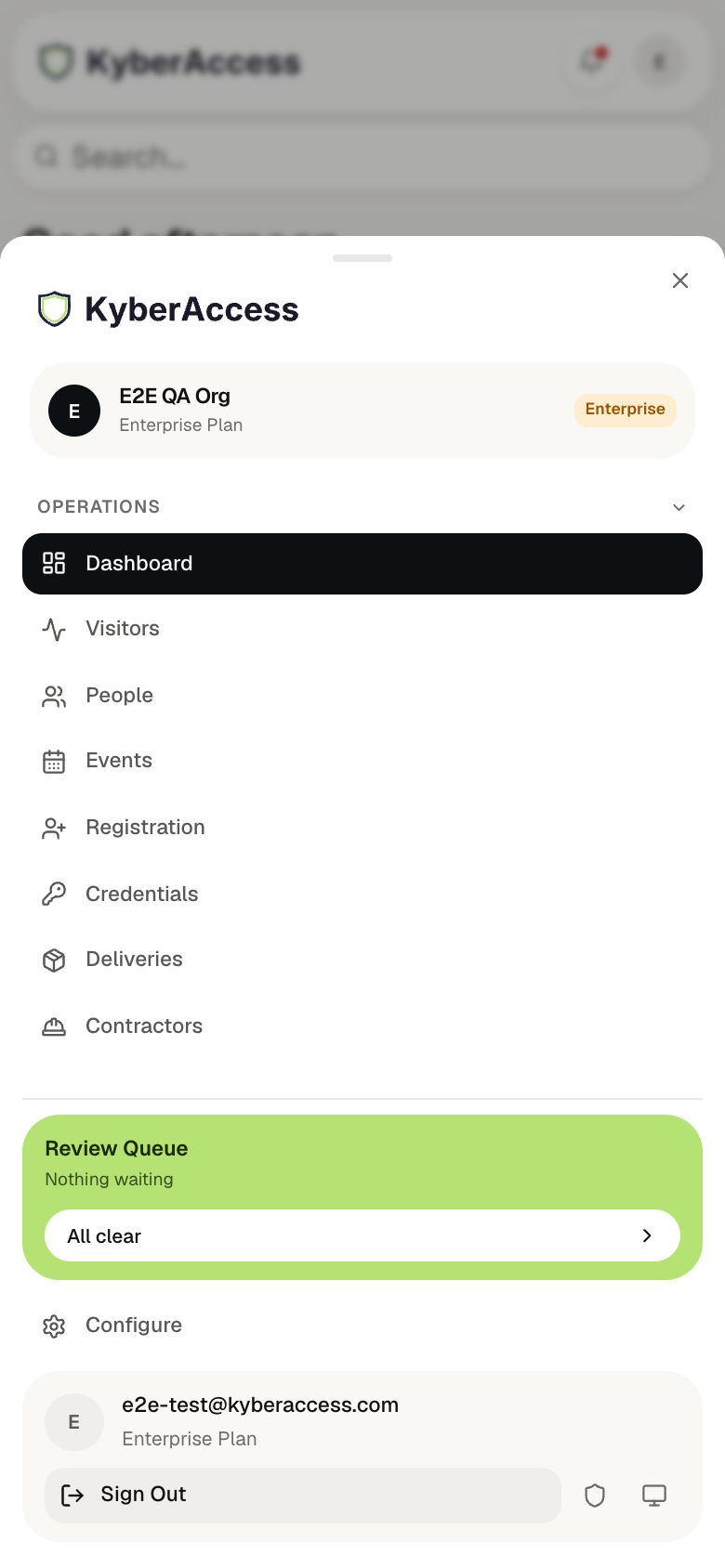
On a phone the sidebar becomes a bar at the bottom of the screen: Home, Visitors, People, Events and More. Select More to open the full menu, including Configure and Sign Out.
Configure (settings)
Select Configure at the bottom of the sidebar to open Settings. Only Owners and Admins can open it.
The Settings home has three parts: 1. Search settings: type a plain word such as "logo", "timeout", "SMS" or "badge printer" and pick a result. 2. Recommended setup: the first-hour checklist. See Set up KyberAccess in your first hour. 3. Seven categories: Organization, Visitors & kiosk, Security & screening, Notifications, Devices & badges, Integrations, Account & plan. Each card lists its areas; select one to open it.
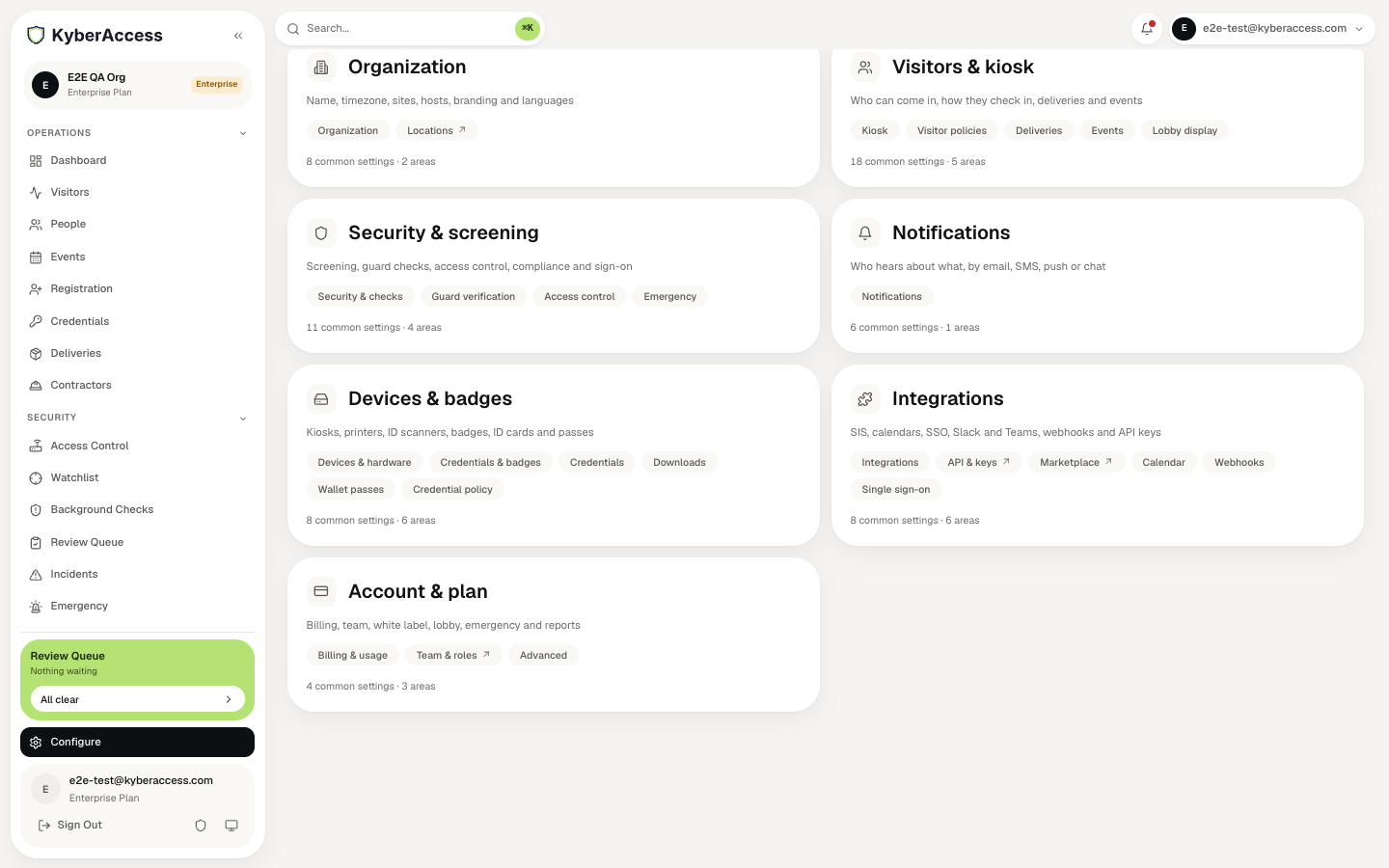
Inside an area, the left rail lists every area and the tabs across the top switch between sections. Some sections are tucked under More. In this help center, classic paths are written Configure › area › tab, for example Configure › Security & checks › Single sign-on. On a phone, use All settings to go back.
Many pages also have a gear button that opens their own settings (Kiosk, Visitors, Events and Deliveries).
Search (classic menu)
Select Search... at the top of the page, or press ⌘K (Mac) or Ctrl+K (Windows). 1. Type part of a name, email, event or credential. 2. Narrow results with the chips: All, People, Visitors, Events, Credentials, Actions. 3. Use the arrow keys and Enter, or select a result. Esc closes search.
With nothing typed, search lists Quick Actions such as "Go to Visitors", "Go to Credentials", "Go to Registration" and "Create Event"; each opens that page. Your recent searches are kept on that browser. Press Enter with no result highlighted to see the full results page.
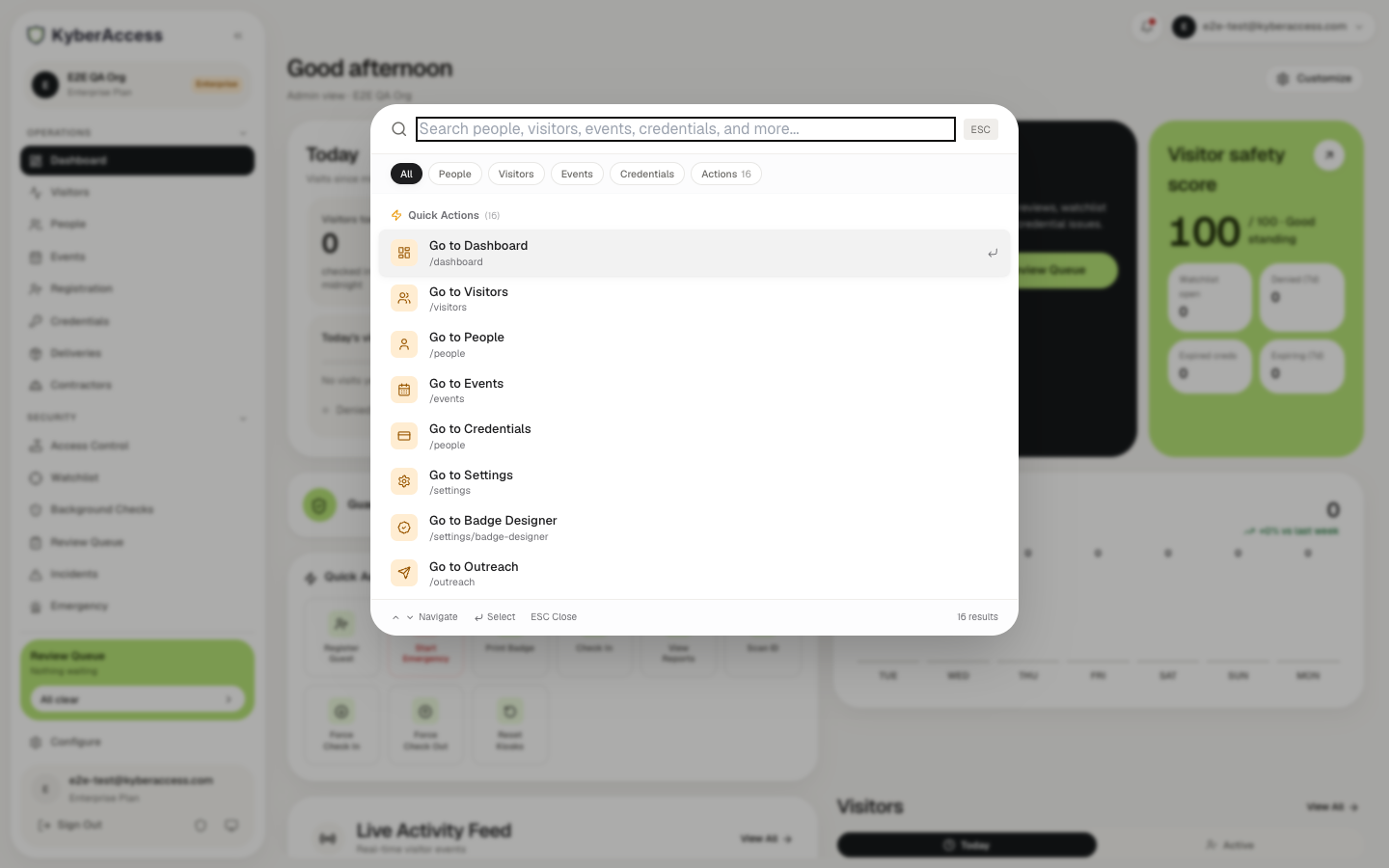
On a phone, the Search... box under the top bar currently doesn't return results. Use search on a computer, or open the page from the tab bar or More.
Switch between the app launcher and the classic menu
Your organization picks a menu style for everyone, and (unless an admin turns it off) each person can pick their own. Your own choice is saved to your account, so it follows you to every computer and phone you sign in on.
Change it for yourself 1. Select your name at the top right, then My Profile. 2. Under Preferences, choose a Menu style: Use organization default, App launcher or Classic.
It saves as soon as you pick. Quicker ways to switch: - With the app launcher, select Switch to classic menu at the bottom of the Apps panel. - With the classic menu, select Switch to app launcher near the bottom of the sidebar (shown if your organization uses the app launcher, or once you have picked a style of your own). - Press ⌘K (Ctrl+K on Windows) and type classic or launcher, then pick Switch to classic menu or Switch to app launcher.
Change it for your whole organization (Owners and Admins) 1. Go to Settings › Organization › General (classic menu: Configure › Organization › General). 2. Under Menu style, choose App launcher (new) or Classic menu (everything in one sidebar). 3. Leave Let people choose their own on to let each person switch for themselves, or turn it off so everyone sees the style you picked. 4. Select Save menu style.
Your own screen changes right away. Everyone else sees the new style the next time they open or reload KyberAccess. People who already picked their own style keep it while Let people choose their own is on.
If you don't see Menu style in My Profile, your organization has turned off personal choices. Ask an Owner or Admin.
Account menu
Select your name at the top right for My Profile, Settings, Subscription & Billing, Help & Support and Sign Out. If you belong to more than one organization, you switch organizations here. The bell next to it opens Notifications.
Guard mode
Accounts with the Guard or Front Desk / Security role open in guard mode, a full-screen layout built for the gate and front desk (monitor, visitor log, scan ID, person lookup, alerts). Guard mode accounts always return to it. Owners and Admins who open it (at app.kyberaccess.com/guard) leave with the exit icon (Exit guard mode) at the top right.
With the app launcher, Front Desk / Security and Guard accounts can also open the apps their role already has (for example Front Desk, Students or Security) and leave guard mode with Exit guard mode. After sign-in, Owners and Admins land on Home; Front Desk / Security land on Front Desk on a computer and Guard on a phone; Guards land on Guard; Event Managers land on Events; other roles return to the last app they used.
Troubleshooting
- A page I need isn't in my sidebar. Your role doesn't include it. Ask an Owner or Admin to change your role or its permissions. With the app launcher, also check the Apps panel: the page may be in another app.
- A page shows a lock. It needs a higher plan or an add-on. Select it to see which.
- Configure (or Settings) isn't there or shows nothing. Only Owners and Admins can open Settings.
- Search on my phone (classic menu). Type in the search box at the top and tap Search (or Enter) on the keyboard. The full results page opens.
- ⌘K does nothing. Click once inside the KyberAccess page first so it has keyboard focus.
- I keep landing on guard mode. That is how Guard and Front Desk / Security accounts are set up. An admin can change your role if you need the full dashboard.
- My screen doesn't match this help center. Check which layout you have (see the top of this article) and follow the path for it: app launcher first, classic menu in brackets. You can switch layouts in My Profile › Preferences › Menu style.
- The menu changed and I didn't change it. An Owner or Admin may have changed the organization's menu style. Pick your own in My Profile › Preferences, if your organization allows it.