KyberAccess runs in a web browser for staff, and on an iPad (or any browser) for the visitor kiosk. You don't install anything on staff computers. This page lists what each part needs.
Who this is for
Admins and IT staff planning a rollout.
Before you start
You need an internet connection everywhere KyberAccess is used. It is a cloud service: kiosks and staff browsers talk to app.kyberaccess.com.
Menus: steps show the app launcher first and the classic menu in brackets. See Find your way around to tell which one you have.
Staff dashboard (computers, tablets and phones)
| What | Requirement |
|---|---|
| Browser | A current version of Chrome, Safari, Edge or Firefox |
| Screen | Works from phone size up. On a phone, the menu moves to a bottom tab bar |
| Address | app.kyberaccess.com (or your school's own web address if you set one up) |
| Passkeys | Safari, Chrome or Edge on a device with Face ID, Touch ID, Windows Hello or a security key |
| Pop-ups and new tabs | Allow new tabs from app.kyberaccess.com: the Security Monitor and Visitor Kiosk (under Screens in the Apps panel; classic menu: shortcuts in the sidebar footer) open in their own tab |
You can add KyberAccess to your phone's home screen from the browser's share or install menu.
iPad kiosk app
| What | Requirement |
|---|---|
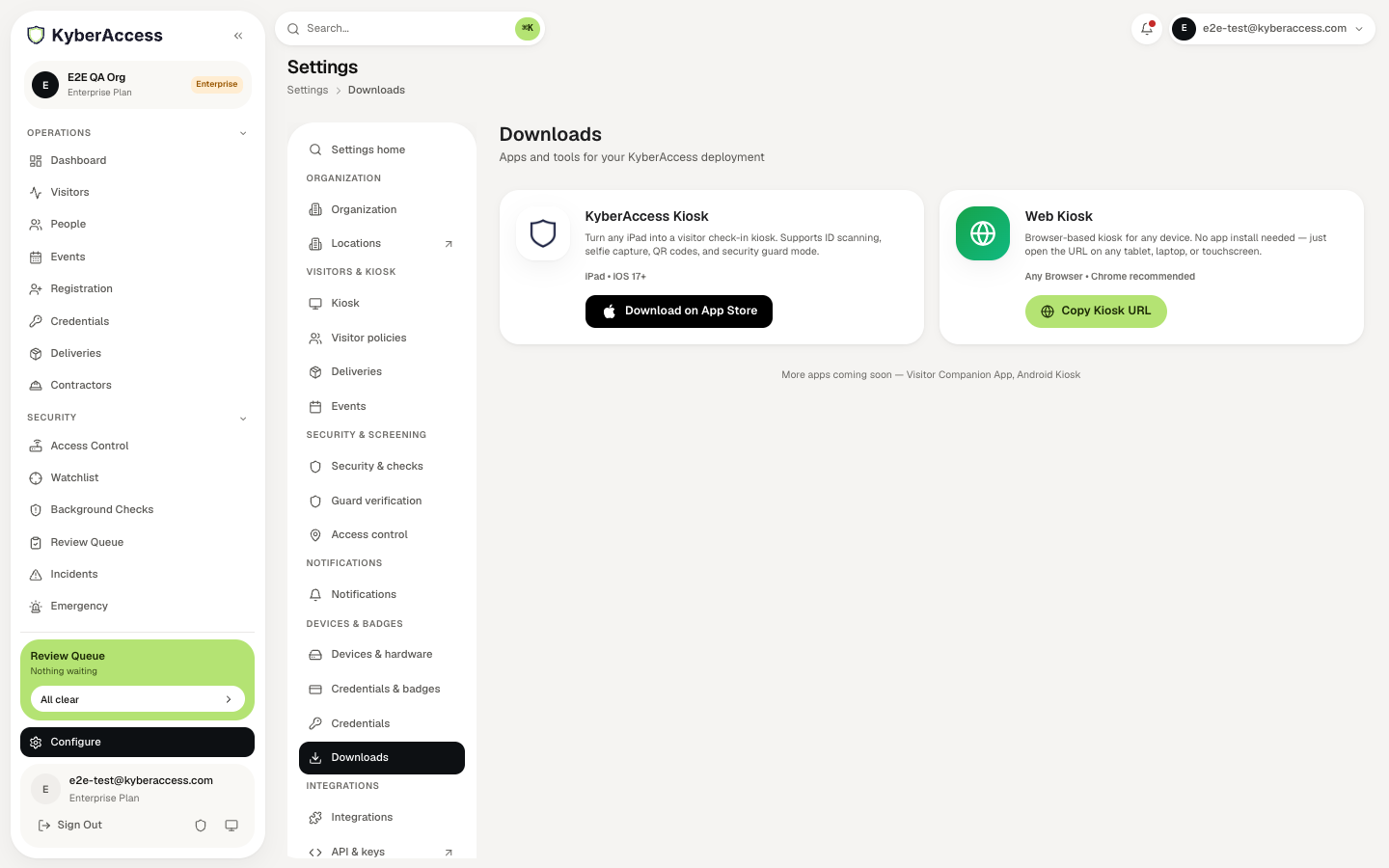
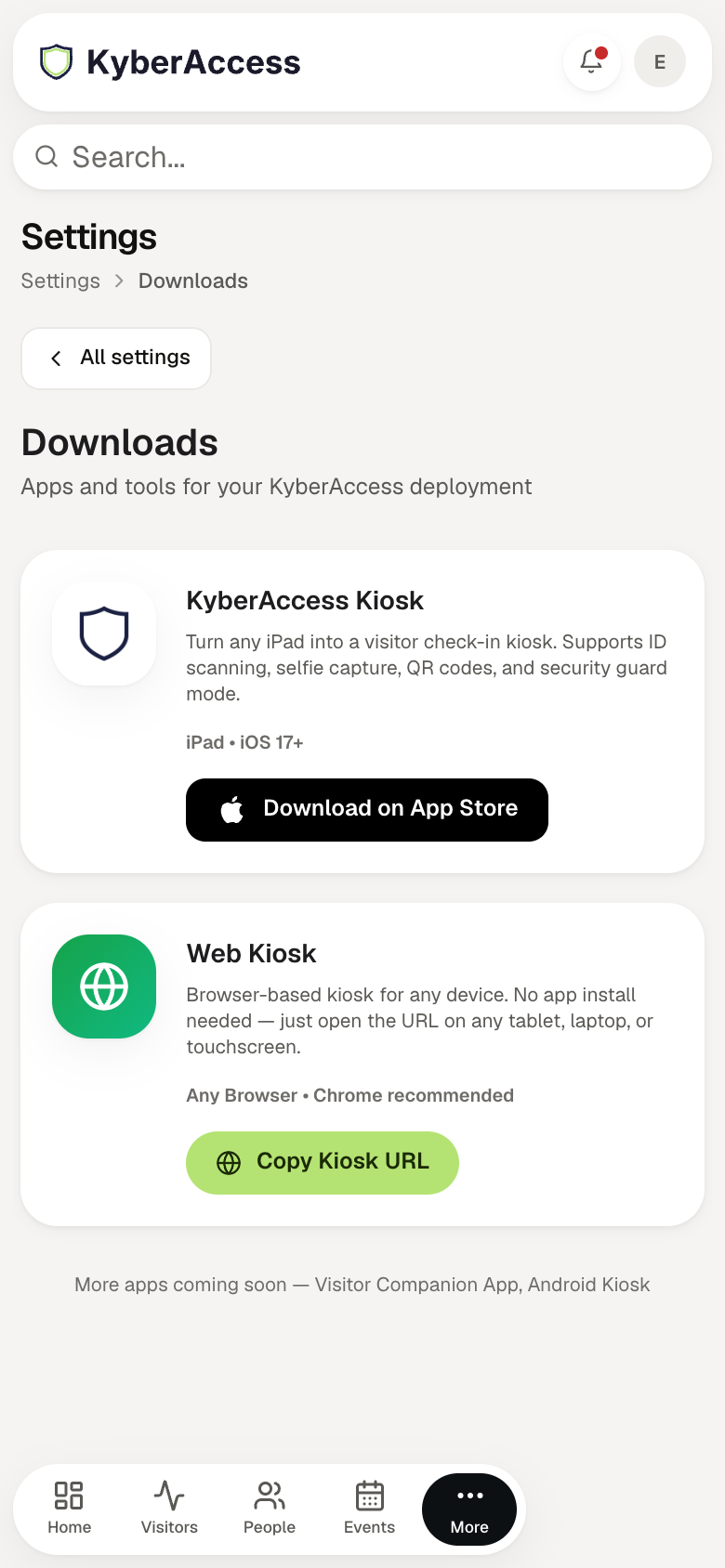
| App | KyberAccess Kiosk from the App Store. The link is on Settings › Devices & hardware › Downloads (classic: Configure › Downloads) |
| Device | iPad only (not iPhone) |
| iPadOS | iPadOS 16 or later (the App Store listing requires 16.0; Settings › Devices & hardware › Downloads (classic: Configure › Downloads) shows "iPadOS 16+") |
| Camera | Front camera for selfies; the camera also scans driver's license barcodes and QR codes. Allow camera access when the app asks |
| Connecting it | Settings › Devices & hardware › Kiosks (classic: Configure › Devices & hardware › Kiosk Devices): scan the setup QR code, then enter a 6-digit enrollment code. See Set up KyberAccess in your first hour |
To keep visitors inside the app, turn on Guided Access on the iPad (Settings › Accessibility › Guided Access), then triple-click the side or home button while the kiosk app is open.
Web kiosk (any device)
| What | Requirement |
|---|---|
| Browser | Any current browser. Chrome is recommended |
| Device | Any tablet, laptop or touchscreen with a camera if you use the photo or ID steps |
| Address | On Settings › Devices & hardware › Downloads (classic: Configure › Downloads), select Copy Kiosk URL and open it on the device |
Badge printers
Add printers at Settings › Devices & hardware › Printers (classic menu: Configure › Devices & hardware › Badge Printers). These models are set up automatically (label size and print settings filled in for you):
| Make | Models | Connects by |
|---|---|---|
| Brother | QL-820NWB, QL-1110NWB | Wi-Fi, Bluetooth, USB, AirPrint |
| Brother | QL-810W | Wi-Fi, USB, AirPrint |
| Brother | QL-800 | USB only |
| DYMO | LabelWriter 450, 550, 5XL | USB only |
| Zebra | ZD421, ZD621 | Wi-Fi, USB, Bluetooth, AirPrint |
| Rollo | X1038 | Wi-Fi, USB, AirPrint |
| Any | AirPrint compatible printer | Wi-Fi (prints at 62 mm width) |
An iPad prints over the network, so for the iPad kiosk choose a Wi-Fi or AirPrint printer on the same network as the iPad. Assign a printer to each iPad under Device → Printer Assignment.
ID scanning
- iPad kiosk and web kiosk: the camera reads the barcode on the back of US and Canadian driver's licenses and state IDs. No extra hardware.
- Desk scanner: Settings › Devices & hardware › ID scanners (classic menu: Configure › Devices & hardware › ID Scanner) shows the status of a USB desk scanner. The scanner companion app download is not available at the moment.
Network
- Allow outbound HTTPS (port 443) to app.kyberaccess.com and api.kyberaccess.com.
- Kiosk iPads need a reliable Wi-Fi connection at the entrance. If the connection drops, check-ins can't reach the server until it returns.
Troubleshooting
- The App Store says the app isn't compatible. It needs an iPad on iPadOS 16 or later. Use the web kiosk on older devices.
- The kiosk can't take a photo. Camera permission was denied. On the iPad open Settings › KyberAccess Kiosk and turn on Camera. In a browser, allow the camera for app.kyberaccess.com.
- The printer prints at the wrong size. Re-select the exact Printer Model under Badge Printers so the right label size loads.
- The Security Monitor or Kiosk shortcut does nothing. Your browser blocked the new tab. Allow pop-ups for app.kyberaccess.com.