When you're stuck, there are three ways to reach us from inside KyberAccess: the chat button on every page, the Help & Support page, and the bug reporter for things that look broken. This article shows which to use and what to include so we can fix it fast.
Who this is for
Everyone with a staff account. Parents and visitors should contact the school, not KyberAccess.
Before you start
Have these ready: what you were trying to do, the page you were on, what you expected, what happened instead, and the time it happened.
Menus: steps show the app launcher first and the classic menu in brackets. See Find your way around to tell which one you have.
Chat with us
- Select the round chat button at the bottom right of any dashboard page.
- Select Send us a message (or Continue the conversation if you have written before).
- Type your question. You'll see "We typically reply in a few hours."
The chat panel also has Browse the help center, Suggest a feature, popular articles and a Help tab you can search. It doesn't appear on kiosk, guard or parent-facing pages.
If the chat doesn't open, the panel says "Chat didn't load" and offers an email link: write to support@kyberaccess.com.
The Help & Support page
Open your account menu (your name, top right) and select Help & Support, or go to app.kyberaccess.com/help.
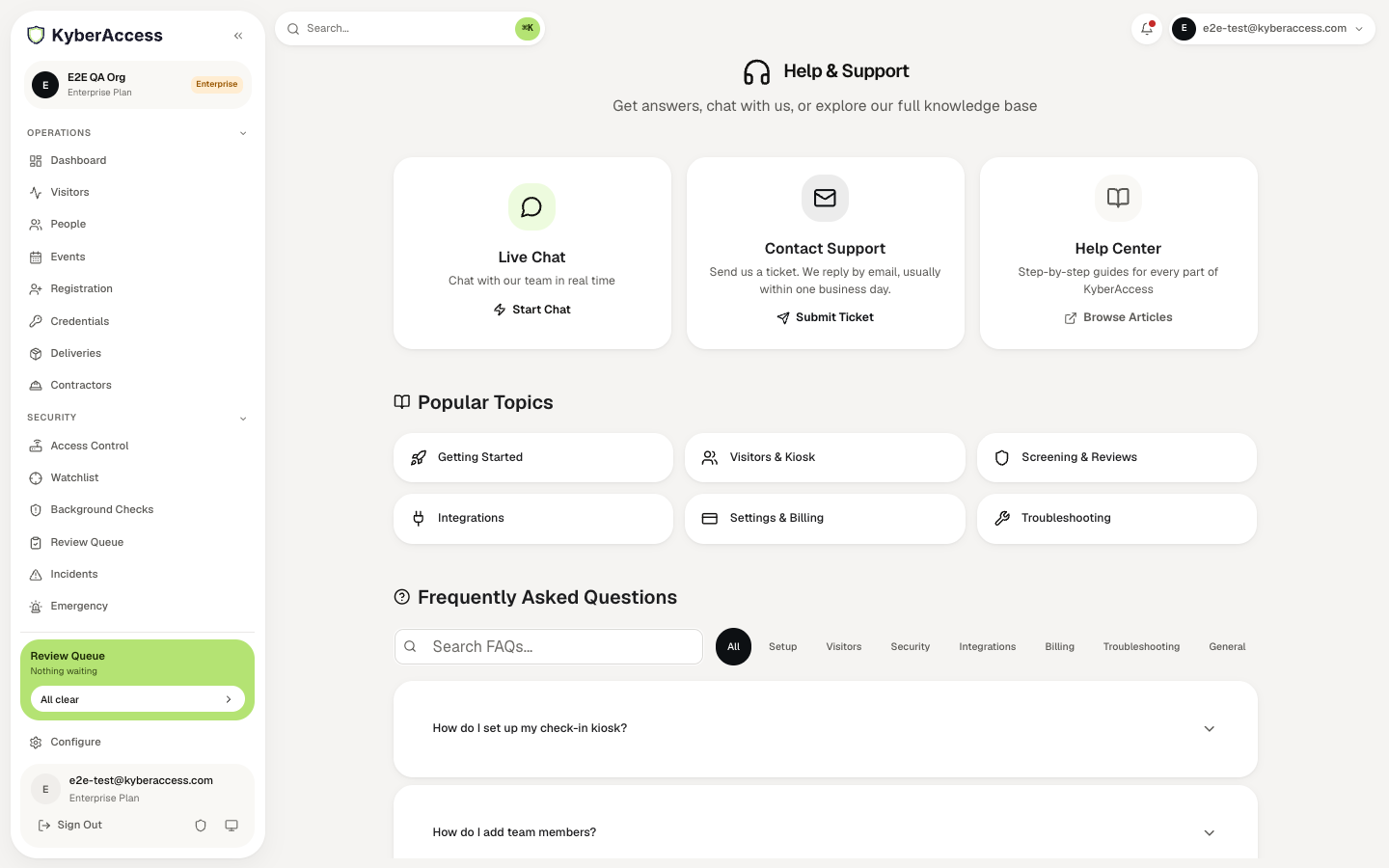
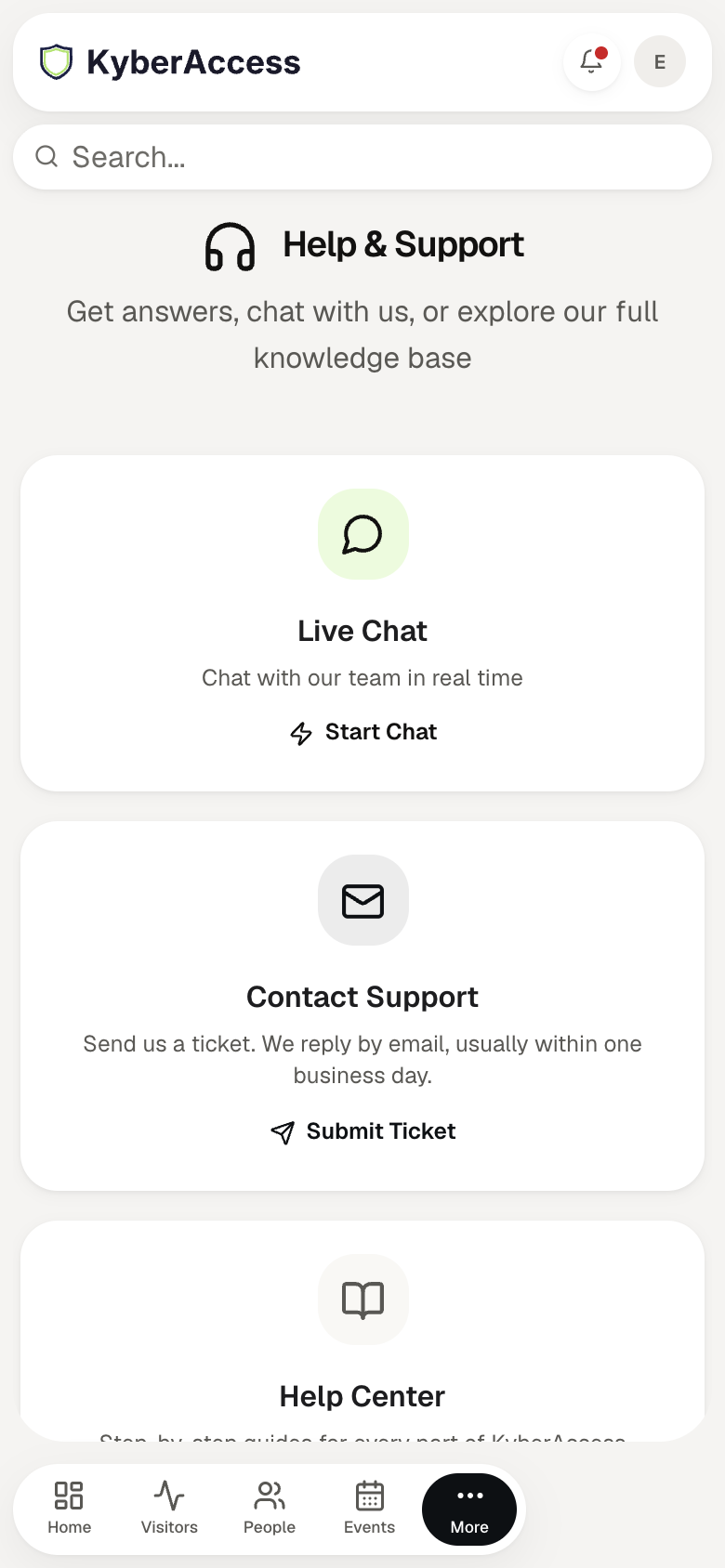
- Live Chat › Start Chat opens the same chat as above.
- Help Center › Browse Articles opens this help center in a new tab. Popular Topics open its main sections: Getting Started, Visitors & Kiosk, Screening & Reviews, Integrations, Settings & Billing and Troubleshooting.
- Frequently Asked Questions has short answers. Open one and select Read the full guide for the matching article here.
Send a support ticket
- On Help & Support, select Contact Support › Submit Ticket.
- Enter a Subject, choose a Category and Priority, and describe the problem in Description.
- Select Submit Ticket. You see Ticket sent with your ticket number.
The ticket comes to our support team from your own email address, with your organization and role attached, and we reply to that address. We usually reply within one business day. If you see "Your ticket could not be sent", nothing was sent: use Live Chat or email support@kyberaccess.com.
Not signed in? Use the web form at kyberapps.freshdesk.com/support/tickets/new and choose KyberAccess as the product.
Report a bug with a screenshot
Use this when something looks broken: a wrong number, a button that does nothing, an error message. 1. On the page where the problem is, select the bug button at the bottom right (above the chat button). 2. Select Report a Bug. A screenshot of the page is taken for you. Click on the screenshot to mark the problem spot (Clear markers removes them). 3. Enter a Title and a Description: what you did, what you expected, what happened. 4. Choose a Priority and a Category (UI Bug, Functionality, Performance, Security, Other). 5. Select Submit Report. You'll see Report Submitted.
The report includes the page address, your browser and screen size, and any recent error messages from the page, so you don't need to copy them.
Console Errors in the same menu lists errors the page recorded. Ctrl+Shift+E sends them to us in one step.
The screenshot shows whatever is on screen. If it contains a student's or visitor's personal details, mark only what we need and say so in the description.
Urgent problems
If the kiosk or gate is down during arrival or dismissal: 1. Start a chat and put "URGENT" and your school name in the first line. 2. Fall back to your paper sign-in process until it is fixed.
Support hours shown in the app are Monday – Friday, 9 AM – 6 PM ET.
What happens next
- Chat replies come back in the chat panel, and to your email if you have left.
- Bug reports go straight to our engineering team. We contact you through chat or email if we need more detail.
Troubleshooting
- I don't see the chat or bug buttons. They are hidden on kiosk, guard mode and parent pages. Open the dashboard. A browser ad blocker can also hide the chat; allow app.kyberaccess.com.
- "Chat widget is loading — please try again in a moment." Wait a few seconds and select Start Chat again.
- "Too many reports. Please wait a few minutes." The bug reporter limits how often you can send. Put everything in one report.
- "You just sent a ticket. Wait a moment before sending another." Tickets are limited to one every 30 seconds. Add more detail by replying to our email instead.
- I sent a ticket and haven't heard back. Check your spam folder for a reply from our support desk, then ask in Live Chat with your ticket number.