The Compliance page offers four audit report templates (SOC 2 Type II, HIPAA, ITAR and a general visitor activity report). Generating them currently fails, so this article shows how to produce the same audit evidence from pages that work today.
Who this is for
Owners and admins on the Enterprise plan. On other plans Compliance shows a lock in the sidebar (in the Insights app, or under Insights in the classic menu).
Before you start
- A compliance report from KyberAccess is a record of who came in and when. It is not a certification. Your auditor decides what evidence they need.
- Check-ins and check-outs must be recorded for the evidence to be complete.
Menus: steps show the app launcher first and the classic menu in brackets. See Find your way around to tell which one you have.
Steps
What the Compliance page offers
- Open Apps › Insights › Compliance (classic menu: Compliance in the sidebar, under Insights).
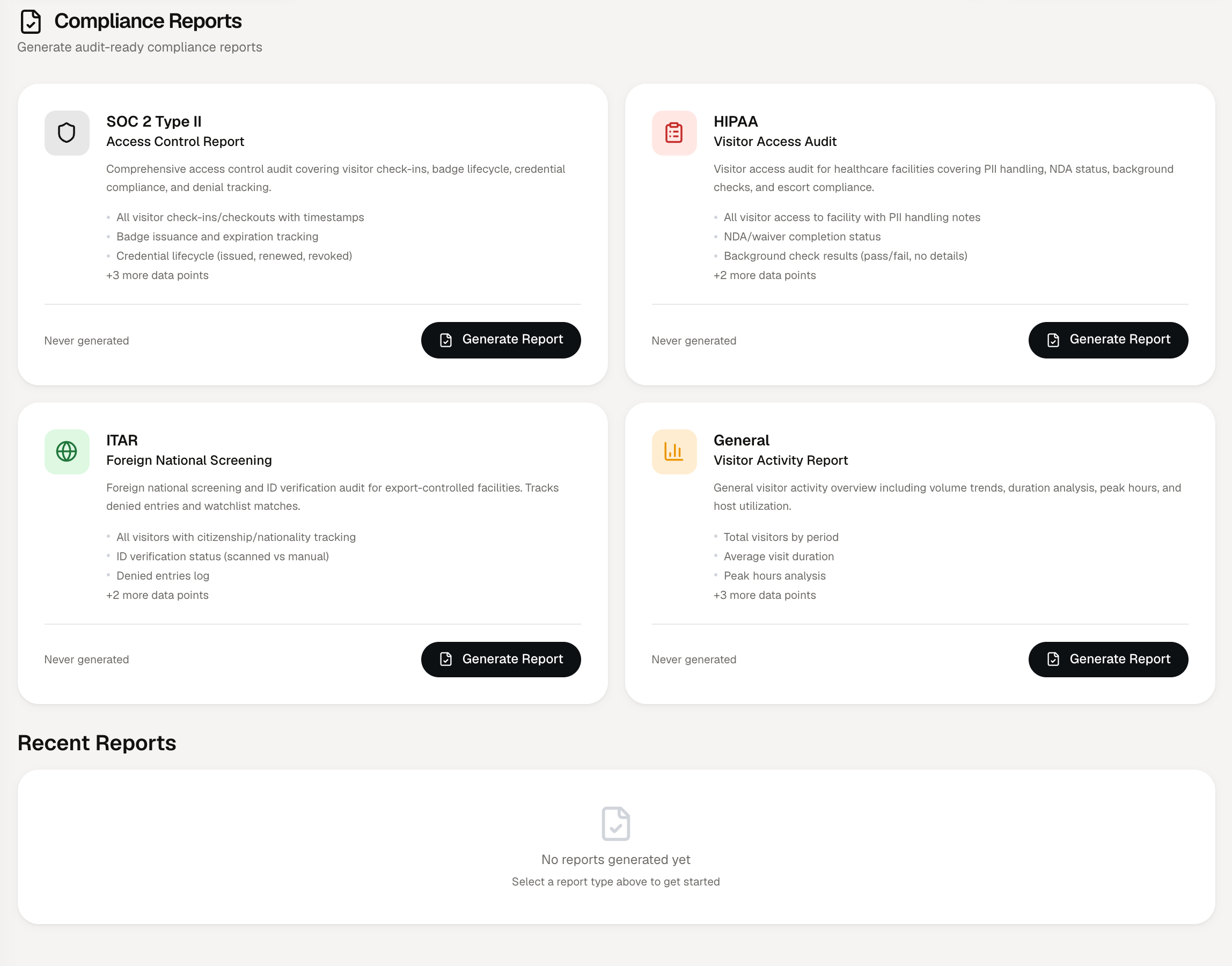
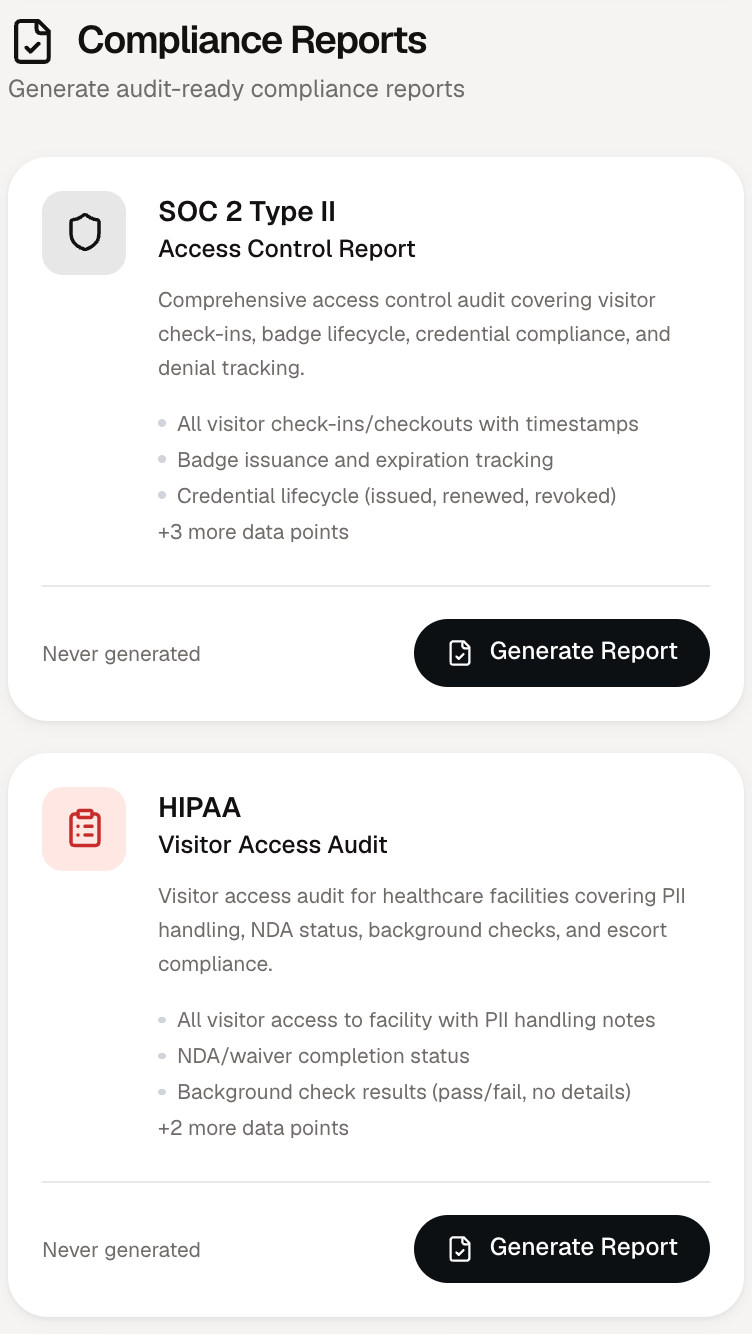
- Each card lists what its report covers: SOC 2 Type II · Access Control Report, HIPAA · Visitor Access Audit, ITAR · Foreign National Screening and General · Visitor Activity Report.
- Clicking Generate Report opens a form with Start Date, End Date, Format (PDF (Print) or CSV) and Include detailed records. Clicking Generate Report in that form currently shows "Failed to generate report" and nothing is created.
Produce audit evidence today
- Visit-by-visit log: go to Analytics, open the Analytics tab, scroll to Compliance Audit Report, set Start Date and End Date, and click Export Audit Report (CSV). It lists check-in and check-out times, host, status, location and visit ID.
- Visitor totals and denials: on Reports, run Visitor Summary, Daily Visitor Log and Denied Entries for the period and click PDF. Use short ranges; see Run and export reports.
- Credential lifecycle: on Credentials, use the Active, Suspended, Expired and Revoked tabs, and open a credential's timeline for issue, renew and revoke history.
- Background checks: on Background Checks, filter the log by date.
- Door and turnstile scans: Apps › Access › Activity (classic menu: Configure › Access control › Activity & reports).
What happens next
Each export is a snapshot of the moment you download it. Keep the files with your audit records; KyberAccess does not store a copy.
Settings that change this
| Setting | Where | Default | Effect |
|---|---|---|---|
| Plan | Settings › Billing & modules › Plan & invoices (classic: Configure › Billing & usage) | — | Compliance needs Enterprise. The Analytics audit export needs Pro or Enterprise |
| Data retention | Settings › Security & policies › Compliance & retention (classic: Configure › Security & checks › Compliance) | — | Records older than your retention period are removed and can't be reported on |
Troubleshooting
- "Failed to generate report" on any Compliance template → Known problem; the report can't be built at the moment. Use the steps above.
- The Analytics audit export shows "Unknown" names and "No" for ID verified and waiver signed → The export can't yet match visits to people or read those fields. Use Reports › Daily Visitor Log (Apps › Insights › Reports; classic menu: Insights › Reports) for names.
- My export is missing older visits → Exports read your most recent 200 visits. Export one week at a time.