KyberAccess tells staff about activity in three ways: emails, the bell in the top bar, and texts to hosts. This article lists every notification that is actually sent today, who gets it, and where you turn it on or off.
Who this is for
Everyone on your team can see the bell and turn off their own weekly digest. Owners and admins change organization-wide notification settings in Settings (classic menu: Configure › Notifications). Each row below names the page.
Before you start
- Each person needs an email address on their team record. Hosts need a mobile number for texts.
- Times follow your organization's time zone (Settings › Organization › General; classic menu: Configure › Organization).
Menus: steps show the app launcher first and the classic menu in brackets. See Find your way around to tell which one you have.
What you can get, and where to control it
| Notification | Sent to | How | Turn it on or off |
|---|---|---|---|
| A visitor has arrived | The host the visitor named | Email, and a text if the host has a phone number | Settings › Apps › Front Desk › Host alerts (classic: Configure › Notifications › Host Notifications). See Notify hosts when their visitor arrives |
| Someone is waiting in the review queue | Owners and admins, or people you pick | Email and bell | Settings › Apps › Security › Review alerts (classic: Configure › Notifications › Review queue). See Get alerted when people are waiting for review |
| Weekly digest | Owners, admins and security staff | Email, Mondays 7:00 AM | Org: Settings › Apps › Insights › Weekly digest (classic: Configure › Notifications › Weekly digest). Yourself: My Profile › Notifications. See Weekly digest email |
| Package waiting | The recipient | Email or text | Settings › Apps › Deliveries › Deliveries (classic: Configure › Deliveries). See Log deliveries and remind recipients |
| Credential about to expire | The credential holder | Settings › Security & policies › Credentials & screening (classic: Configure › Credentials & screening). See Email holders before credentials expire | |
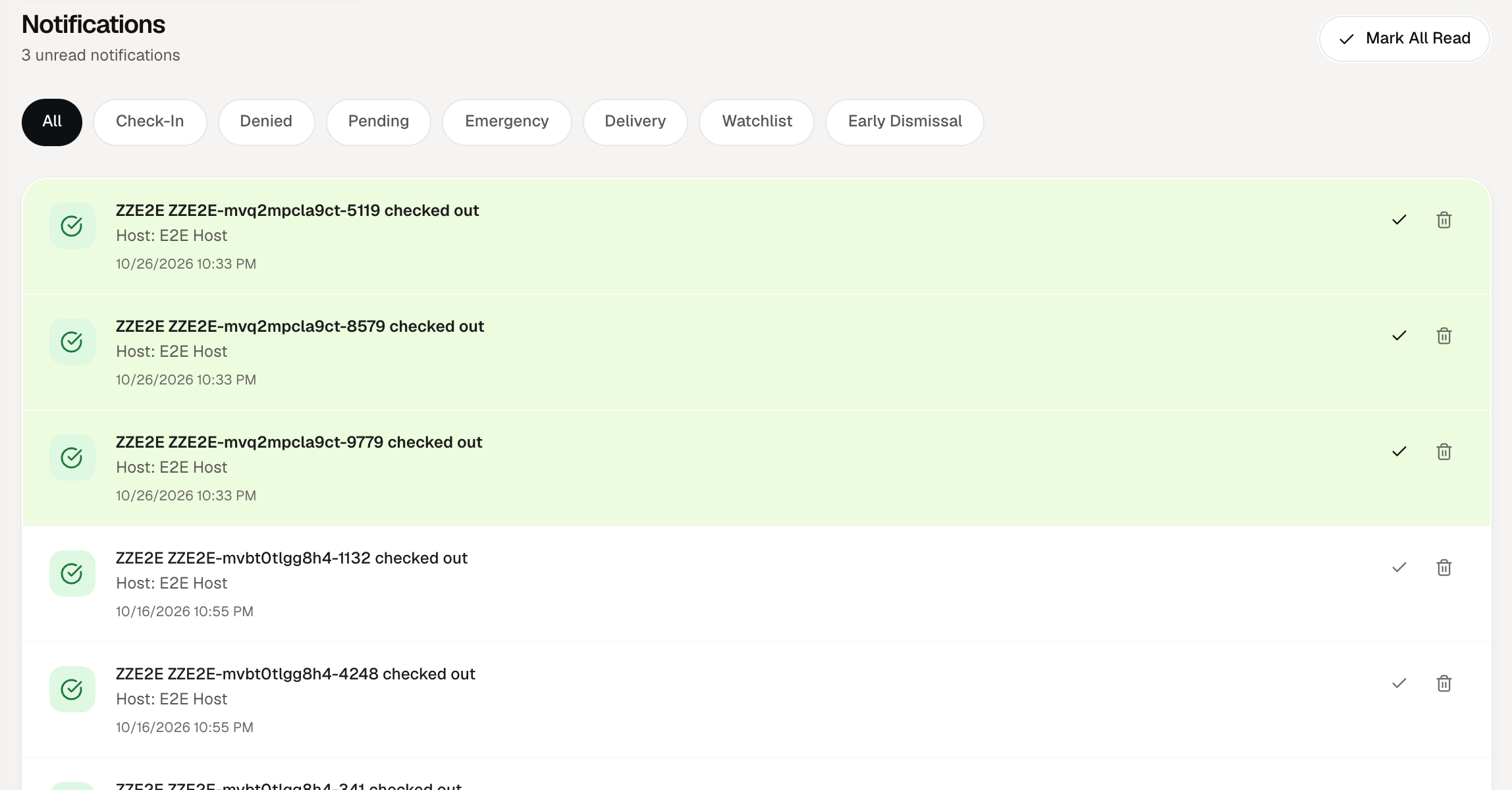
| Visitor check-ins and check-outs at the kiosk, early dismissal requests | Everyone in the organization | Bell | Always on |
| A turnstile gateway or reader goes offline | Gateways: your organization's main contact email. Readers: the bell | Email / bell | Settings › Apps › Access › Alerts (classic: Configure › Access control › Alerts). See Access alerts (reader health) |
| Watchlist match | Admins and security | Email and bell | Always on. See Keep a watchlist |
| Slack or Microsoft Teams alerts | A channel | Chat | Settings › Integrations › All integrations (classic: Configure › Integrations) |
Steps
See your bell notifications
- Click the bell in the top bar to see the 20 most recent notifications.
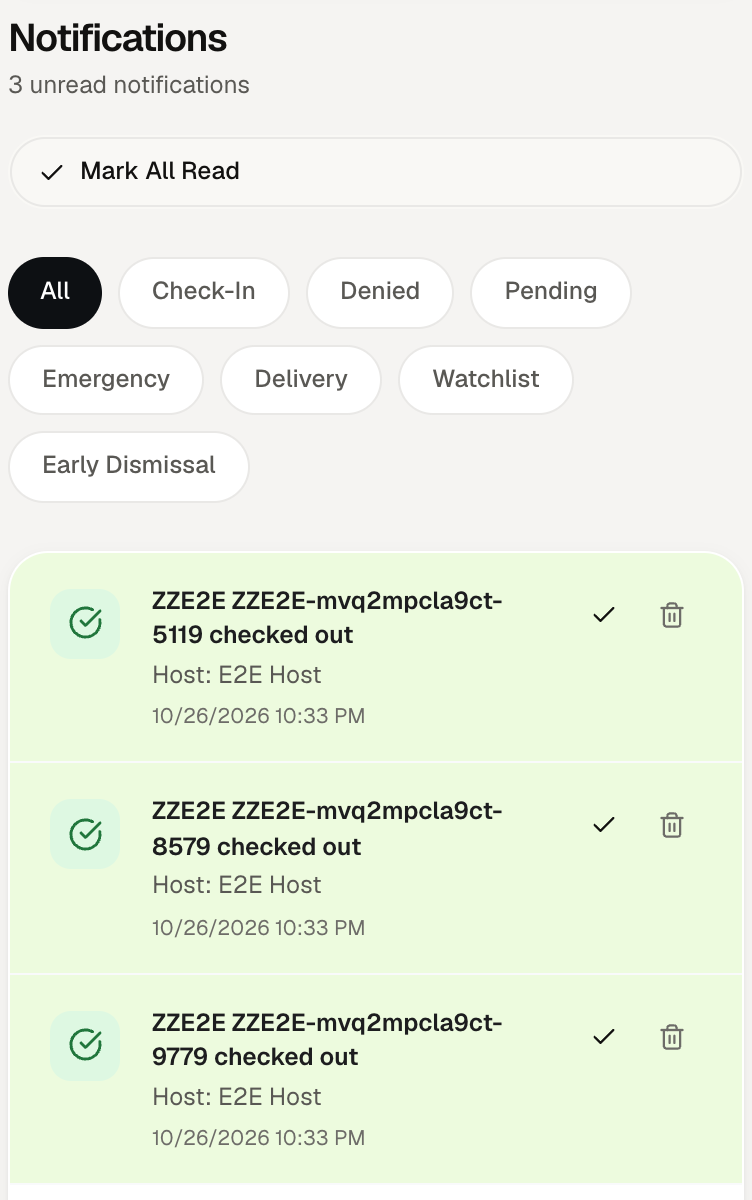
- Click View all notifications to filter by Check-In, Denied, Pending, Emergency, Delivery, Watchlist or Early Dismissal, mark items read, or delete them.
Stop the weekly digest for yourself
- Click your name in the top right and choose My Profile.
- Under Notifications, untick Weekly digest email. It saves straight away.

Unsubscribe from a review queue alert
- Open any review queue alert email and click the unsubscribe link in its footer.
What happens next
Bell notifications refresh about every 15 seconds while the app is open. Emails go out within a minute or two; check delivery on Email Tracking.
Settings that change this
| Setting | Where | Default | Effect |
|---|---|---|---|
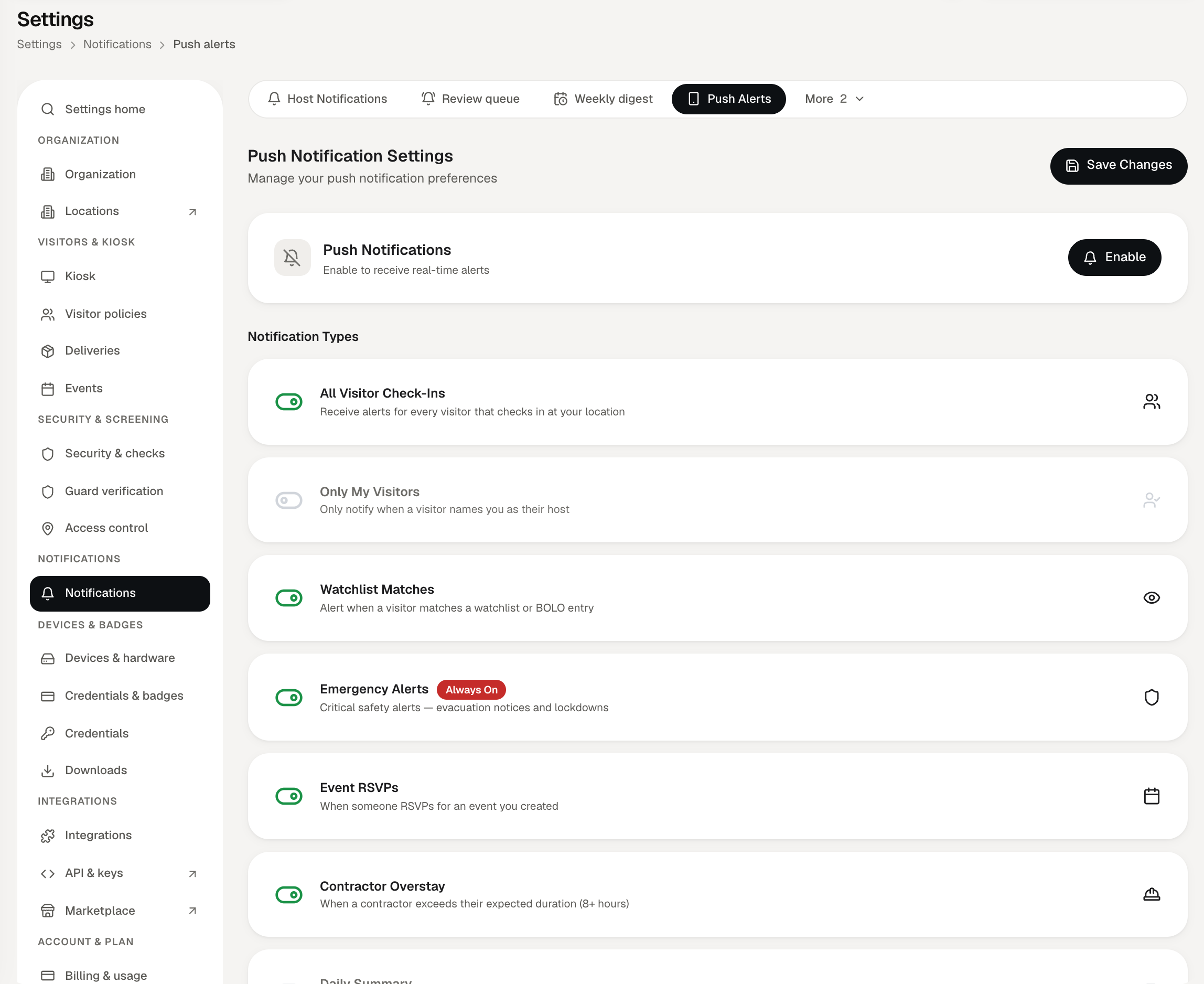
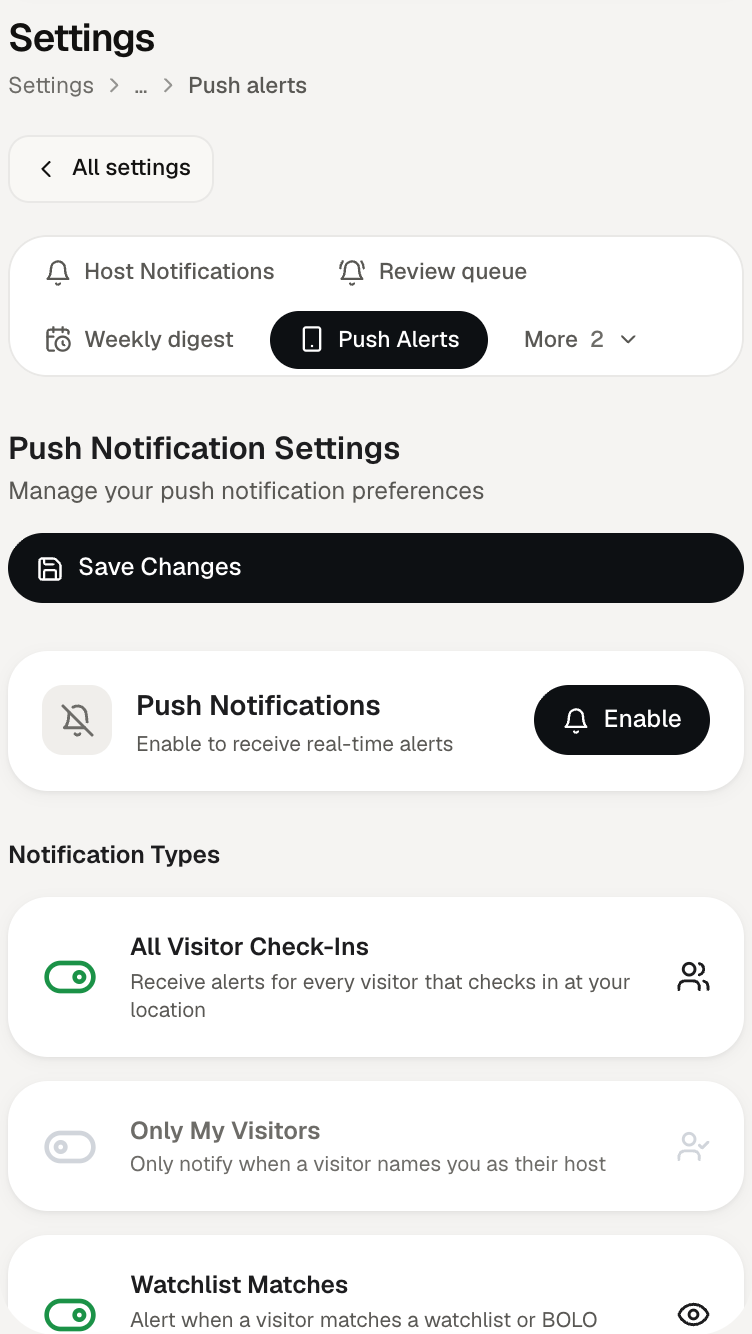
| Push Alerts (Enable, All Visitor Check-Ins, Only My Visitors, Watchlist Matches, Event RSVPs, Contractor Overstay, Daily Summary) | Classic menu only: Configure › Notifications › Push Alerts (hidden from Settings with the app launcher) | Most on | This setting currently has no effect. Your browser can register for push, but KyberAccess doesn't send push alerts yet |
| Notification Preferences (SMS, Email, Push) per member | Settings › People & roles › Team & roles › edit member (classic: Configure › Team & roles) | All on | This setting currently has no effect on what each person receives |
| Email Workflows (Notify Host, Notify Admins, Send Guest Receipt, check-out and reminder switches) | Classic menu only: Configure › Notifications › Email Workflows (hidden from Settings with the app launcher) | Mixed | These switches currently have no effect, except that Notify Admins adds admins to an older check-in alert rule only some organizations have |
Troubleshooting
- I turned on Push Alerts and never got one → Push alerts aren't sent yet. Keep KyberAccess open in a tab to see the bell, or set up Slack or Teams alerts.
- I get a bell notification for every kiosk check-in and can't turn it off → Kiosk check-in and check-out notifications go to everyone and have no off switch today. Use Mark All Read on the Notifications page.
- A host didn't get the arrival email → Check that the host has an email under Settings › People & roles › Hosts (classic menu: Configure › Organization › Hosts), then look for the email on Email Tracking.
- I want admins copied on every arrival → Host notification copy rules don't currently send. There is no working setting for this today.
- The Weekly digest switch on my profile is greyed out → Your role isn't owner, admin or security, your plan doesn't include it, or an admin turned it off for everyone.