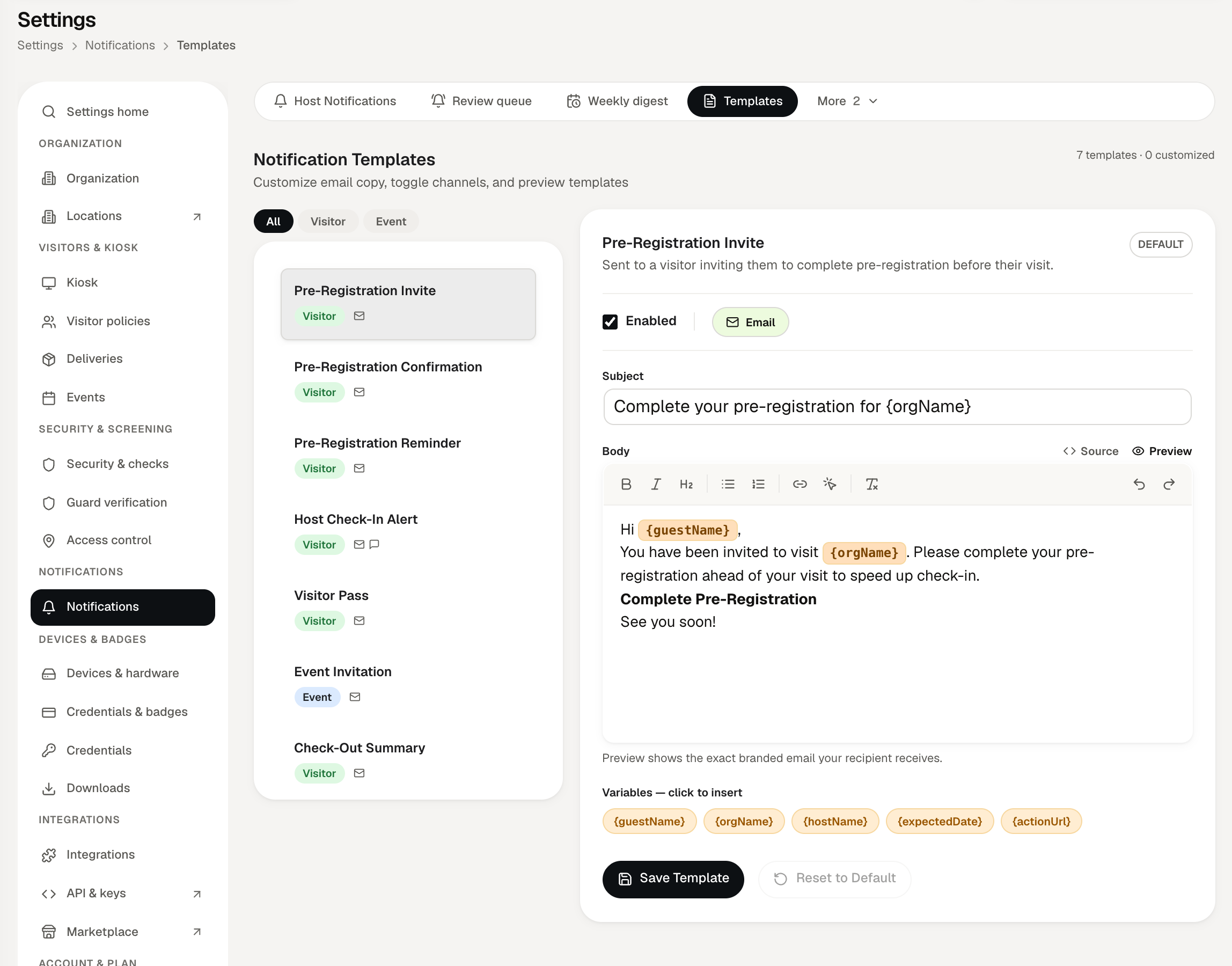
Under Settings › Organization › Email templates (classic menu: Configure › Notifications › Templates) you can rewrite the subject and body of KyberAccess emails, insert variables like the guest's name, preview the branded result, or turn a template off. Today your edits are used by two of the seven templates; the other five still send the standard wording.
Who this is for
Owners and admins, on Pro or Enterprise.
Before you start
- Know which email you want to change. Only these two use your edited copy today:
- Pre-Registration Invite: the registration link sent to event guests from an event (Send registration / Reg link sent).
- Pre-Registration Confirmation: the confirmation a visitor gets after filling in your public pre-registration page.
- Your logo and brand color are added automatically from Settings › Organization › Branding (classic menu: Configure › Organization › Branding).
Menus: steps show the app launcher first and the classic menu in brackets. See Find your way around to tell which one you have.
Steps
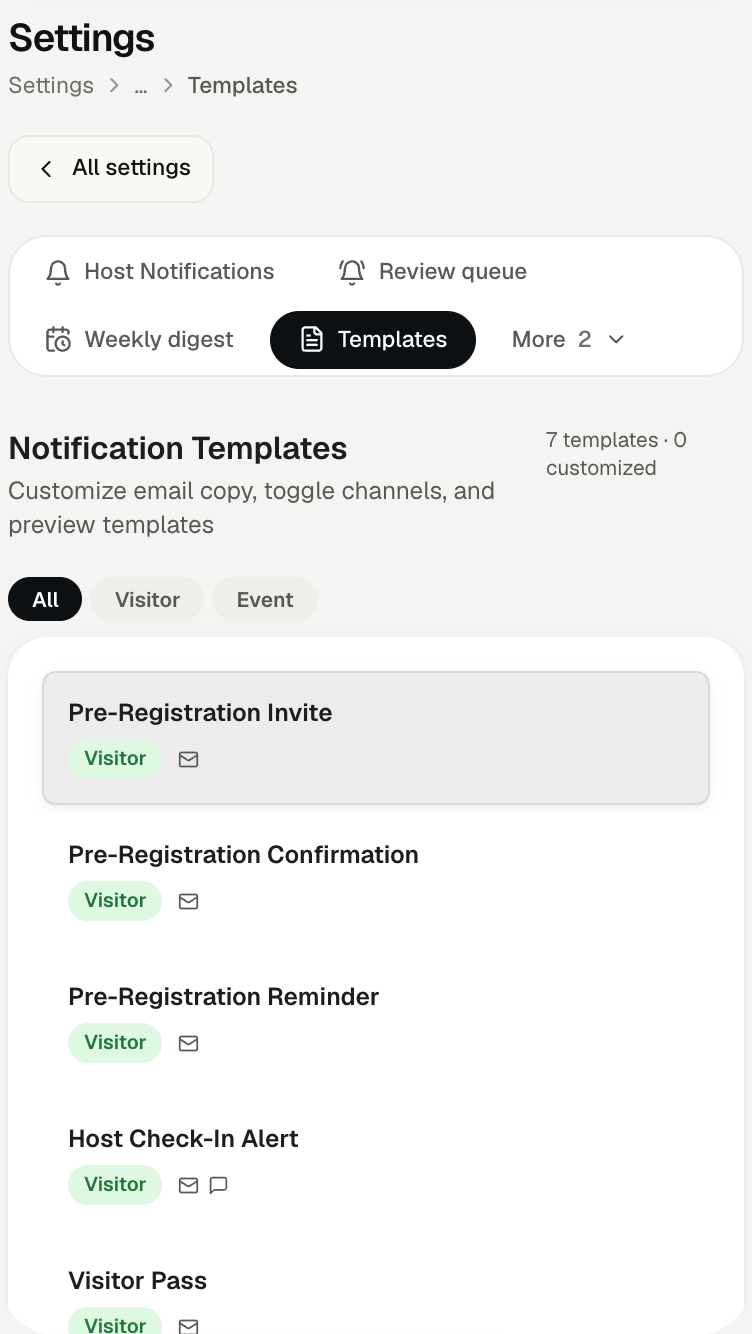
- Go to Settings › Organization › Email templates (classic menu: Configure › Notifications › Templates).
- Optional: filter the list with All, Visitor or Event.
- Click the template, for example Pre-Registration Invite.
- Edit Subject.
- Edit Body with the toolbar (bold, italic, heading, lists, link, button). Click Source to edit the HTML directly.
- To add a value that changes per email, click a chip under Variables — click to insert, for example {guestName}, {orgName}, {expectedDate} or {actionUrl}. Keep {actionUrl} in the invite, or guests have no link to register.
- Click Preview to see the exact branded email.
- Click Save Template. The count at the top right (for example "7 templates · 1 customized") goes up by one.
- To undo your changes, click Reset to Default.
What happens next
The next email of that type uses your wording; emails already sent are not changed. If you untick Enabled on one of the two working templates, that email stops being sent at all, so guests get no registration link or confirmation.
The seven templates
| Template | Uses your edits today? |
|---|---|
| Pre-Registration Invite | Yes |
| Pre-Registration Confirmation | Yes |
| Pre-Registration Reminder | No, sends standard wording |
| Host Check-In Alert | No |
| Visitor Pass | No |
| Event Invitation | No |
| Check-Out Summary | No; this email is not sent |
Settings that change this
| Setting | Where | Default | Effect |
|---|---|---|---|
| Enabled | Each template | On | Off stops that email entirely (for the two working templates) |
| Channel chips (Email, SMS) | Each template | On | Turning Email off stops the email, like unticking Enabled. The SMS chip currently has no effect |
| Logo, brand color, sender name | Settings › Organization › Branding (classic: Configure › Organization › Branding) | Your organization | Applied to every email, edited or not |
Troubleshooting
- I edited the Event Invitation (or Visitor Pass, Host Check-In Alert, Reminder) and guests still get the old text → Those templates don't use your edits yet. Only Pre-Registration Invite and Pre-Registration Confirmation do.
- Guests stopped getting the registration link → Check that Enabled is ticked on Pre-Registration Invite, and that the body still contains {actionUrl}.
- A variable shows up as literal text like {hostName} → It isn't spelled exactly as in the chip, or that variable has no value for this email. Re-insert it from the chip.
- The Templates tab shows an upgrade card → Templates need Pro or Enterprise.