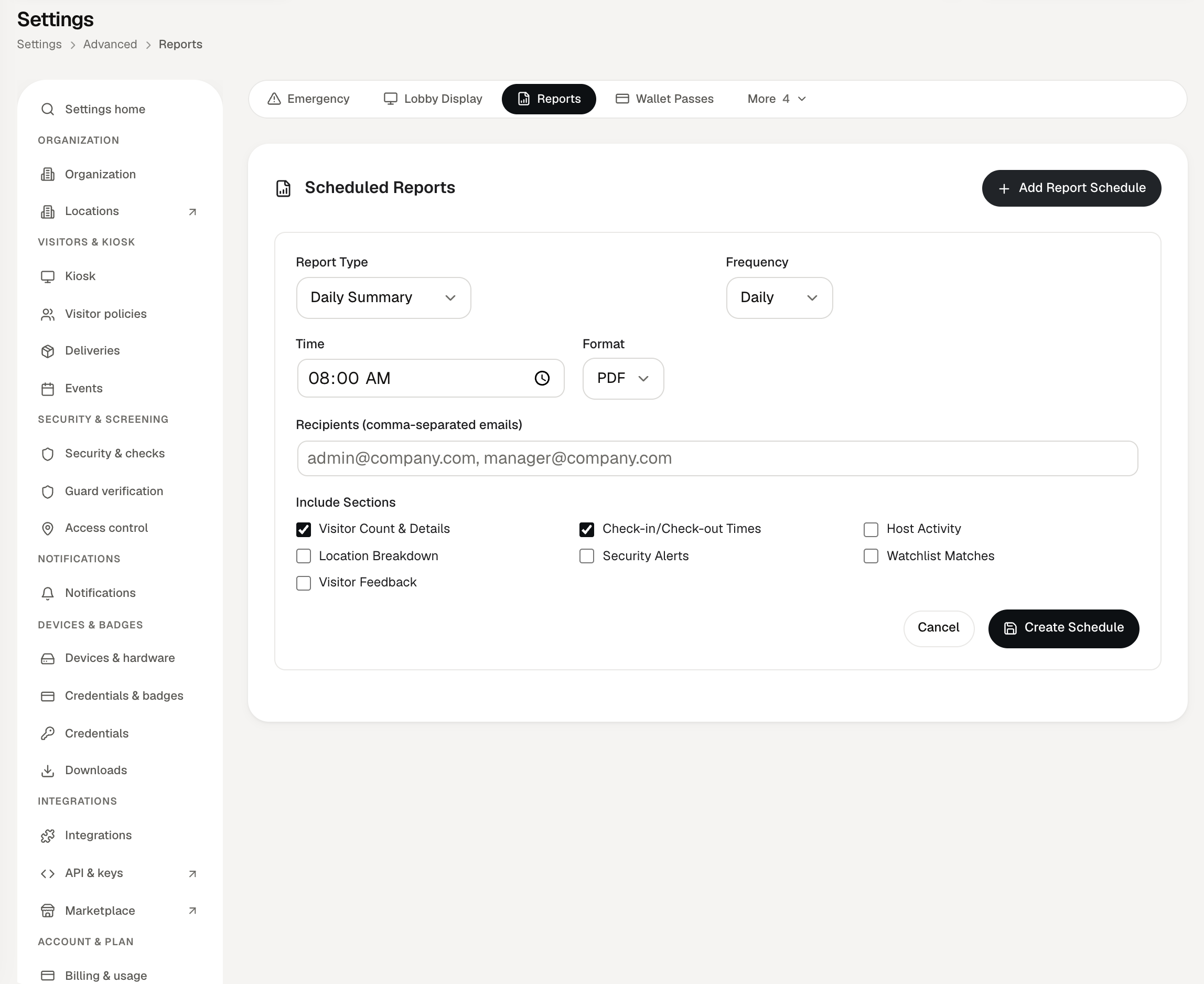
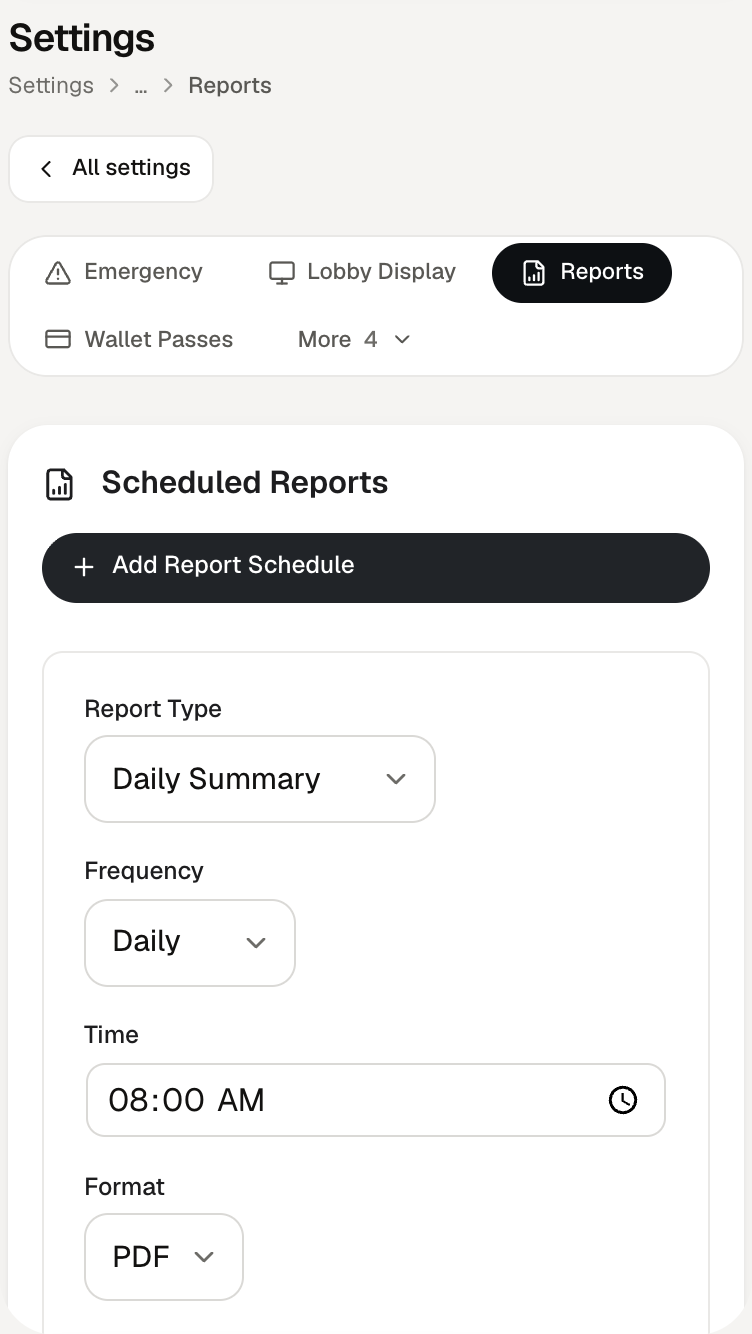
Today, the reports KyberAccess emails on a schedule are event reports (set up on each event's Report tab) and the Weekly digest. The Scheduled Reports page under Settings › Apps › Insights › Scheduled reports (classic menu: Configure › Advanced › Reports) saves a schedule but nothing sends it yet, so don't rely on it.
Who this is for
- Event report schedules: Owners, Admins and Front Desk / Security, on plans with the Event registration add-on. Owners and Admins approve schedules that need approval.
- Weekly digest: Owners and Admins turn it on or off; it goes to owners, admins and security staff on Pro, trial and Enterprise plans.
Before you start
- Decide who should get the email. Event reports go to team members you tick or to email addresses you type. The weekly digest goes to every owner, admin and security member automatically.
- For anything else (for example a weekly visitor list), you currently need to run it on the Reports page (Apps › Insights › Reports; classic menu: Reports under Insights) and download it yourself. See Run and export reports.
Menus: steps show the app launcher first and the classic menu in brackets. See Find your way around to tell which one you have.
Steps
Schedule an event report
- Open Apps › Events › Events (classic menu: Events under Operations), open the event and select Report.
- Under Scheduled reports, click Schedule a report.
- Choose when: When the event ends, 1 hour after the event ends, Next morning at 8:00 AM, or Custom date and time.
- Pick the recipients and, for each, Organizer report or Security operations report.
- Optional: tick Require owner or admin approval before it is sent.
- Click Preview, check it, then click Schedule.
Get a weekly summary of everything
- Open Settings › Apps › Insights › Weekly digest (classic menu: Configure › Notifications › Weekly digest).
- Leave Send the weekly digest ticked and click Save. See Weekly digest email for what is in it.
What happens next
- Event report schedules are checked every 5 minutes. At the chosen time (or once approved) each recipient gets an email with the report as a PDF, built from live data at send time. The schedule's Status on the Report tab shows whether it was sent.
- The weekly digest goes out on Mondays at 7:00 AM in your organization's time zone.
Settings that change this
| Setting | Where | Default | Effect |
|---|---|---|---|
| Schedule a report | Event › Report › Scheduled reports | None | Emails the event report as a PDF at the chosen time |
| Require owner or admin approval before it is sent | same | Off | Holds the send until an owner or admin approves |
| Send the weekly digest | Settings › Apps › Insights › Weekly digest (classic: Configure › Notifications › Weekly digest) | On (Pro, trial, Enterprise) | Monday 7:00 AM summary email |
| Add Report Schedule (Report Type, Frequency, Time, Format, Recipients, Include Sections) | Settings › Apps › Insights › Scheduled reports (classic: Configure › Advanced › Reports) | None | This setting currently has no effect. Nothing is emailed |
Troubleshooting
- I added a schedule under Settings › Apps › Insights › Scheduled reports (classic menu: Configure › Advanced › Reports) and nothing arrived → That page saves the schedule, but no email is generated from it yet. Use an event report schedule or the weekly digest, or download the report from Reports.
- The Schedule button on the Reports page didn't schedule anything → It only opens notification settings.
- "Schedule recurring report" on Analytics › Insights says coming soon → Correct; that button is not built yet.
- An event report schedule didn't send → Check its Status on the event's Report tab. A schedule waiting for approval sends only after an owner or admin approves it.