After (or during) an event, the Report tab shows who was invited, who said yes, who registered and who actually came, and how they arrived. You can download it as a PDF, email it, schedule it to send itself after the event, or share a read-only link.
Who this is for
- Viewing the report and downloading the PDF: anyone who can open the event.
- Emailing, scheduling and sharing a link: Owners, Admins and Front Desk / Security. Approving a schedule that needs approval: Owners and Admins.
- The Security operations report (door scans, denied scans, screening results): Owners, Admins and Front Desk / Security.
Read the report
- Open the event and select Report (under Insights).
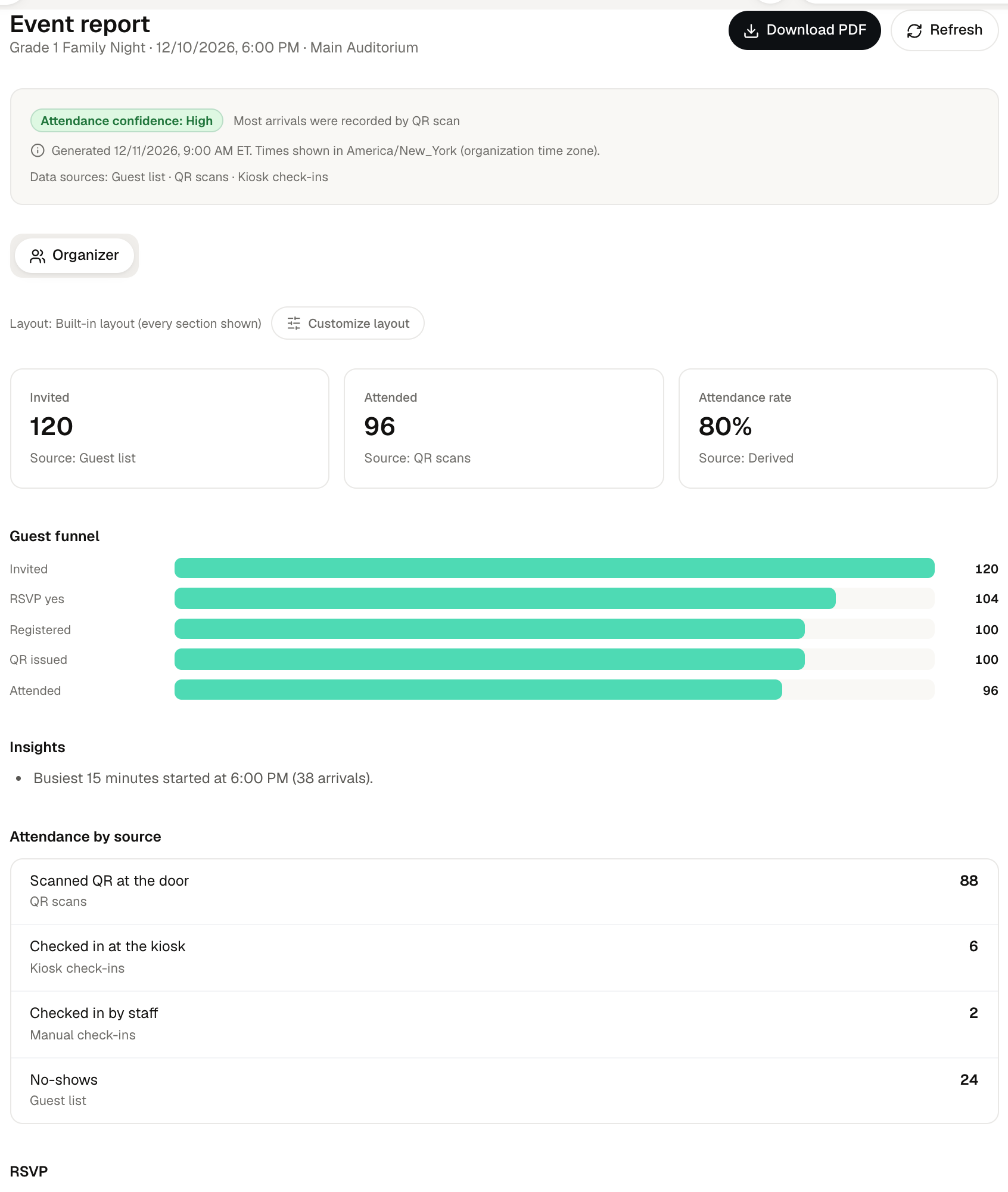
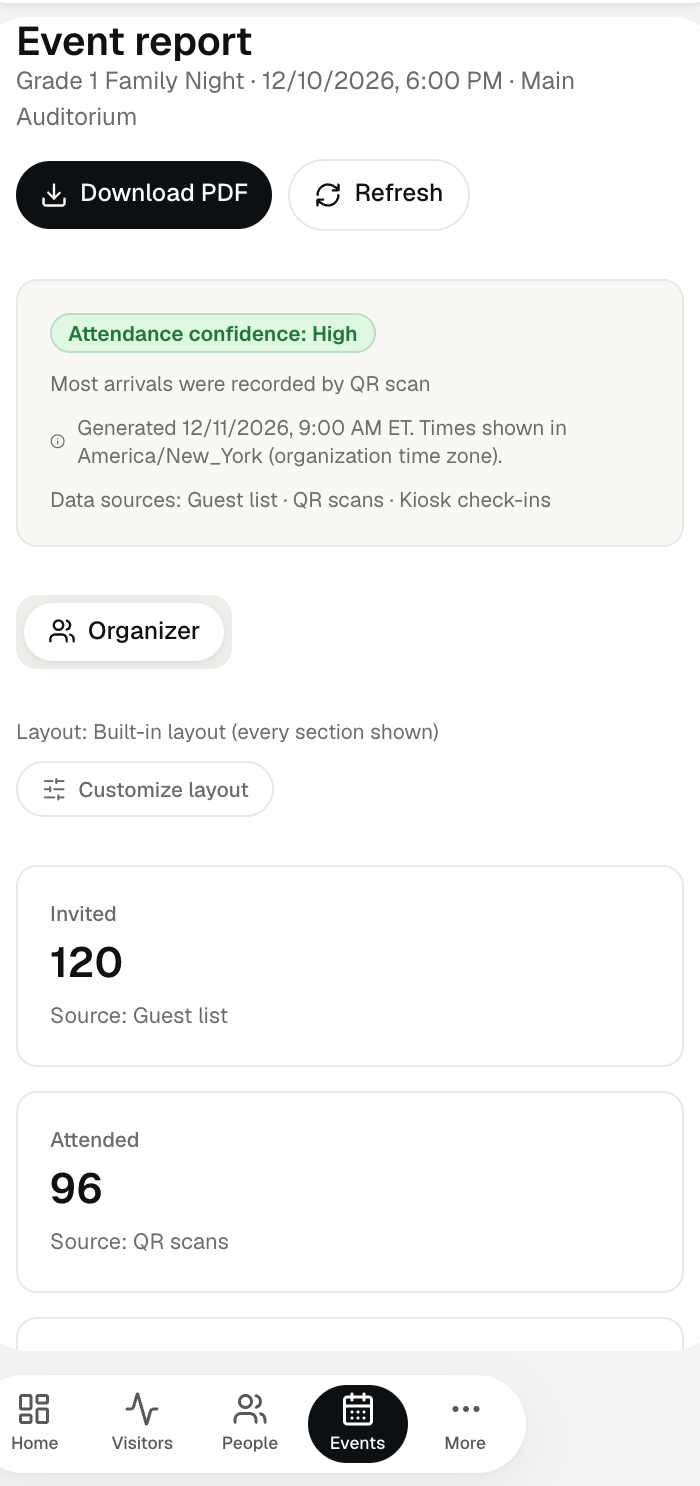
- Read the top cards and Guest funnel: invited, said yes, registered, QR issued, attended.
- Attendance by source splits arrivals: door/turnstile QR scan, kiosk check-in, checked in by staff, and no-shows. Each guest is counted once.
- Lower sections cover RSVP, Registration & guest list, Email delivery, Credentials, Form answers (for choice questions) and the Arrival timeline in 15-minute steps.
- The grey box shows Attendance confidence and when the report was generated. Select Refresh for the latest numbers.
- Switch to Security operations for scan and screening details (if your role allows).
Download, email, schedule or share
- Download PDF: saves the report you're looking at.
- Customize layout: hide sections or rows for this event. Applies on screen, in the PDF and in emails. Hiding never changes the other numbers.
- Email this report: tick team members or add an email address, choose Organizer report or Security operations report per person, add an optional note, select Preview, then Send to N recipients. Up to 25 recipients. Send history lists past sends with Resend.
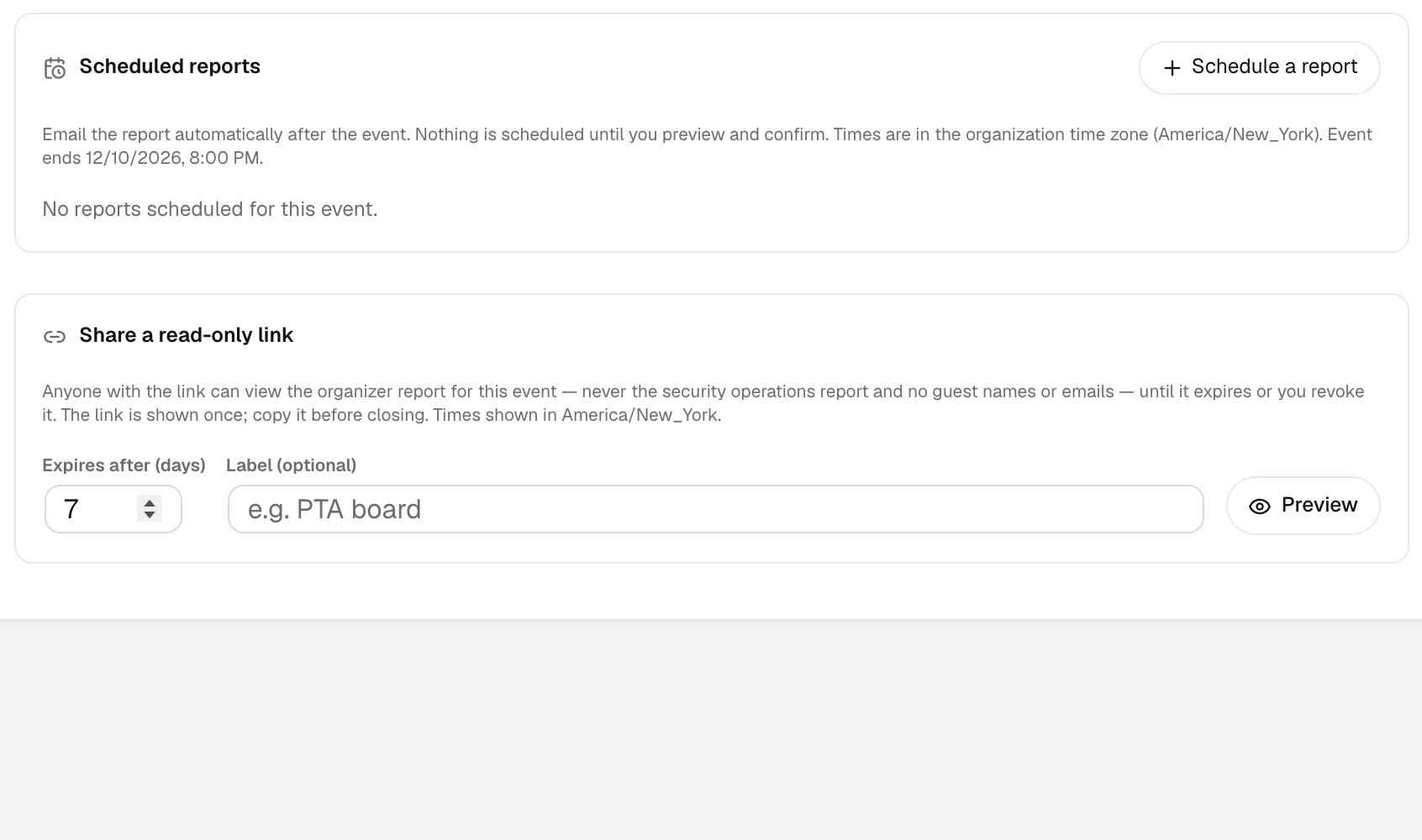
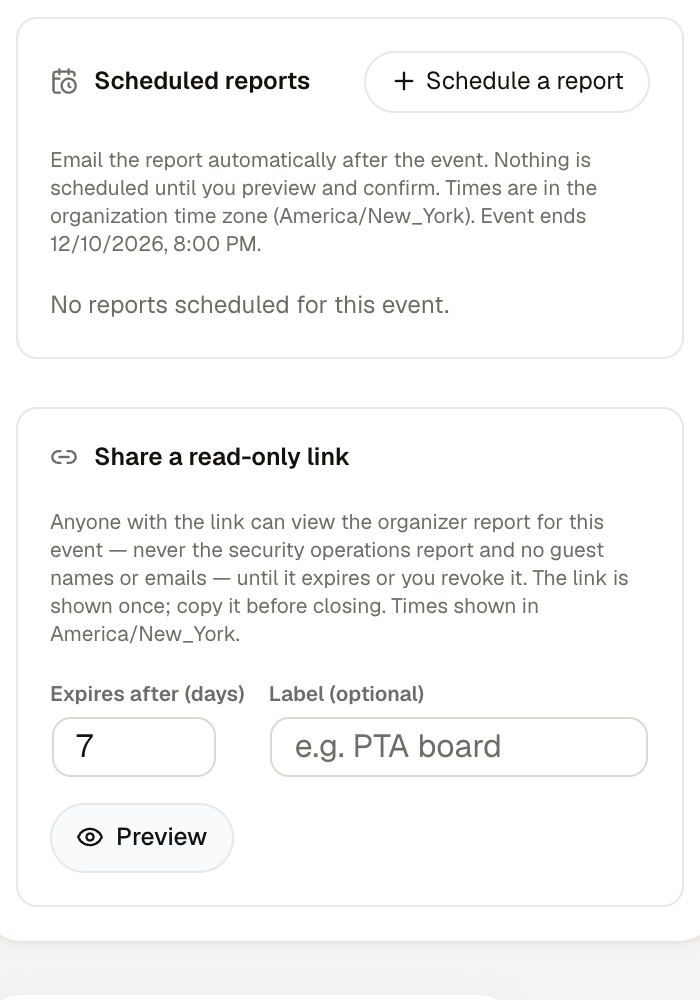
- Scheduled reports › Schedule a report: choose When the event ends, 1 hour after the event ends, Next morning at 8:00 AM, or Custom date and time; pick recipients; optionally tick Require owner or admin approval before it is sent; Preview, then Schedule. The report is built from live data at send time.
- Share a read-only link: choose Expires after (days) (1 to 30, default 7) and an optional label, preview, then Create link. Copy it straight away; it is shown only once. Up to 10 active links. Revoke stops a link.
Wrap-Up (Veracross schools)
After the event ends, a Wrap-Up button appears at the top of the event. It shows Total Guests, Attended, No-Shows and donations, and has tabs Guest Reconciliation, Donations, Households and Sync to Veracross for matching guests to Veracross records and sending attendance back.
What happens next
- Scheduled reports are checked every 5 minutes and sent at their time (or once approved). Each email includes the PDF.
- Shared links show the organizer report only, read-only, until they expire or are revoked.
Troubleshooting
- Attendance looks low. Guests who scanned their event QR at the kiosk may not be counted. Mark them with Check In Manually (see Check guests in at an event).
- "Security operations report is available to owners, admins and security staff." Your role can only see the organizer report.
- The scheduled report didn't send. Check its Status: a report waiting for approval is not sent until an Owner or Admin approves it.
- I lost a shared link. Links are shown once. Revoke it and create a new one.