On the day, guests show their QR code (from the email or Apple / Google Wallet). There are three ways to record them: the door scanner or turnstile, the iPad kiosk, or a staff member marking them by hand on the guest list. This article explains each one and how it shows up afterwards.
Who this is for
Front desk and event staff. Marking guests by hand needs access to the event (Owners, Admins, Event Managers, Event Coordinators).
Before you start
- Guests need a QR code (see Issue QR codes to event guests), unless the event uses No Credential.
- Event QR codes work from 30 minutes before the event starts to 30 minutes after it ends. A Permanent Credential works until it expires.
- Set up your kiosk or door readers (see Set up an iPad kiosk).
Option 1: Scan at the door or turnstile
- The guest holds their QR code to the reader.
- The reader admits an active, unexpired code.
- The guest is marked Checked In on the guest list straight away, with the arrival time.
Option 2: Scan at the iPad kiosk
- The guest taps to check in and scans their QR code at the kiosk.
- The kiosk welcomes them and prints a badge if your kiosk prints badges.
- The visit appears on Visitors.
Guests on the guest list who never registered can check in at the kiosk as normal visitors during the event. They go through the normal kiosk steps (ID, screening), and the event Report counts them under Checked in at the kiosk.
Scanning the guest's event QR code (or a permanent credential activated for today's event) at the kiosk marks them Checked In on Guest Management, and the Report counts them under Checked in at the kiosk.
Option 3: Mark a guest by hand
- Open the event and select Guest Management.
- Search for the guest by name, email or phone.
- Open ⋮ on their row and select Check In Manually, or click their name and select Check In under Quick Actions.
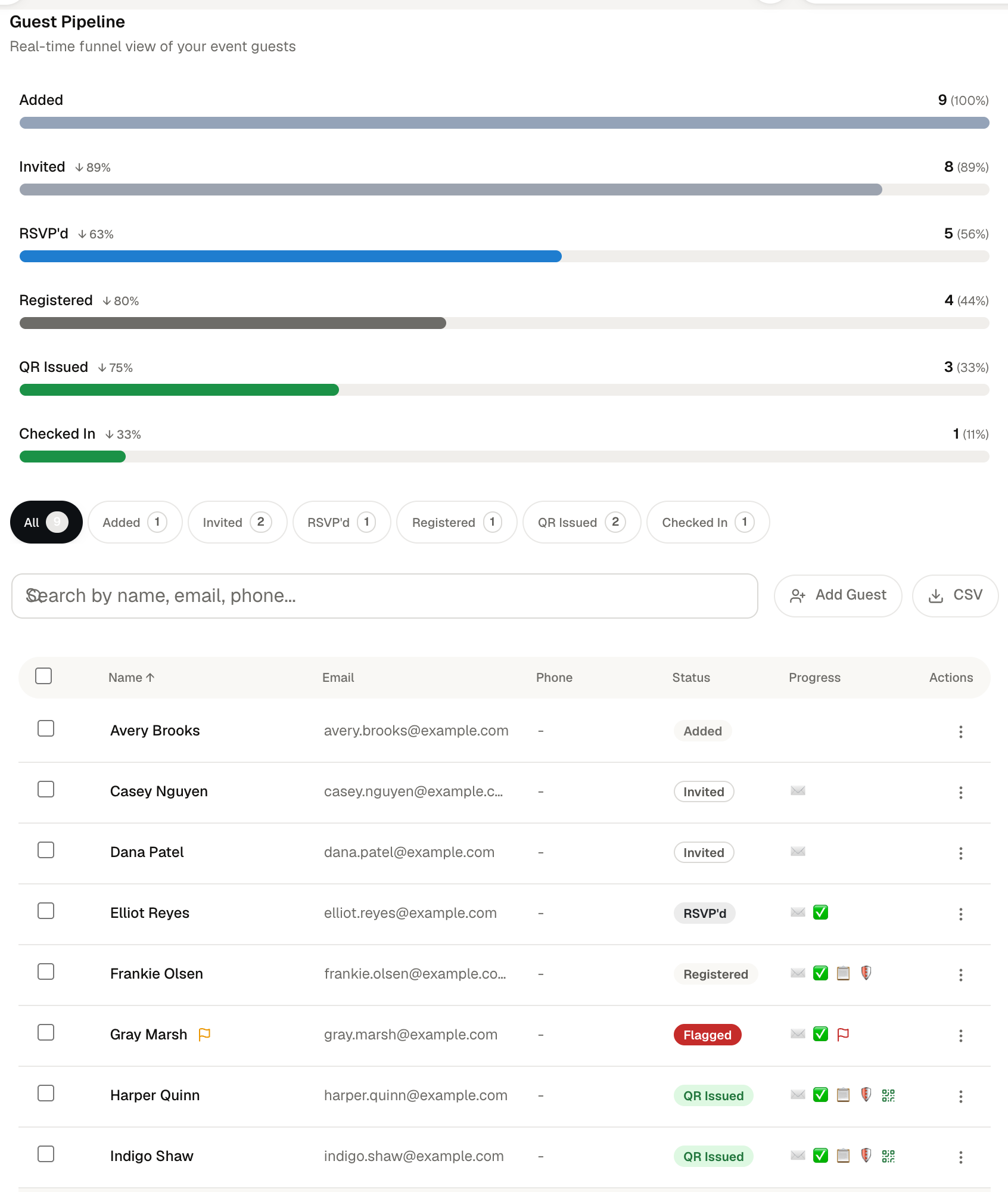
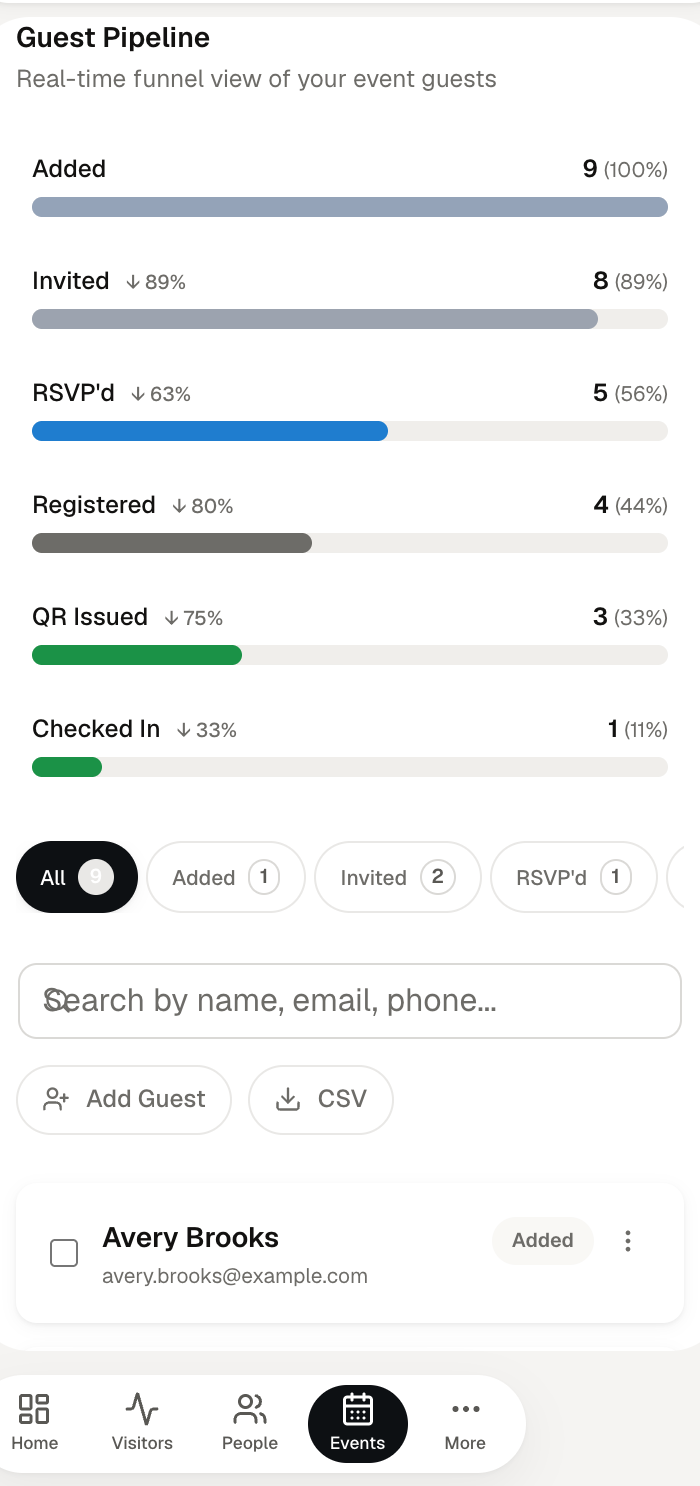
- The guest's status changes to Checked In. The report counts them under Checked in by staff.
What happens next
- Guest Management › Checked In shows everyone recorded at the door or by hand.
- The Report tab counts every arrival once: door scan first, then kiosk, then by hand. Guests with none are No-shows.
- Event QR codes stop working 30 minutes after the event ends.
Settings that change this
| Setting | Where | Effect |
|---|---|---|
| Credential Policy | Event › Registration | Event QR codes are limited to the event window; permanent credentials are not. |
| Event start and end | Event › Details | Sets the window when event QR codes work. |
Settings that currently have no effect: Check-In Rules › Early Check-In Window, Late Check-In Policy, Max Scans per QR, Expire After First Scan, QR Code Format, Require NDA/Waiver Signing and Allow Group Check-In. The 30-minute window above applies whatever these say.
Troubleshooting
- "This QR pass has expired" at the kiosk. The guest is outside the event window, or the event end time is wrong. Fix the time on Details, then reissue.
- "Credential is suspended" / "revoked". The person's credential was stopped on Credentials.
- "Guest is already checked in." They were already recorded. Nothing changes.
- Guest forgot their QR code. Look them up on Guest Management and use Check In Manually, or resend the QR code.
- A guest arrived but the list still says QR Issued. They checked in at the kiosk as a walk-in instead of scanning their event QR code, or their pass belongs to a different person record. Use Check In Manually.