Guests who register online get their QR code automatically. Use Issue QR Codes for everyone else: guests you added who will not register online, guests you approved, or a guest who lost their email. The QR code is what they show at the door or the kiosk.
Who this is for
Owners, Admins, Event Managers and Event Coordinators.
Before you start
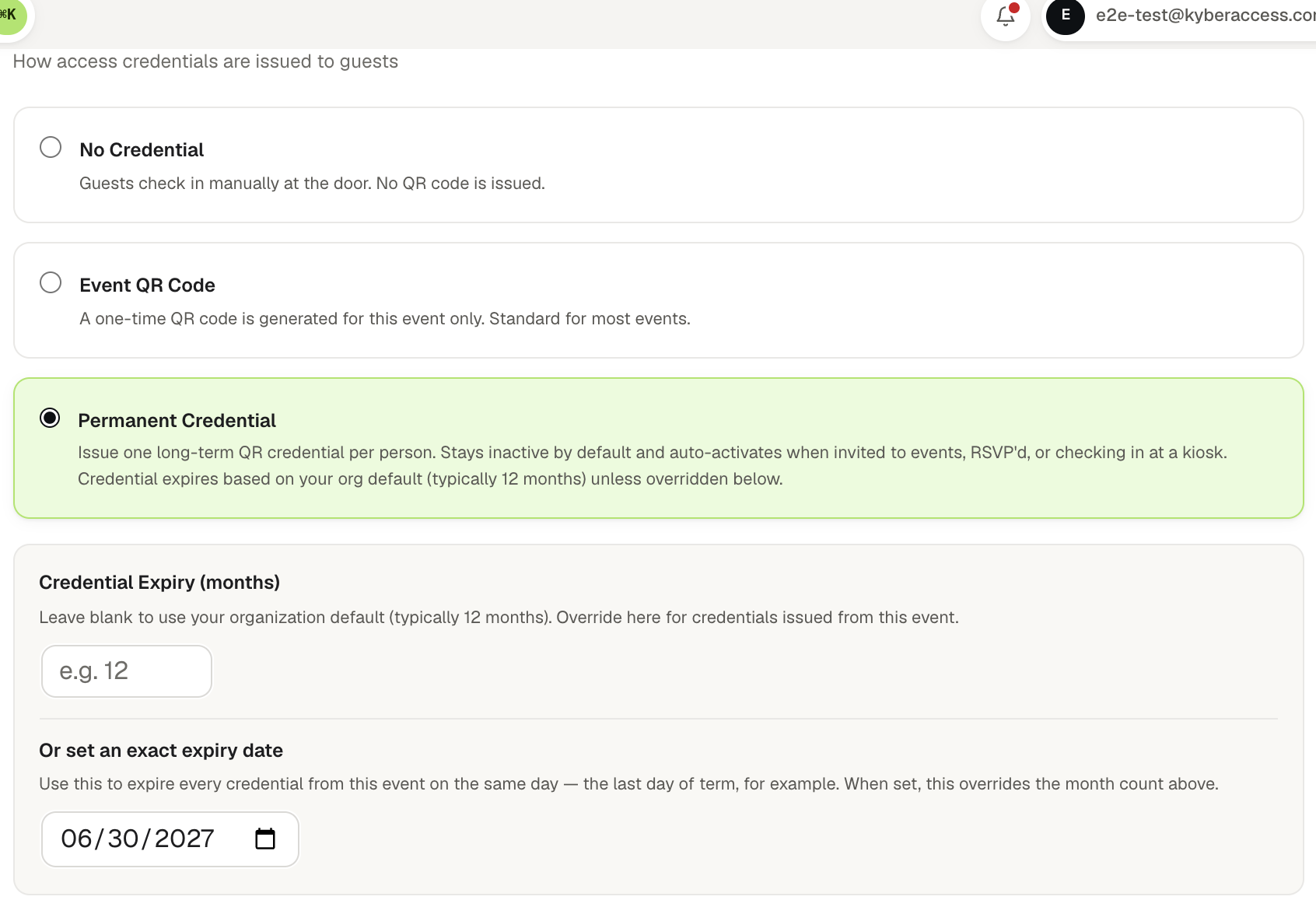
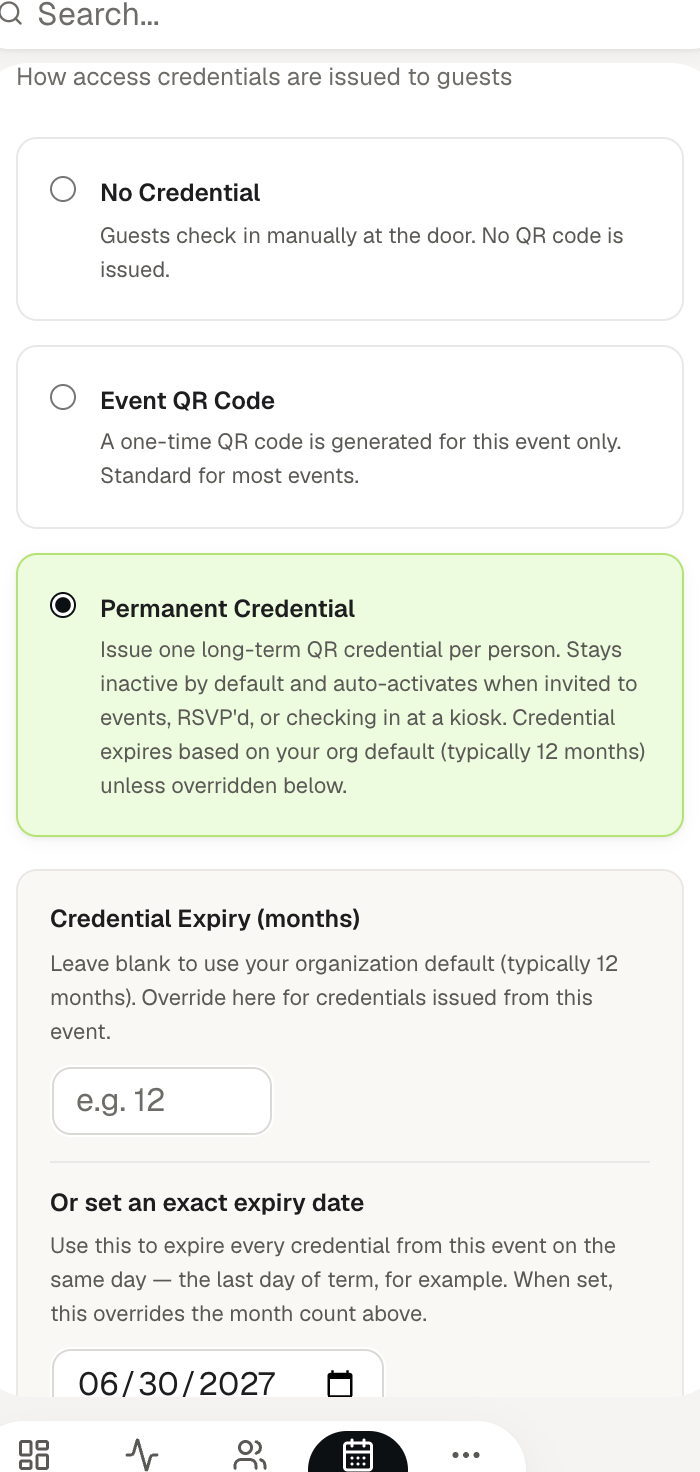
- Check the event's Credential Policy (Registration tab). Event QR Code issues a code for this event. Permanent Credential issues (or reuses) a long-term credential. No Credential means nobody needs a code.
- Guests need an email address to receive the code.
Issue to everyone who is eligible
- Open the event and select Communications.
- On the QR Code Delivery card, select Send to Eligible (N).
Who is eligible: - Require Approval on: guests with status Approved. - Require Approval off: guests who are Approved, Invited, have said yes, or were sent a registration link. - Guests who already have a QR code are skipped, so you can run it again safely.
Issue to selected guests
- Open Guest Management.
- Tick the guests and select Actions (N) › Issue QR Codes. For one guest, use ⋮ › Issue QR Code (shown for approved guests) or click the name and select Issue QR Code under Quick Actions.
- Sending to a guest who already has a code sends it again (useful when a guest lost the email).
What happens next
- Each guest is emailed their QR code. The message on screen tells you how many were newly issued, how many already held a credential (reused), and how many were blocked.
- A person who already holds an active credential keeps the same QR code; it is linked to this event, and its expiry moves later if this event's expiry is later.
- A person whose credential is suspended or revoked is blocked: nothing is sent. Reinstate them on Credentials first.
- If the event screens guests and a guest has never been screened, a screening starts for them in the background.
- The guest's status changes to QR Issued.
Settings that change this
| Setting | Where | Default | Effect |
|---|---|---|---|
| Credential Policy | Event › Registration | Event QR Code | One-time event code or long-term credential. |
| Credential Expiry (months) / Or set an exact expiry date | Event › Registration (Permanent Credential) | Organization default, 12 months | When the credential stops working. |
| Require Approval | Event › Registration | Off | Limits bulk issuing to approved guests. |
Troubleshooting
- "No guests are eligible for QR issuance." Everyone at the right status already has a code, or (with Require Approval on) nobody is approved yet.
- A guest was blocked. They have a suspended or revoked credential. Open them on Credentials.
- A guest got two QR codes. Usually two guest rows for the same email. Bulk issuing sends once per email; issuing to selected rows can send to both. Select only one row per person.
- The code didn't arrive. Check the guest's Email Timeline. Fix the email and issue again.