Most guests never need a decision: if they register and their screening is clear, they get their QR code automatically. A decision is needed when the event has Require Approval on, when screening finds a possible match or could not run, and when you issue QR codes yourself to guests who did not register online. This article shows where each decision is made.
Who this is for
- Approving guests on the event: Owners, Admins, Event Managers and Event Coordinators.
- Deciding screening holds in Review Queue: Owners, Admins and Front Desk / Security only.
Before you start
- Know whether your event screens guests (Registration › Require Background Check).
- Decide whether the event needs Require Approval (event › Registration). With it on, new RSVPs and public sign-ups wait as Pending Review with no QR code until you approve them.
Menus: steps show the app launcher first and the classic menu in brackets. See Find your way around to tell which one you have.
Decide a guest held by screening
- Open Apps › Security › Review queue (classic menu: Review Queue in the sidebar, under Security).
- Open the person. Compare the ID photo, selfie and the possible match.
- Choose Approve, Approve without screening (needs a reason), or Deny (needs a reason).
On a Permanent Credential event, approving issues the credential and emails it to the guest. On other events, issue the QR code from the event afterwards (see Issue QR codes to event guests). See Review and decide held visitors for details.
Approve guests from the event
Use this for guests waiting as Pending Review (Require Approval), and when you issue QR codes yourself to guests you added who did not register online. 1. Open Apps › Events › Events (classic menu: Events in the sidebar, under Operations), open the event and select Guest Management. 2. Tick the guests and select Actions (N) › Approve Selected. For one guest, use ⋮ › Approve Guest or click the name and select Approve Guest in Quick Actions.
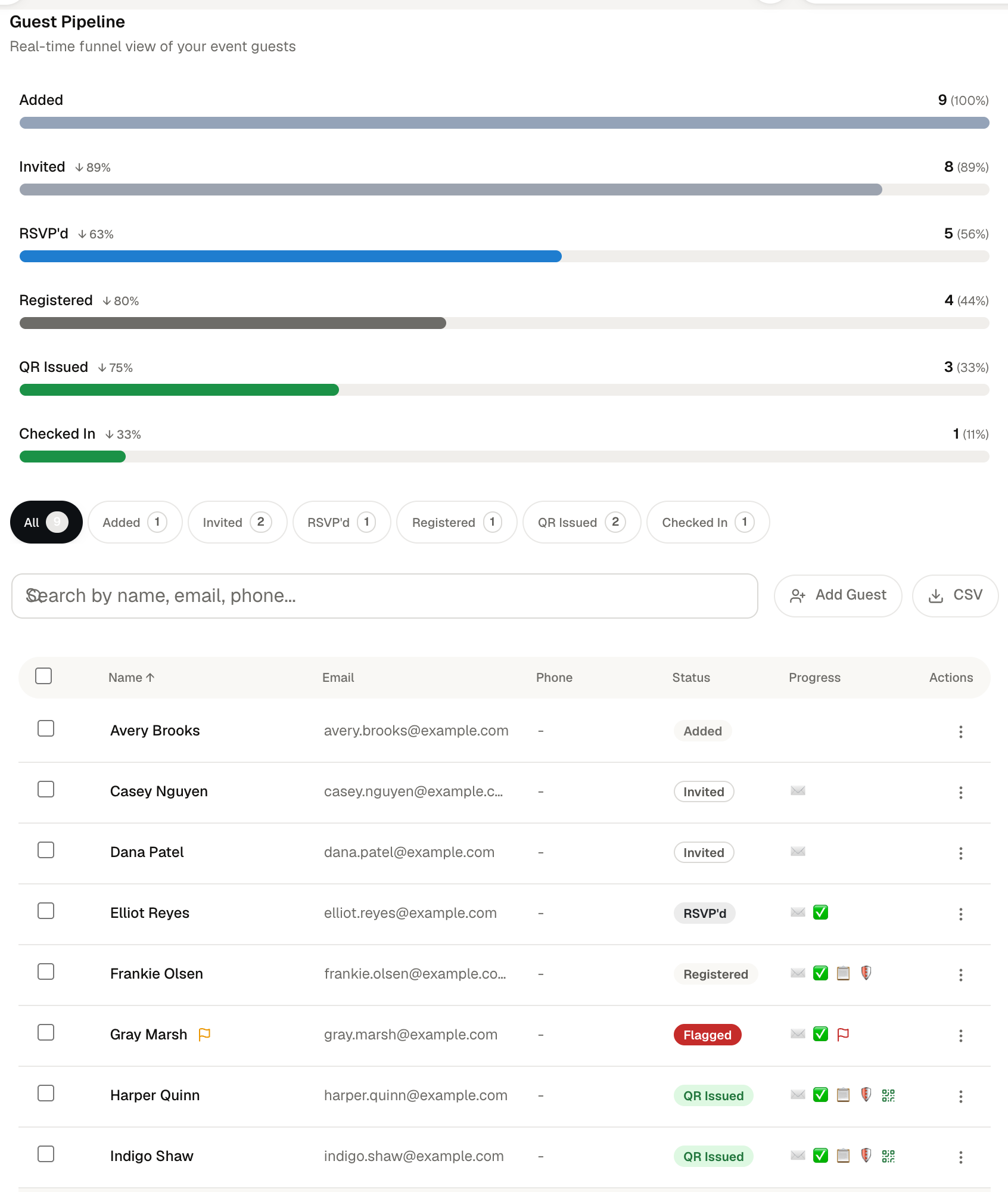
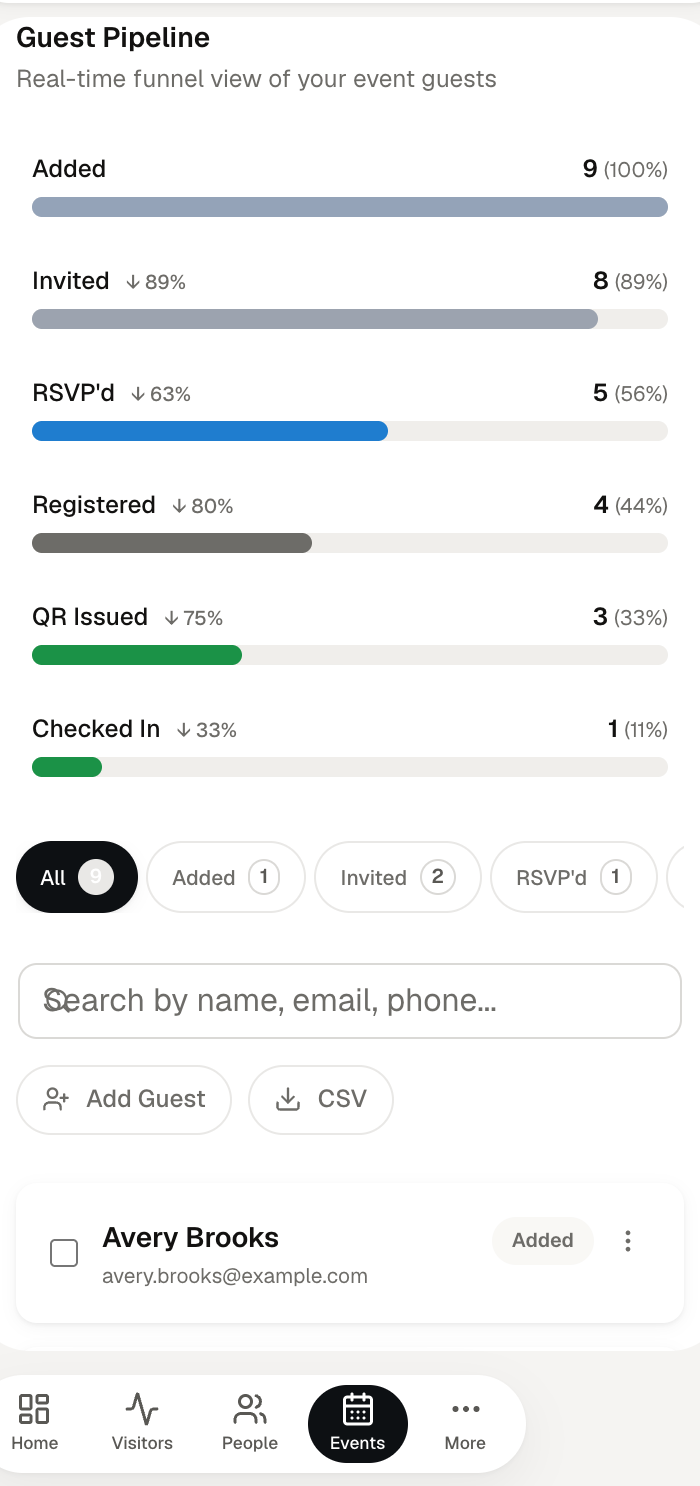
- The guest's status changes to Approved. Then use Issue QR Codes.
Approve Guest in the ⋮ menu shows for guests who are Pending Review, have said yes or have registered.
Override a screening flag
When a guest's background check flagged them, or the registry could not be reached, ⋮ › Override BG Check appears on their row. It approves the guest anyway and records that you overrode the check. Then issue their QR code. You can also decide them in Review Queue.
Deny a guest
There is no Deny button on the event. To stop a guest: - If they are held by screening, select Deny in Review Queue. - Otherwise, don't send them invitations or a QR code. If they already hold a QR code, suspend or revoke it on Credentials (see Suspend, reinstate, revoke or reissue a credential); a suspended or revoked person is never issued a new code.
To take someone off the list, use ⋮ › Remove from Event (or tick several and Actions › Remove Selected). Removing a guest frees their seat; it does not cancel a QR code they already hold. Use Credentials for that.
What happens next
- Approved guests show a green shield in the Progress column.
- A denied person is never issued a credential automatically.
Settings that change this
| Setting | Where | Default | Effect |
|---|---|---|---|
| Require Approval | Event › Registration | Off | New RSVPs and public sign-ups wait as Pending Review; Issue QR Codes (bulk) only picks Approved guests. With it off, bulk issuing also picks guests who were invited or said yes. |
| Require Background Check | Event › Registration | On | Possible matches are held in Review Queue. |
Troubleshooting
- A guest got a QR code even though Require Approval is on. They registered before it was turned on, or you issued it. Approval applies to new registrations.
- Override BG Check doesn't appear. It only shows for guests whose check flagged them or could not run.
- The guest list still says Flagged after I approved in Review Queue. On Permanent Credential events the guest moves to QR Issued when the credential is sent. On other events the guest stays Flagged until you issue their QR code from the event; select the guest and use Issue QR Codes.