Email your guests their personal RSVP link, chase people who haven't answered, send registration links and QR codes, and remind guests before the event. Send each email now, schedule it for a set time, or let the event send it automatically.
Who this is for
Owners, Admins, Event Managers and Event Coordinators.
Before you start
- Add guests with an email address (see Add guests).
- Set up registration (see Choose what guests do to register). Guests use what is set when they open the link.
Send to everyone who is eligible
- Open the event and select the Communications tab.
- Find the email you want in Email Campaigns. Each card shows how many guests it will go to.
- Select Send to Eligible (N).
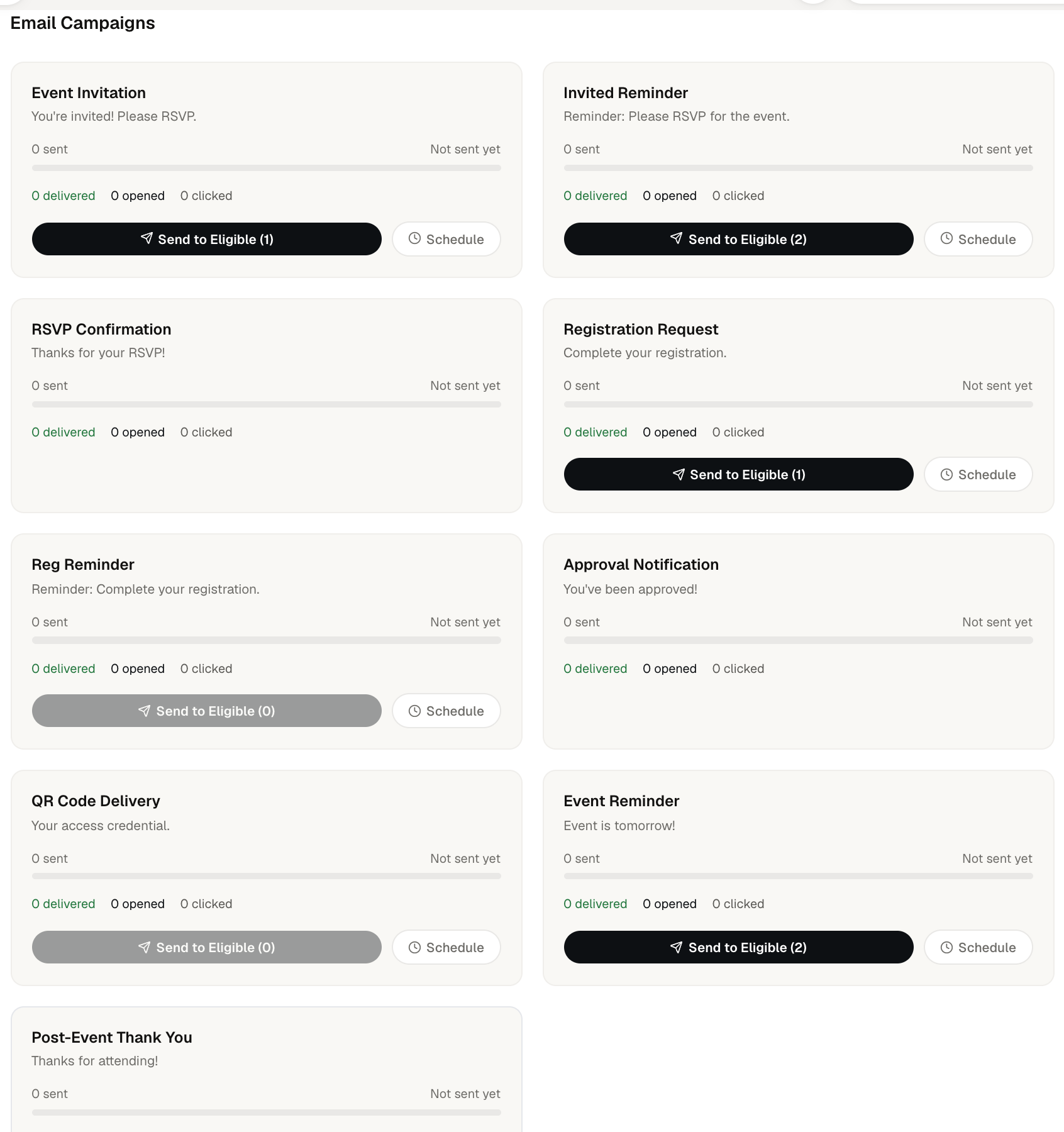
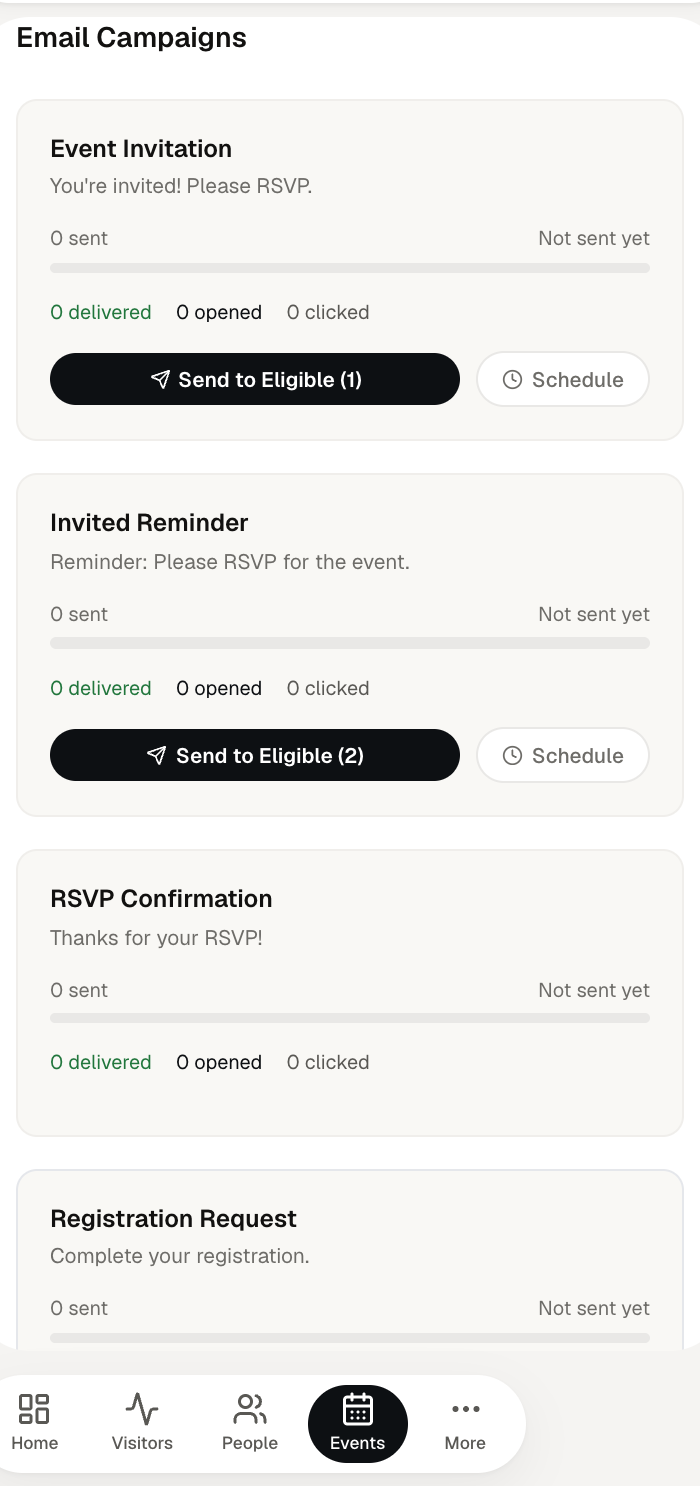
| Card | Goes to | What it contains |
|---|---|---|
| Event Invitation | Guests not invited yet (never people who declined) | Personal RSVP link, your subject line, and a calendar file if turned on. Credential holders also see their existing pass. |
| Invited Reminder | Invited guests who haven't answered | The RSVP link again |
| Registration Request | Guests who said yes | Link to the registration page (ID, selfie, screening). Needed when Combine RSVP & Registration is off. |
| Reg Reminder | Guests who got a registration link but haven't finished | The registration link again |
| QR Code Delivery | Approved guests without a QR code | Their QR code (see Issue QR codes to event guests) |
| Event Reminder | Guests whose QR code has been issued | Date, time and place, with how soon the event is |
| Meeting Link (virtual and hybrid events) | Guests who said yes | The meeting link |
| Post-Event Thank You | Guests who checked in | A thank-you note, with your survey link if set |
Schedule an email for later
- On the card, select Schedule.
- Pick the date and time, then select Schedule Send.
- It appears under Scheduled Sends at the bottom of Communications as Scheduled. Select Cancel to stop it.
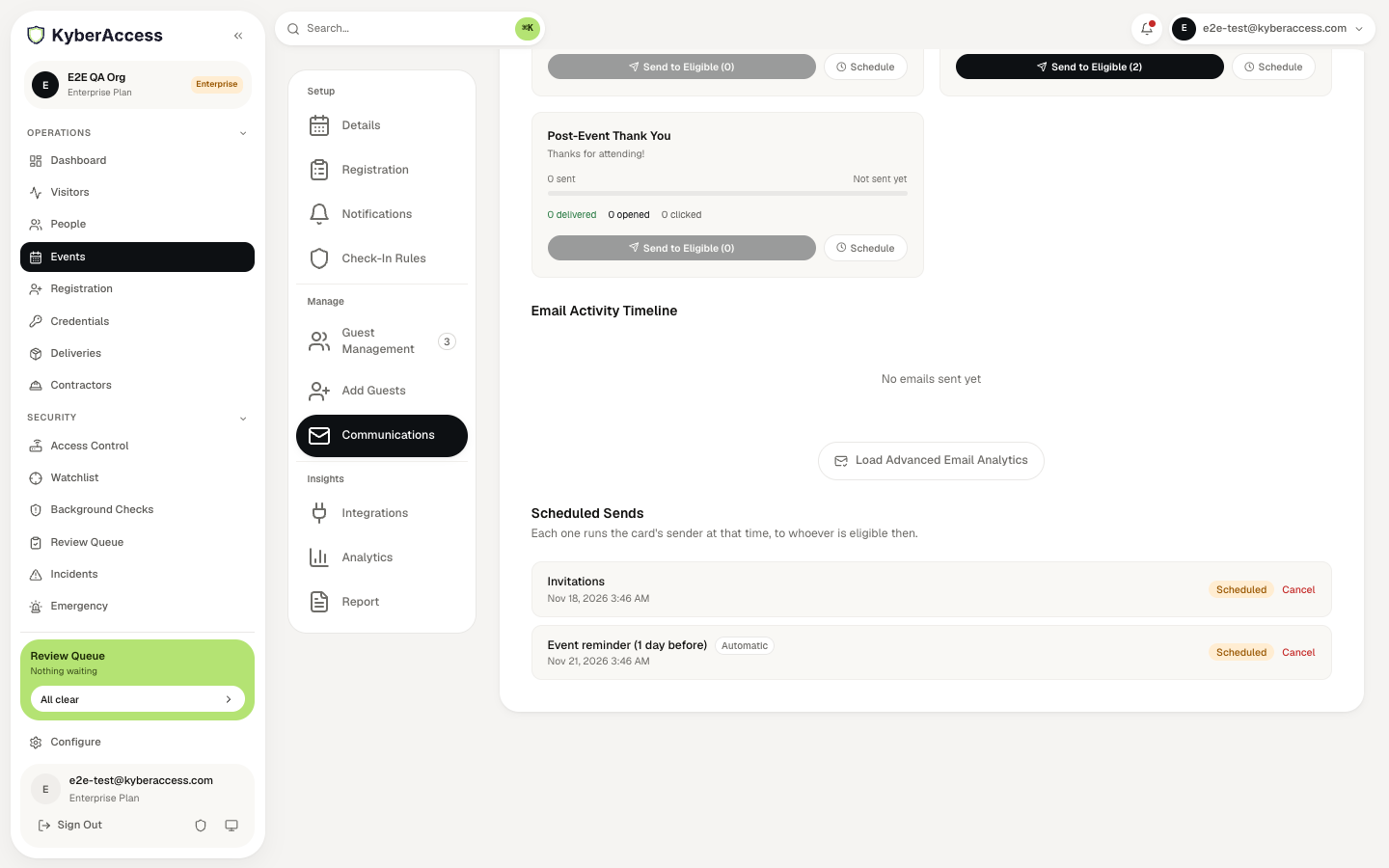
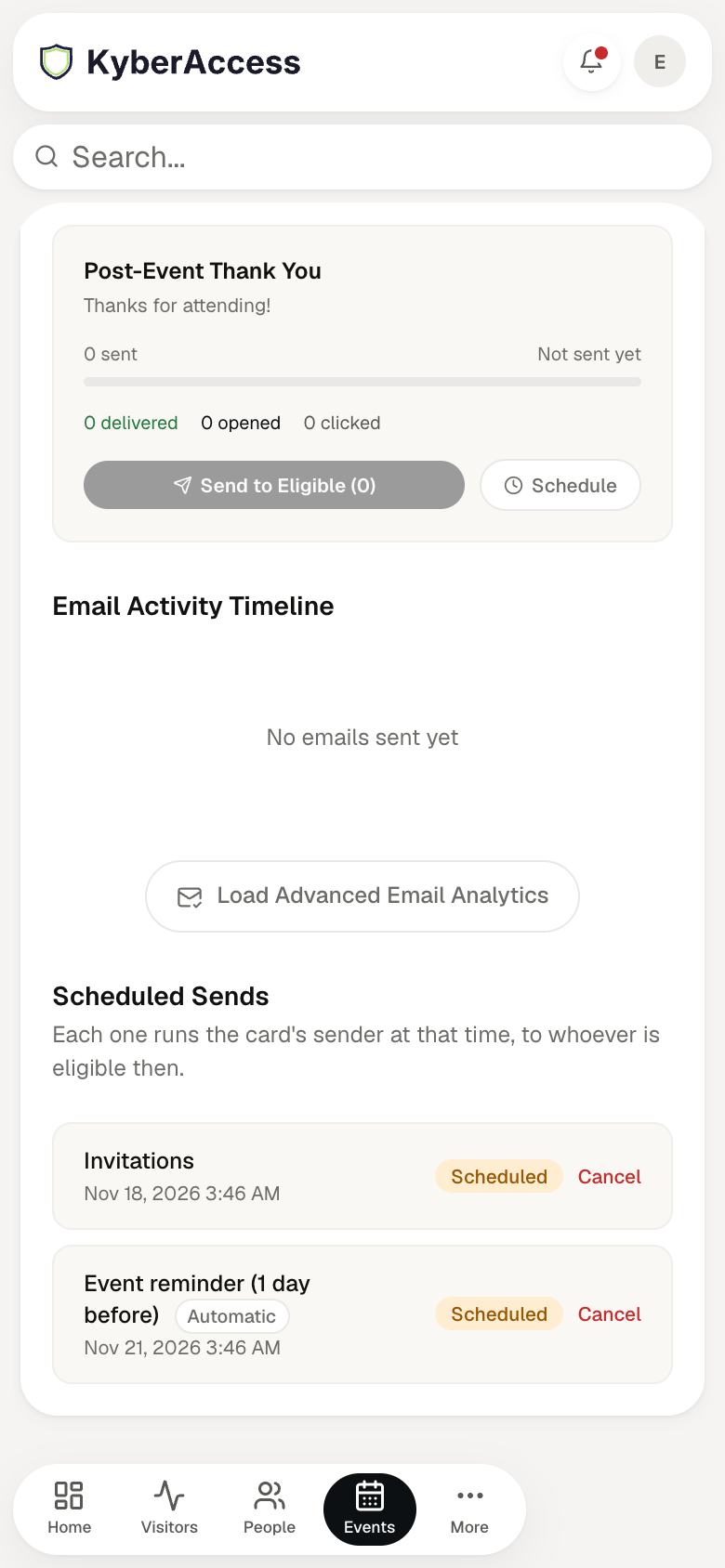
At that time the email goes to whoever is eligible then, exactly like Send to Eligible. A guest who declined in the meantime is not emailed. Nothing is sent for an event that is a draft, cancelled or archived at that time.
Send emails automatically
Set this once on the event's Notifications tab, then Save or Publish:
- Email Send Timing: for Invitations (RSVP), Registration links and QR codes, choose Send manually, Send X hours before the event or Send on a specific date & time.
- Reminder Schedule: turn on any of 1 Week, 3 Days, 1 Day, 2 Hours, 1 Hour Before. Add an optional Custom Message; it is added to the standard reminder.
- Post-Event Follow-Up: Send Thank You Email when the event ends, 1 hour after, or 1 day after.
- Invitation Email: the Subject Line (use {{eventName}}) and Include Calendar Attachment (.ics).
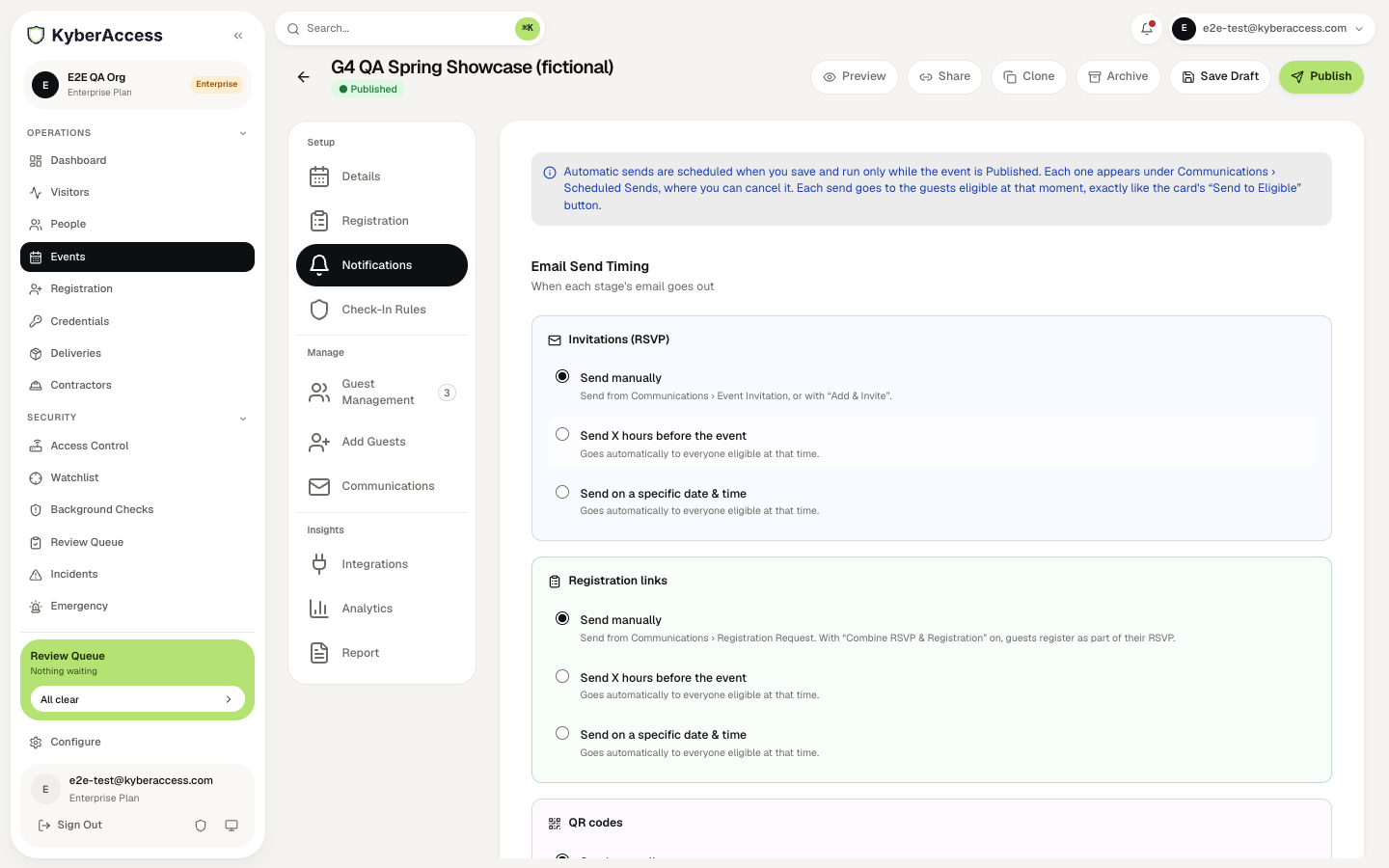
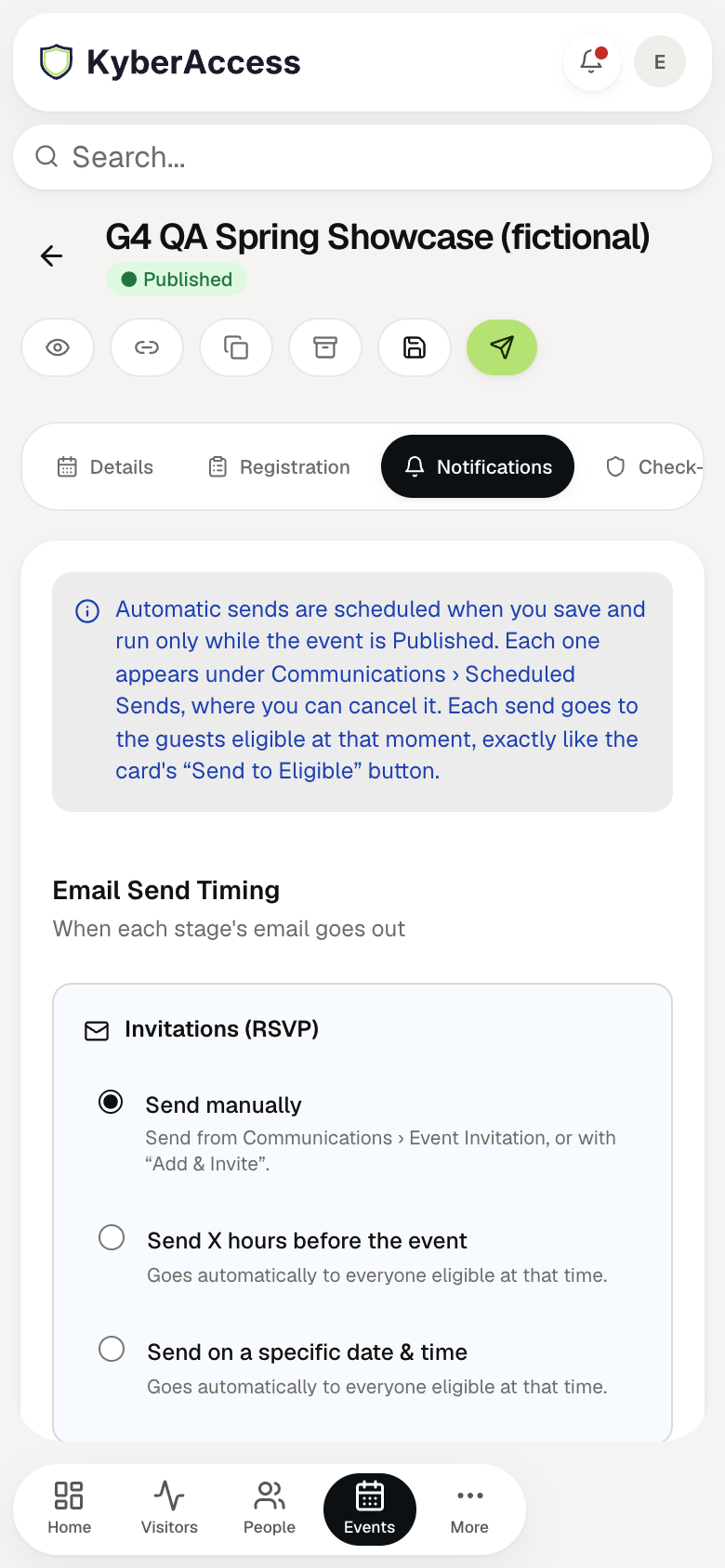
Each automatic email shows under Communications › Scheduled Sends marked Automatic, and is sent once. Automatic emails run only while the event is Published. A step whose time has already passed when you turn it on is skipped rather than sent late.
Send to selected guests
- Open Guest Management.
- Tick the guests.
- Select Actions (N) and choose Send Invitations, Resend Invitations, Send Reg Email or Send Reminder.
- For one guest, open the ⋮ menu on their row (Send Invitation, Resend Invitation, Send Reg Link) or click their name and use Quick Actions.
To remind everyone at once, use ⋮ › Send Reminder on the event's row or card on the Events page.
What happens next
- Each email takes a few seconds to go out; large lists are sent one after another.
- The guest's status moves from Added to Invited. Each guest gets their own RSVP link; it only works for that guest and stops working an hour after the event ends (or when registration closes, if sooner).
- Delivery Health and each card show sent, delivered, opened, clicked and bounced counts. A Resend Failed button appears on a card if some sends failed.
- Scheduled Sends shows each scheduled or automatic email as Scheduled, completed (with how many it went to) or failed (with the reason).
Troubleshooting
- "Send to Eligible (0)" is greyed out. Nobody is at the right step for that email (see the table).
- A scheduled email shows "completed · sent to 0". Nobody was eligible at that time.
- An automatic reminder didn't appear. The event must be Published, and its time must still be ahead when you saved. Save the event again after changing the date.
- A guest never got the invitation. Check the guest has an email, then look at their Email Timeline. A bounce means the address is wrong; fix it and use Resend Invitation.
- A guest forwarded their invitation. The link is tied to the original guest. Add the other person as their own guest and invite them.