Put people on an event's guest list so you can invite them, track them through registration and check them in. You can type them in, paste a list, upload a CSV, pick people already in KyberAccess, or pull families and event attendees from Veracross.
Who this is for
Owners, Admins, Event Managers and Event Coordinators.
Before you start
- The event must be saved (the Add Guests tab appears after the first save).
- For CSV: columns First Name, Last Name, Email, Phone, Company, in that order. Select Template to download a sample.
Menus: steps show the app launcher first and the classic menu in brackets. See Find your way around to tell which one you have.
Steps
- Open the event and select the Add Guests tab.
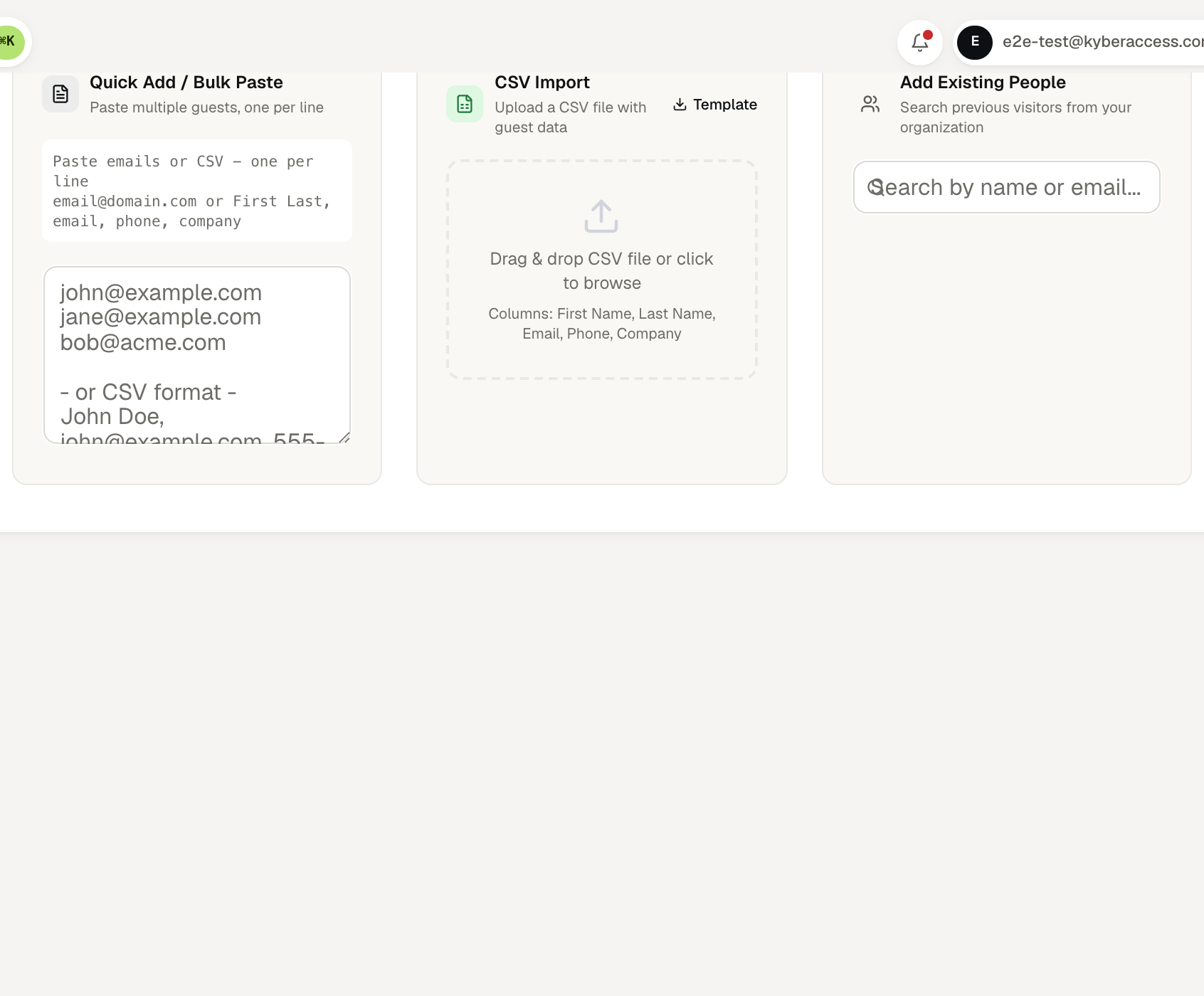
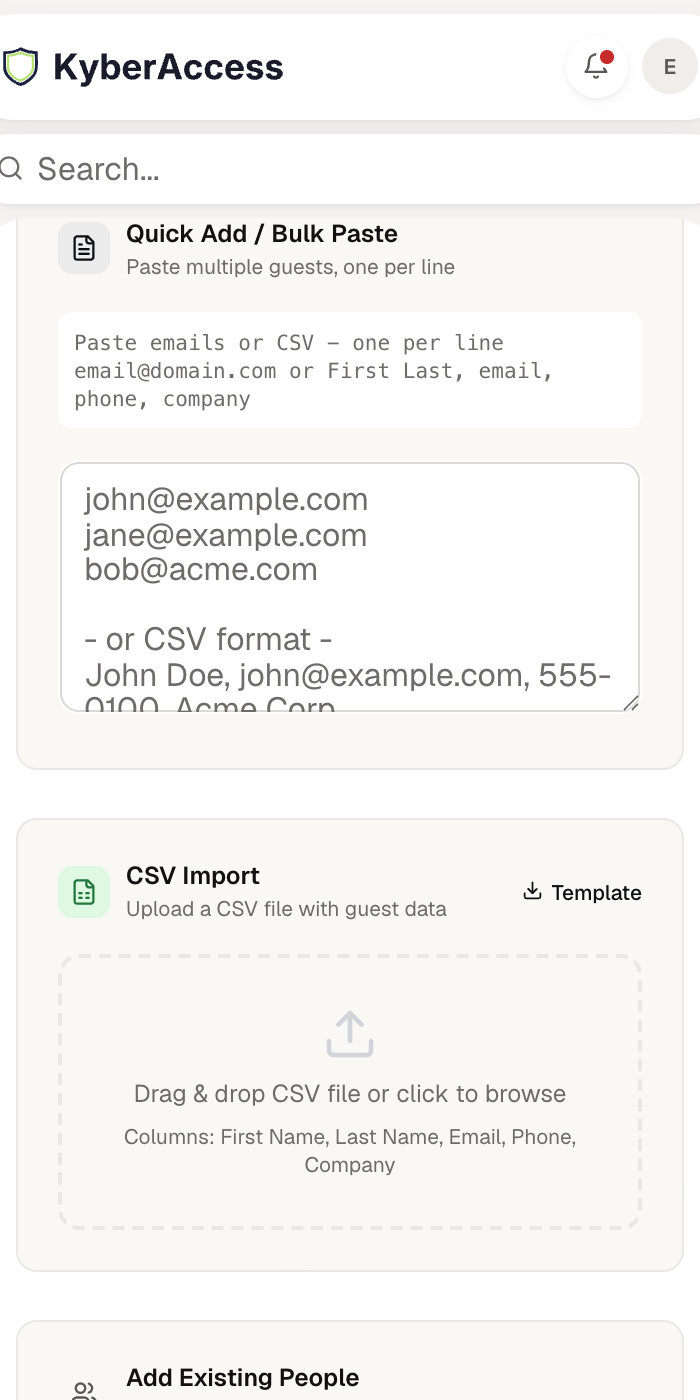
- Pick one way to add guests:
- Quick Add / Bulk Paste: paste one guest per line, either just an email, or
First Last, email, phone, company. The box shows how many lines are valid. Select Add N Guests. - CSV Import: drag a CSV onto the box or click to browse. Each row needs a first name and last name; email is checked if present. Select Import N Guests.
- Add Existing People: search by name or email, tick the people, and select Add N Selected.
- Import from Veracross (shown when Veracross is connected): Import a Veracross event's attendees adds the people on a Veracross event to this event; Browse Families by Grade adds parents by campus and grade.
- To add one person with more control, open Guest Management and select Add Guest. Choose Add Guest, Add & Add Another, or Add & Send E-Invite to invite them straight away.
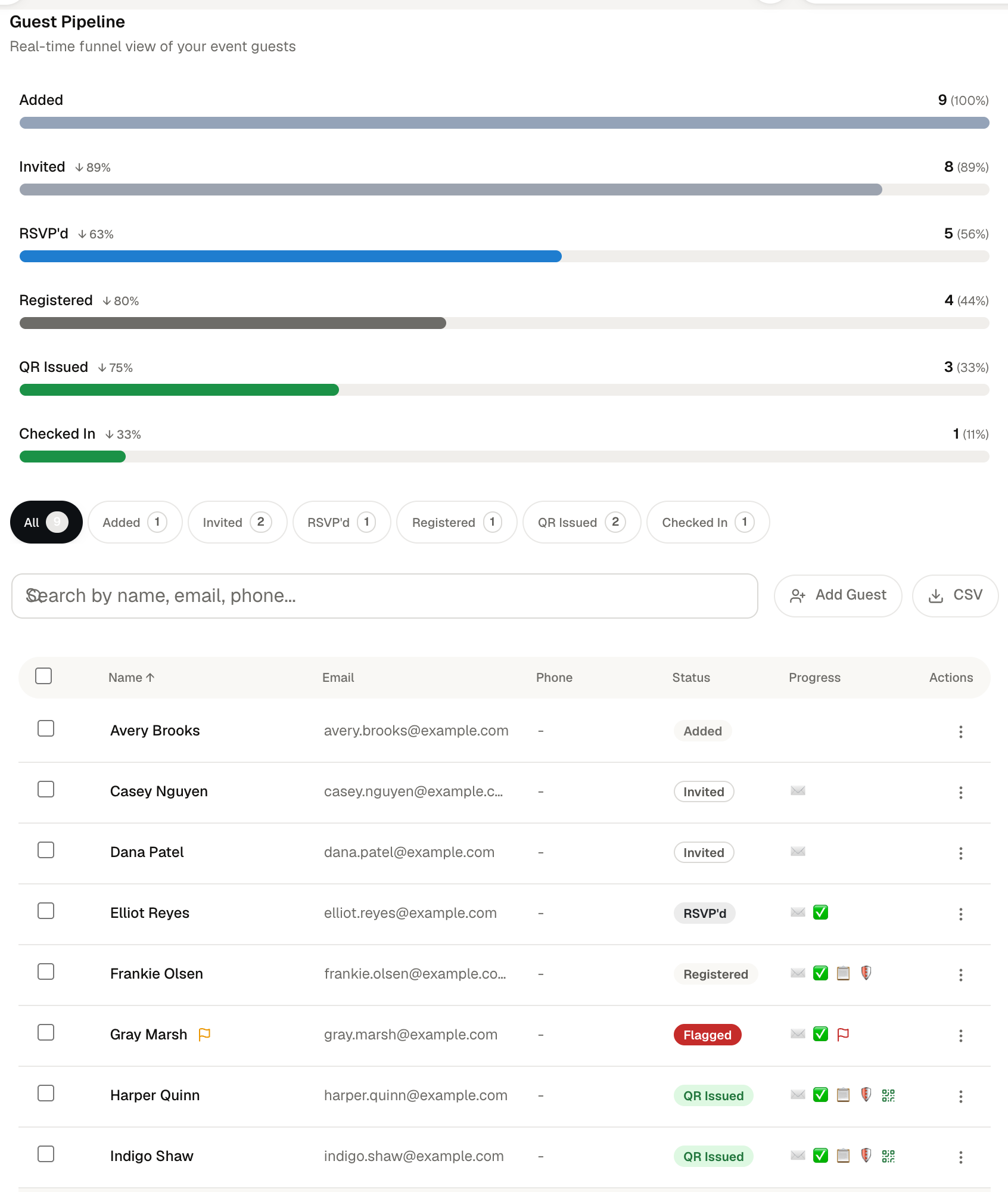
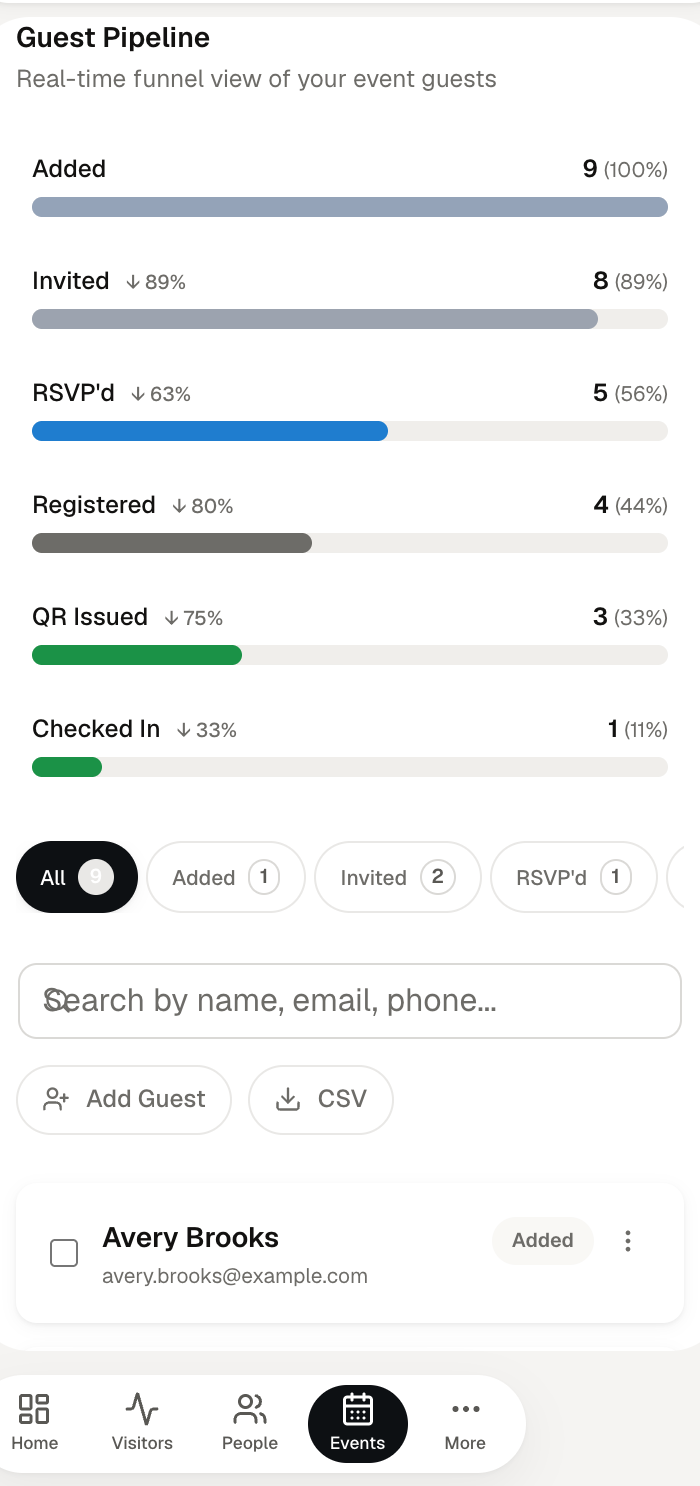
- Check Guest Management. New guests show the status Added.
What happens next
- Adding a guest does not email them. Send invitations next (see Send invitations and reminders), or use Add & Send E-Invite for a single guest.
- Each guest moves through Added → Invited → RSVP'd → Registered → QR Issued → Checked In. The Guest Pipeline at the top of Guest Management shows how many are at each step.
Note on Veracross imports
- Imported parents and attendees join Guest Management as Added, with their name and email from Veracross. Send them the invitation from Communications like any other guest.
- Importing the same people again skips anyone already on the list (matched by Veracross ID or email).
- People with no name and no email in Veracross are skipped; the result tells you how many.
- Veracross is the only student information system that event import reads.
Settings that change this
| Setting | Where | Effect |
|---|---|---|
| Max Capacity | Event › Details › Additional Settings | Counts guests who said yes, registered or have a QR code. It does not stop you adding guests, but stops new sign-ups and "yes" answers when full. |
| Veracross connection | Settings › Integrations › Student information system › Veracross (classic: Configure › Integrations › Veracross) | Shows Import from SIS on the tab. |
Troubleshooting
- "Missing first name" / "Invalid email" in bulk paste. Use
First Last, emailwith a comma between name and email. - CSV rows rejected. Every row needs a first and last name in the first two columns. Remove extra columns before the five listed.
- The same parent appears twice. Guests added by paste or CSV are not merged. Use ⋮ › Remove from Event on the extra row (or tick several and Actions › Remove Selected); the toast says how many were removed. The same person is emailed only once by Issue QR Codes.
- Import from Veracross is missing. Veracross is not connected for your organization.