Use this to give, for example, every grade 1 parent one credential (a QR code they can add to Apple or Google Wallet) that works until the last day of school, after each parent has uploaded an ID and been screened.
Today you do this with an event: invite the parents to a registration event set to Permanent Credential. Each parent registers once with name, date of birth and ID, is screened, and gets a credential valid until the date you choose.
Who this is for
Owners and admins. You need the Pro plan (for credentials) and event registration. Screening needs background checks to be on (see Set how often people are re-screened).
Before you start
- Decide the end date, for example 06/30/2027.
- Have the parents' names and emails. If you use Veracross, you can pick parents by grade straight from Veracross (step 6). With other systems, export the parent list as a CSV.
- Optional: build an Audience to see exactly who is in the group (step 1).
Menus: steps show the app launcher first and the classic menu in brackets. See Find your way around to tell which one you have.
Steps
See who is in the group (optional, needs a connected student information system)
- Open Apps › Access › Programs and select the Audiences tab (classic menu: Configure › Access control › Audiences), then select New audience.
- Under People who are, choose Guardians. Add a condition on the student: Grade is 1. Turn on Pickup-authorized only if you only want pickup adults.
- Under Count people as, pick Each adult (everyone gets their own credential) or One per household.
- Check the Live preview: how many people match, and Can we reach them? (who has an email). Review Gaps for parents with no email.
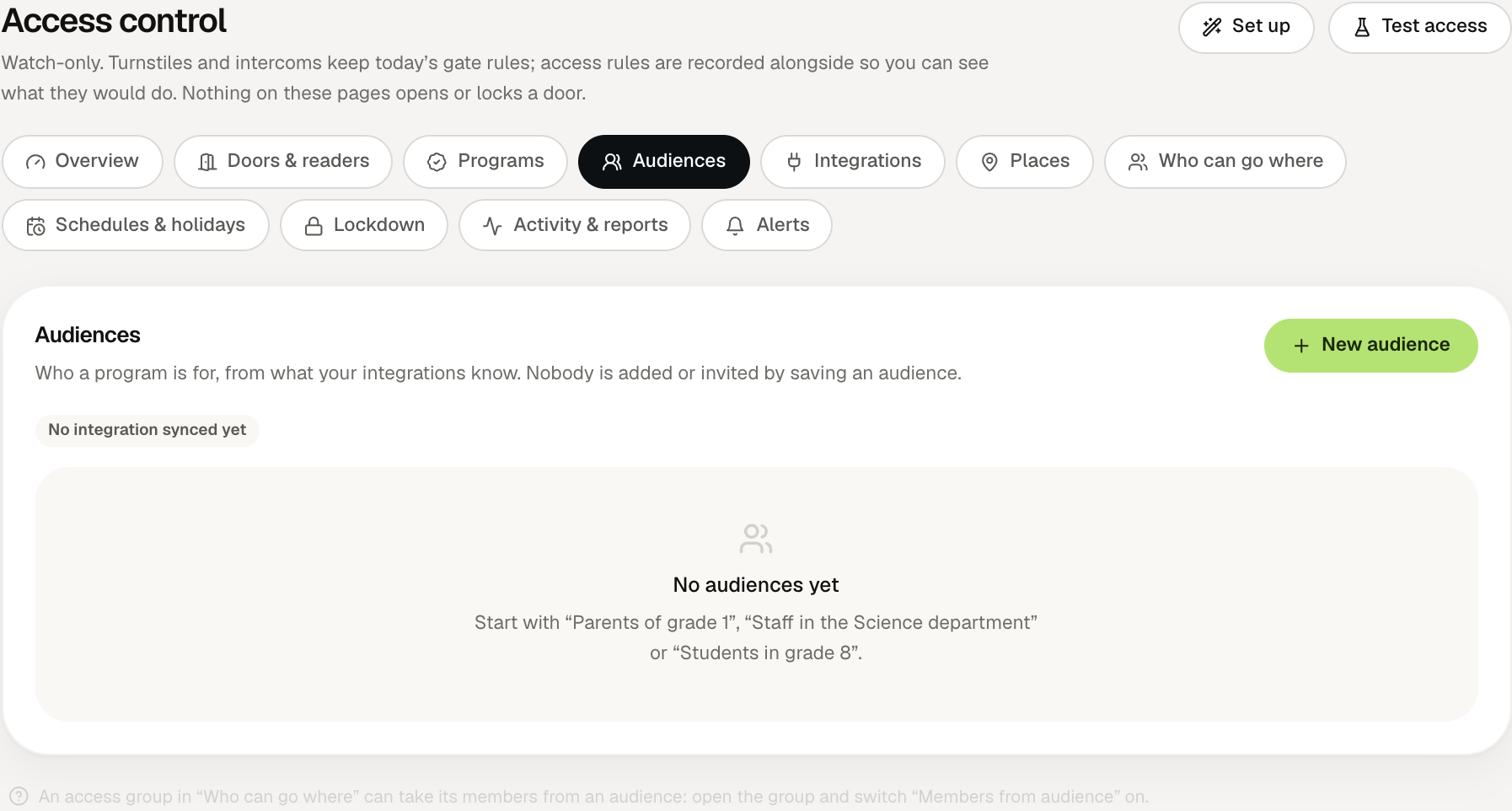
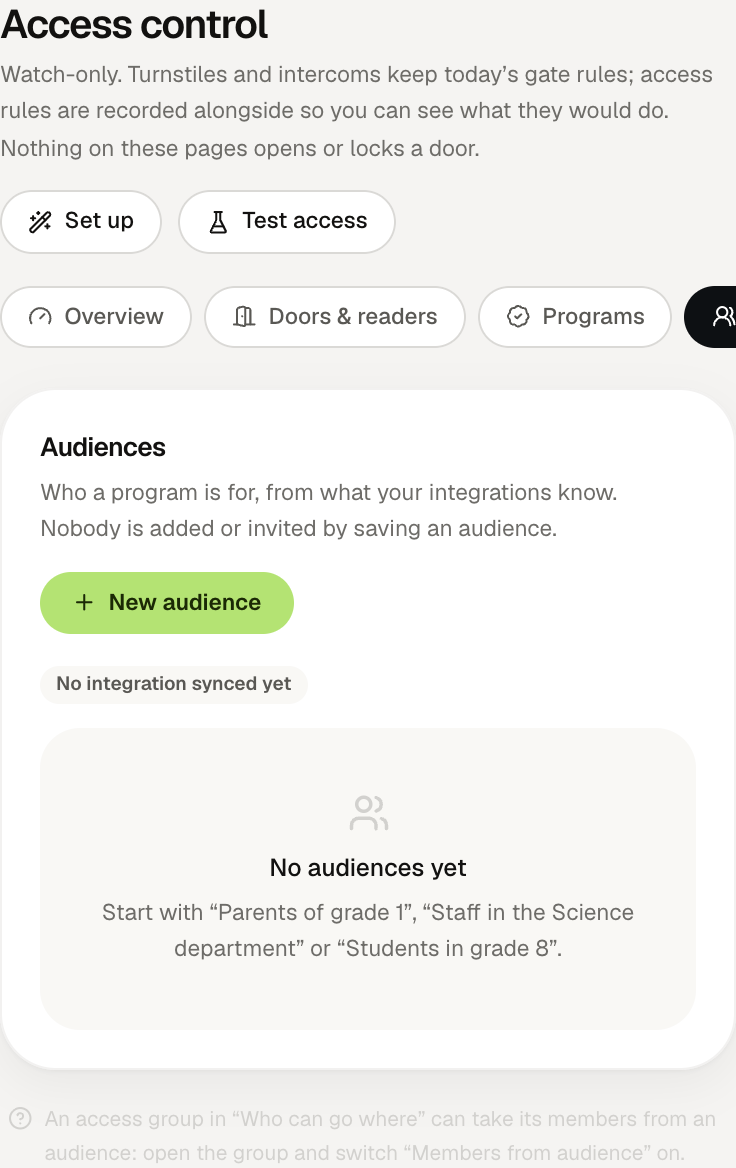
- Name it (e.g. "Grade 1 parents") and save. Select CSV on the members list to download the names and emails.
Saving an audience does not invite anyone or issue anything.
Create the registration event
- Open Apps › Events › Events (classic menu: Events under Operations) and create an event, e.g. "Grade 1 parent registration 2026–27". In the builder, select Switch to Advanced.
- On the Registration tab:
- Combine RSVP & Registration: on. Parents give their ID and are screened in the same visit.
- Approval Settings › Require Background Check: on.
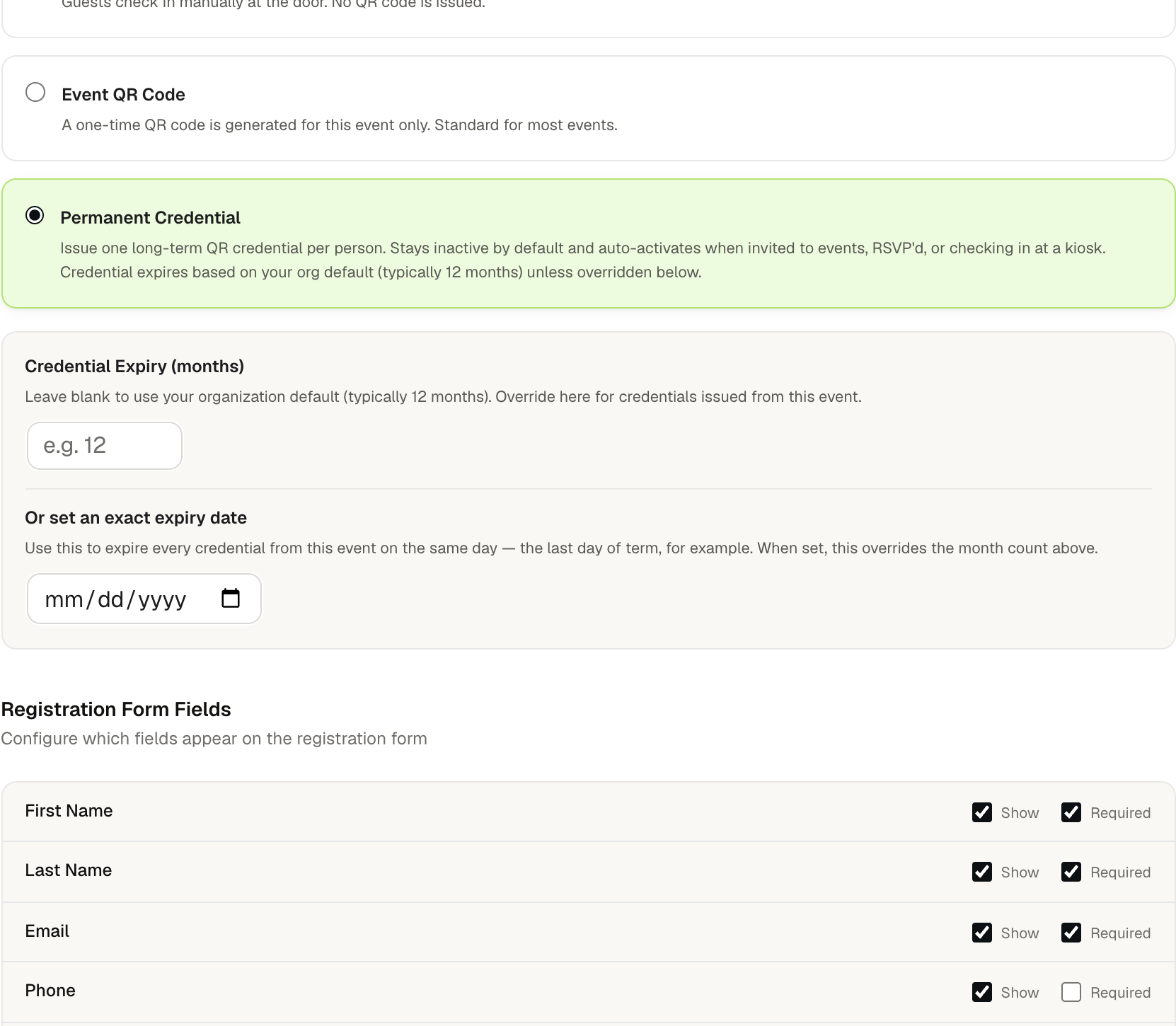
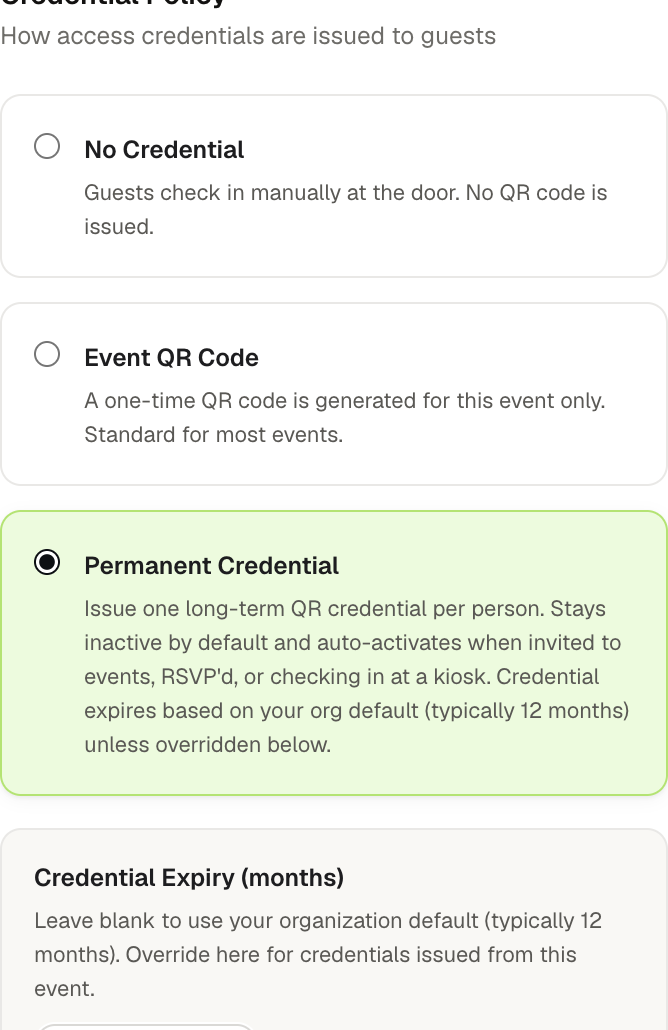
- Credential Policy: choose Permanent Credential.
- Or set an exact expiry date: enter the last day of school. This beats the month count.
- Save and publish the event.
- Open the event's Add Guests tab and add the parents:
- Browse Families by Grade (Veracross): pick the grade and the parents.
- CSV Import: columns First Name, Last Name, Email, Phone, Company (the audience CSV can be reformatted to this), or
- Quick Add / Bulk Paste: one per line,
First Last, email. - Select the guests and choose Send Invitations.
What happens next
- Each parent opens their invitation, says yes, and is taken through name, date of birth, ID photo and selfie. The screening runs while they wait.
- Clear: the parent gets their credential by email straight away, with Apple and Google Wallet buttons. It is valid until your end date.
- Possible match, or the registry did not answer: the parent is held. Nothing is issued until someone decides in Review queue (Apps › Security › Review queue; classic menu: Review Queue under Security). Approving issues the credential and emails it.
- A parent who already holds a credential keeps the same QR code. Their credential is linked to this event, and its expiry moves to your end date if that is later.
- Track progress on the event's guest list and on Credentials (Apps › Access › Credentials; classic menu: Credentials under Operations), tab By event.
Settings that change this
- Event › Registration › Credential Expiry (months) / exact expiry date: how long the credential lasts.
- Skip ID re-entry for credential holders in Settings › Security & policies › Credentials & screening (classic menu: Configure › Credentials & screening): parents who already hold a credential skip the ID step on later invitations.
- See How credentials, ID checks and background screenings work together for every rule.
Troubleshooting
- "No event issues credentials" banner on Credentials. No event is set to Permanent Credential. Open the event › Registration › Credential Policy.
- A parent got no credential. Check Review Queue (held), then Credentials › Blocked. A person with a suspended or revoked credential is never issued a new one automatically.
- Audience shows "No integration synced yet". Connect your student information system under Settings › Integrations › All integrations (classic menu: Configure › Integrations) first, or use a CSV on the event instead.
- Don't send the event's Public Link to parents. That page does not collect ID or screen.
Related articles
- How credentials, ID checks and background screenings work together
- Require registration and screening before a credential is issued
- Change how long credentials last
- Review and decide held visitors