Your school or organization gave you a KyberAccess credential: one personal QR code that lets you in at their events and entrances until it expires. This page explains how to get it, use it and keep it.
Who this is for
Parents, volunteers and visitors who received a credential from a school or organization that uses KyberAccess. You don't need an account or an app.
How you get it
Usually you register once for an event your school sends you (for example "Grade 1 parent registration"): 1. Open the invitation email and select the link. 2. Enter your name and date of birth, scan the front of your driver's license or ID, and take a selfie if asked. 3. The school may run a quick safety check. Most people are approved right away; sometimes staff review it first, which can take a little while. 4. You get an email with your QR code and Add to Apple Wallet / Add to Google Wallet buttons.
Use it
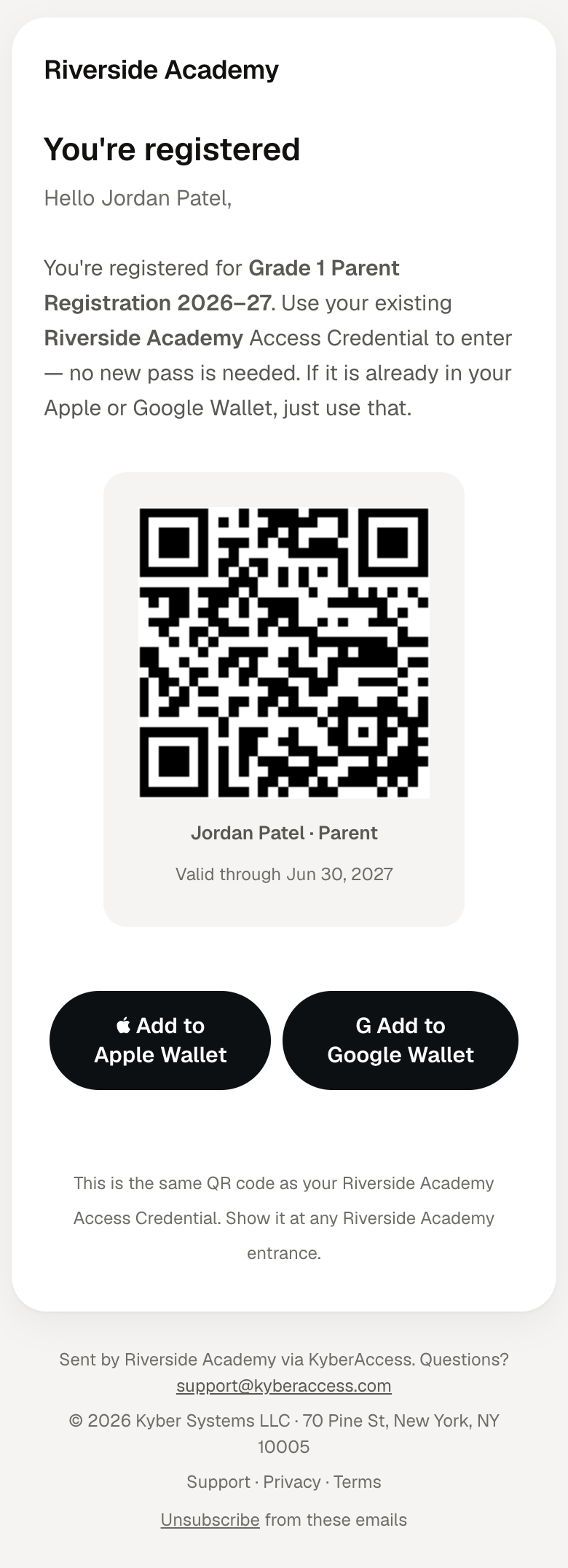
- Add it to your phone: tap Add to Apple Wallet (iPhone) or Add to Google Wallet (Android) in the email. See Apple and Google Wallet passes.
- Or keep the email, or save a screenshot of the QR code.
- At the entrance, kiosk or guard, show the QR code. It is the same for every event while it's valid.
Later invitations
When the school invites you to another event, you may not need to do anything again: - If you click Yes on the invitation and see "You're registered, [your name]." and "Your KyberAccess credential is on file.", you're done. Use the same QR code. - If you see Welcome back with ID on file, check your details and select Confirm registration. - Need to change your details or ID? Select Not you, or need to update your ID? - Some schools ask you to scan your ID again after a while (for example every 90 days). That's their setting.
How long it lasts
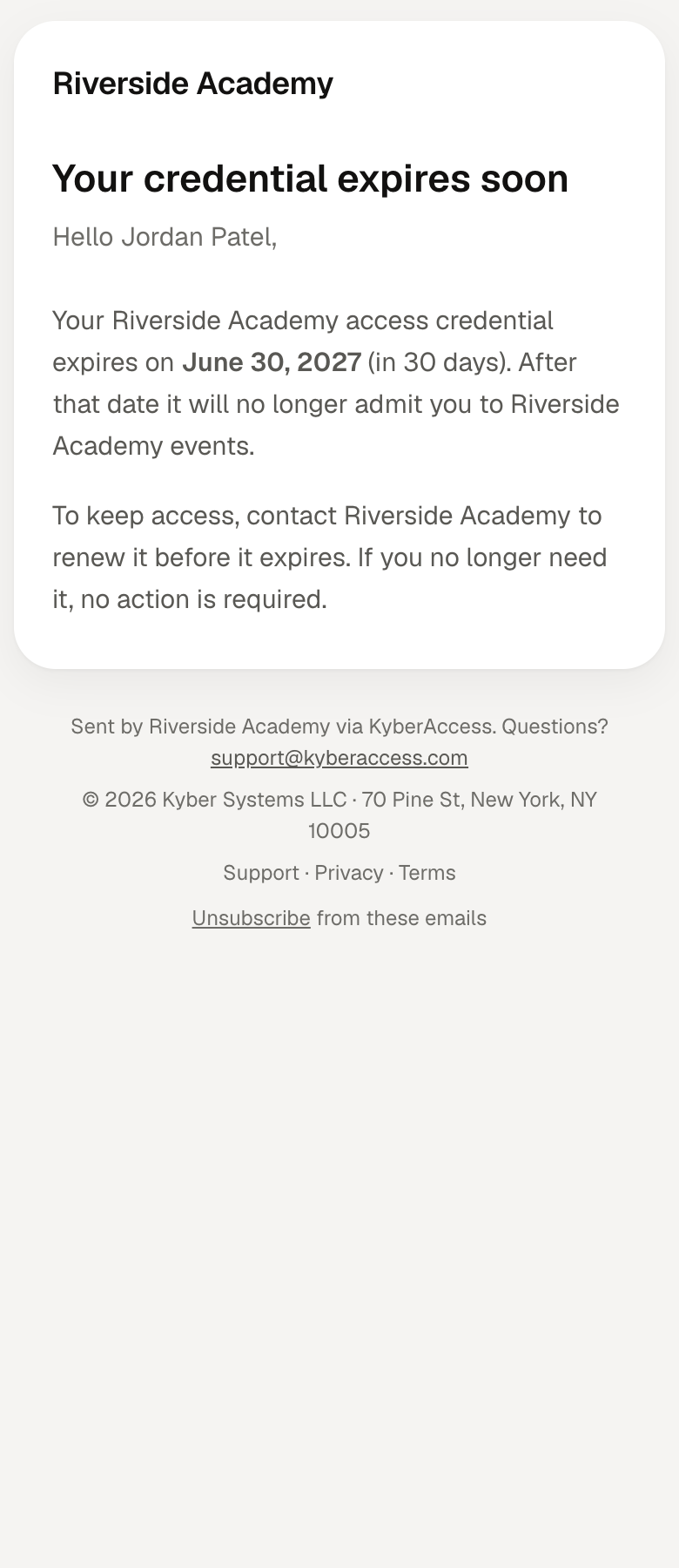
Your credential works until the date shown in your email ("Valid through …" or "Expires"). Your school may email you a reminder before it expires: "Your credential expires soon". To keep access, contact the school; they can renew it and your QR code stays the same.
If it stops working
Your QR code is refused when your credential has expired, or when the school paused or ended it. Contact the school's front office. They can see why and fix it.
Privacy
- The QR code and Wallet pass show your name, the organization and the dates only. They never show your date of birth or ID number.
- Your ID details are kept by the school that collected them. Ask them if you have questions about how they use it.
Troubleshooting
- I can't find the email: search your inbox and spam for your school's name. Ask the school to resend your pass.
- "This credential pass is no longer available": the credential was paused, ended or has expired. Contact the school.
- The Wallet button didn't work: open the email on your phone, not a computer. If it still fails, show the QR code in the email instead; it works the same.
- I got a new QR code: use the newest one. When the school replaces a credential, the old QR code stops working.