A credential works until its expiry date. You can set the date for new credentials (per event, or an organization default) and extend existing ones.
Menus: steps show the app launcher first and the classic menu in brackets. See Find your way around to tell which one you have.
Who this is for
Owners and admins.
Set it for one event (recommended for a school year)
- Open Apps › Events › Events (classic menu: Events under Operations), open the event, select Switch to Advanced, then go to Registration › Credential Policy › Permanent Credential.
- Enter Or set an exact expiry date (e.g. the last day of school), or Credential Expiry (months) (1–120). If both are set, the exact date wins.
- Save.
Set the organization default
- Open Settings › Security & policies › Credentials & screening (classic menu: Configure › Credentials & screening).
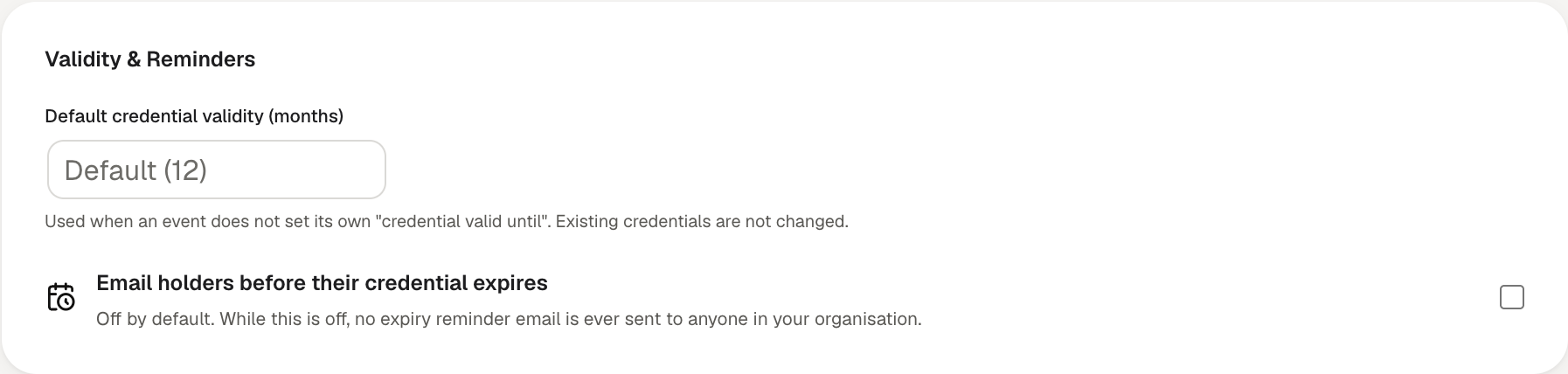
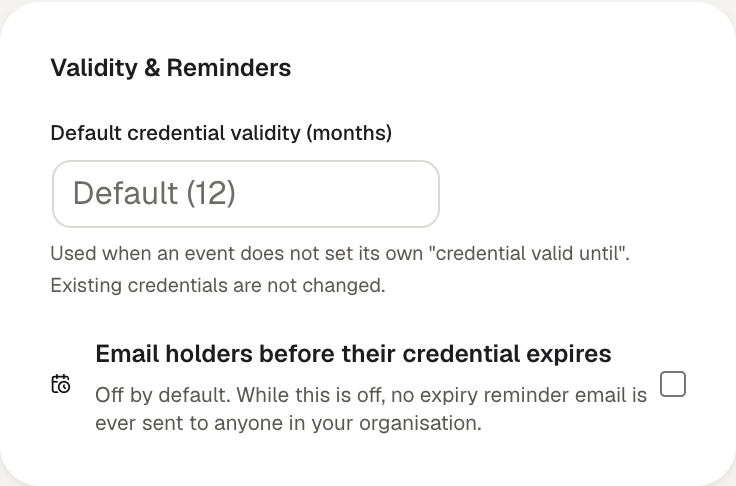
- Under Validity & Reminders, enter Default credential validity (months) (1–60). Leave it blank for 12 months.
- Select Save.
This default is used by events that set neither a date nor months.
Extend credentials that already exist
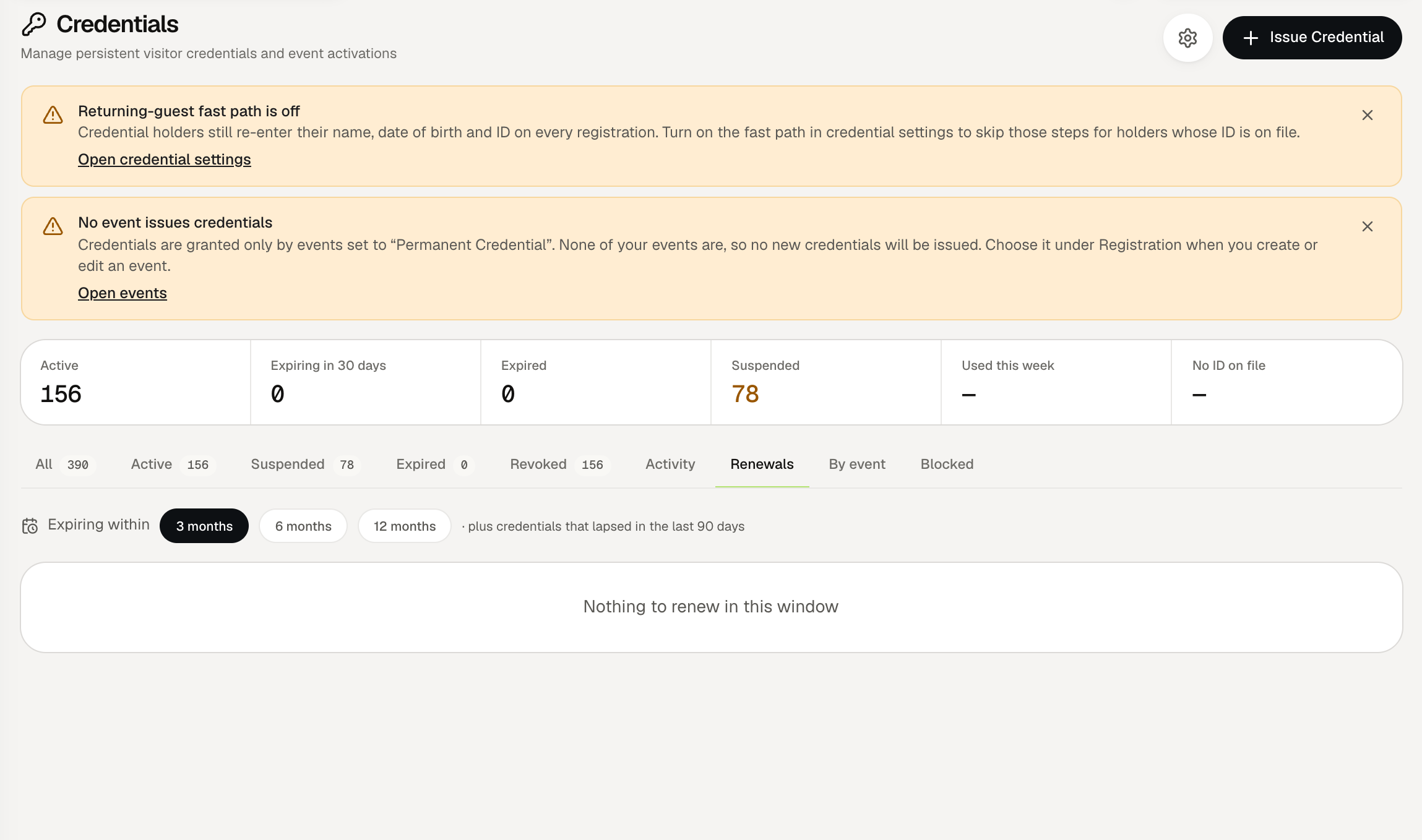
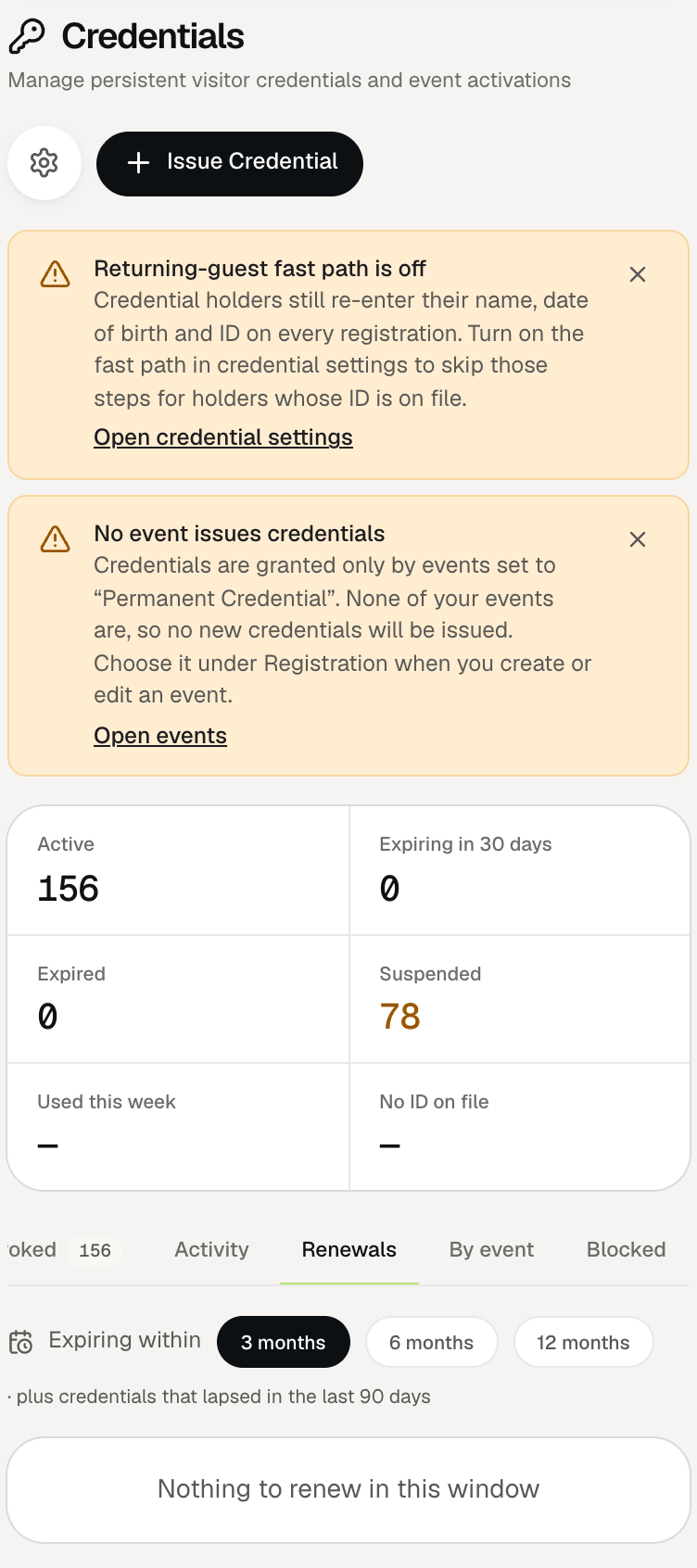
Changing a setting never changes existing credentials. To extend them: 1. Go to Credentials (Apps › Access › Credentials; classic menu: Credentials in the sidebar, under Operations) and open the Renewals tab. 2. Choose Expiring within 3 months, 6 months or 12 months. Credentials that lapsed in the last 90 days are included. 3. Select a month or individual credentials, choose the new length or date, enter a reason, and renew.
Renewing never shortens a credential: any already valid past the new date is skipped. To renew one credential, open it and select Renew.
What happens next
- When a credential reaches its date, it is marked expired within a few minutes. Kiosks, gates and guards then refuse it.
- When a holder joins another Permanent Credential event, their credential's date moves to that event's date if it is later. It is never moved earlier.
- Optional: Email holders before their credential expires on Settings › Security & policies › Credentials & screening (classic menu: Configure › Credentials & screening) sends one reminder 30, 14 or 7 days before. It is off by default.
Watch out
- Issue Credential with the Expiration Date left blank now uses New credentials last on Settings › Security & policies › Credentials & screening (classic menu: Configure › Credentials & screening) (12 months unless you change it). Credentials issued blank before November 17, 2026 have no end date; the settings page counts them under Never expire. Open one and select Extend to give it a date.
- No expiry is a choice on that page; it is never applied by leaving a field blank.
Related articles
- How credentials, ID checks and background screenings work together
- Give a group of parents (by grade) a credential for the school year