A recurring pass records that someone (a tutor, a cleaner, a weekly volunteer) is expected on set days and hours. Today a recurring pass does two things: it lists the person on the Visitor Passes page with their schedule and past visits, and it sends them a reminder before each expected day if you turn reminders on. It does not issue a QR code, and the kiosk and gates do not check it.
Who this is for
Owners and admins.
Before you start
- If you want the pass to name buildings, add them first under Settings › Organization › Sites & places (classic menu: Configure › Locations). The Locations choice only appears when you have locations.
- To give a regular visitor something they can scan at the kiosk or a gate, issue a credential instead (see "Change how long credentials last").
Menus: steps show the app launcher first and the classic menu in brackets. See Find your way around to tell which one you have.
Steps
- Open Apps › Front Desk › Recurring passes. The page is titled Visitor Passes. (Classic menu: it is not in the sidebar, so open /recurring-passes in your browser, for example
https://app.kyberaccess.com/recurring-passes, and bookmark it.) - Click Create Pass.
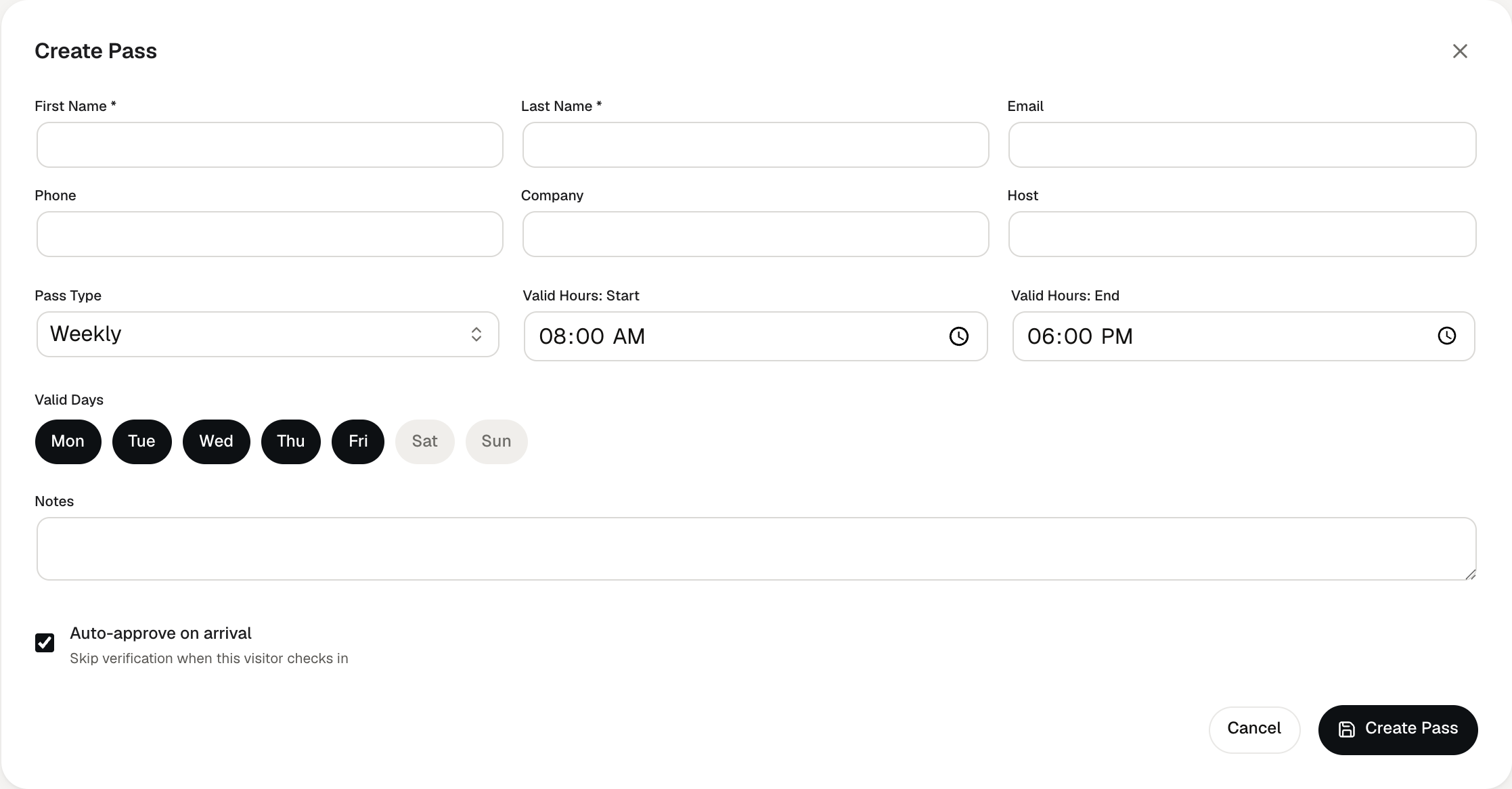
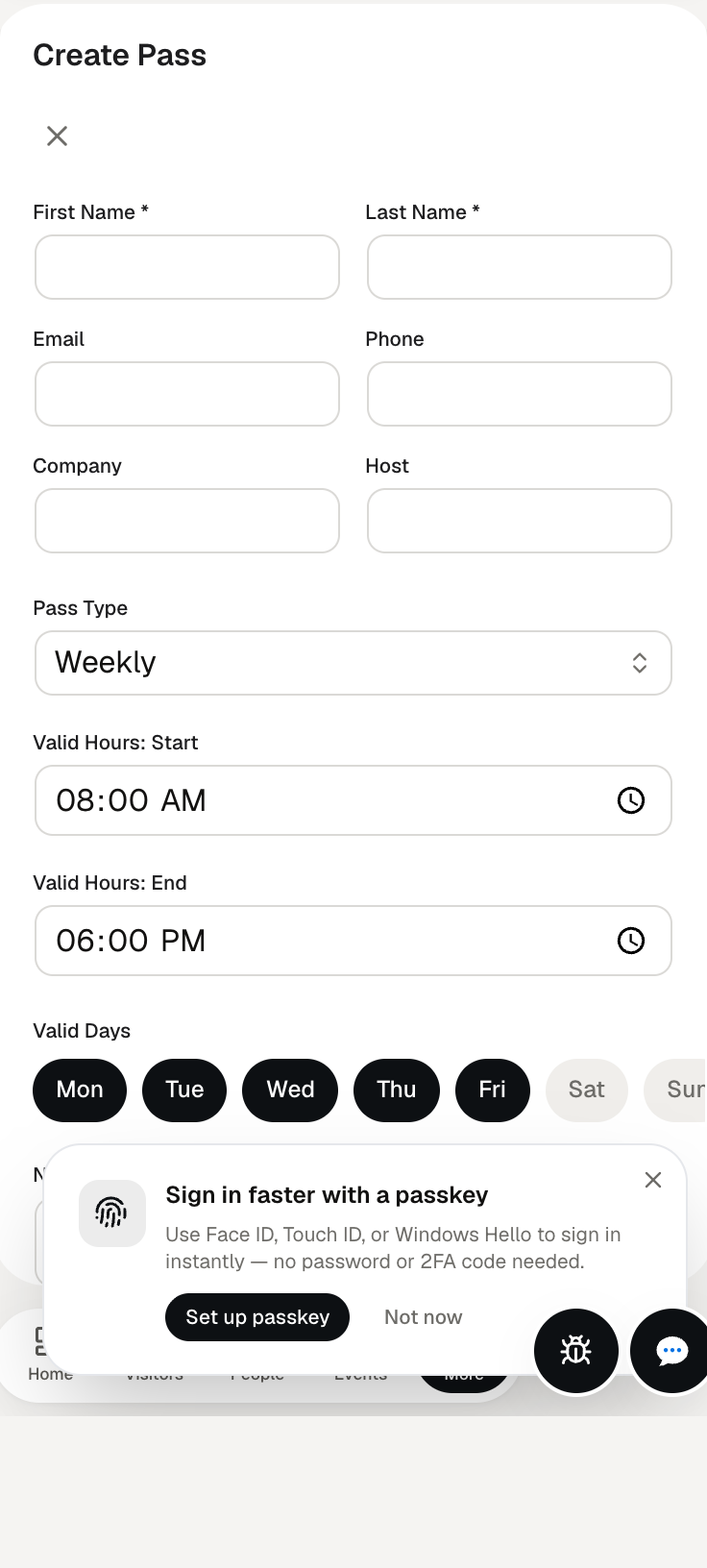
- Fill in First Name and Last Name (required). Add Email and Phone if you want reminders to reach them, and Company and Host.
- Choose a Pass Type: Weekly, Monthly or Permanent. This is a label only.
- Set Valid Hours: Start and Valid Hours: End (default 8:00 AM to 6:00 PM).
- Under Valid Days, click the days they come. Monday to Friday are on by default.
- Add Notes if useful. Leave Auto-approve on arrival as it is; it has no effect today.
- Click Create Pass.
Manage a pass
- Suspend (pause icon) stops reminders. Reactivate turns them back on.
- Edit (pencil) changes any field. Delete (trash can) removes the pass.
- Click the arrow on a pass to open Visit History: visits whose name contains the pass holder's first and last name.
What happens next
- The person still checks in normally each time, at the iPad kiosk or the front desk. A recurring pass does not skip any step.
- With Pre-registration reminders on, an active pass holder gets one reminder before each valid day, timed from Valid Hours: Start. A suspended pass gets none.
Settings that change this
| Setting | Where | Default | Effect |
|---|---|---|---|
| Valid Days / Valid Hours: Start | the pass | Mon–Fri, 8:00 AM | When reminders are timed |
| Pre-registration reminders | Settings › Apps › Front Desk › Pre-registration reminders (classic: Configure › Visitor policies › Pre-registration reminders) | Off | Sends the reminder |
| Pass Type, Valid Hours: End, Locations, Auto-approve on arrival | the pass | — | Shown on the pass only. These currently have no effect on check-in. |
Troubleshooting
- I can't find Visitor Passes in the menu → in the classic menu it has no sidebar entry → go to
/recurring-passesdirectly, or use Apps › Front Desk › Recurring passes if your organization has the app launcher. - The pass holder was asked for ID at the kiosk anyway → passes don't change kiosk steps → use Returning Visitor Express Check-In to shorten check-in for regulars.
- Visit History is empty → the visits were recorded under a different spelling of the name.
- No reminder arrived → reminders are off, the pass is suspended, or there's no email/phone on the pass.