Three small extras for your front entrance: a lobby display for a TV that shows the time, who is on site and your announcements; a campus map of buildings and rooms; and a feedback form with ratings. This article explains how to set each one up and what works today.
Menus: steps show the app launcher first and the classic menu in brackets. See Find your way around to tell which one you have.
Who this is for
Owners and admins.
Lobby display
Set it up
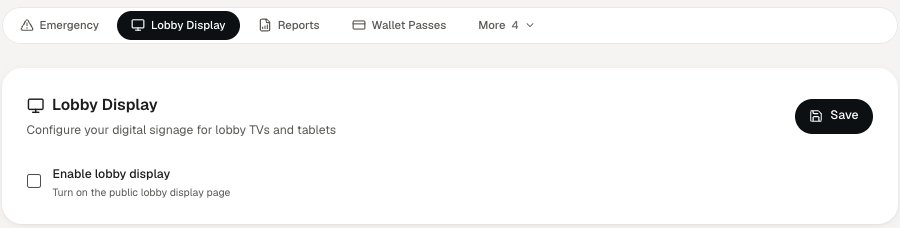
- Open Settings › Devices & hardware › Lobby displays (classic menu: Configure › Advanced › Lobby Display).
- Tick Enable lobby display.
- Choose a Theme: Dark, Light or Custom (pick a color).
- Under Privacy, choose Show visitor names or Show count only.
- Optional: Weather Location (city or ZIP code), Logo Override (leave blank to use your organization logo), Muster Point Location.
- Add Announcements. They rotate every 10 seconds.
- Click Save, then Preview to open the display.
Put it on a TV
- On the computer or stick connected to the lobby TV, open the address shown under Enable lobby display (it ends in
/lobby/followed by your organization ID). No sign-in is needed. - Make the browser full screen.
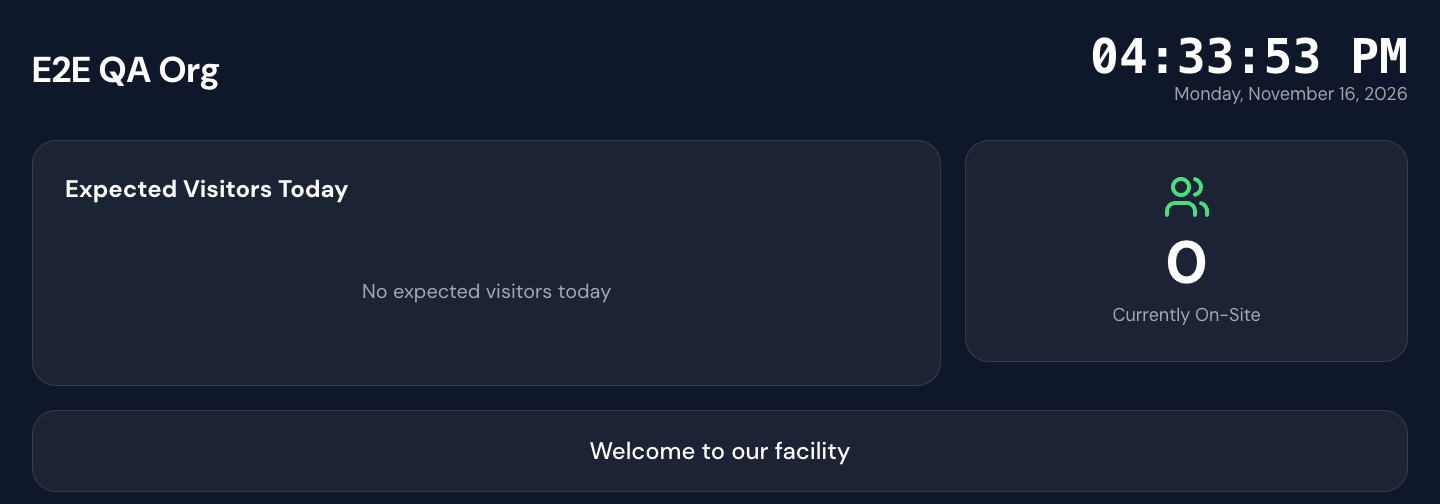
The display shows the clock and date, Visitors Today (first name and last initial only, for example "Maria L."), or just a count if you chose Show count only, Currently On-Site, your announcements, and the evacuation screen with your muster point during an emergency. It refreshes every 30 seconds.
When Enable lobby display is off, the address shows "Lobby display is off" and no visitor information.
Campus map
- In your browser, go to
app.kyberaccess.com/campus-map(there is no sidebar link yet). - On Buildings, click Add Building: Building Name, Number of Floors, Address (optional).
- On Rooms or Floor Grid, click Add Room: Room Name, Room Number, Floor, Type, Capacity, Department.
- Tick Common Destination ("Show in visitor wayfinding as a key location") for places like the main office or gym, and add a Destination Label.
- Click a room's QR Code to print a "Scan to get directions to this room" sign.
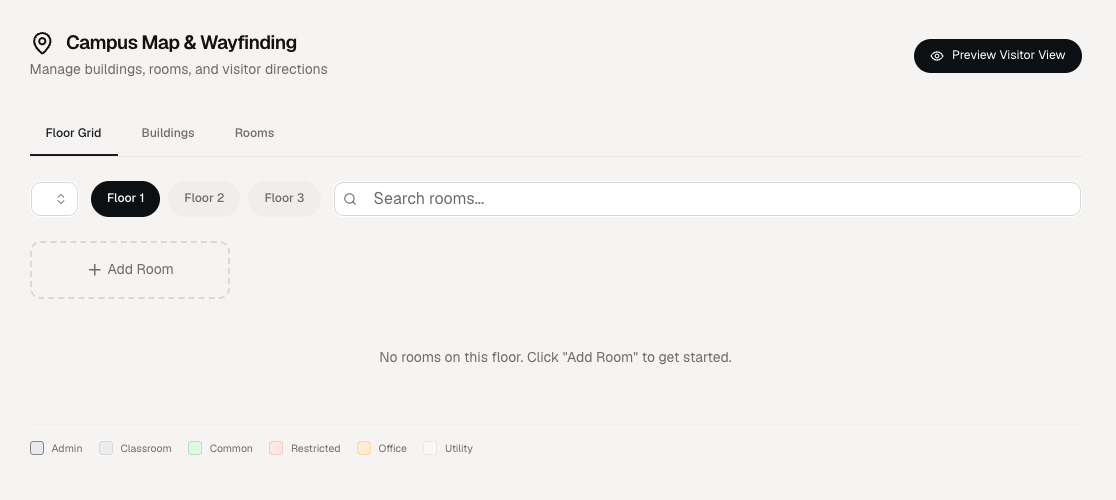
The visitor view of the map (Preview Visitor View and the room QR codes) currently only shows rooms to someone who is signed in to KyberAccess. A visitor scanning a room QR on their own phone sees "No destinations configured yet". Use the map as a staff reference until this is fixed.
Visitor feedback
KyberAccess has a feedback form (two star ratings, a comment, optional name and email) and a Feedback dashboard with Average Rating, Total Responses, NPS Score and a rating breakdown, at app.kyberaccess.com/feedback.
- Share the form address with visitors:
app.kyberaccess.com/feedback/followed by your organization ID (the same ID as in the lobby display address). A printed QR code at the exit works well. - Visitors rate their visit and check-in (1 to 5 stars) and can add a comment. No sign-in is needed.
- Responses appear on the Feedback dashboard.
KyberAccess does not email visitors a feedback request automatically.
Settings that change this
| Setting | Where | Default |
|---|---|---|
| Enable lobby display | Settings › Devices & hardware › Lobby displays (classic: Configure › Advanced › Lobby Display) | off |
| Theme | same | Dark |
| Privacy | same | Show visitor names |
| Announcements | same | "Welcome to our facility" |
| Muster Point Location | same | blank. Shown on the display during an emergency |
If you turn Enable lobby display off, the TV address stops showing visitors straight away.
Troubleshooting
- The lobby TV says "Lobby display is off". Tick Enable lobby display and click Save.
- The lobby TV shows no names. Privacy is set to Show count only, or nobody is checked in right now.
- My announcements do not show. Click Save on the settings page, then reload the display.
- The weather does not appear. Check Weather Location is a real city or ZIP code.
- A visitor's phone shows an empty campus map. See the note above; the visitor view needs a signed-in session today.
Related articles
- Run an evacuation and roll call
- Sites and locations