When a visitor checks in at the iPad kiosk and names who they are visiting, KyberAccess emails that person ("the host") right away, and texts them if a phone number is on file. You decide who can be picked as a host and who else gets a copy.
Who this is for
Owners and admins. Host notifications are included in every plan.
Before you start
- Each host needs an email address (and a mobile number for texts) in KyberAccess. Hosts can be staff with a KyberAccess login or people added only as hosts.
Menus: steps show the app launcher first and the classic menu in brackets. See Find your way around to tell which one you have.
Steps
1. Add your hosts
- Open Settings › People & roles › Hosts (classic menu: Configure › Organization › Hosts).
- Click Add Host. Enter First Name, Last Name, Email, Phone, and optionally Department and Site.
- Click Save Changes.
Staff members who sign in to KyberAccess are also available as hosts; you do not need to add them twice.
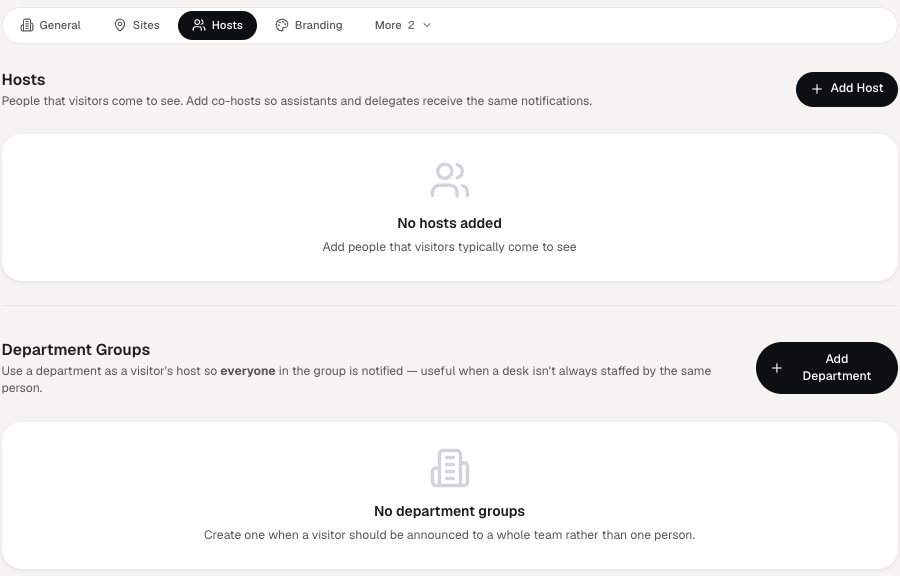
2. Use department groups for shared desks (optional)
When a desk is not always staffed by the same person, let visitors pick the department instead. 1. On the same page, under Department Groups, click Add Department. 2. Enter the Department Name (for example "Business Office"), and optionally a Shared Email and Shared Phone. 3. Add members: pick an Existing Host or type a name, email and phone. 4. Click Save.
When a visitor picks the department, everyone in it is notified. A shared inbox is notified in addition to members, never instead of them.
3. Let visitors pick a host on the kiosk
- Open Settings › Apps › Front Desk › Kiosk flow (classic menu: Configure › Kiosk › Flow builder) and click the gear on Visitor Information.
- Under Host Selection, set Host / Who are you visiting? to Required or Optional.
- Set Host Source to Directory Dropdown (visitors choose from your list) or Both. Typed names only work when they match a host's first and last name exactly.
- Click Publish.
4. Copies to admins or security (optional)
- Open Settings › Apps › Front Desk › Host alerts (classic menu: Configure › Notifications › Host Notifications).
- Under Security Team, add the addresses that should get copies when you pick "Security Team".
- Make sure Visitor Checked In is switched on, and click it to open it.
- Under Recipients, pick Admins (every owner and admin), Security Team, and/or Additional People (then add email addresses).
- Click Save Changes.
Copies are sent by email when a visitor checks in. The host is never sent a duplicate.
What happens next
- At check-in the host gets an email "… has arrived", with the visitor's name, company, purpose, time and building. If the host has a mobile number, they also get a text.
- When the visitor checks out at the kiosk or with a guard, the host gets a check-out email and text.
- If no host could be matched, nobody is notified. Visitors who skipped the host question are not announced to anyone.
Settings that change this
| Setting | Where | Default | Effect |
|---|---|---|---|
| Host / Who are you visiting? | Settings › Apps › Front Desk › Kiosk flow › Visitor Information (classic: Configure › Kiosk › Flow builder) | Optional | Whether visitors must pick a host |
| Host Source | same | Both | Dropdown, typed name, or both |
| Visitor Checked In rule, Security Team emails | Settings › Apps › Front Desk › Host alerts (classic: Configure › Notifications › Host Notifications) | on, Admins | Email copies of every arrival to the recipients you pick |
The Security Team list is also used for student pickup alerts. Copies are email only; there are no text, push or Slack copies from this page.
Troubleshooting
- The host got nothing. Check the visitor picked a host from the list, and the host has an email address under Settings › People & roles › Hosts (classic menu: Configure › Organization › Hosts) (or is a staff member). A typed name with a typo matches nobody.
- The host got no text. Add a mobile number to the host.
- I added myself under Visitor Checked In but get no emails. Check Additional People is picked as a recipient, your address is listed under it, the rule is switched on, and you clicked Save Changes. Also check your spam folder.
- Guests who RSVP to an event from home trigger an arrival email. They should not; arrival emails are sent only when the person is physically checked in at the kiosk. Contact support if you see this.
Related articles
- Build your kiosk check-in flow
- Choose which notifications you get
- Log deliveries and remind recipients