Returning Visitor Express Check-In lets KyberAccess skip the background check for people who have checked in before. Read this whole article before turning it on: today only part of it works, and the part that works is "always skip".
Who this is for
Owners and admins. All plans.
Before you start
- Read "How credentials, ID checks and background screenings work together" so you know what a skipped check means for your school.
- Know how KyberAccess recognizes a returning visitor: by the email they type at the kiosk. If they type no email, by the same first and last name. People with a different email are treated as new.
Menus: steps show the app launcher first and the classic menu in brackets. See Find your way around to tell which one you have.
Steps
- Open Settings › Apps › Front Desk › Kiosk features (classic menu: Configure › Kiosk › Features).
- Under Check-In Features, turn on Returning Visitor Express Check-In.
- Choose what to skip:
- Skip ID scan for returning visitors → then set Re-scan ID if last visit older than (days). Default 90.
- Skip background check for returning → then set Re-check if last BG check older than (days). Default 30.
- 0 in either box means "always skip for returning visitors".
- Click Save Changes.
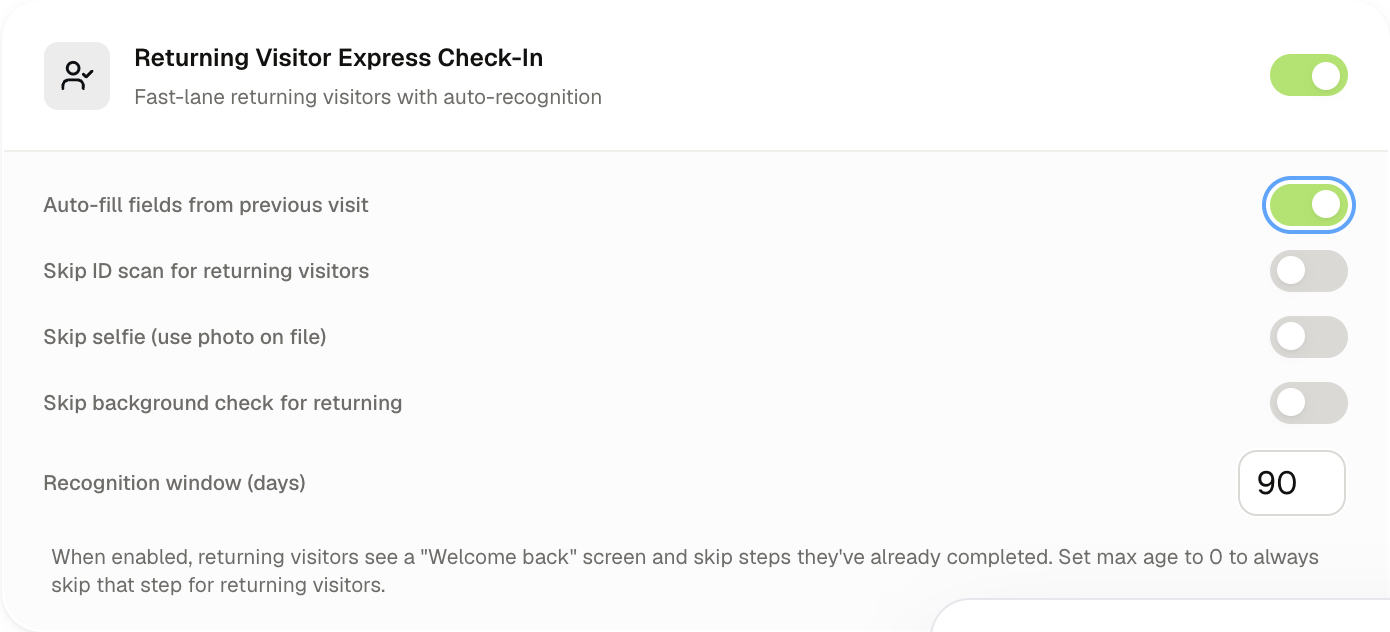
What it actually does today
| Setting | What happens |
|---|---|
| Skip background check for returning with Re-check if last BG check older than (days) = 0 | Every recognized returning visitor is checked in without a background check. |
| Skip background check for returning with any other number (default 30) | Returning visitors are still screened every time. The rule compares against a "last check" date that kiosk check-ins don't currently update, so the limit is never met. |
| Skip ID scan for returning visitors | The iPad still shows the ID Scan screen. If a returning visitor gets past it without a scan, the background check uses the name and date of birth already on their record. The Re-scan ID if last visit older than (days) limit counts from the person's last visit, not their last ID scan, so a weekly visitor never reaches it. |
Our recommendation: leave Skip background check for returning off unless you deliberately want returning visitors never re-screened at the kiosk. To control how often people are re-screened, see "Set how often people are re-screened".
What happens next
- The setting takes effect at the next check-in. Nobody is re-screened just because you changed it.
- A skipped check is recorded on the visit.
Settings that currently have no effect
- Auto-fill fields from previous visit, Skip selfie (use photo on file) and Recognition window (days) are saved but the iPad app does not use them yet. On the iPad, visitors still see every screen in your flow, including the photo step.
Settings that change this
| Setting | Where | Default | Effect |
|---|---|---|---|
| Returning Visitor Express Check-In | Settings › Apps › Front Desk › Kiosk features (classic: Configure › Kiosk › Features) | Off | Turns the skips on |
| Re-scan ID if last visit older than (days) | same | 90 | See table above |
| Re-check if last BG check older than (days) | same | 30 | Only 0 has an effect today (always skip) |
| Skip ID re-entry for credential holders | Settings › Security & policies › Credentials & screening (classic: Configure › Credentials & screening) | Off | A separate fast path for credential holders registering for events |
Troubleshooting
- Regular visitors are still screened every time with "Skip background check" on → expected today unless the days box is 0 (see the table above).
- A returning visitor wasn't recognized → they typed a different email than last time → they are treated as new and go through every check.
- A returning visitor still sees the ID screen on the iPad → expected; the iPad shows every step in your flow → remove ID Scan from the flow if you don't want the screen at all.
- Two different people with the same name were treated as one → they typed no email → make Email Required in the Flow builder's Visitor Information step.