KyberAccess does not re-screen people on a calendar yet. Every night it works out who would be due under your policy and shows the count on Settings › Security & policies › Credentials & screening (classic menu: Configure › Credentials & screening) (report only). A check runs when something triggers it: a kiosk check-in, a registration, a batch you start, or a check you run by hand. The settings below decide whether an earlier clear check is reused at that moment, and who a batch skips. To keep everyone current, run a batch on a schedule you choose (see Run background checks for a whole group).
Menus: steps show the app launcher first and the classic menu in brackets. See Find your way around to tell which one you have.
Who this is for
Owners and admins.
Steps
- Turn screening on. Open Settings › Security & policies › Screening provider (classic menu: Configure › Security & checks › Background Checks), tick Enable Sex Offender Registry Checks, choose your options, and Save.
- Kiosk. Open Settings › Apps › Front Desk › Kiosk features (classic menu: Configure › Kiosk › Features), turn on Background Check, and choose what happens on a flag. Walk-ins at the kiosk are checked at every check-in.


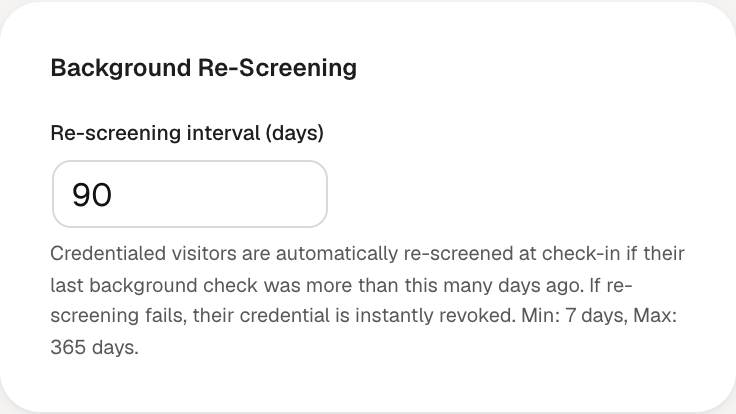
- Credential holders. Open Settings › Security & policies › Credentials & screening (classic menu: Configure › Credentials & screening) and set A clear background check counts for (30 days, 90 days, 180 days or 1 year; default 90). If walk-ins or batches use a different number, tick Use … everywhere when I save to line them up. A credential holder who signs in at the kiosk by scanning their QR code, or registers through the returning-guest fast path, is re-checked only if their last clear check is older than this.
- Batches. Under Background Check in Settings › Apps › Front Desk › Kiosk features (classic menu: Configure › Kiosk › Features), Recheck frequency decides who a batch treats as already screened:
- Every event: valid 1 day
- Monthly: 30 days
- Annually: 365 days
- Once ever

What happens next
- A check that finds a possible match, or that the registry could not answer, puts the person in Review queue (Apps › Security › Review queue; classic menu: Review Queue under Security).
- An existing credential is not suspended automatically when a later check flags its holder. Suspend or revoke it from Credentials (Apps › Access › Credentials; classic menu: Credentials under Operations) after your review.
Watch out
- Re-screen credential holders and When a check comes back flagged on the same page are report only for now. The page shows how many people each would affect. KyberAccess turns them on with you.
- The old Background Check Interval, Screening Frequency, Event RSVP and Auto-Revoke Credentials on Flag controls were removed because they did nothing.
Related articles
- How credentials, ID checks and background screenings work together
- Run background checks for a whole group (batch)
- Review and decide held visitors