Have visitors scan their driver's license or passport and take a photo when they check in. The ID gives you a verified name and date of birth (used for background screening), and the photo goes on the badge and the guard's card.
Who this is for
Owners and admins set it up. All plans.
Before you start
- The iPad kiosk is set up (see "Set up an iPad kiosk").
- Decide whether every visitor must scan, or only some visitor types.
Menus: steps show the app launcher first and the classic menu in brackets. See Find your way around to tell which one you have.
Turn on ID scan and photo at the iPad kiosk
- Open Settings › Apps › Front Desk › Kiosk flow (classic menu: click Configure, then Kiosk › Flow builder).
- Click ID Scan under Available Steps to add it. Or pick the Standard preset, which includes it.
- Click Photo Capture to add the photo step.
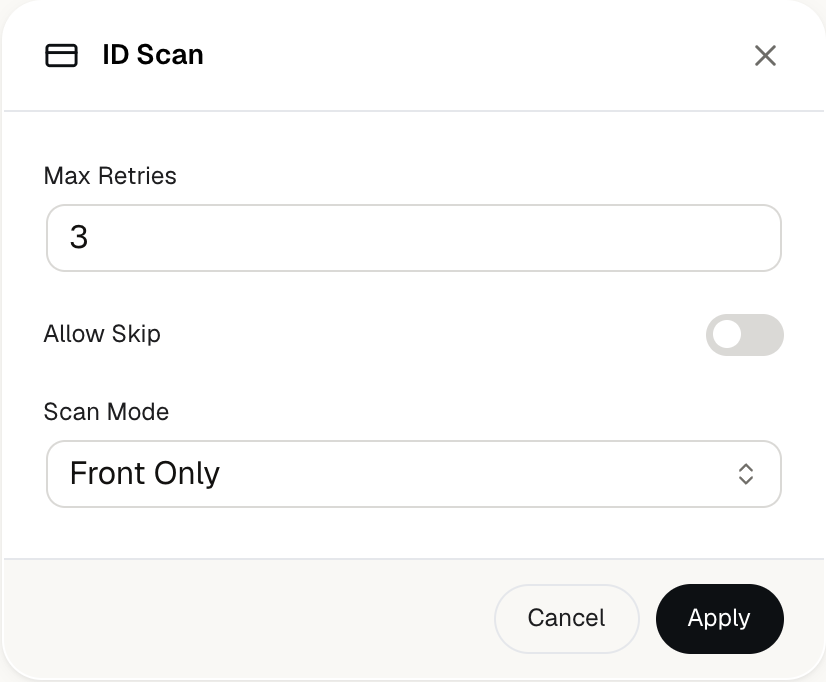
- Optional: to ask only some visitors, click the gear on the step, turn on Conditional Logic, and choose only when visitor type is with the types that must scan (for example Contractor, Vendor). Click Apply.
- Click Publish.
What visitors see on the iPad: Scan Your ID → they hold the front of the ID to the camera, then Now flip your ID over to scan the barcode on the back. A passport or other card with a machine-readable zone is read from the front and skips the back. After ID Verified, Take a Selfie captures a photo for the badge.
Note: Max Retries, Allow Skip and Scan Mode in the ID Scan step settings, and Camera Facing and Auto-Capture in Photo Capture, are not used by the iPad app yet and currently have no effect.
Scan IDs at the front desk (USB scanner)
The desktop KyberAccess Scanner Bridge, which a USB ID scanner on a front-desk PC needs, isn't available to download right now. Settings › Devices & hardware › ID scanners (classic menu: Configure › Devices & hardware › ID scanner) says so and shows Download not available yet. If your PC already has the Bridge installed, guard mode's Scanner Check-In page (/guard/scanner) still reads IDs from it: name, date of birth, license number and state fill in from the barcode.
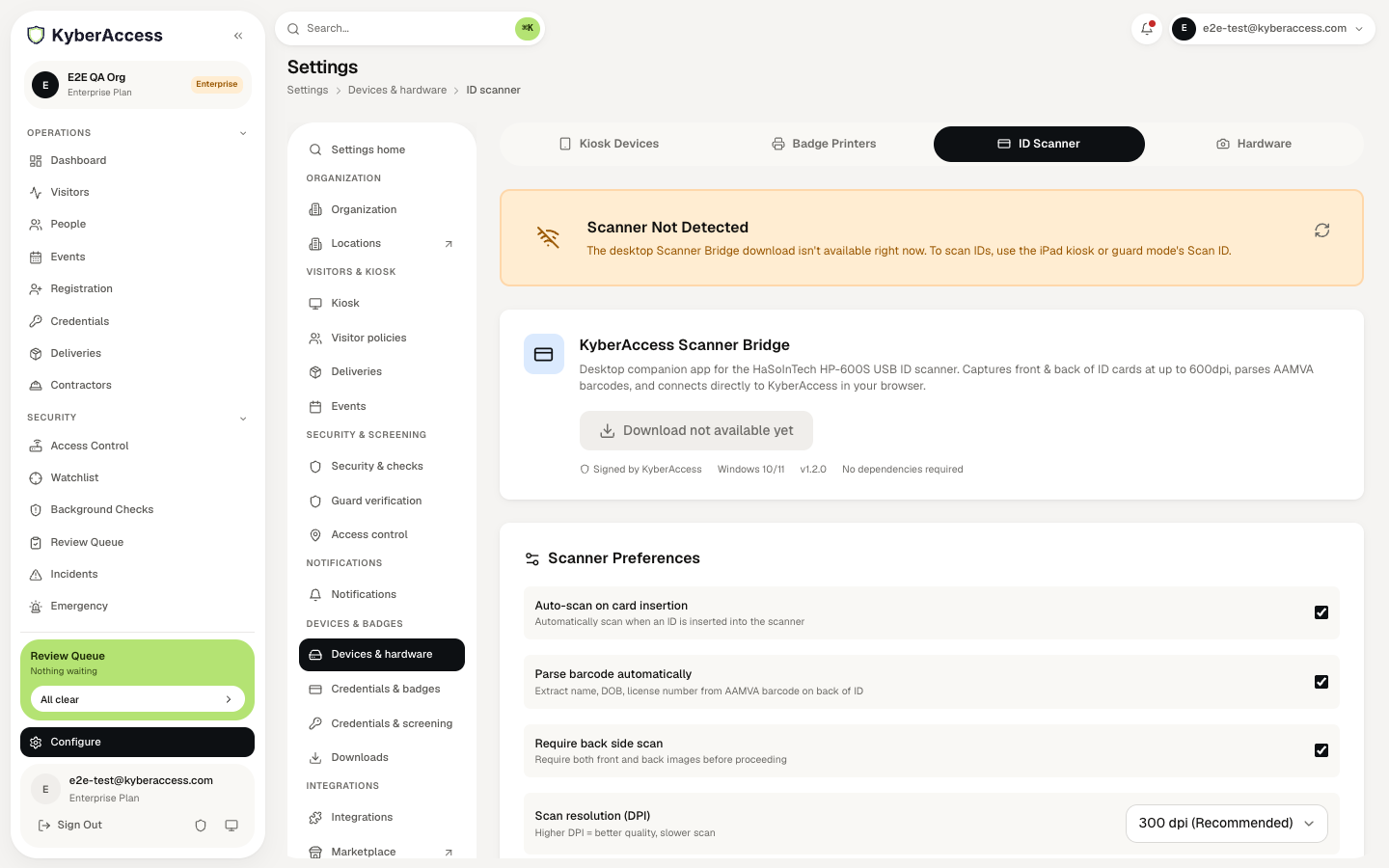
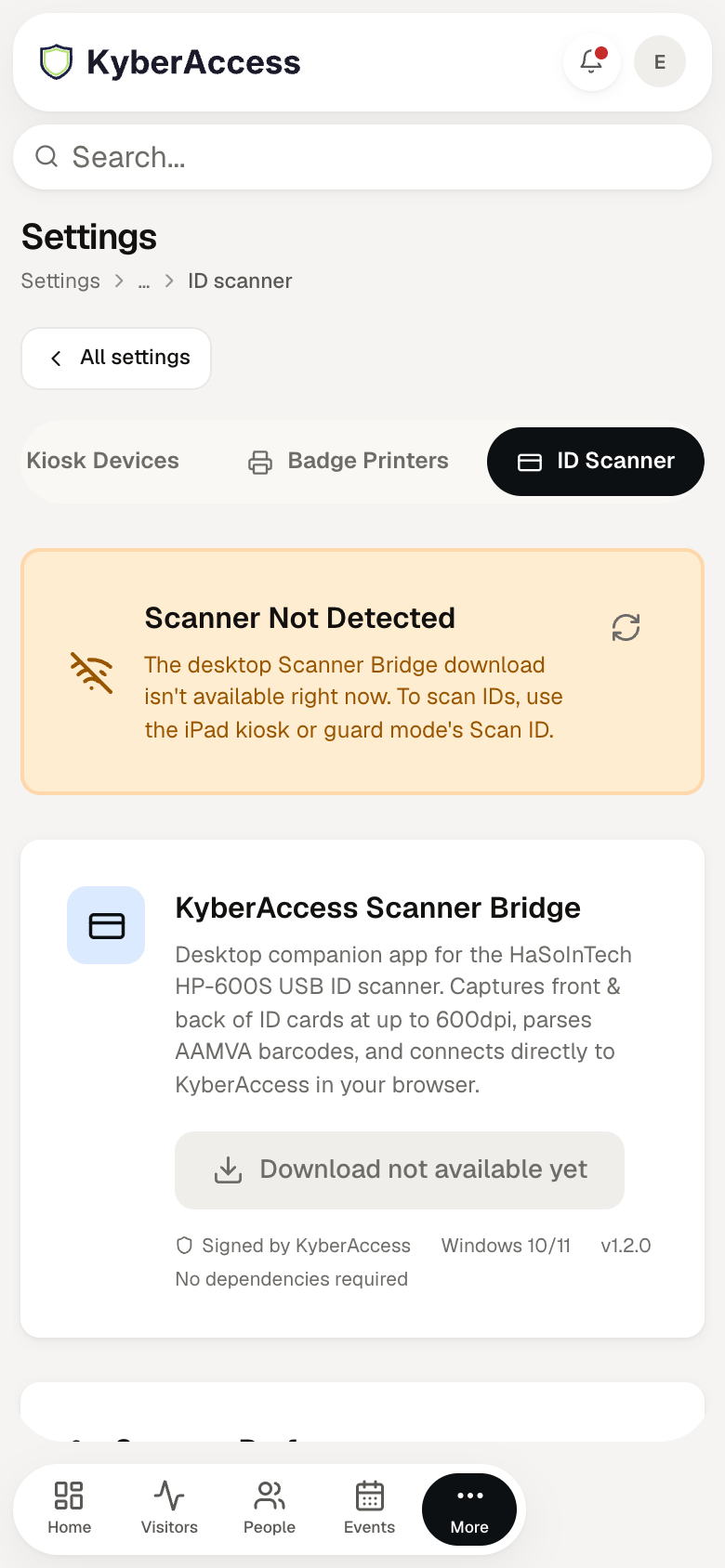
Without a scanner, staff can type the ID details, or click Scan Driver's License (Front & Back), in Guard Check-In (see "Check a visitor in and out from the Visitors page").
What happens next
- The name and date of birth read from the barcode are used for the background check when screening is on (Background Check in Settings › Apps › Front Desk › Kiosk features; classic menu: Configure › Kiosk › Features).
- The ID photo and selfie are saved on the person's record in People (Apps panel › Shared records; classic menu: People under Operations). The selfie appears on the printed badge and on the Security Monitor.
- Guards can view the ID photo from the card if Show ID document image on scan is on in Settings › Apps › Security › Guard (classic menu: Configure › Guard verification).
- A returning visitor goes through the ID screen again each visit unless you remove the step. See "Let returning visitors check in faster" for what can be skipped.
Settings that change this
| Setting | Where | Default | Effect |
|---|---|---|---|
| ID Scan step | Settings › Apps › Front Desk › Kiosk flow (classic: Configure › Kiosk › Flow builder) | Not in Basic | Asks for the ID at the iPad |
| Photo Capture step | Settings › Apps › Front Desk › Kiosk flow (classic: Configure › Kiosk › Flow builder) | Not in Basic | Takes the selfie |
| Conditional Logic | the step's gear | Off | Only some visitor types see the step |
| Show ID document image on scan | Settings › Apps › Security › Guard (classic: Configure › Guard verification) | Off | Guards can view the ID photo |
| Scanner Preferences | Settings › Devices & hardware › ID scanners (classic: Configure › Devices & hardware › ID scanner) | Auto-scan, parse barcode, back side on, 300 dpi | Front-desk USB scanner behavior |
Troubleshooting
- The iPad never asks for an ID → the ID Scan step isn't in the published flow, or Conditional Logic hides it for that visitor type → add it and click Publish.
- The barcode won't read → glare or a worn card → tilt the card away from lights, fill the frame, and hold still. Out-of-state and older cards can take a few seconds.
- Desk scanner shows "Scanner Not Detected" → the bridge isn't running → look for "KyberAccess Scanner" in the Windows system tray, or reinstall it.
- Scanner Check-In shows "Check-in failed" but the visitor appears on the Visitors page → the check-in was saved; this is a display issue on that page → confirm on Visitors, then print the badge from there.
- The badge has no photo → the Photo Capture step isn't in the flow.