KyberAccess keeps a list of the contractor companies you work with and their insurance certificates, signs contractors in at the iPad or the front desk, and shows who is working on site right now.
Video: Contractors, sign in, insurance, sign out
Chapters: Why it helps (0:00), Companies and insurance (0:23), Sign them in (0:55), Who is on site (1:14), Sign them out (1:34). Smaller file for phones: 720p video. In the app, the Watch link on the Contractors page opens the same video.
Who this is for
Owners, admins and front desk staff. Owners, admins, security and front desk can add companies and documents; everyone else can look. The Contractors page (in Front Desk; classic menu: sidebar, under Operations) needs the Contractor Tracking add-on.
Before you start
- A contractor counts as a contractor when their visit type is Contractor: at the iPad they tap Contractor, at the front desk you pick Contractor as the visitor type. Make sure your kiosk offers that type (see Visitor types and people roles).
Menus: steps show the app launcher first and the classic menu in brackets. See Find your way around to tell which one you have.
Steps
1. Add the companies you work with and their insurance
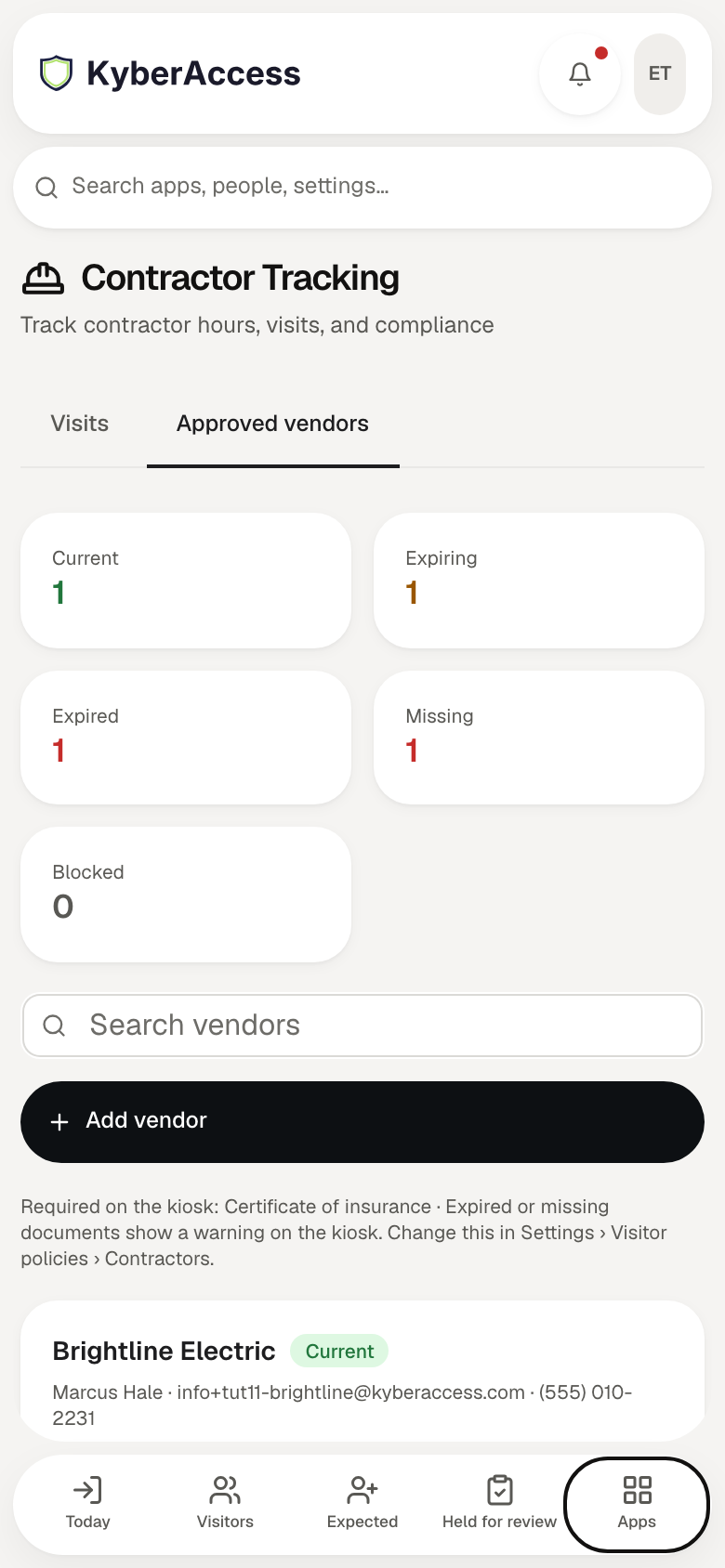
- Open Apps › Front Desk › Contractors (classic menu: Contractors in the sidebar) and select Approved vendors.
- Select Add vendor. Enter the Company name, a Contact name, Contact phone and Contact email, then select Save.
- On the company's row, select Add document. Pick the Type (for example Certificate of insurance), enter Expires on, and attach the PDF or photo if you have it (up to 5 MB). Select Add.
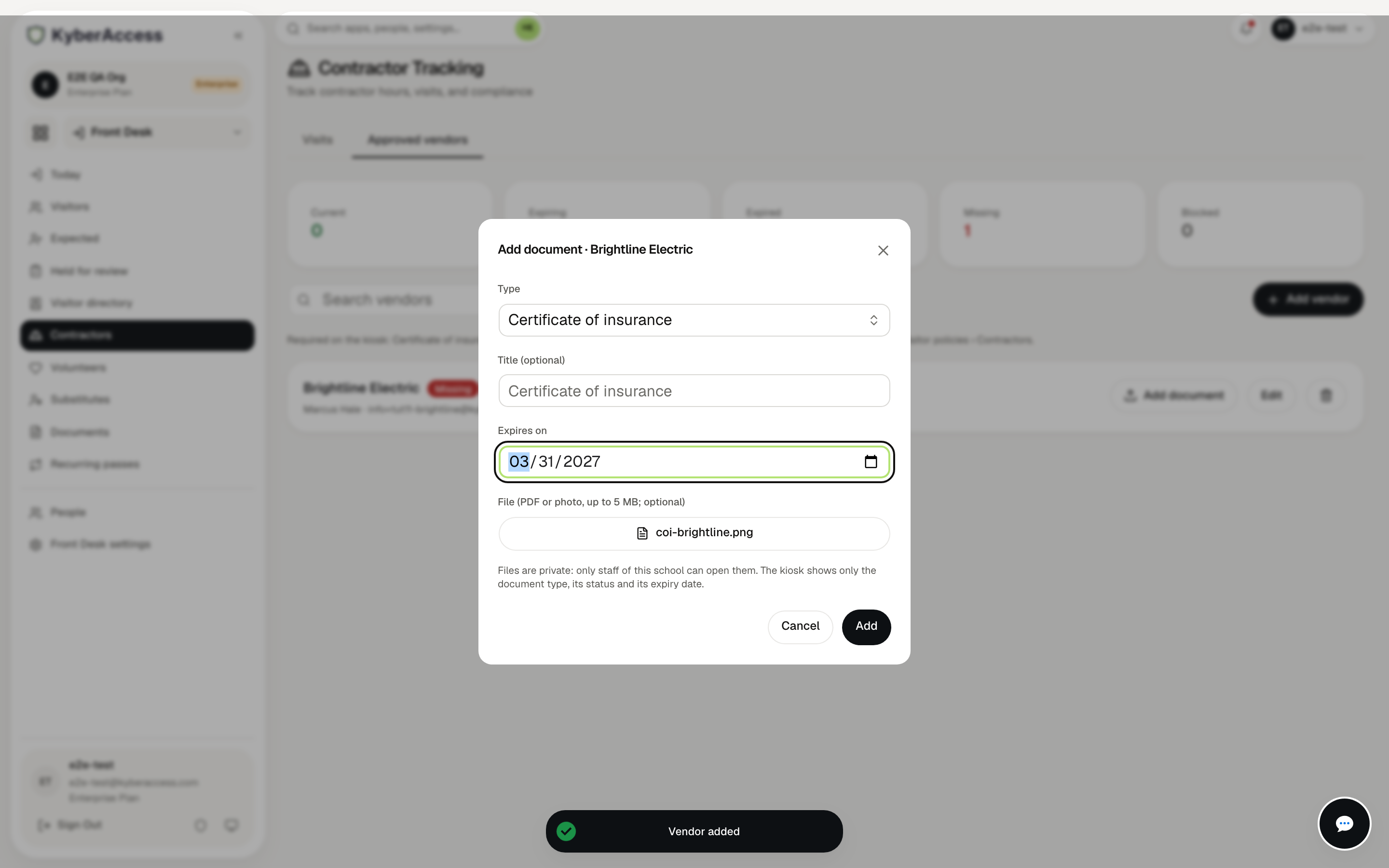
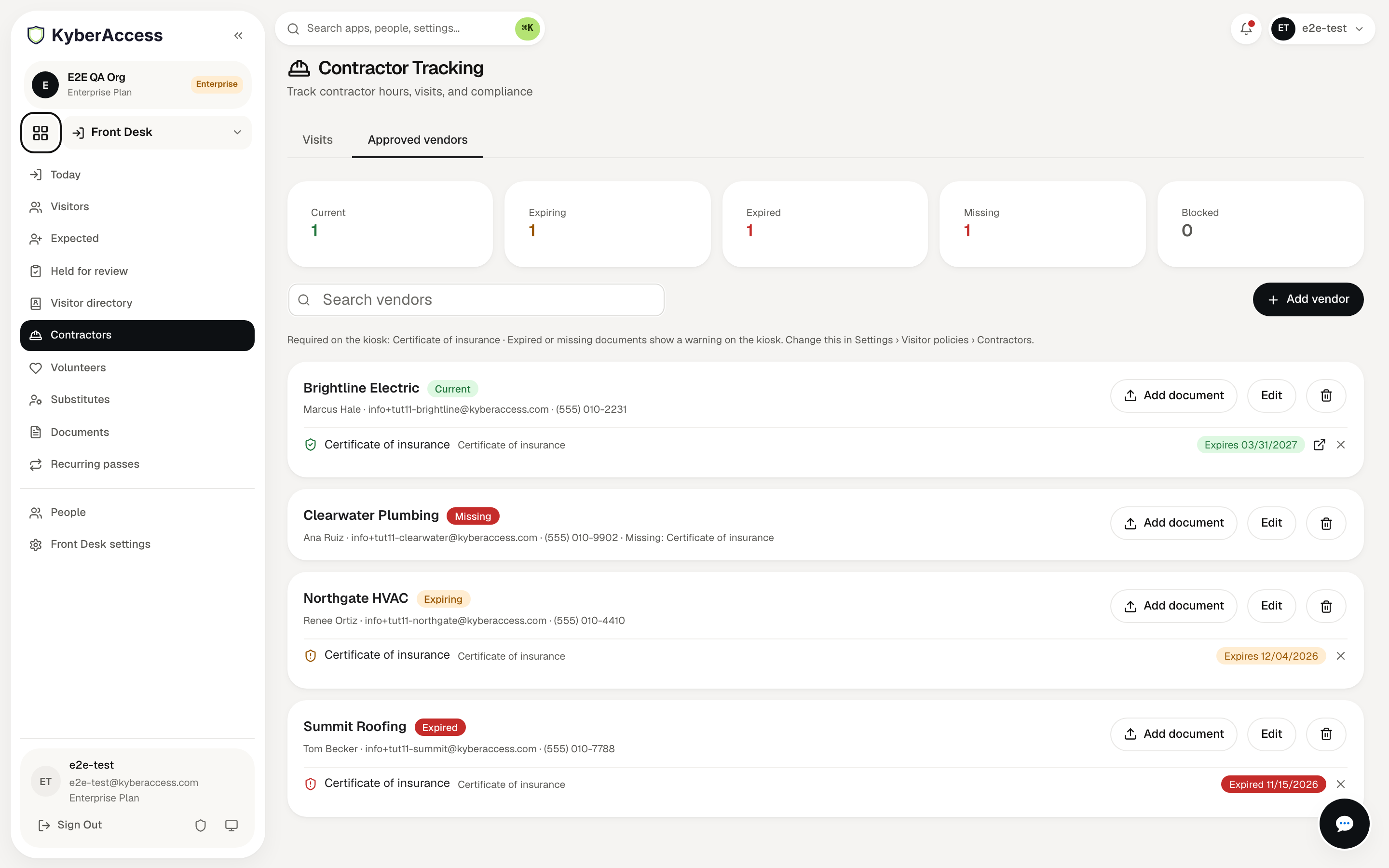
Each company then shows a status: - Current: every required document is on file and more than 30 days from expiry. - Expiring: a required document expires within 30 days. - Expired: a required document's expiry date has passed (a certificate is still valid on the day it expires). - Missing: no required document on file.
The counts across the top show how many companies are in each status. Files are private to your staff.
2. Sign contractors in
- At the iPad kiosk: the contractor taps Contractor, then follows your usual check-in steps.
- At the front desk: open Guard Check-In (Home, Guard Check-In; or Guard mode, Check in visitor). Enter their name and Company, set Visitor Type to Contractor, and select Check In. A contractor badge is ready to print.
3. See who is on site
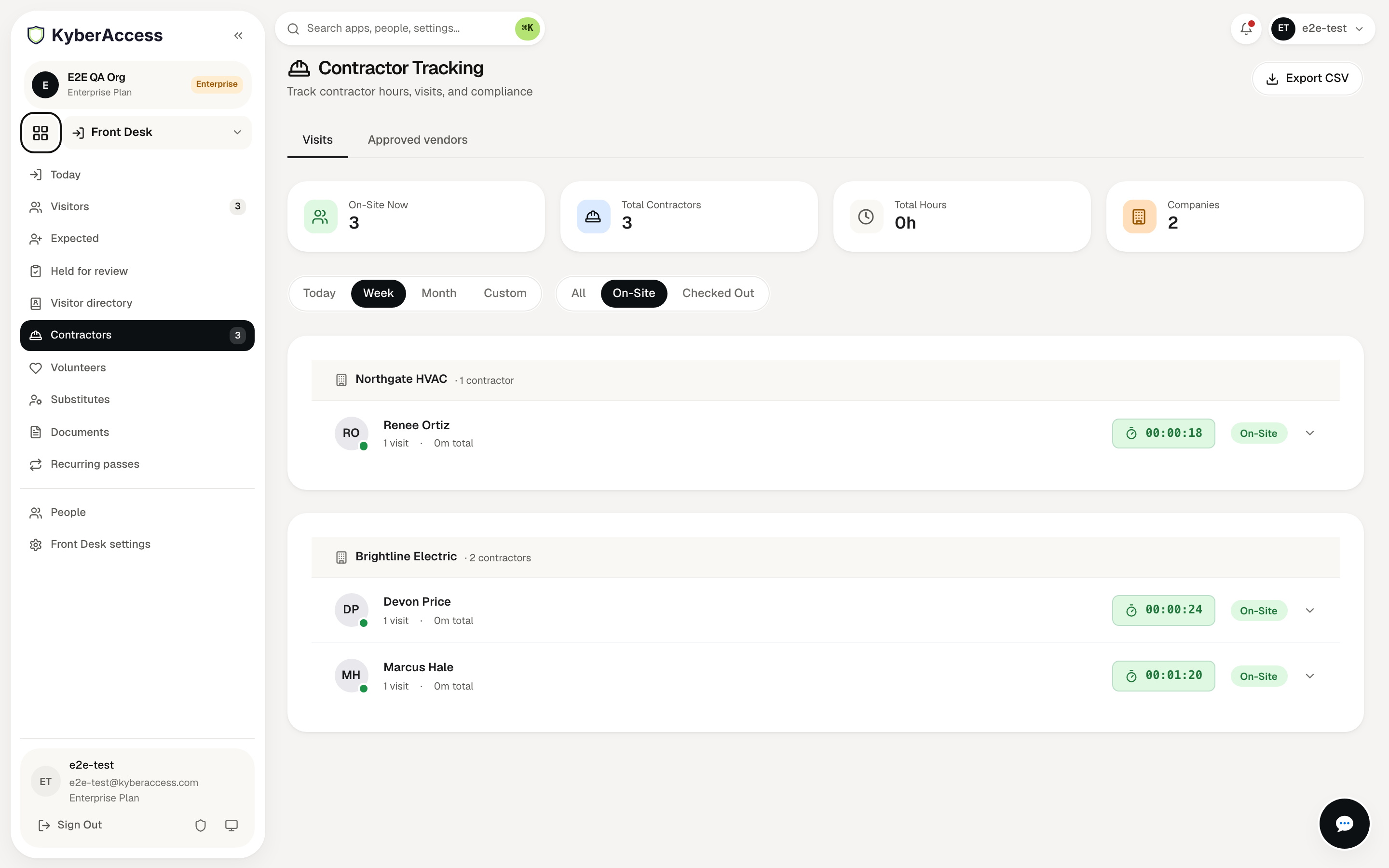
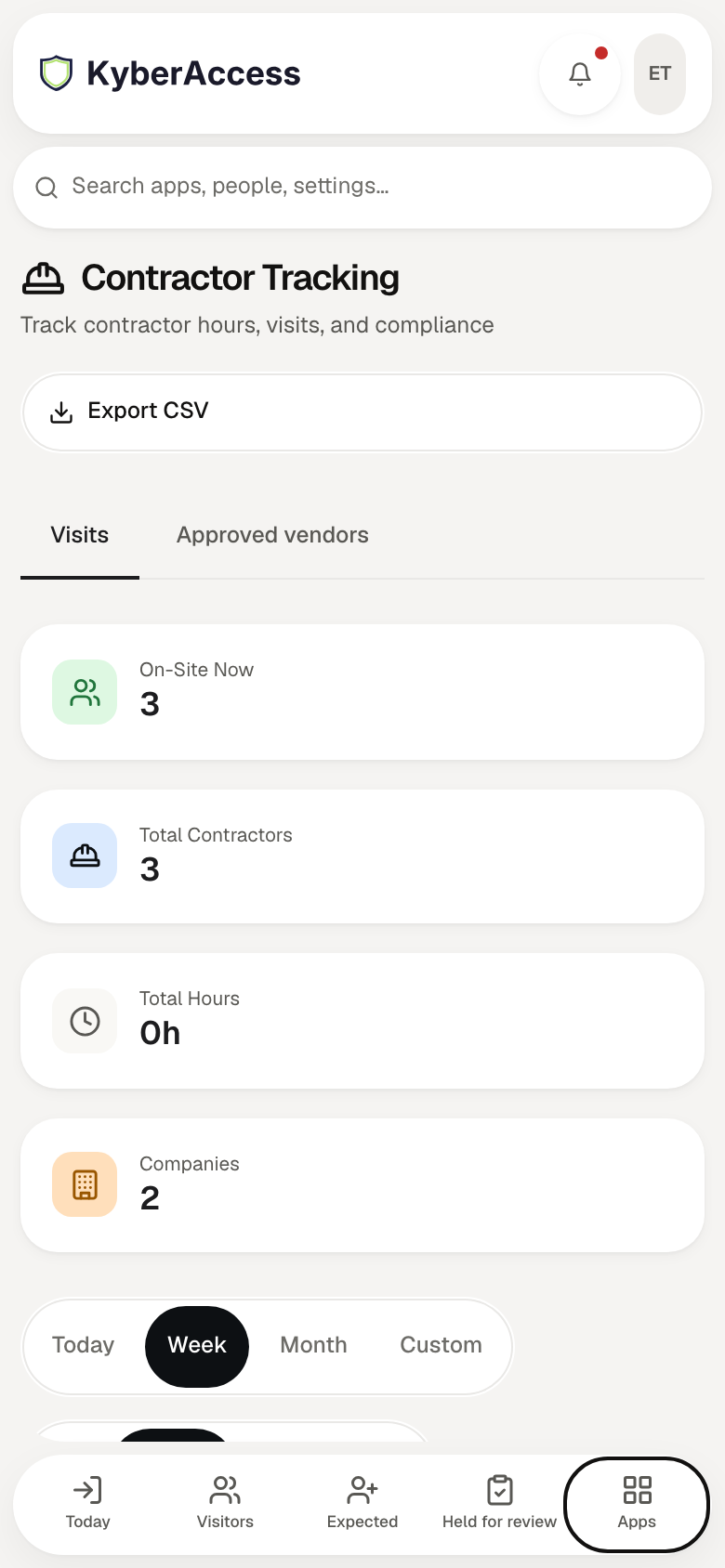
- Open Apps › Front Desk › Contractors (classic menu: Contractors in the sidebar). The Visits tab opens.
- On-Site Now counts contractors checked in right now. Contractors are grouped by company, each with a running timer.
- Pick Today, Week, Month or Custom, and All, On-Site or Checked Out. Select a person to see each visit: check-in, check-out, duration and location.
- Select Export CSV to download the visits with hours.
4. Sign them out
- At the front desk: open Visitors and select Check Out on their row.
- At the iPad: they choose check out and scan their badge.
They move to Checked Out on the Contractors page with their time on site.
5. Close contractor visits at the end of the day (optional)
- Open Settings › Apps › Front Desk › Contractors (classic menu: Configure › Visitor policies › Contractors).
- Tick Auto-checkout contractors at end of day and pick a Checkout time.
- Select Save.
What happens next
- A contractor who forgets to check out is checked out at your contractor checkout time (if you set one), otherwise 12 hours after check-in like every visitor.
- A contractor still on site after 8 hours raises an in-app warning. It does not check them out.
- The office is reminded in the app 30, 7 and 1 days before a document expires. Tick Also email the vendor before a document expires in the Contractors settings to send the same reminder to the company's contact email.
Settings that change this
| Setting | Where | Effect |
|---|---|---|
| Required documents | Settings › Apps › Front Desk › Contractors | Which document types a company needs to be Current (default: Certificate of insurance) |
| If a required document is expired or missing | Same page | What the newest iPad kiosk does when a contractor picks a company that is not Current: show a warning, send them to the front desk, or do nothing. The kiosk app in the App Store today does not check documents yet. |
| Also email the vendor before a document expires | Same page | Sends the expiry reminder to the vendor's contact email too |
| Auto-checkout contractors at end of day, Checkout time | Same page | Checks contractors out at that time (school time zone), checked every 30 minutes |
| Visitor type Contractor | Kiosk flow › Visitor Type step | Lets contractors pick Contractor at the iPad |
Troubleshooting
- The Visits tab is empty. No visit in the chosen range has the visitor type Contractor. Widen the range, or check that the kiosk offers Contractor as a type.
- A contractor is missing. They picked a different visitor type. The type must be Contractor.
- A company shows Missing although I uploaded a file. The document type must match a required type (usually Certificate of insurance), and it must not be expired.
- "No Company" group on Visits. Those contractors did not enter a company. Make Company required for contractors in the kiosk flow.
- Hours look too high. The contractor did not check out and was closed automatically. Set an end-of-day contractor checkout time (step 5).
Related articles
- Visitor types and people roles
- Require a waiver or NDA
- Check visitors out automatically