Visitors can read and sign your waiver, NDA or visitor agreement on the iPad kiosk before they get in. You write the document once in Documents (in Front Desk), then add it to the kiosk's Waiver/NDA step. Every signature is saved with the visitor's record.
Who this is for
Owners and admins. Waivers and NDAs are included in the Pro and Enterprise plans.
Before you start
- You use the KyberAccess iPad kiosk app. The web kiosk link does not show a signing step.
- Have the final text of each document ready. Plain text only: no images or formatting.
Menus: steps show the app launcher first and the classic menu in brackets. See Find your way around to tell which one you have.
Steps
1. Write the document
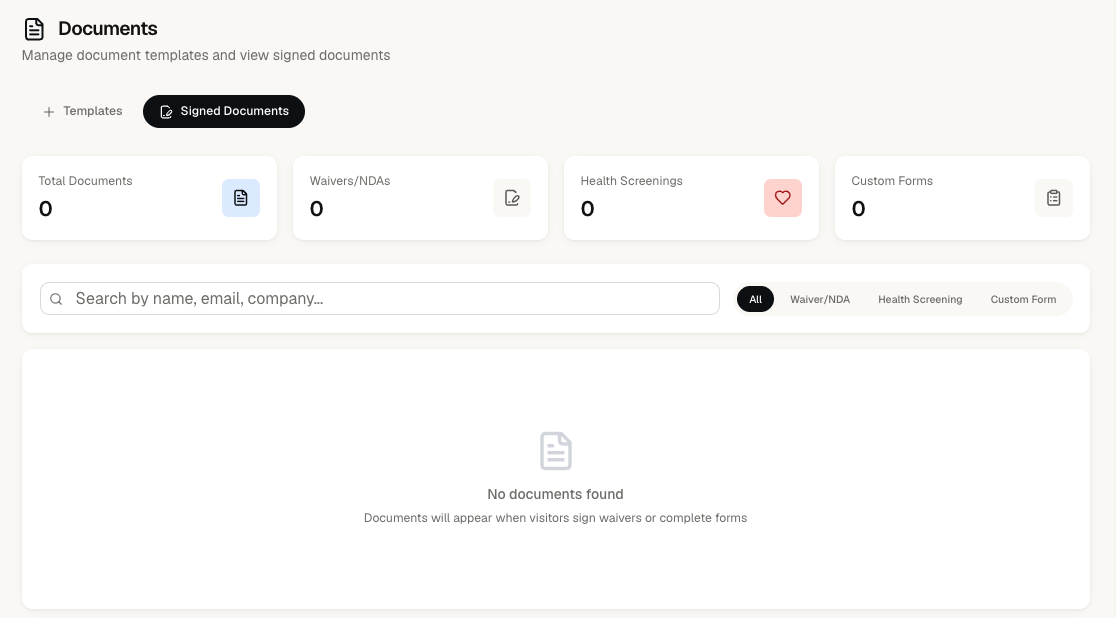
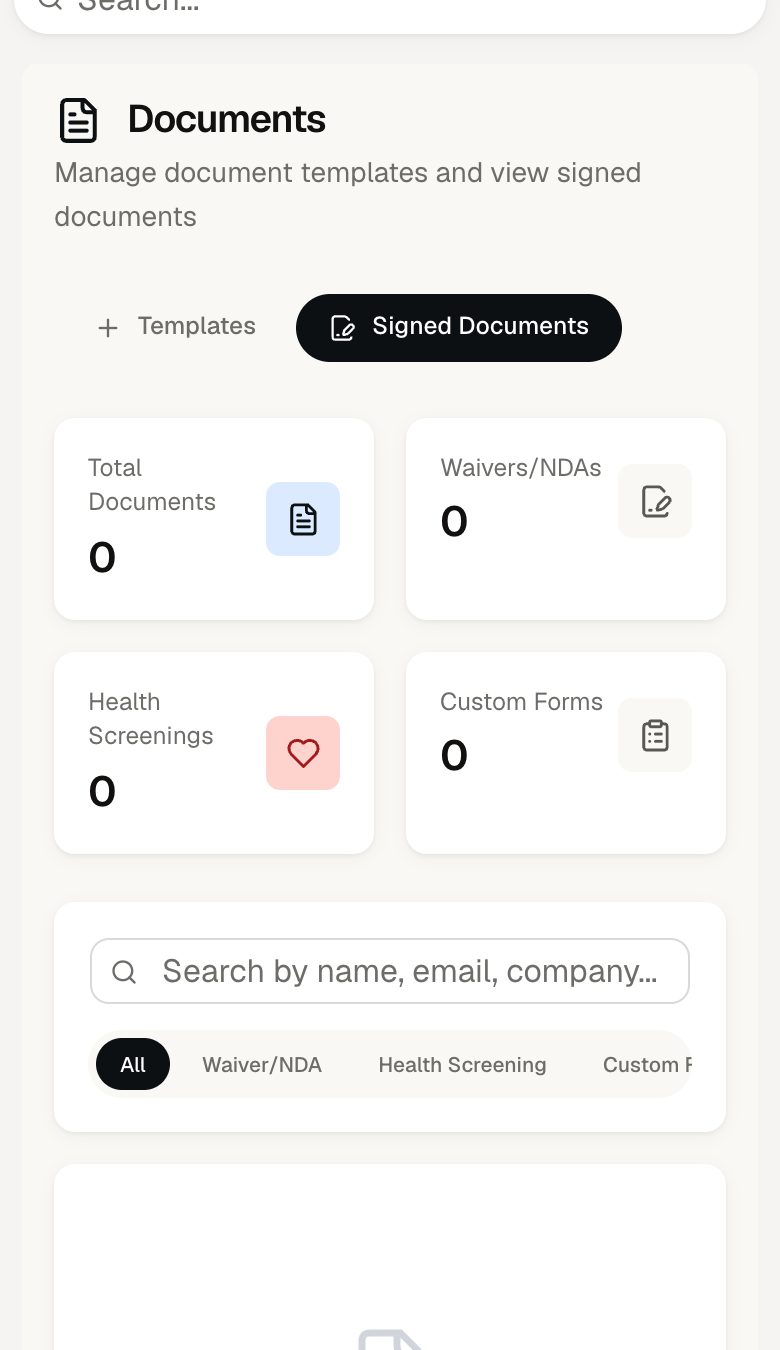
- Open Apps › Front Desk › Documents (classic menu: in the sidebar, open Insights › Documents).
- Click Templates, then New Template (or Create Template if you have none yet).
- Enter a Title, for example "Volunteer Liability Waiver". Visitors see this title on the iPad.
- Pick a Type: NDA, Safety Waiver, Visitor Agreement or Custom.
- Paste the text into Document Body.
- Click Show Preview to check it, then Save Template.
2. Add it to the kiosk
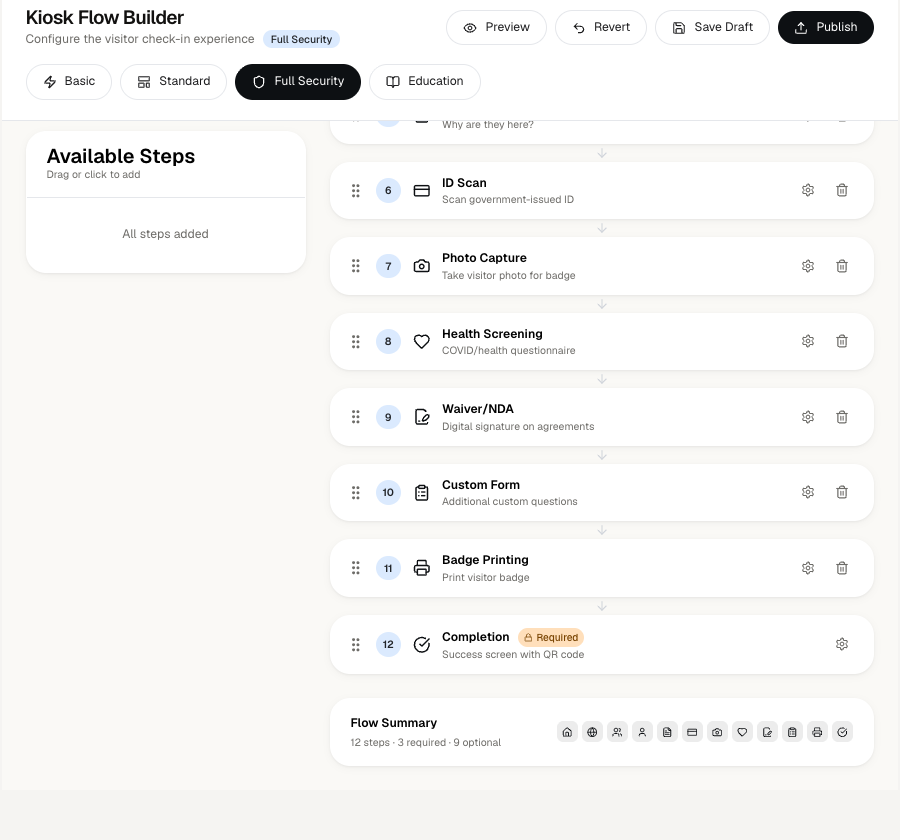
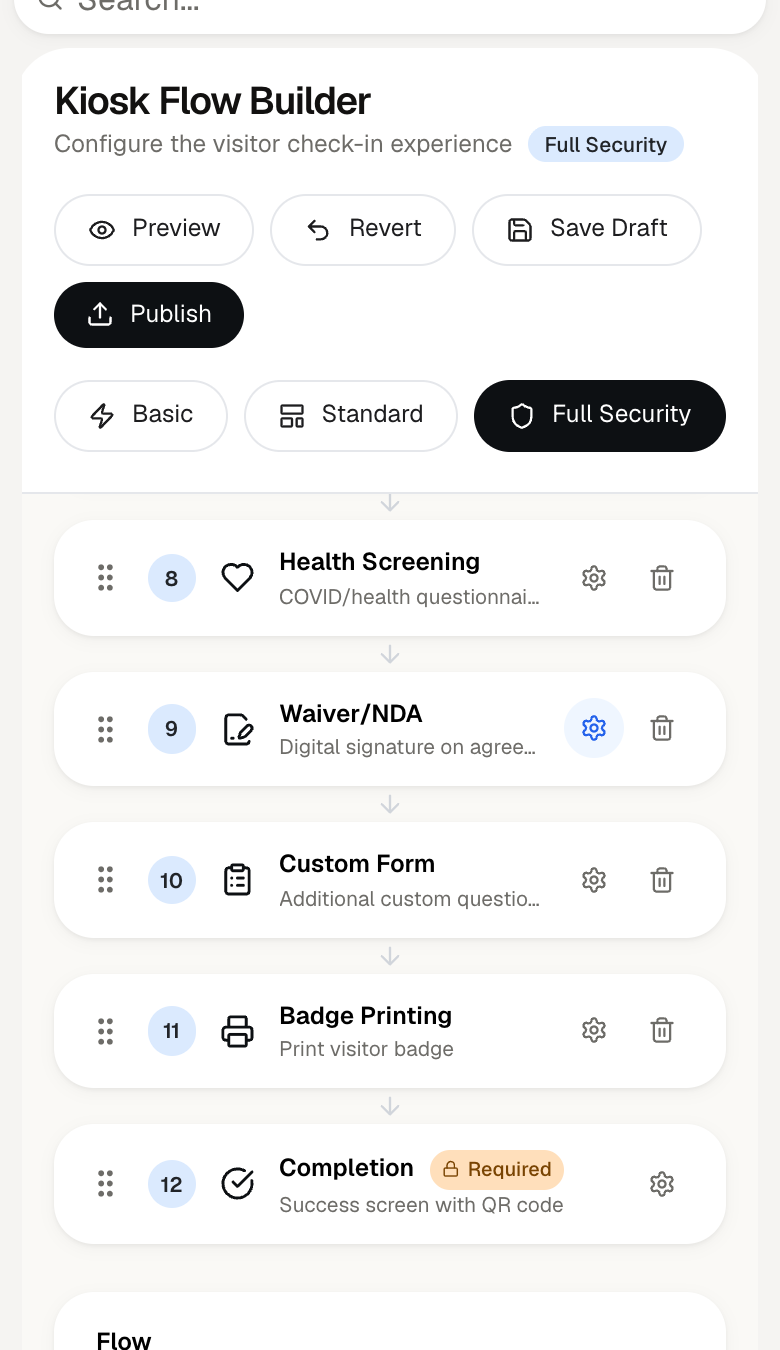
- Open Settings › Apps › Front Desk › Kiosk flow (classic menu: Configure › Kiosk › Flow builder).
- Under Available Steps, click Waiver/NDA to add it to your flow. Drag it to where it should appear, usually after Visitor Information or ID Scan.
- Click the gear on the Waiver/NDA step. Under Assigned Documents, tick each document visitors must sign. They are shown in that order.
- Optional: to ask only some visitors to sign, turn on Conditional Logic on the same step and choose only when visitor type is (for example Contractor). This needs a Visitor Type step in the flow.
- Click Publish.
What happens next
- On the iPad, each visitor sees the document ("Document 1 of 2" when there are several), signs in the Sign Here box, ticks I have read and agree to the terms, and taps Next Document or Continue.
- The signature is saved with the visit. Find all signed documents in Front Desk › Documents › Signed Documents (classic menu: Insights › Documents) (filter Waiver/NDA), and one person's in their profile under People › (person) › Documents (People is in the Apps panel under Shared records).
- Visitors sign again at every check-in.
Settings that change this
| Setting | Where | Default | Effect |
|---|---|---|---|
| Assigned Documents | Flow builder › Waiver/NDA step | none | Which documents the iPad shows |
| Conditional Logic | Flow builder › Waiver/NDA step | off | Show the step only for (or except for) chosen visitor types |
| Valid For (days before re-signing) | Documents › template | 365 | Currently has no effect. Visitors sign at every visit. |
| Required For Visitor Types | Documents › template | all types | Has no effect on the iPad kiosk. Use Conditional Logic on the flow step instead. |
Troubleshooting
- I edited a document but the iPad still shows the old text. The kiosk keeps a copy of each document from the last time you saved the flow. Open Settings › Apps › Front Desk › Kiosk flow (classic menu: Configure › Kiosk › Flow builder) and click Publish again.
- The Waiver/NDA step shows "No document templates yet." Create a template in Front Desk › Documents › Templates (classic menu: Insights › Documents › Templates) first.
- The step appears for nobody. If Conditional Logic is on with no visitor types ticked, nobody matches. Tick at least one type or turn it off.
- Visitors at the web kiosk link were not asked to sign. Signing is only on the iPad kiosk app.
Related articles
- Build your kiosk check-in flow
- Visitor types and people roles
- Track contractors on site