Put your school's logo, colors and welcome text on the check-in kiosk. Changes reach the iPad app within about 30 seconds of saving.
Who this is for
Owners and admins. All plans.
Before you start
- Your logo as a PNG or JPG, ideally on a transparent or white background.
- Your main brand color as a hex code (for example
#1B3A6B).
Menus: steps show the app launcher first and the classic menu in brackets. See Find your way around to tell which one you have.
Steps
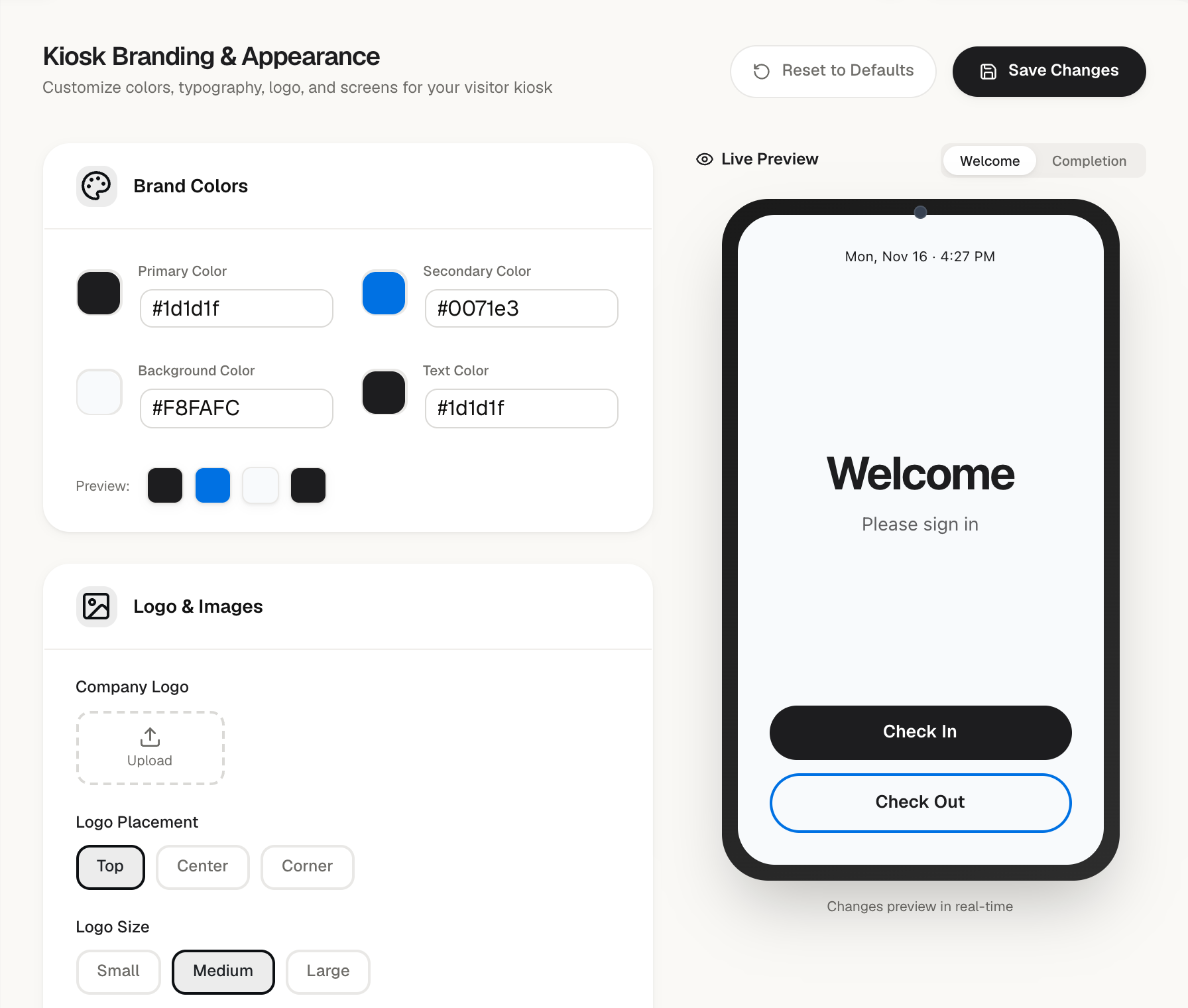
- Open Settings › Apps › Front Desk › Kiosk branding (classic menu: Configure, then Kiosk › Branding). The page is titled Kiosk Branding & Appearance, with a Live Preview on the right.
- Under Brand Colors, set Primary Color (buttons and header) and Background Color.
- Under Logo & Images, click Upload under Company Logo and choose your file.
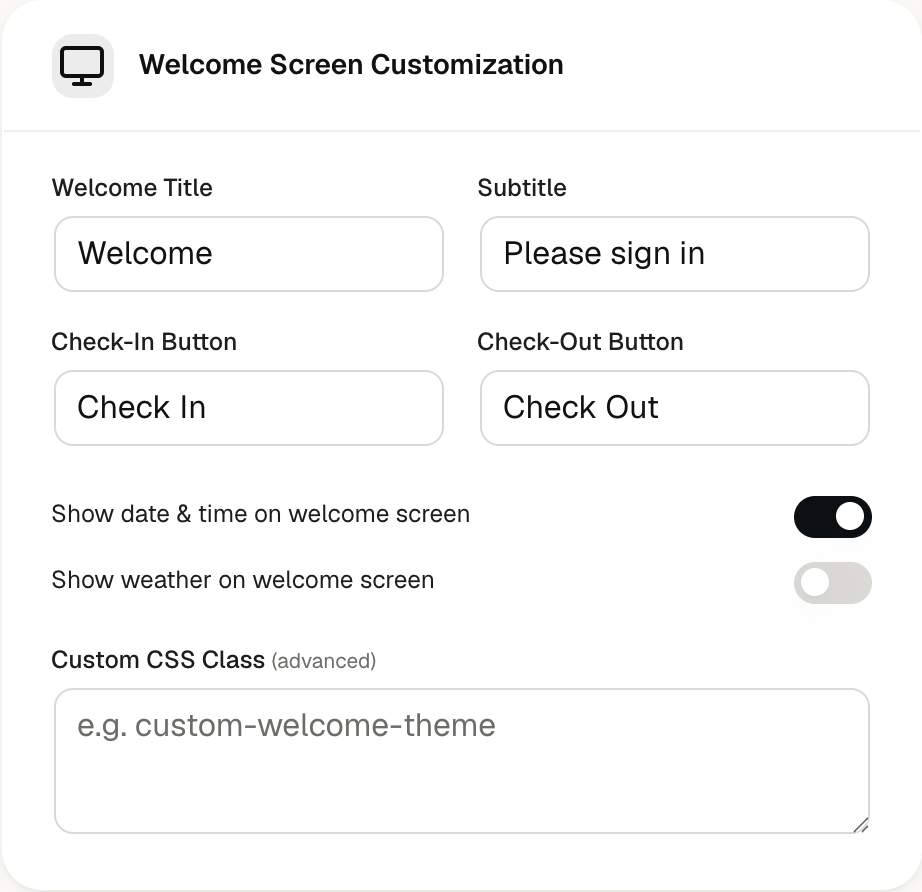
- Under Welcome Screen Customization, change Welcome Title (for example "Welcome to Riverside Academy").
- Click Save Changes. You see Branding settings saved.
What happens next
- The iPad app shows your logo, Primary Color, Background Color and Welcome Title within about 30 seconds.
- The browser kiosk (Web Kiosk under Settings › Devices & hardware › Downloads; classic menu: Configure › Downloads) also uses Subtitle, the Check-In Button text, the Background Style (solid, gradient or image) and the Thank You Message under Completion Screen Customization.
- If you don't upload a kiosk logo, the kiosk uses your organization logo from Settings › Organization › Branding (classic menu: Configure › Organization › Branding).
What reaches the kiosk today
| Setting | iPad app | Browser kiosk |
|---|---|---|
| Primary Color, Background Color | Yes | Yes |
| Company Logo | Yes | Yes |
| Welcome Title | Yes | Yes |
| Subtitle, Check-In Button text, Background Style, Thank You Message | No | Yes |
| Typography (font, sizes, button style) | No | Partly (button and title styles) |
Logo placement and size, check-out button text, date/time, weather, custom CSS, show-QR, auto-reset timer, success animation and the Kiosk Display Settings card (orientation, idle timeout, touch sounds, Kiosk Lock PIN) were removed from this page because no kiosk used them. The kiosk codes (guard mode code, lock PIN, admin code) are in Settings › Devices & hardware › Kiosks › Kiosk access codes (classic menu: Configure › Devices & hardware › Kiosk devices). To set how long the iPad waits before returning to the welcome screen, use Auto-Reset Time (seconds) on the Completion step in Kiosk › Flow builder. To lock the iPad to the app, use Apple's Guided Access (see "Set up an iPad kiosk").
Settings that change this
| Setting | Where | Default | Effect |
|---|---|---|---|
| Primary Color | Kiosk › Branding | #1d1d1f | Buttons and header color |
| Background Color | Kiosk › Branding | #F8FAFC | Kiosk background |
| Company Logo | Kiosk › Branding | Organization logo | Logo on the kiosk |
| Welcome Title | Kiosk › Branding | Welcome | Big text on the welcome screen |
| Organization logo | Settings › Organization › Branding (classic: Configure › Organization › Branding) | — | Used when no kiosk logo is uploaded |
Troubleshooting
- The iPad still shows the old look → wait 30 seconds; if it still hasn't changed, close and reopen the app.
- White text on a white background → Background Color is white or very light and the text color doesn't contrast → pick a darker background or a dark Primary Color.
- Changing Subtitle did nothing on the iPad → the iPad app shows only the Welcome Title → put the full message in Welcome Title.
- Reset to Defaults wiped my logo → it resets every branding setting → upload the logo again and save.