Let visitors check in in their own language on the browser kiosk. The page offers the languages the browser kiosk and check-out kiosk are translated into: Spanish, Hebrew, French, Arabic and Chinese. The iPad app lists the languages you turn on but still shows its screens in English.
Who this is for
- Owners and admins. All plans.
Before you start
- Decide which languages your visitors need.
- Know which kiosk you use: the iPad app, or the Web Kiosk link from Settings › Devices & hardware › Downloads (classic menu: Configure › Downloads) opened in a browser.
Menus: steps show the app launcher first and the classic menu in brackets. See Find your way around to tell which one you have.
Steps
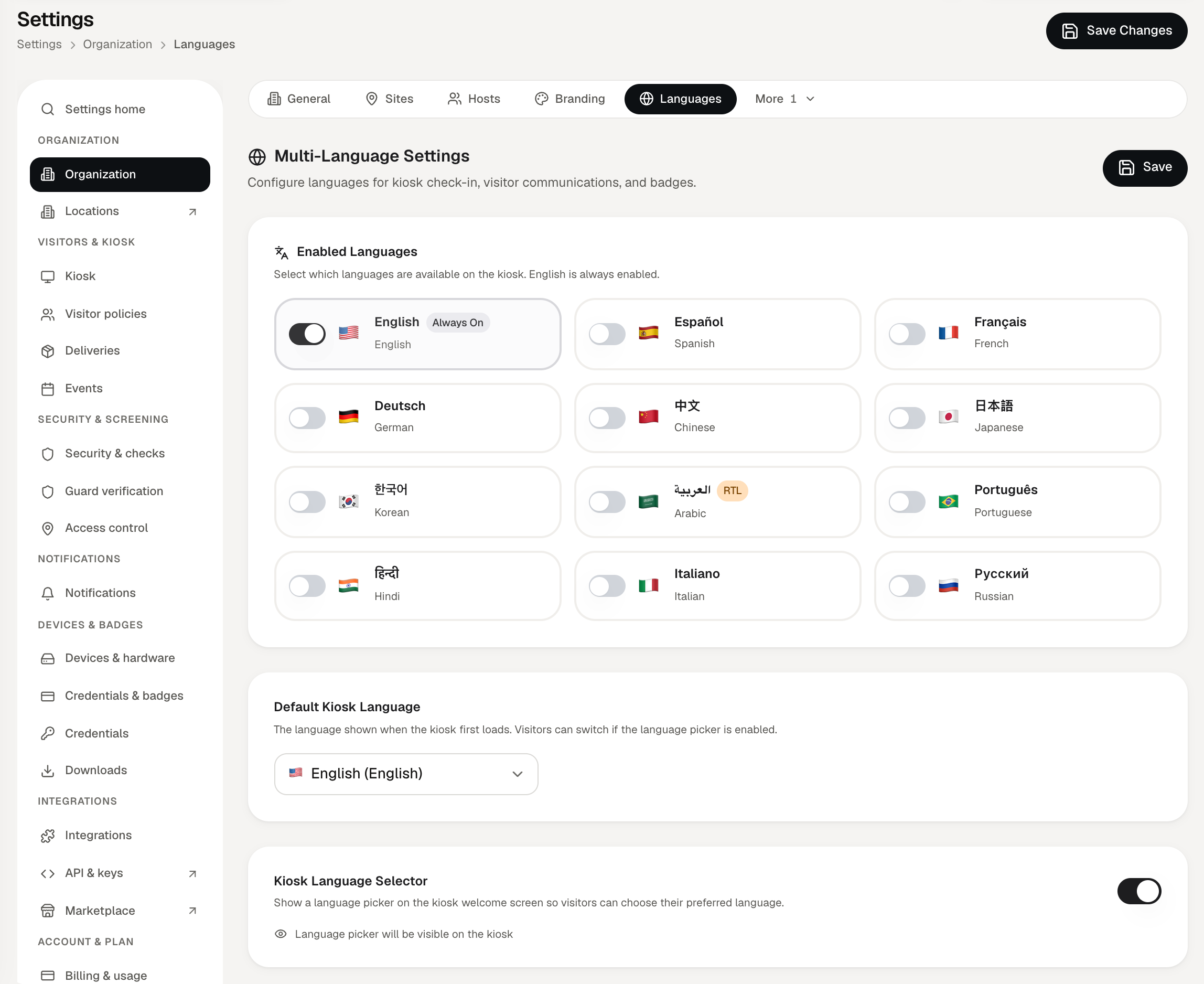
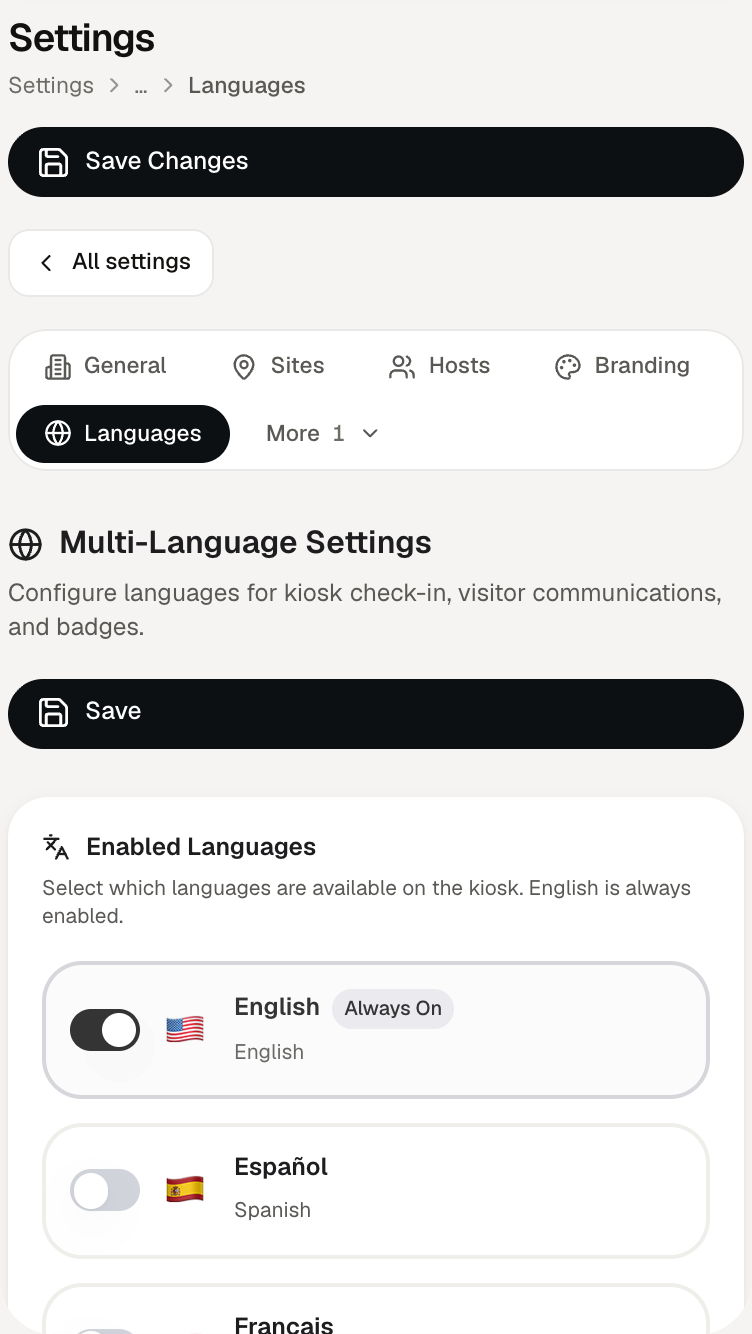
- Open Settings › Organization › Languages (classic menu: Configure, then Organization › Languages; on a narrow screen, Languages is under More). The page is titled Kiosk languages.
- Under Enabled languages, tick each language you want. English is Always on.
- Click Save at the top of the page. You see Language settings saved.
What happens next
- Browser kiosk and check-out kiosk: as soon as more than one language is on, a language button appears on the screen. Visitors tap it and the check-in screens switch language. Hebrew and Arabic read right to left.
- iPad app: a globe menu on the welcome screen lists the languages you turned on. Choosing one doesn't translate the app yet; check-in stays in English.
- Emails, passes and badges stay in English.
Which languages are translated
| Language | Browser kiosk | iPad app |
|---|---|---|
| English | Yes | Yes |
| Spanish, Hebrew, French, Arabic, Chinese | Yes | Listed, not translated |
Settings that change this
| Setting | Where | Default | Effect |
|---|---|---|---|
| Enabled languages | Organization › Languages | English only | Languages offered on the kiosk |
Kiosks always open in English, and the wording of each language can't be edited.
Troubleshooting
- No language button on the browser kiosk → only English is on, or you didn't click Save → turn a supported language on and save, then reload the kiosk page.
- I picked Spanish on the iPad but the screens are in English → the iPad app doesn't translate yet → use the browser kiosk on a tablet for visitors who need another language.