Set your organization's name and time zone, and upload the logo and colors that appear in the app, in emails and on Wallet passes. It takes about five minutes.
Who this is for
- Owners and admins. Only they can open the Organization settings (classic menu: only they can open Configure).
- Name and time zone: every plan.
- Branding: Pro, Enterprise and trial plans. On the Free plan the Branding tab shows an upgrade notice.
Before you start
- Your logo as a PNG, SVG or JPG. A wide logo works best (about 400 × 120 pixels).
- Your main color as a hex code, for example
#1B3A6B.
Menus: steps show the app launcher first and the classic menu in brackets. See Find your way around to tell which one you have.
Steps
Set the name and time zone
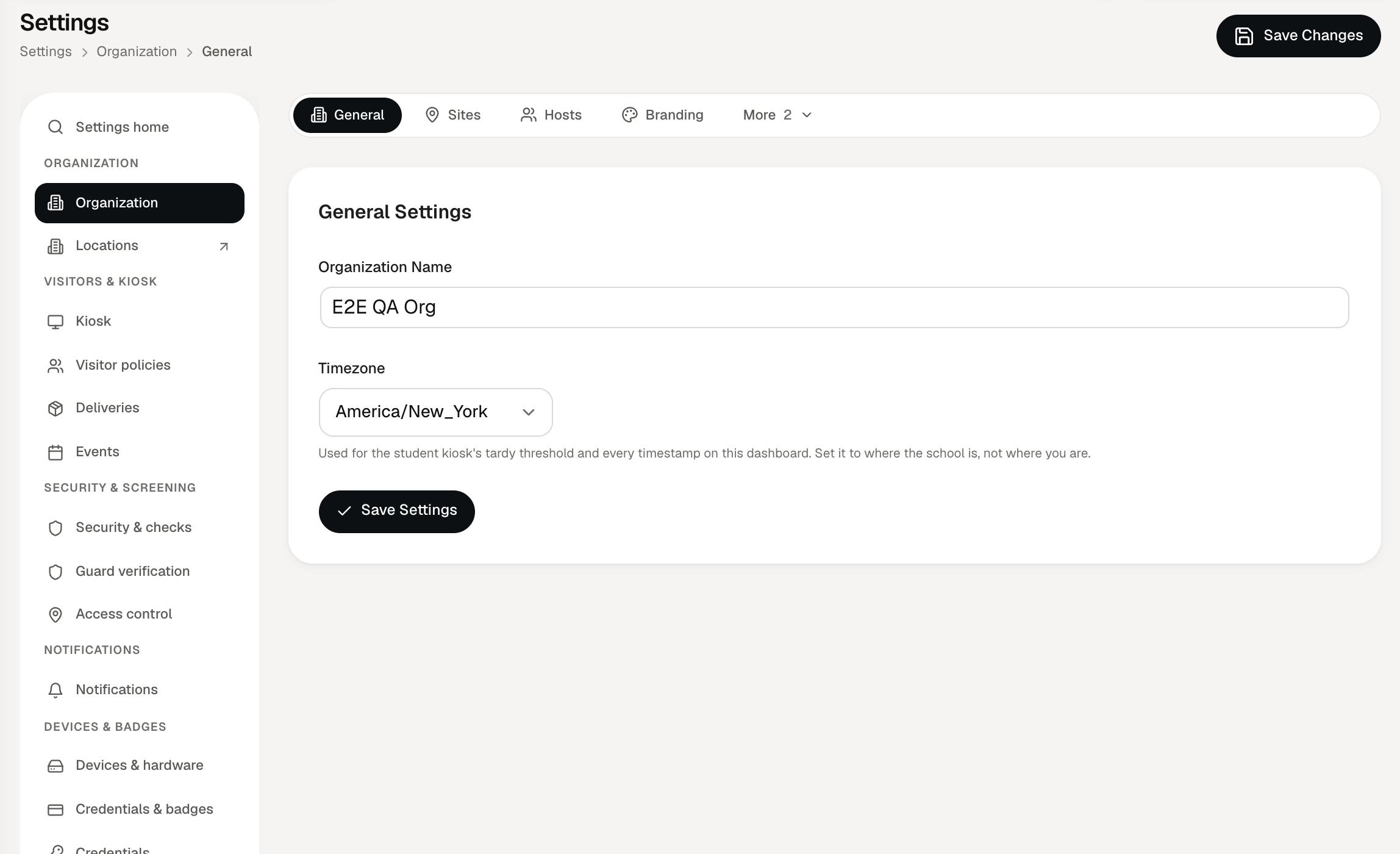
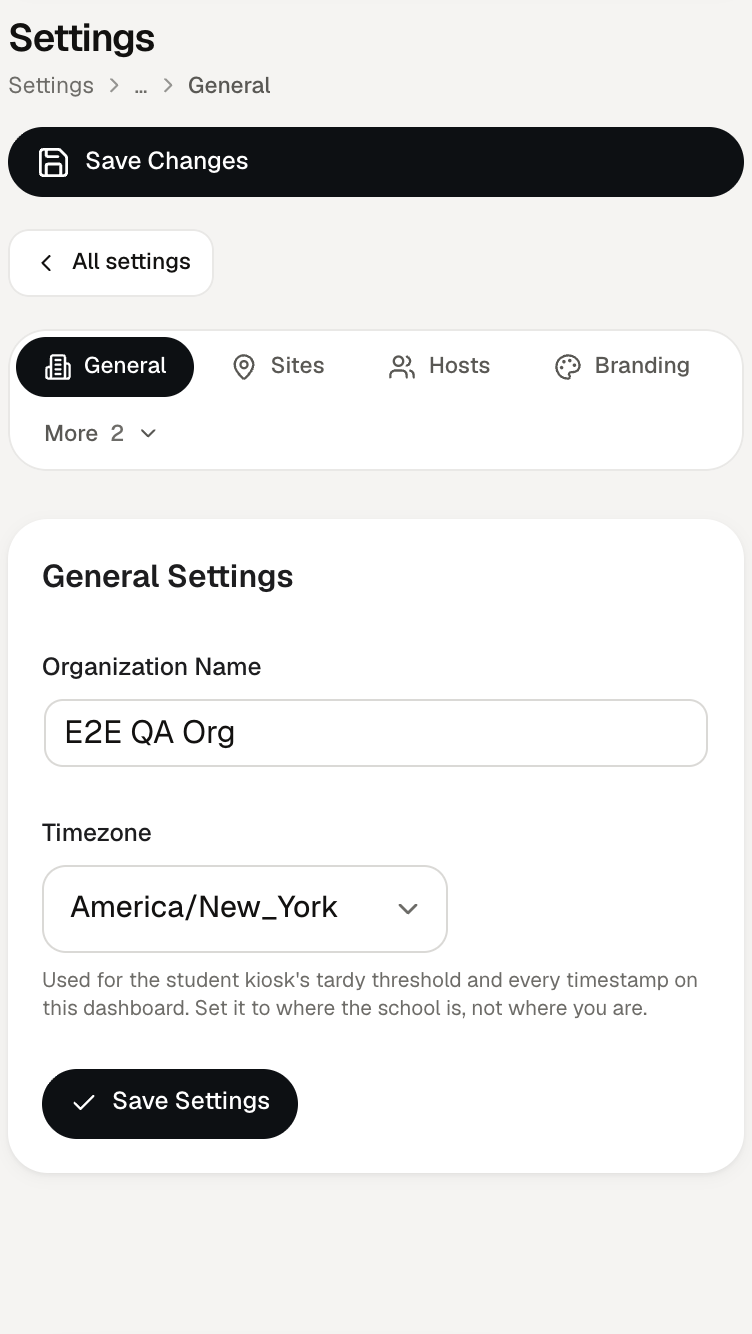
- Open Settings › Organization › General (classic menu: Configure in the sidebar footer, then Organization › General).
- Type your Organization Name.
- Pick your Timezone. Choose where the school or building is, not where you are.
- Click Save Settings. You see Settings saved.
The Timezone list offers New York, Chicago, Denver, Los Angeles and UTC. If your organization was set up with another zone, it shows as "(currently saved)" and keeps working.
Upload your logo and colors
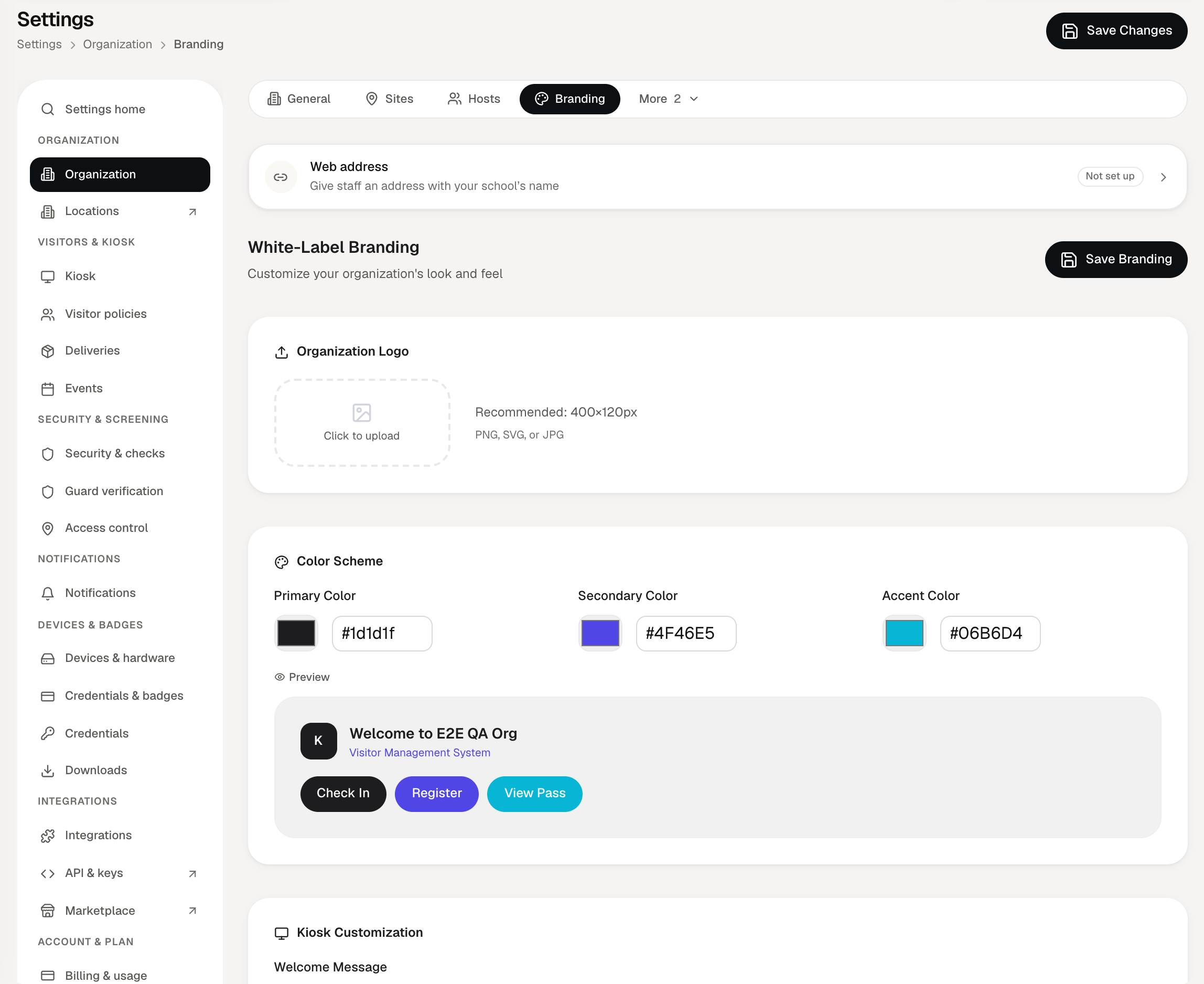
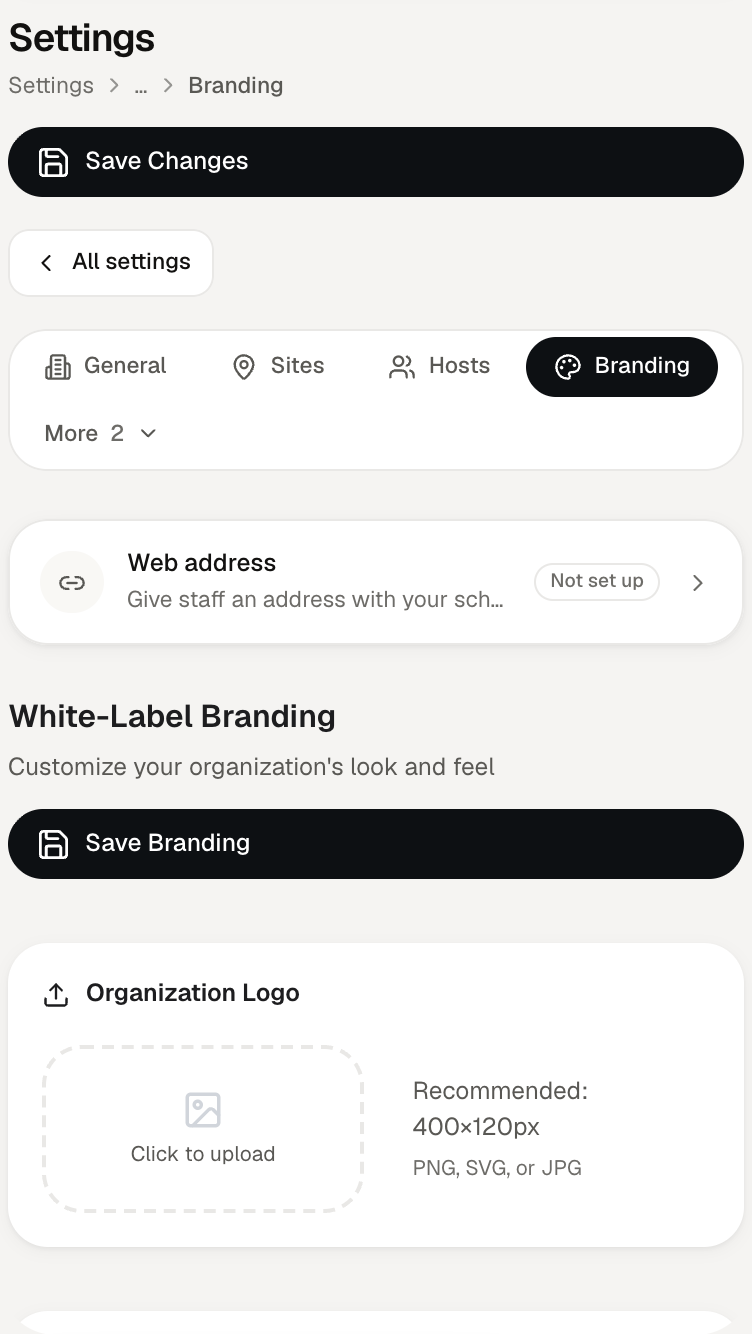
- Open Settings › Organization › Branding (classic menu: Configure › Organization › Branding). The page is titled Branding.
- Under Organization Logo, click Click to upload and choose your file.
- Under Color Scheme, set Primary Color and Secondary Color. The Preview shows how they look.
- Under Email Branding, fill in Sender Display Name and Organization Email (see below).
- Click Save Branding at the top. You see Branding saved.
Email sender name and reply address
- Sender Display Name is the name people see in the "From" line. If you type "Riverside Academy", emails arrive from Riverside Academy via KyberAccess. Leave it blank to use your organization name.
- Organization Email is where replies go. When a parent replies to an invitation, the reply lands in this inbox.
- All emails are sent from a send.kyberaccess.com address. You can't change the sending domain; that keeps delivery reliable.
What happens next
- Organization name appears in the sidebar, on emails, passes and badges right away.
- Time zone is used for times on the dashboard, the student kiosk tardy cut-off, scheduled event reports and credential expiry reminders.
- Logo and Primary Color appear in the app header, on emails, Wallet passes and guest pages.
- The kiosk uses this logo only when no logo is uploaded under Settings › Apps › Front Desk › Kiosk branding (classic menu: Configure › Kiosk › Branding).
Settings that change this
| Setting | Where | Default | Effect |
|---|---|---|---|
| Organization Name | Settings › Organization › General (classic: Configure › Organization › General) | Name you signed up with | Shown everywhere, including emails |
| Timezone | Settings › Organization › General (classic: Configure › Organization › General) | America/New_York | Clock for dashboard times, tardy cut-off, reports and reminders |
| Organization Logo | Settings › Organization › Branding (classic: Configure › Organization › Branding) | None (KyberAccess logo) | App header, emails, Wallet passes, guest pages |
| Primary Color, Secondary Color | Settings › Organization › Branding (classic: Configure › Organization › Branding) | #1d1d1f, #4F46E5 | Emails, passes and guest pages |
| Sender Display Name | Settings › Organization › Branding (classic: Configure › Organization › Branding) | Organization name | "From" name on emails |
| Organization Email | Settings › Organization › Branding (classic: Configure › Organization › Branding) | None | Reply-to address on emails |
| Kiosk logo and colors | Settings › Apps › Front Desk › Kiosk branding (classic: Configure › Kiosk › Branding) | Organization logo | What the iPad shows (see Brand the kiosk) |
The kiosk's welcome text and colors are set in Settings › Apps › Front Desk › Kiosk branding (classic menu: Configure › Kiosk › Branding), and badge layout and footer in the Badge Designer under Settings › Apps › Front Desk › Badges (classic menu: Configure › Credentials & badges › Visitor badges). The Branding page links to both. Email Header Logo is used only when no Organization Logo is set.
Troubleshooting
- Times on the dashboard are an hour or more off → Timezone is set to a different zone → pick the zone where the building is and click Save Settings.
- Where do I change the kiosk welcome message? → Settings › Apps › Front Desk › Kiosk branding (classic menu: Configure › Kiosk › Branding).
- Emails still show "via KyberAccess" → that's added to every sender name so mail isn't flagged as impersonation → this can't be turned off.
- The Branding tab shows an upgrade message → you're on the Free plan → upgrade in Settings › Billing & modules › Plan & invoices (classic menu: Configure › Billing & usage).
- The sidebar still shows the old logo → refresh the page.