When a guest, parent or visitor says an email never came, first check whether KyberAccess sent it, then whether it was delivered. The Email Tracking page answers both. If nothing was sent, the button you used may not send email at all; the list below says which ones do.
Who this is for
Owners and admins. Email Tracking needs the Pro plan or higher.
Before you start
Have the recipient's exact email address and roughly when the email should have gone out.
Menus: steps show the app launcher first and the classic menu in brackets. See Find your way around to tell which one you have.
Step 1: look the email up in Email Tracking
- Open Apps › Insights › Email delivery (classic menu: in the sidebar under Insights, select Email Tracking).
- Type the address (or part of the subject) in Search by recipient or subject.... Narrow with All Types, All Statuses and Date Range if needed.
- Click the row's arrow to see its history, and the eye icon to preview what was sent.
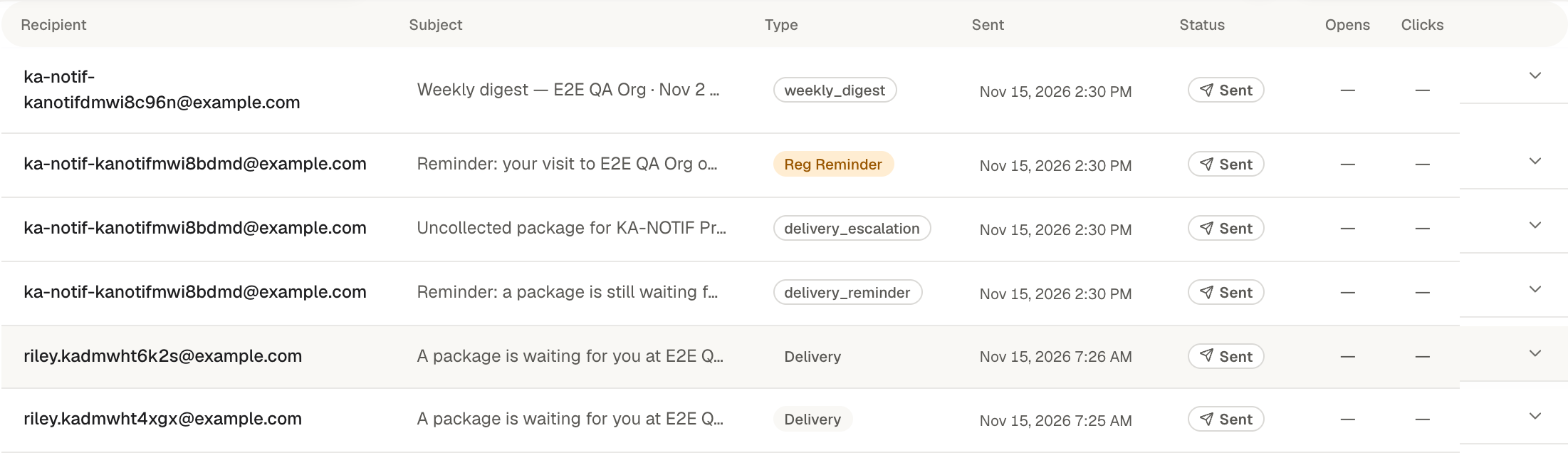
The page loads the newest 50 emails; click Load More at the bottom for older ones. Search only looks through what is loaded, so load more before deciding an email isn't there. For one event guest, the guest's Email Timeline in Guest Management shows the same thing.
Step 2: read the status
| Status | What it means | What to do |
|---|---|---|
| Delivered | The recipient's mail server accepted it. | Ask them to check spam, promotions and quarantine folders, and to search for "KyberAccess". Ask their IT to allow mail from send.kyberaccess.com. |
| Sent | We handed it to our mail provider; delivery wasn't confirmed yet. | Wait a few minutes and click Refresh. If it stays Sent, treat it like Delivered. |
| Delayed | The recipient's server is slow or deferring it. | Usually arrives within hours. |
| Bounced | The address doesn't exist or rejected the message. The row shows the reason. | Fix the address on the person or guest and send again. |
| Complained | The recipient marked an earlier email as spam. | Ask them to mark it "not spam". |
| Not listed | KyberAccess never sent it. | Go to Step 3. |
Opened and Clicked are not tracked reliably at the moment, so most emails show 0 opens even when read. Don't use opens to judge whether someone saw an email.
After a hard bounce or a spam complaint, that address stops getting optional emails (reminders, digests) from KyberAccess. Invitations, passes, QR codes and other transactional emails still go out.
Step 3: did the button you used send email?
These send email: - Events › Communications › Send Invitations / Send to Eligible, and Resend Invitation on a guest. - Event Issue QR Codes (bulk or one guest) and the automatic QR code after online registration. - Review Queue › Approve on a Permanent Credential event (emails the credential). - Credentials list › tick credentials › Resend Pass, or Resend pass on a single credential's page (owners and admins). - Event emails scheduled with Schedule on a Communications card, and automatic event emails from the Notifications tab (they send at their time while the event is Published; see Communications › Scheduled Sends for each one's result). - Team invitations, host arrival notifications (and the extra arrival copies under Host Notifications), pre-registration reminders (when turned on) and scheduled reports. - Registration › Register (with Send welcome email ticked) and Visitors › Register / Invite › Send Invitation; Notify host emails the host.
These do not send email today: - A person's profile › Issue Credential. Follow it with Resend pass.
Step 4: check the sender details
All KyberAccess email is sent from an address at send.kyberaccess.com, shown as " via KyberAccess". Replies go to your organization email. 1. Open Settings › Organization › Branding (classic menu: Configure › Organization › Branding). 2. Check Sender Display Name and Organization Email (used as the Reply-To). The Sent From box shows exactly what recipients see. 3. Click Save.
You can't send from your own domain. If a school's filter blocks unknown senders, ask its IT to allow send.kyberaccess.com.
Settings that change this
| Setting | Where | Default | Effect |
|---|---|---|---|
| Sender Display Name, Organization Email | Settings › Organization › Branding (classic: Configure › Organization › Branding) (Pro plan) | Your organization name | How the sender appears and where replies go |
| Email templates | Settings › Organization › Email templates (classic: Configure › Notifications › Templates) | Built-in wording, all on | A template you switched off is not sent. Check here if one kind of email never arrives. |