Use this when visitors check in at the iPad kiosk but no badge comes out, or the iPad shows a print error. The iPad sends the badge straight to the printer over your network (or Bluetooth), so most problems are the printer's address, its connection type, or which printer the iPad was given.
Who this is for
Owners and admins. Badge printing is included in the Pro and Enterprise plans.
Before you start
- Have the printer's IP address. Print a network configuration page from the printer, or look it up in your router.
- Have access to the kiosk iPad, and your guard code if you use guard mode (to reach the iPad's Printer screen). Owners and admins find it in Settings › Devices & hardware › Kiosks › Kiosk access codes (classic menu: Configure › Devices & hardware › Kiosk devices); click Show.
Menus: steps show the app launcher first and the classic menu in brackets. See Find your way around to tell which one you have.
What the iPad prints to today
- Brother QL label printers over Wi-Fi or network cable (QL-820NWB, QL-810W, QL-1110NWB). This is the path that works best. The iPad sends the badge straight to the printer's IP address.
- Brother QL-820NWB / QL-1110NWB over Bluetooth, once the printer is paired in the iPad's Settings › Bluetooth.
- USB is not supported from the iPad, so USB is no longer offered. Dymo LabelWriters and the Brother QL-800 are USB-only and are marked not supported by the iPad kiosk.
- Zebra, Rollo and AirPrint Compatible printers are also marked not supported by the iPad kiosk and can't be saved: the iPad sends the Brother label format, which they don't understand. Use a Brother QL printer for kiosk badges.
- A printer saved before this change with USB or an unsupported model still shows in the list; edit it to a Brother QL over Wi-Fi or Bluetooth.
Check 1: read the message on the iPad
After check-in, the final screen shows the print status. Tap Retry after each fix.
| Message | Cause | Fix |
|---|---|---|
| No printer configured. Go to Settings > Devices > Printers to set up. | The iPad has no printer, or its printer was saved as USB. | Do Check 2. |
| Could not connect to printer at … | Wrong IP address, printer off, or the iPad is on a different network. | Do Check 3. |
| Bluetooth printer not connected | The printer isn't paired with this iPad. | Pair it in the iPad's Settings › Bluetooth. |
| Badge printed ✓ but nothing came out | The printer accepted the job but couldn't print: out of labels, cover open, or a jam. | Check the printer's lights and labels. The iPad doesn't report these problems. |
| Print Badge button but nothing printed by itself | Auto is off for this iPad. | Turn Auto on (Check 2), or have visitors tap Print Badge. |
| No print button at all | No usable printer for this iPad. | Do Check 2. |
Check 2: the printer is added and assigned to this iPad
- Open Settings › Devices & hardware › Printers (classic menu: Configure › Devices & hardware › Badge printers).
- Under Printer Registry, check the printer is listed. If not, click Add Printer and add it (see Design and print visitor badges).
- Open the printer with its edit button and check Connection Type is Wi-Fi / Network (or Bluetooth for a paired QL-820NWB / QL-1110NWB) and the IP Address is right. Do not use USB.
- Under Device → Printer Assignment, find the iPad and pick the printer in its drop-down. Make sure Auto is on if badges should print by themselves.
- Wait one minute. The iPad checks for printer changes every 60 seconds. Restarting the kiosk app picks them up at once.
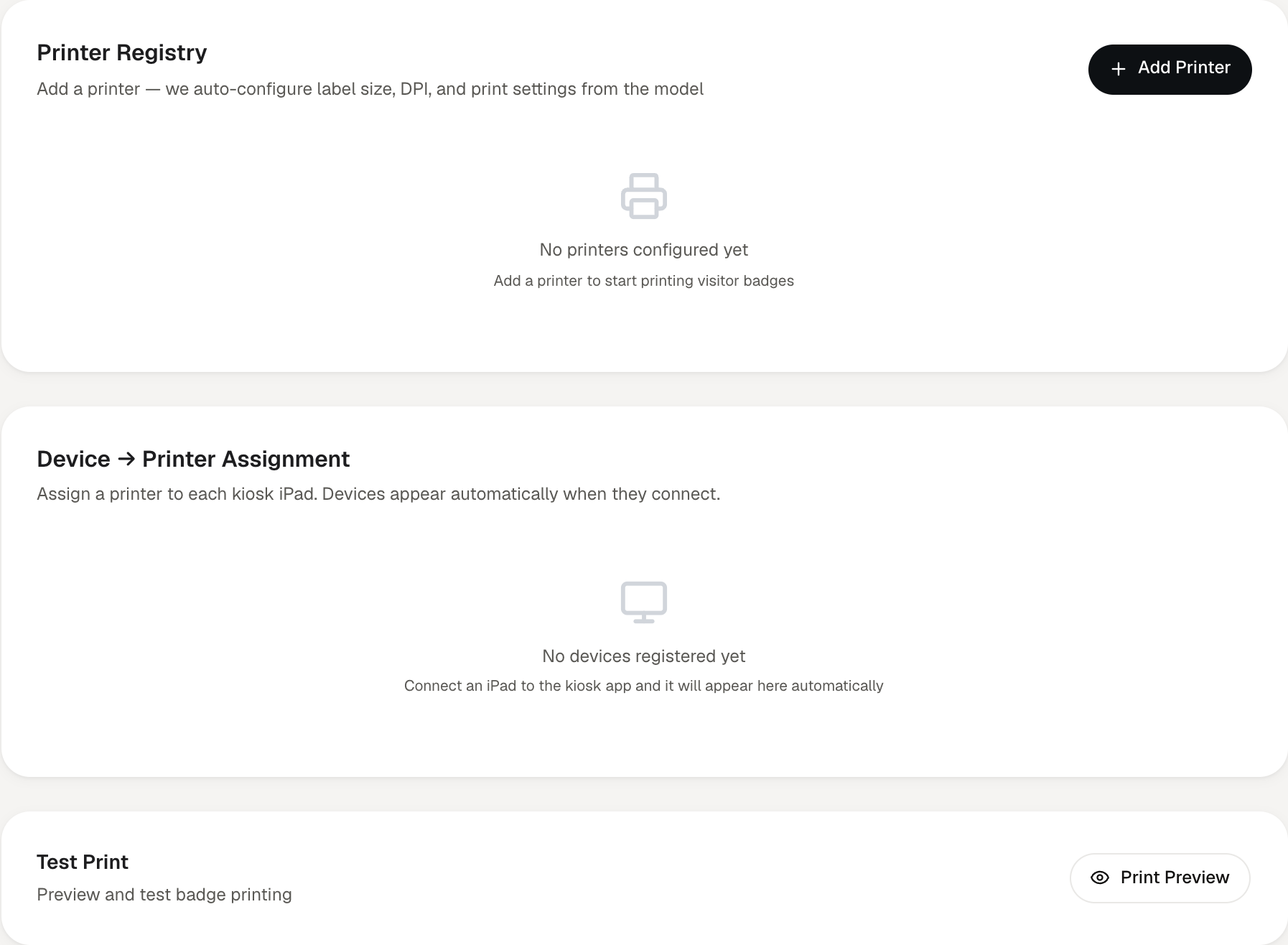
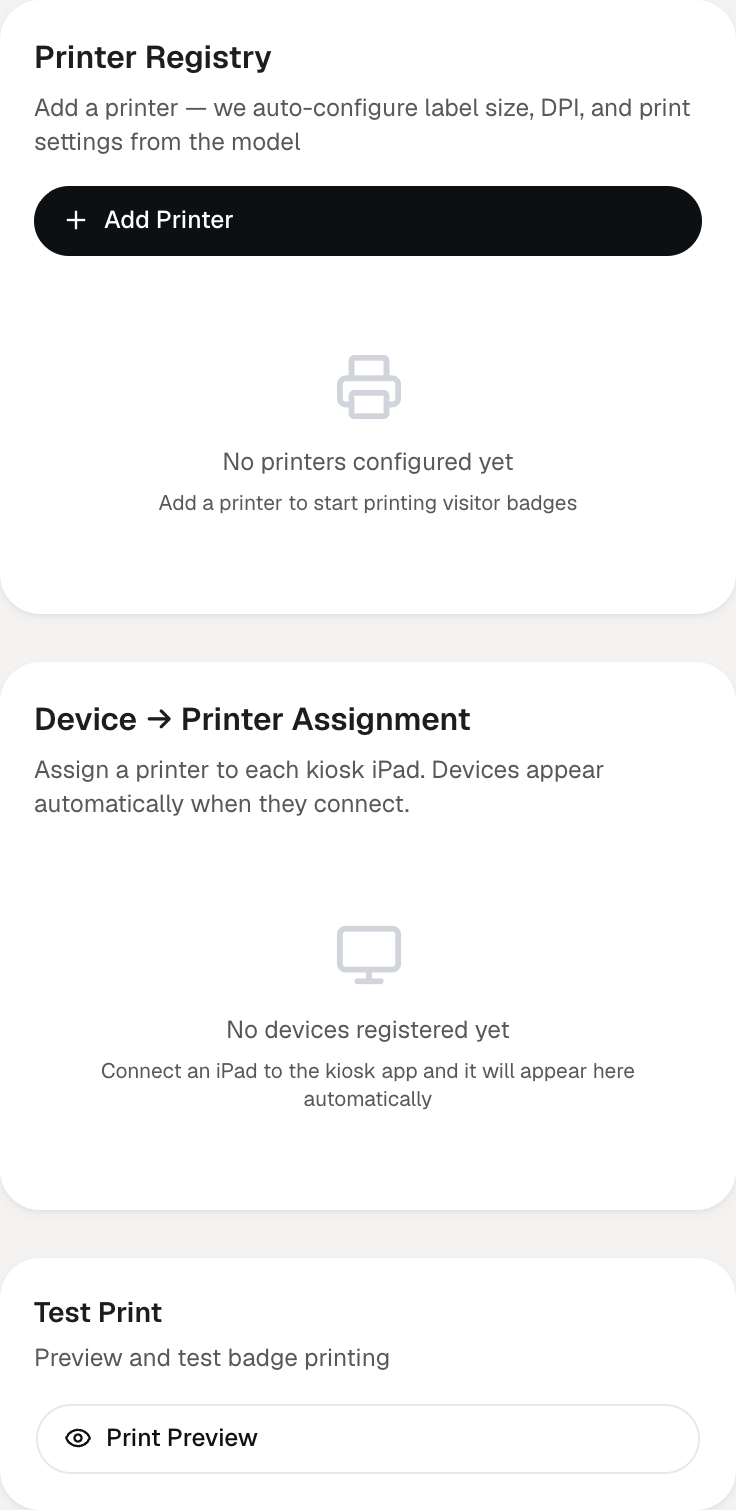
If the iPad isn't listed under Device → Printer Assignment, open the kiosk app on it while connected to the internet. If its drop-down is greyed out with Needs re-enrollment, enroll the iPad again (see Set up an iPad kiosk).
An iPad with no printer assigned uses the first printer in your Printer Registry. If you have several printers, assign each iPad its own so badges don't print in the wrong lobby.
Check 3: the iPad can reach the printer
- Put the printer and the iPad on the same network. Guest Wi-Fi and networks with "client isolation" block the iPad from reaching the printer.
- Give the printer a fixed IP address (a DHCP reservation in your router). If the address changes, update it under Badge printers.
- The iPad prints to port 9100 on the printer (the note under IP Address says so). Make sure your network allows it. If your printer listens on another port, enter the address as
192.168.1.50:9100style with the port. - On a Brother printer, make sure the network interface you're using (Wi-Fi or wired) is turned on in the printer's settings.
Check 4: run a test print from the iPad
- On the iPad's welcome screen, tap the gear icon at the bottom right (or triple-tap your organization name at the top) and enter your guard code.
- Tap Printer. Printer Setup shows the printer ASSIGNED FROM DASHBOARD, or No Printer Assigned with this iPad's device code.
- Tap Test Print. You see Test print successful ✓ or Failed: with the reason.
The web Badge printers page has Print Preview › Print Test Badge. It opens your computer's print dialog with a sample badge, so it tests a printer connected to that computer, not the iPad. To test the kiosk printer, always test from the iPad.
Check 5: the badge prints but looks wrong
- Cut off or squashed: use 62 mm continuous labels (DK-2205) on Brother QL printers, and choose the exact Printer Model when adding it.
- Different from my design: click Save in the Badge Designer (Preview alone doesn't save). Then restart the kiosk app so it loads the new design.
- No photo: the visitor skipped the photo step, or the photo didn't load in time; the badge prints without it.
- Reprinting from the Visitors page prints a standard layout through the computer's print dialog, not your custom design.
Settings that change this
| Setting | Where | Default | Effect |
|---|---|---|---|
| Printer (per iPad) | Settings › Devices & hardware › Printers › Device → Printer Assignment (classic: Configure › Devices & hardware › Badge printers) | First printer in the registry | Which printer each iPad uses |
| Auto | Settings › Devices & hardware › Printers › Device → Printer Assignment (classic: Configure › Devices & hardware › Badge printers) | On | Prints without the visitor tapping Print Badge |
| Connection Type, IP Address | Settings › Devices & hardware › Printers › Printer Registry (classic: Configure › Devices & hardware › Badge printers) › edit | Wi-Fi / Network | How the iPad reaches the printer |
| Badge design | Settings › Apps › Front Desk › Badges (classic: Configure › Credentials & badges › Visitor badges) | Portrait | What prints |