Use this when the iPad kiosk does not react to a visitor's QR code or driver's license, or reacts with an error. Most problems are the camera, the code itself, or which screen the visitor is on. Work through the checks in order.
Watch how it should look: Pre-registered visitors (1:26) (the Already have a QR code? scan) and Checking out (1:43) (Check Out with the badge QR), from the video "Visitor check-in with the iPad kiosk".
Who this is for
Front desk staff at the kiosk, and owners and admins who manage it.
Before you start
- Know which screen the visitor was on: the welcome screen (Already have a QR code?), Scan Your ID, Check Out, or a guard screen.
- Note what the iPad showed: nothing at all, Registration Denied with a reason, or Something Went Wrong.
Menus: steps show the app launcher first and the classic menu in brackets. See Find your way around to tell which one you have.
Which camera reads what
| Screen on the iPad | What it reads | Camera |
|---|---|---|
| Already have a QR code? (welcome screen) | Pass and credential QR codes | Front camera (facing the visitor) |
| Check Out › Scan Badge | The QR code on the printed badge | Front camera |
| Scan Your ID | Front photo of the ID, then the barcode on the back (or the text strip on a passport) | Back camera |
| Guard screens (quick scan, guard check-out) | Pass and credential QR codes | Back camera, aimed by the guard |
The QR scanner reads QR codes and the barcode on the back of US driver's licenses. Other barcode types (for example a membership card barcode) are not read.
Check 1: the camera shows a black or frozen picture
- Tap Cancel or Back, then open the scanner again.
- If it stays black, close the KyberAccess Kiosk app (swipe it away) and open it again.
- Check camera permission: on the iPad open Settings › KyberAccess Kiosk and turn Camera on. If Camera is not listed or is greyed out, a device-management profile (Screen Time or your MDM) is blocking it; ask whoever manages the iPad.
- Make sure no other app is using the camera, and that the iPad case or stand isn't covering the lens being used (front camera for visitor QR codes, back camera for IDs).
Check 2: the camera works but nothing happens
- Distance and light. Hold the code 6 to 10 inches from the camera, flat and still, for 2 seconds. Avoid glare from a window or overhead light on a glossy card or phone screen.
- Phone screens. Turn the phone's brightness up and close any notification covering the code.
- Printed codes. A folded, faded or very small code may not read. Print it larger or use the emailed version.
- IDs. On Scan Your ID, the visitor first holds the FRONT of the ID in the frame until Front Captured!, then follows Now flip your ID over so the camera can read the barcode on the back. Hold the back flat; the barcode is the wide striped block. A passport is read from the text strip on the photo page, so no back scan is needed.
- Wrong screen. A QR pass shown on Scan Your ID is not checked in as a pass. Tap Back and use Already have a QR code? on the welcome screen.
Check 3: the iPad shows "Registration Denied"
The code was read. The reason under the heading says why it was refused:
| Reason on the iPad | What it means | Fix |
|---|---|---|
| Credential has expired | The credential's end date has passed. | Renew it on Credentials (see Change how long credentials last). |
| Credential is suspended / Credential is revoked | Staff suspended or revoked it. | Reinstate or reissue it (see Suspend, reinstate, revoke or reissue a credential). |
| This QR pass has already been used / Scan limit reached | A one-time visitor pass was already scanned, or it reached the scan limit in your QR policy. | Check the visitor in at the front desk, or issue a new pass. |
| This QR pass has expired / Pass expired after first scan | The pass's time window ended. | Issue a new pass. See Settings that change this. |
| QR code not recognized | The code isn't a KyberAccess pass for your organization: another system's code, a screenshot of a deleted pass, or a code from another organization. | Check the visitor in at the front desk. |
| Your watchlist or screening message (default "There seems to be an issue — please contact security.") | The holder matched your watchlist, or a background check flagged them. | Handle it in person. Do not wave them through. |
| We could not complete check-in automatically. Please see the front desk. | A background check could not finish. | Check the visitor in at the front desk (see When screening could not run). |
Every refusal of a credential is recorded on the credential's Timeline as Kiosk check-in — refused with the reason (see See where and when a credential was used).
Check 4: the iPad shows "Something Went Wrong"
The iPad could not reach KyberAccess, or screening was temporarily unavailable. 1. Check the iPad's Wi-Fi. Open Safari and load any website. 2. Tap Try Again. 3. If the message mentions security screening, check the visitor in at the front desk.
Pre-registration QR codes
Both pre-registration codes check the visitor in with one scan on Already have a QR code?: the code from an invite (after the visitor completes their registration) and the code from your public registration link. Each code works once; a second scan, or a cancelled registration, shows QR code not recognized. Visitors who registered themselves through the public link are also checked against your watchlist; a match is sent to the front desk. Watch: Arrival at the kiosk (1:28).
Codes the kiosk does not check in
- Codes from another visitor-management system.
Settings that change this
| Setting | Where | Default | Effect |
|---|---|---|---|
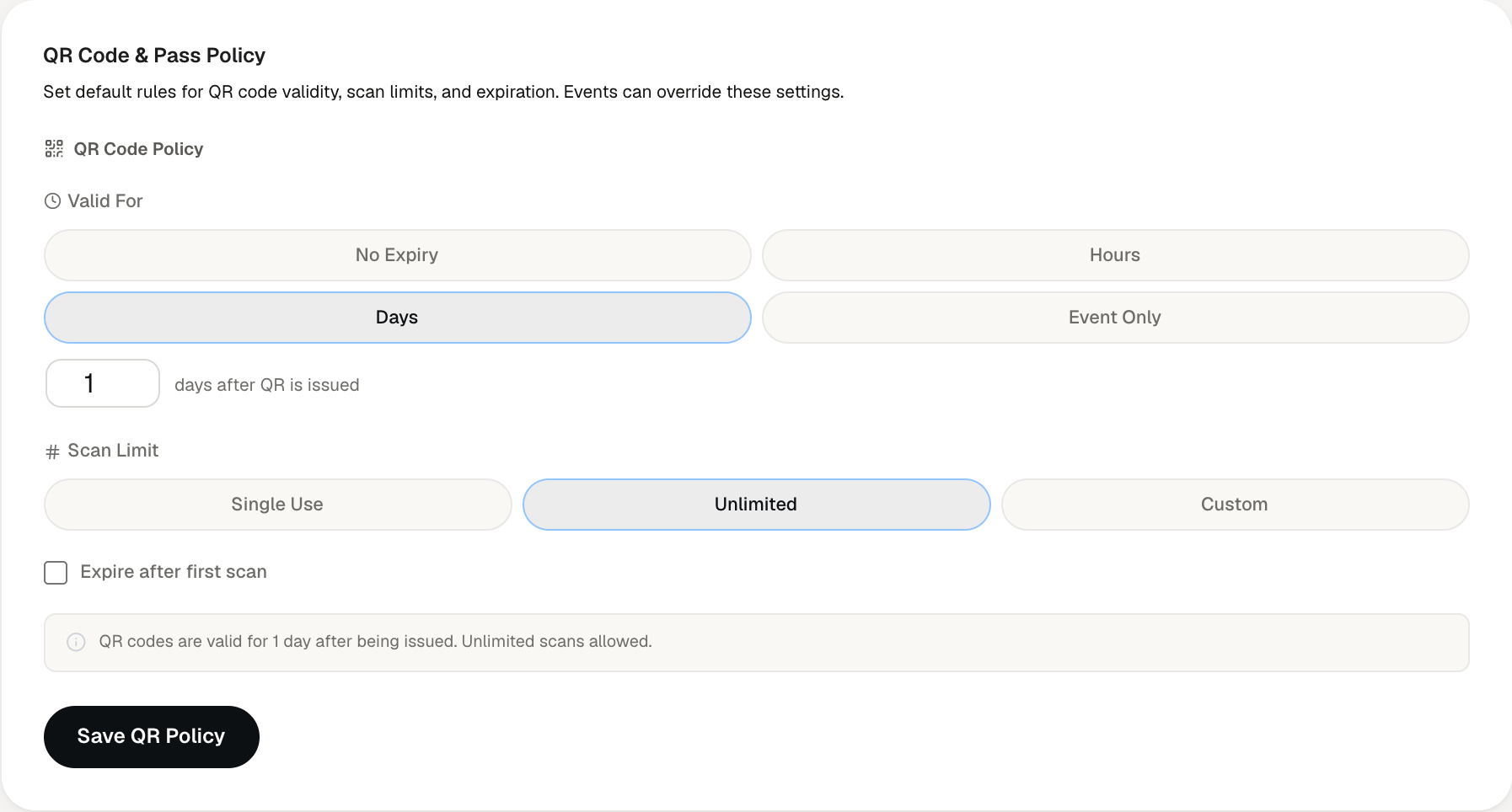
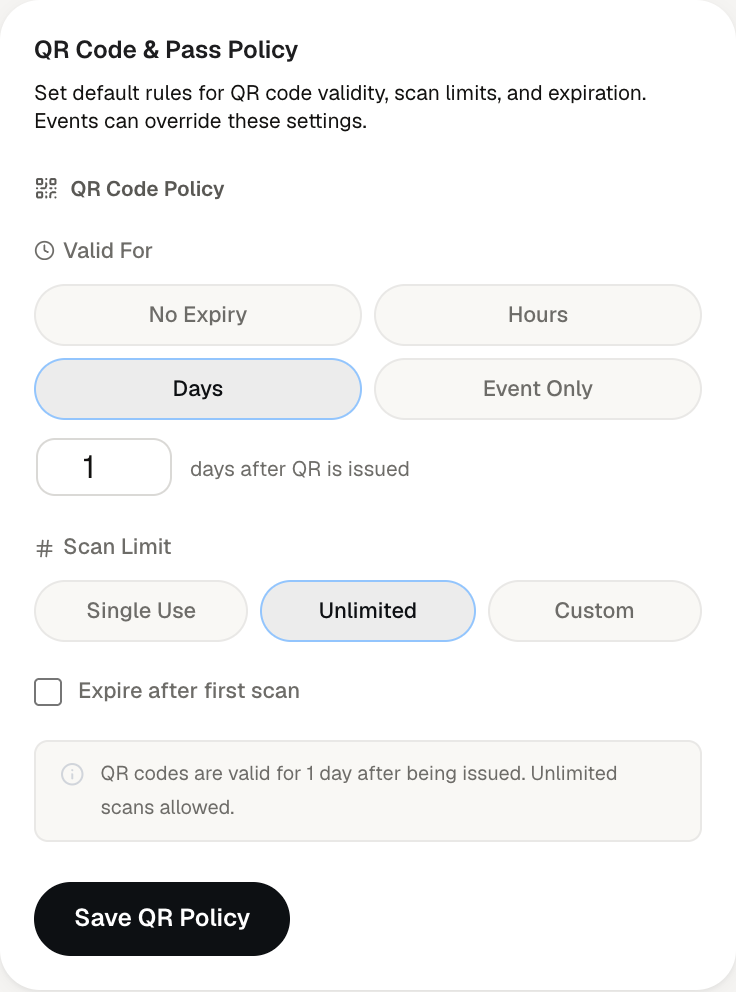
| Scan Limit | Settings › Apps › Front Desk › QR passes (classic: Configure › Visitor policies › QR policy) | Unlimited | How many times one visitor pass can be scanned at the kiosk. |
| Expire after first scan | Settings › Apps › Front Desk › QR passes (classic: Configure › Visitor policies › QR policy) | Off | Ends a visitor pass a set number of minutes after its first scan. |
| Watchlist denial message | Settings › Apps › Front Desk › Kiosk features (classic: Configure › Kiosk › Features) | "There seems to be an issue — please contact security." | Text shown on a watchlist match. |
Valid For on the QR policy page (No Expiry, Hours, Days, Event Only) currently has no effect at the kiosk. A visitor pass from a kiosk check-in stays valid for 8 hours, and an event pass until the event ends.
Still stuck
- Restart the iPad.
- Make sure the app is up to date in the App Store (search "KyberAccess Kiosk").
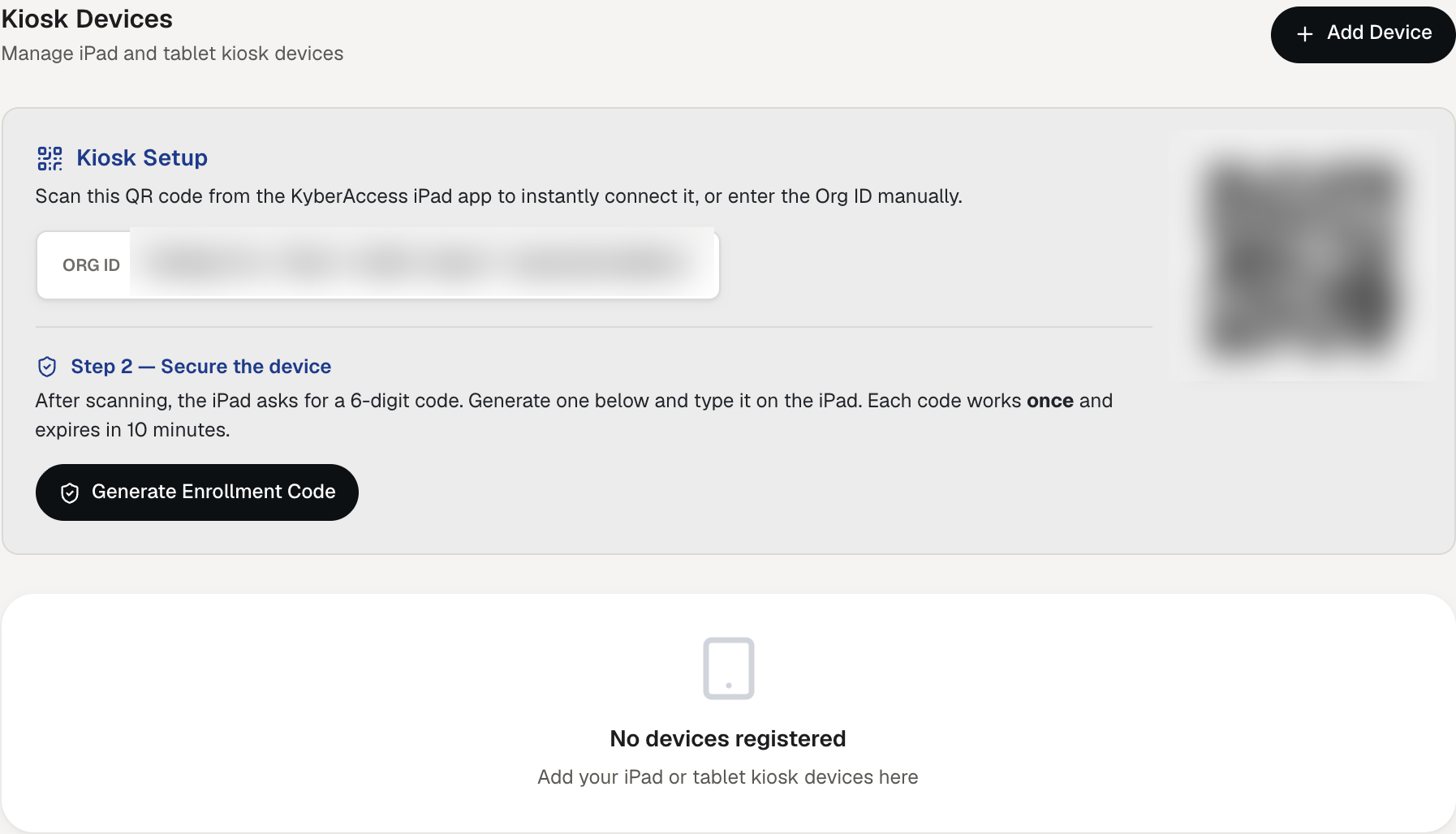
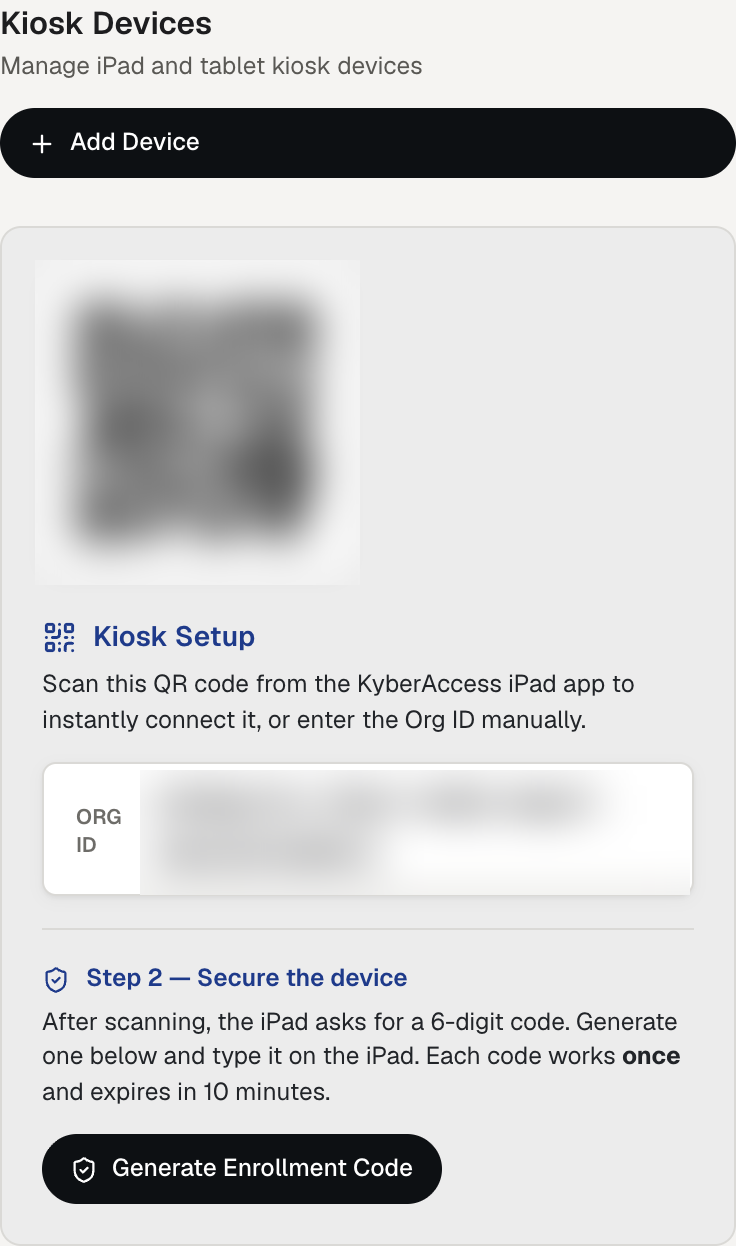
- Check the iPad still appears under Settings › Devices & hardware › Kiosks (classic menu: Configure › Devices & hardware › Kiosk devices). If not, enroll it again (see Set up an iPad kiosk).