Scan a visitor's QR pass, a credential, a door card or the barcode on the back of a driver's license and KyberAccess tells you right away whether to let them in. Each good scan also checks the person in.
Who this is for
Guards, front desk and security staff, plus owners and admins. All plans.
Before you start
- A device with a camera (phone, tablet or laptop) or a USB card reader that types the card number (a "keyboard-wedge" reader).
- People's door cards must be enrolled first: open the person in People and use Tap card.
- Passes and credentials must be Active and not expired. Suspended, revoked and expired ones are refused.
Menus: steps show the app launcher first and the classic menu in brackets. See Find your way around to tell which one you have.
Steps
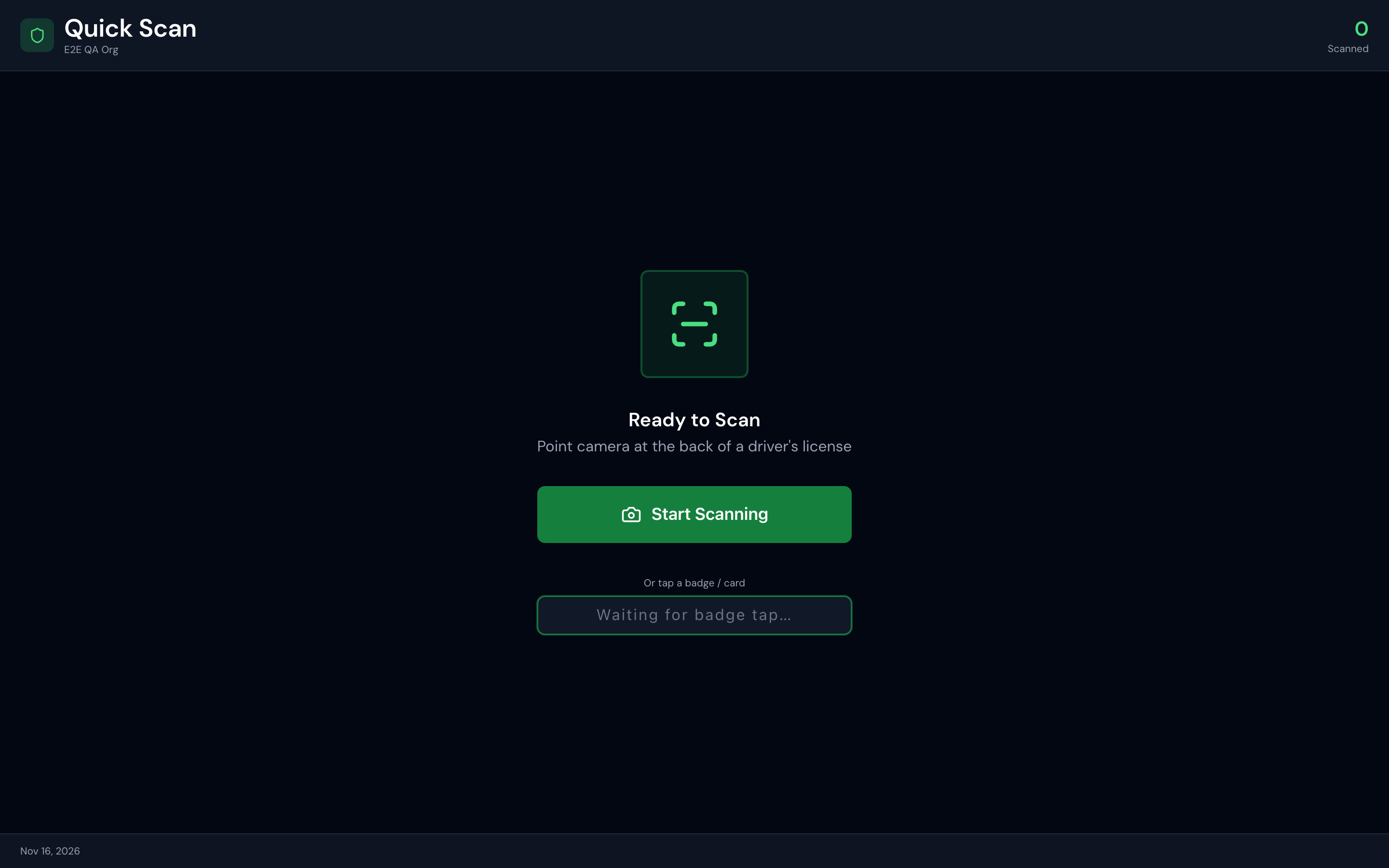
- Open app.kyberaccess.com/quick-scan on the door device. The page is Quick Scan. Keep it open all day; the counter at the top right shows how many people you've scanned.
- To scan with the camera, click Start Scanning and hold the QR code, or the barcode on the back of a driver's license, inside the frame.
- To use a card reader, leave the page on Ready to Scan and tap the card on the reader. It lands in the Or tap a badge / card box by itself.
- Read the result:
- Signed In ✓ (green): let them in. The visit is recorded.
- DENIED (red): "Do not allow entry. Contact administration." The pass or card is not valid here (unknown, suspended, revoked or expired, with the reason shown), or a scanned driver's license matched your watchlist.
- Something went wrong: KyberAccess could not be reached. Click Try Again. This is not a decision about the person; if it keeps happening, send them to the front desk.
- Click Scan Next Visitor (or Scan Next after a denial) for the next person.
What happens next
- Pass, credential or card: if the person was not already on site, they are checked in and appear in guard mode's On site now and on the security monitor. Scanning the same pass again while they are on site does not create a second visit, and it does not check them out. Check people out from guard mode's Visitors page or the security monitor.
- Driver's license: the name and date of birth from the barcode are used to sign the person in as a new visitor (type Visitor). If the name matches your watchlist, the scan shows DENIED and the match goes to the Review Queue.
- Every scan, allowed or refused, is written to the gate activity that admins see under Apps › Access › Activity (classic menu: Configure › Access control › Activity & reports).
Scan a pass from guard mode
- In guard mode, click Scan a pass in the left menu (on a phone: app.kyberaccess.com/guard/scan).
- Hold the QR code or license barcode to the camera.
- A recognised pass shows the person's photo and details. Click Check In or Check Out. A suspended, revoked or expired pass shows REFUSED — do not admit on this pass and can't be checked in.
This screen only looks the pass up. Nothing is recorded until you click Check In.
Turnstiles and gate readers
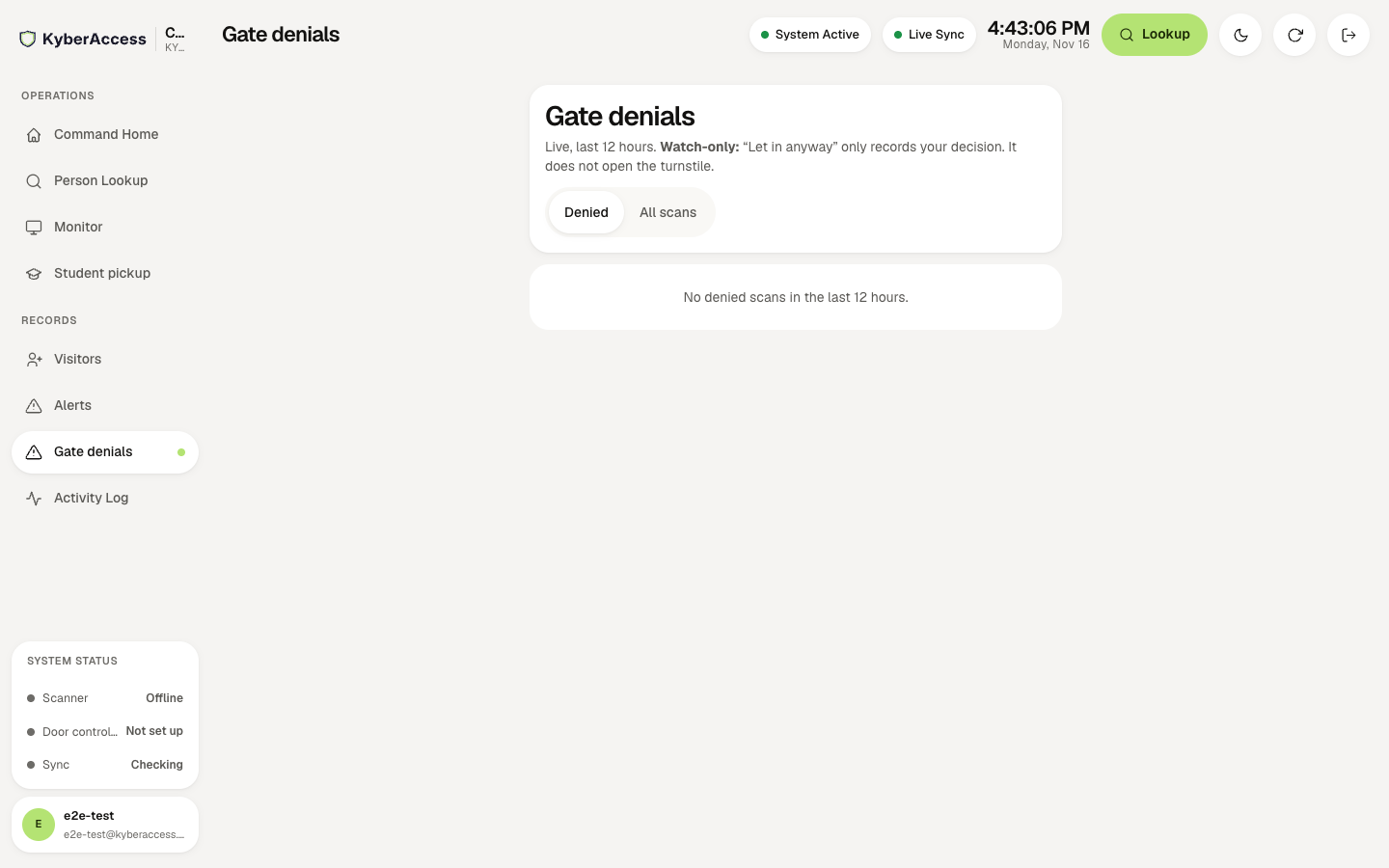
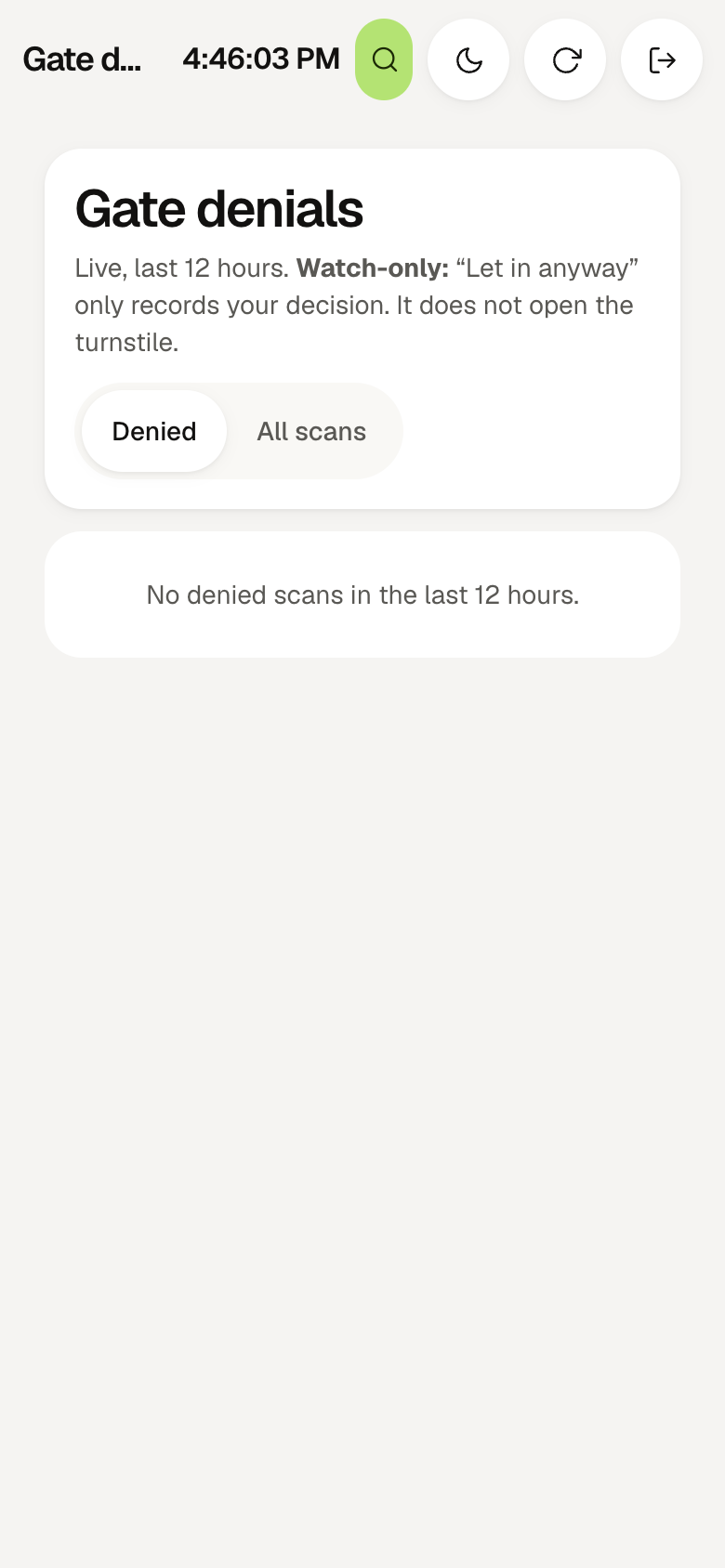
If your entrance has a connected turnstile or reader, it checks the same thing: any active, unexpired credential from your organization is admitted. Refused scans appear in guard mode under Gate denials for the last 12 hours. Let in anyway there only records your decision and the reason. It does not open the turnstile; let the person through by hand.
Settings that change this
- Settings › Apps › Security › Guard (classic menu: Configure › Guard verification): show the person's photo and ID details when they are scanned. See Confirm identity on a scan.
- Settings › Security & policies › Credentials & screening (classic menu: Configure › Credentials & screening): how long credentials last.
- Watchlist: names that are refused at a license scan.
Troubleshooting
- DENIED for a valid-looking pass → the credential is suspended, revoked or expired, or it belongs to another organization (the reason is shown under DENIED) → look it up in Credentials and renew or reissue it.
- A card tap does nothing → the card is not enrolled, or the reader isn't typing into the page → enroll it with Tap card on the person's profile, and click once on the Quick Scan page so it has focus.
- Camera says "Camera unavailable" → the browser has no camera permission → allow camera access in the browser settings and click Retry.
- Someone scanned out but still shows on site → scanning never checks out → check them out from Visitors in guard mode.
- A flagged person's credential still scans green → a background-check flag puts the person in the Review Queue but doesn't suspend their credential → suspend it from Credentials.