Guard mode is the full-screen command center for the gate and the front desk. It shows who is on site, who arrived last, who is expected, and gives one-tap access to check-in, pass scans, look-ups, lost passes, incident reports, student pickup, vehicles and the security monitor.
Video: Checking out (1:43) (On site now on the guard home) and Front desk fallback (2:09) (Check in visitor) in "Visitor check-in with the iPad kiosk". In guard mode, Watch: checking out sits next to On site now and Watch how they check in next to Expected today.
Who this is for
Guards, front desk and security staff. Accounts with the Guard or Front Desk / Security role open in guard mode every time they sign in and are brought back to it if they try to open other pages (the one exception is Student Check-In, so the front desk can work the early-dismissal queue). Owners and admins can open guard mode too.
Before you start
- Your account has the Guard or Front Desk / Security role, or you are an owner or admin.
- A computer, tablet or phone with a current browser. On a phone the left menu is hidden; use the buttons on each page.
Menus: steps show the app launcher first and the classic menu in brackets. See Find your way around to tell which one you have.
Open guard mode
- Guards and front desk staff: sign in at app.kyberaccess.com. Guard mode opens on its own.
- Owners and admins: open Apps › Screens › Guard (classic menu: go to app.kyberaccess.com/guard in your browser).
- To leave, click the exit icon (Exit guard mode) at the top right. Guard-role accounts are sent back to guard mode.
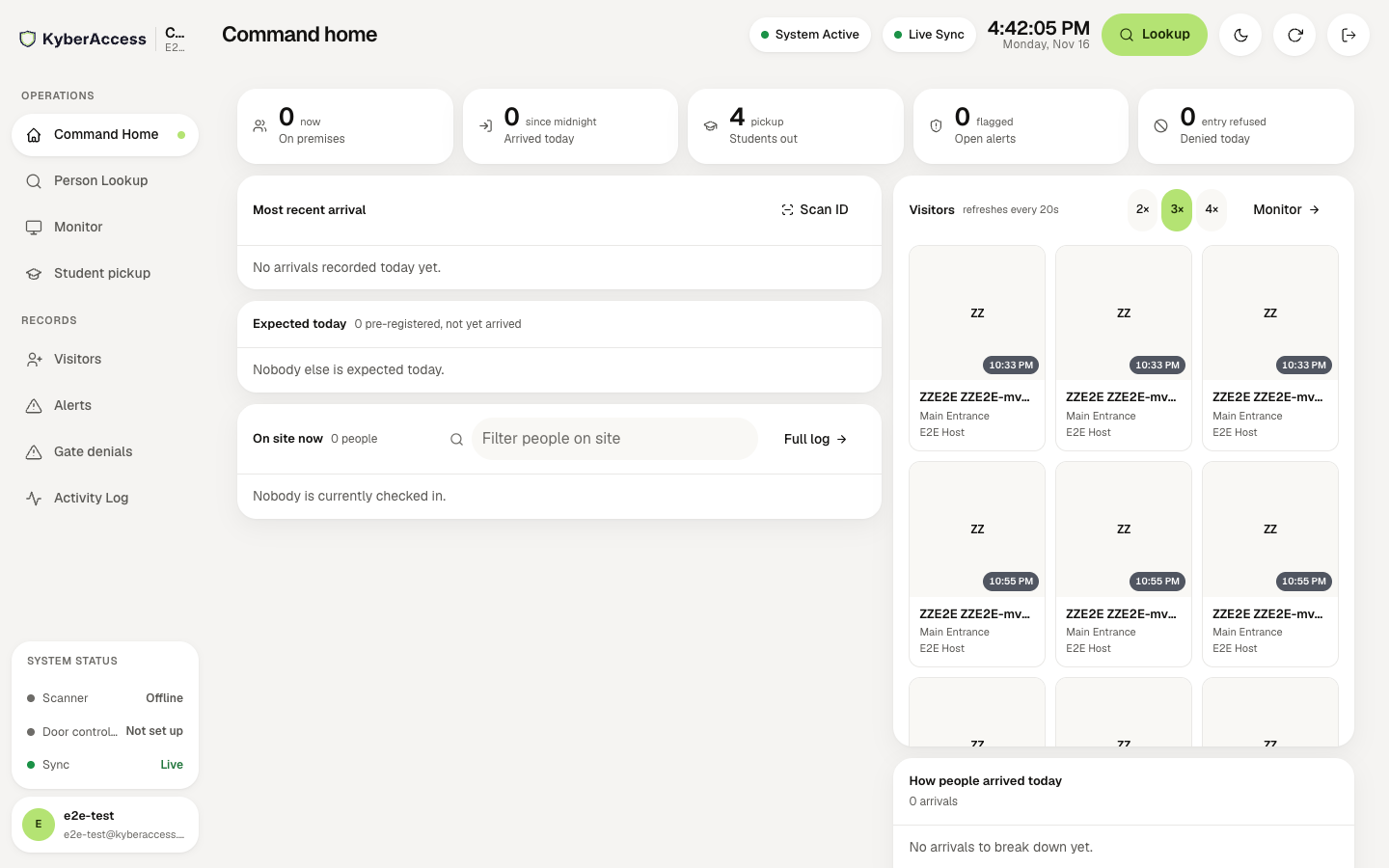
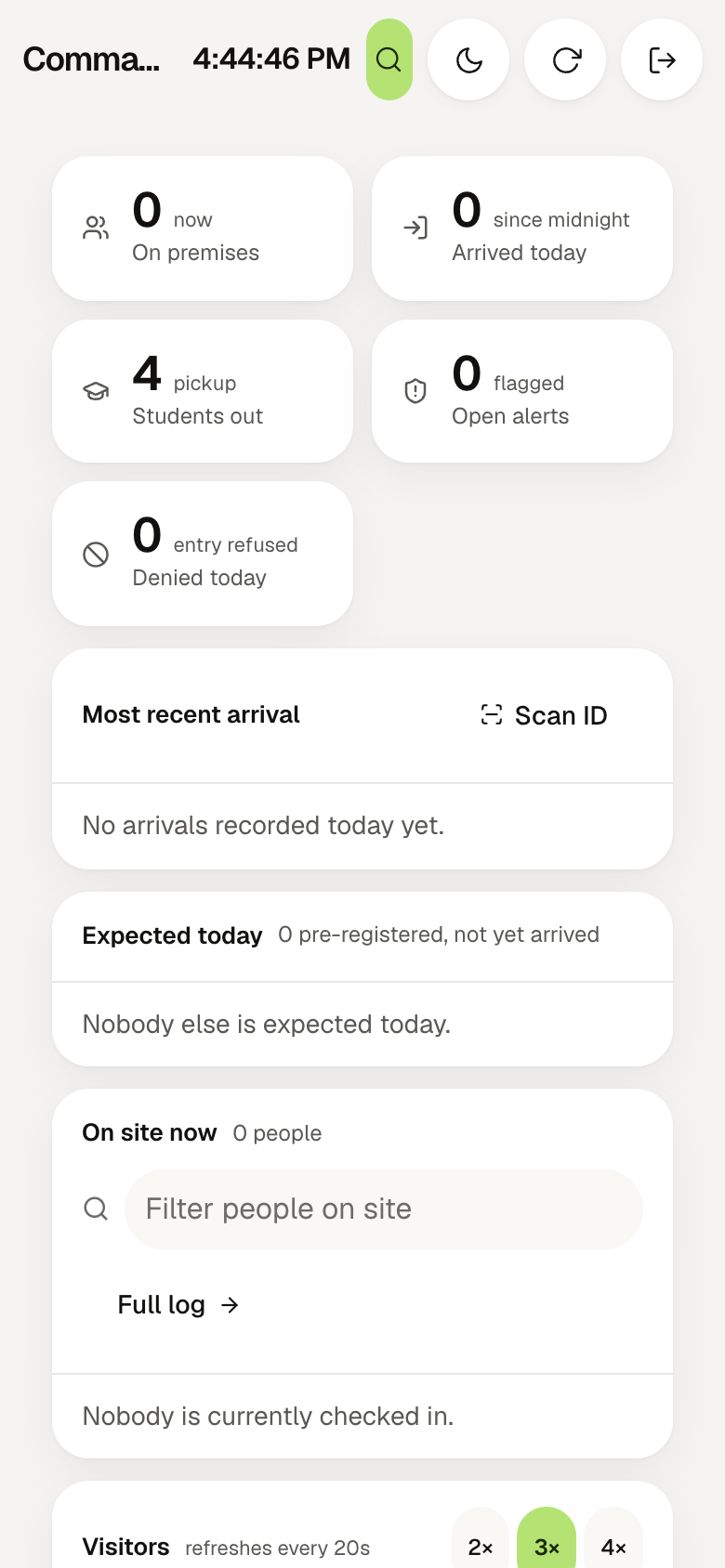
What's on Command home
- Counters across the top: On premises (now), Arrived today (since midnight), Students out (released at pickup today), Open alerts (today's watchlist matches, denials, flagged screenings, emergencies and door-controller outages) and Denied today.
- Most recent arrival: the last person checked in, with host, company, time and method, plus Look up a person and Log incident.
- Expected today: pre-registered visitors who have not arrived yet.
- On site now: everyone checked in. Type in Filter people on site to narrow it. Full log opens the Visitors page.
- Visitors: photo cards of recent arrivals (refreshes every 20 seconds). Choose 2×, 3× or 4× cards per row; Monitor opens the security monitor.
- How people arrived today and Recent activity, with shortcuts to Student pickup, Vehicles and Emergency.
Checking people in from guard mode
- Click Check in visitor in the left menu, or Scan ID, Check in next visitor or Check in on Command home.
- The Guard Check-In window opens. Scan or photograph the ID, or type the details, choose the visitor type and host, and collect any waiver.
- Click check in. KyberAccess checks the watchlist, records the visit and prints a badge if a printer is set up.
To check a pass or credential QR instead, click Scan a pass (see Scan a pass or credential at the door).
The left menu
- Operations: Command Home, Person Lookup, Check in visitor, Scan a pass, Lost pass, Report incident, Monitor, Student pickup.
- Records: Visitors (today's log, with check-out), Alerts, Gate denials, Vehicles, Activity Log, and KyberWatch if your organization has it connected.
- System Status at the bottom: Scanner (the desk ID scanner), each door controller, and Sync. Sync shows Live when the page is getting fresh data and Stalled when it is not. If no door controller is connected it says Not set up.
The top bar has the clock, Lookup, a light/dark switch, Refresh data and the exit icon.
What happens next
- Counters and lists refresh on their own (every 20–60 seconds, depending on the panel). You do not need to reload the page.
- Your light or dark choice is remembered on that device.
Settings that change this
- Settings › Apps › Security › Guard (classic menu: Configure › Guard verification): what the guard sees on the identity card when someone is scanned. See Confirm identity on a scan.
- Team roles (Settings › People & roles › Team & roles; classic menu: Configure › Team & roles): who opens in guard mode.
- Guard mode on the iPad kiosk (Settings › Devices & hardware › Kiosks › Kiosk access codes; classic menu: Configure › Devices & hardware › Kiosk devices): the 6-digit code staff type after triple-tapping your organization name on the iPad. Owners and admins set it.
Troubleshooting
- I keep landing in guard mode. That's how Guard and Front Desk / Security accounts work. Ask an admin to change your role if you need the full dashboard.
- Sync says Stalled. The page could not reach KyberAccess. Check the internet connection and click Refresh data.
- Scanner says Offline. The desk ID scanner app is not running on this computer. Scanning with a phone or tablet camera still works.
- The top-bar chips say System Active and Live Sync while Sync says Stalled. Trust the Sync row in System Status; the top-bar chips are always shown.
- I can't find Lost pass on a phone. The left menu is hidden on a phone. Open app.kyberaccess.com/guard/lost-pass.