Link your KyberWatch account so KyberAccess shows your security officers on site, today's shifts, hours worked and the rotating clock-in QR code, both on the integration page and in guard mode.
Who this is for
Owners and admins connect it. Guards and security use it in guard mode. You need a KyberWatch account.
Before you start
From KyberWatch, get: - Your API URL (the base URL of your KyberWatch API). - An API key for your KyberWatch organization.
Menus: steps show the app launcher first and the classic menu in brackets. See Find your way around to tell which one you have.
Steps
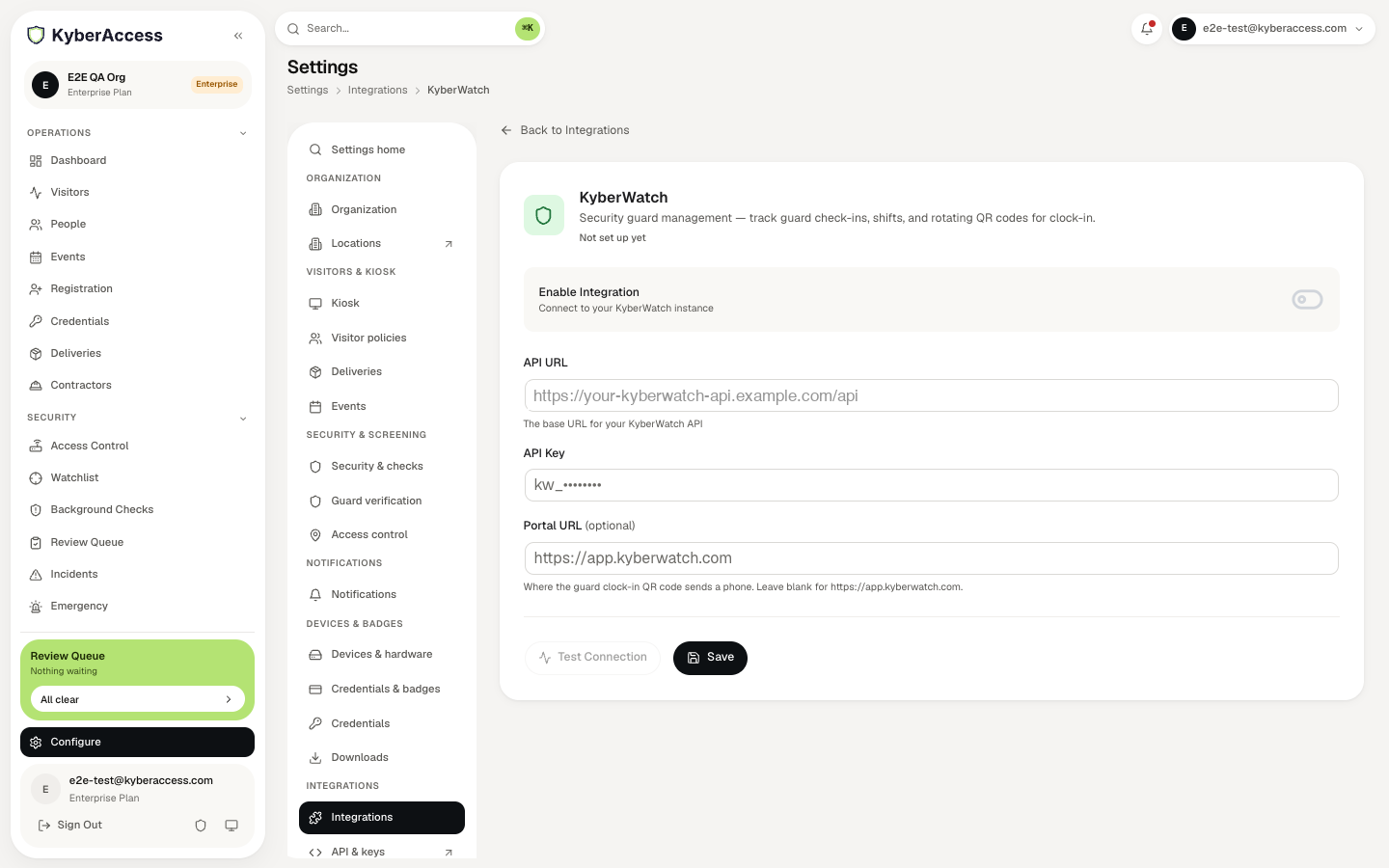
- Open Settings › Integrations › KyberWatch (classic menu: Configure › Integrations › KyberWatch).
- Turn on Enable Integration.
- Enter the API URL and API Key. Optionally enter a Portal URL: where the clock-in QR code sends an officer's phone. Leave it blank for https://app.kyberwatch.com.
- Select Test Connection. KyberAccess calls KyberWatch with the key you typed (it doesn't need to be saved first).
- Select Save.
What happens next
- The page shows Live Status: On-Site Now, Today's Shifts, Hours This Week, Personnel, Personnel On-Site, the Clock-In QR with its rotation countdown, By Building, and Recent Shifts.
- In guard mode, KyberWatch appears in the menu. See Use the security monitor and KyberWatch.
- KyberAccess asks KyberWatch on your behalf, so the key never reaches guards' browsers. After saving, the key is never shown again; the field shows only its start.
- KyberAccess only reads from KyberWatch. It does not create shifts or clock anyone in.
Settings that change this
| Setting | Default | Effect |
|---|---|---|
| Enable Integration | On once saved | Off hides KyberWatch in guard mode and stops all calls. |
| API Key | – | Type a new key only to replace the saved one. |
| Portal URL | app.kyberwatch.com | Where the clock-in QR code points. |
Troubleshooting
- "KyberWatch rejected this API key" → the key is wrong or was revoked → create a new key in KyberWatch, enter it and test again.
- "KyberWatch did not respond within 10 seconds" or "Could not reach KyberWatch…" → wrong API URL or KyberWatch is down → check the URL; try again in a minute (KyberAccess retries once automatically).
- "Enter a KyberWatch API key first" → no key typed or saved → enter the key.
- Guards see "KyberWatch Not Configured" → integration is off or has no saved key → turn on Enable Integration, enter the key and select Save.
- "Only an owner or admin can change KyberWatch settings" → you're signed in with another role → ask an owner or admin.