The security monitor is a live wall of photo cards: each new arrival appears with their face, name, type, host and status so a guard can see who just came in. KyberWatch is a separate connection for organizations that track their own security officers' shifts; when it's connected, guard mode shows who is on duty and a rotating clock-in QR code.
Who this is for
- Monitor: guards, front desk, security, owners and admins. All plans.
- KyberWatch: organizations with the KyberWatch add-on. Owners and admins connect it; guards use it.
Before you start
- A screen at the guard post. A wall TV works; use Fullscreen.
- For KyberWatch: your KyberWatch API URL and API key.
Menus: steps show the app launcher first and the classic menu in brackets. See Find your way around to tell which one you have.
Open the security monitor
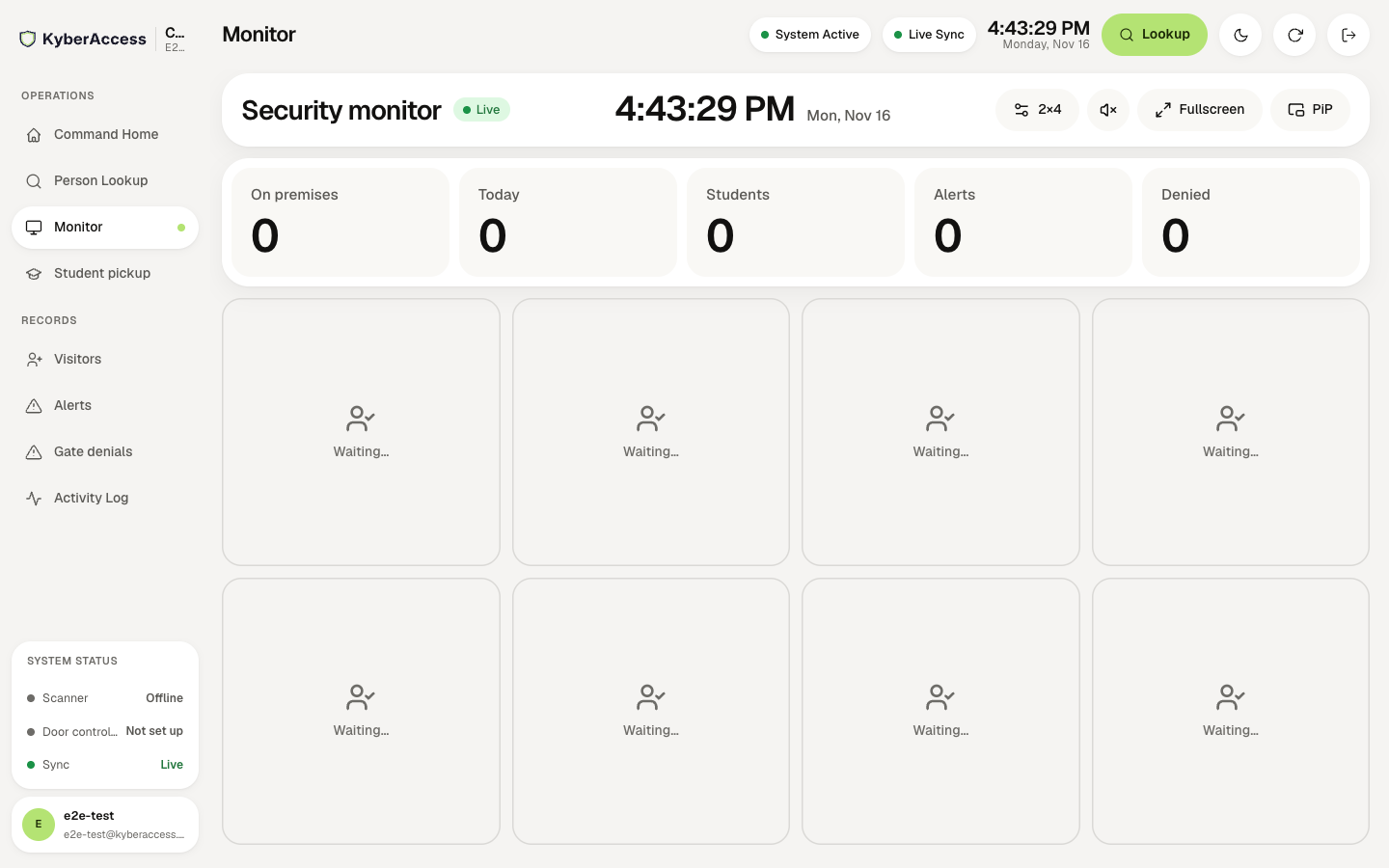
- In guard mode, click Monitor in the left menu. Owners and admins can also open Apps, then Security monitor under Screens (classic menu: the shield icon at the bottom of the dashboard sidebar); it opens in a new tab.
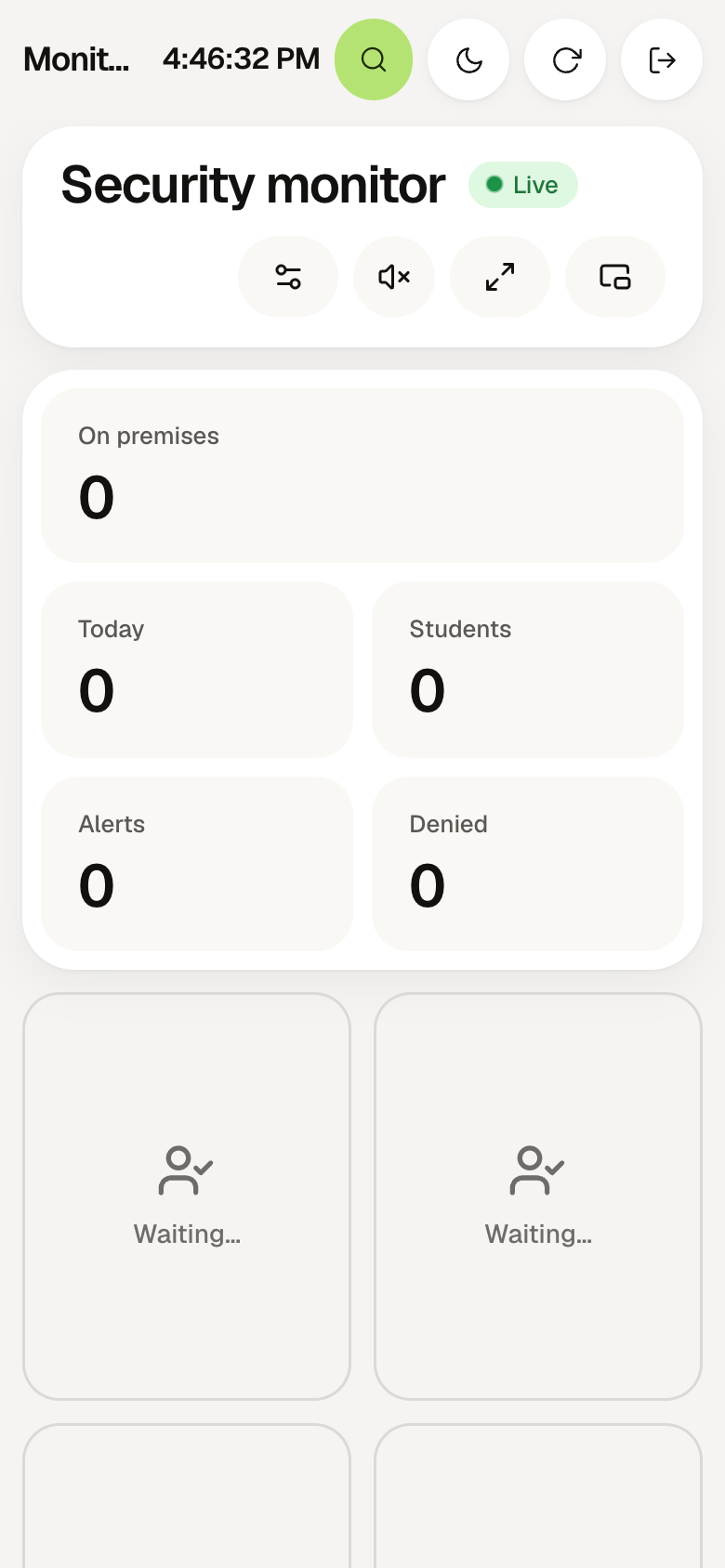
- The top bar shows Live, the clock and the counters On premises, Today, Students, Alerts and Denied.
- New arrivals fill the grid of cards; empty slots say Waiting….
Set up the screen
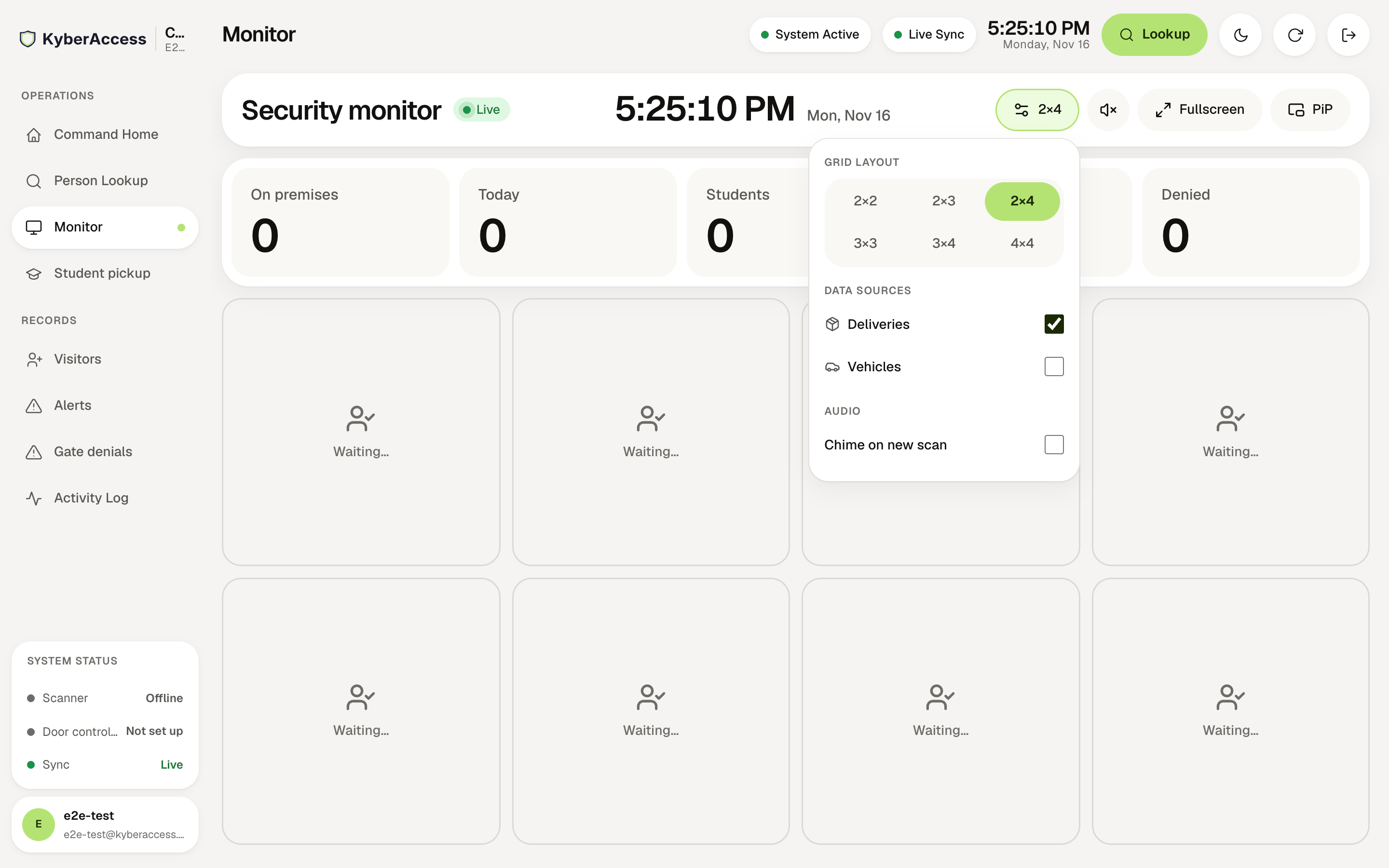
- Click the grid button (it shows the current layout, for example 2×4).
- Under Grid Layout, pick 2×2, 2×3, 2×4, 3×3, 3×4 or 4×4.
- Under Data Sources, tick Deliveries to include delivery drivers.
- Under Audio, tick Chime on new scan for a sound on each arrival. Sound starts muted; click the speaker icon to unmute.
- Click Fullscreen for a wall display, or PiP to shrink the monitor into a small floating window while you use the rest of guard mode.
These choices are saved on that screen only.
Work with an arrival
- Click a card to open it. You see the photo, type, company, host, location and status.
- If the guard verification card is on, you also see their ID details and can click Allow Entry, or Verify & Print from the arrow next to it. Allow Entry is recorded in the activity log with the person's name and time; it does not open a door.
- Click View Profile to open the person's record, or Check Out to end the visit.
After 5 minutes with no new arrivals the monitor switches to a quiet idle screen; it wakes on the next arrival.
Connect KyberWatch (admin)
- Open Settings › Integrations › KyberWatch (classic menu: Configure › Integrations › KyberWatch).
- Turn on Enable Integration, enter the API URL and API Key, and optionally a Portal URL (blank means app.kyberwatch.com).
- Click Save, then Test Connection.

Use KyberWatch in guard mode
- Once connected, KyberWatch appears in the guard-mode menu under Records.
- The page shows On-Site Now, Today's Shifts, Week Completed and Total Personnel, who is on site by building, and recent shifts with check-in, check-out and hours. It refreshes every 30 seconds.
- The clock-in QR code changes on a timer (Next Rotation). Officers scan it with their phone to clock in through KyberWatch. Click the full-screen button to show it on a monitor at the guard post.
What happens next
- The monitor checks for new arrivals continually; you don't need to refresh.
- Check Out from a card ends the visit and the person drops off On premises.
Settings that change this
- Settings › Apps › Security › Guard (classic: Configure › Guard verification): the identity details on each card.
- Settings › Integrations › KyberWatch (classic: Configure › Integrations › KyberWatch): connection on or off.
Troubleshooting
- Cards stay on Waiting… → nobody has checked in recently → check in a test visitor; also confirm Sync says Live in guard mode.
- What counts as an alert? → today's watchlist matches (people and vehicles), emergencies, denied visitors, flagged background checks, lost-pass reports, door-controller outages and high or critical incidents. Critical ones sound the alarm and show a red banner; warnings beep (when sound is on).
- No sound → sound is muted by default and browsers block audio until you click the page → click the speaker icon once.
- I want the monitor on a TV without signing in → TV links are not available yet → sign in on that screen with a guard account and open guard mode › Monitor, then Fullscreen.
- I need to flag someone or reach their host → use Report incident in guard mode, and call the host.
- "KyberWatch Not Configured" → the integration is off or the key is wrong → an admin checks Settings › Integrations › KyberWatch (classic menu: Configure › Integrations › KyberWatch) and clicks Test Connection.