Guards can report an incident straight from guard mode. The report is saved on the Incidents page, where your team can track it, add notes and close it. High and critical reports also alert your owners, admins and security team by email.
Who this is for
- Guard mode form: guards, front desk and security.
- Incidents page: anyone whose role includes incidents: owners, admins and security.
Before you start
- Have the basics ready: what happened, where, and roughly when.
Menus: steps show the app launcher first and the classic menu in brackets. See Find your way around to tell which one you have.
Report an incident in guard mode
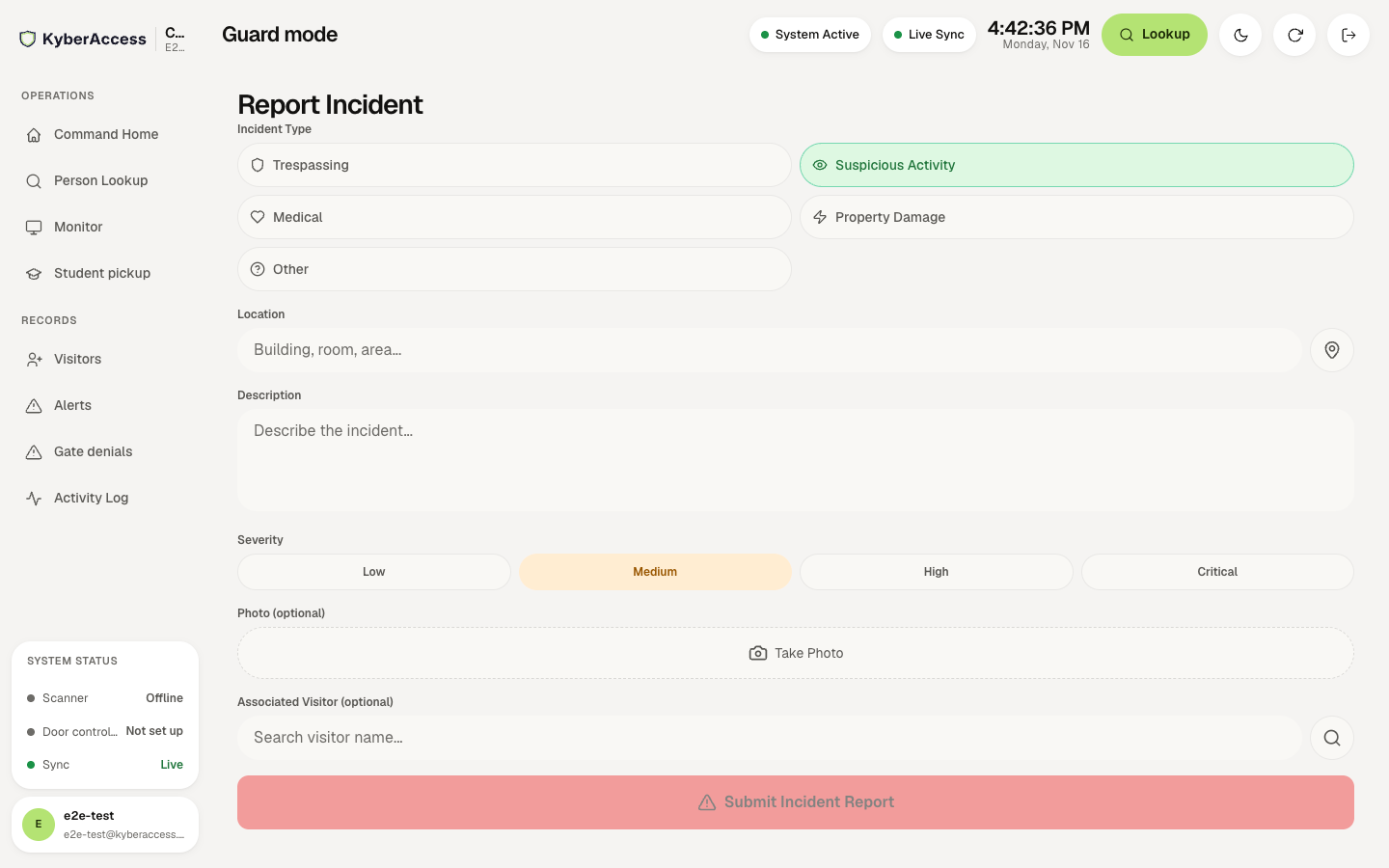
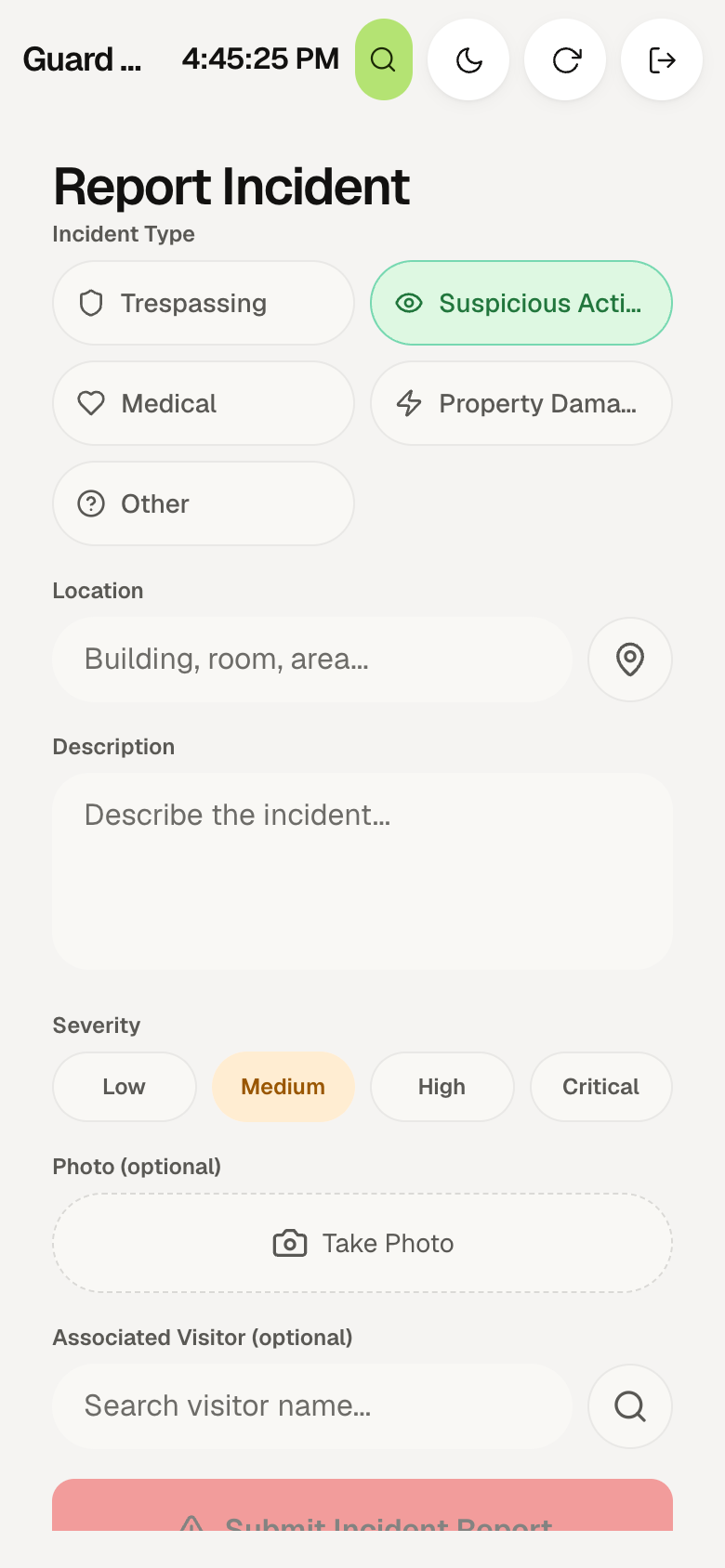
- In the guard mode menu on the left, click Report incident. You can also click Log incident on Command home, or open app.kyberaccess.com/guard/incident on a phone.
- Pick the Incident type: Suspicious activity, Unauthorized access / trespassing, Security breach, Medical emergency, Property damage, Altercation or Other.
- Pick the Severity: Low, Medium, High or Critical.
- Add the Location and the Time (it starts at the current time).
- Write what happened in Description. This is required.
- On the full page you can also add a Photo and link an Associated visitor. Search by name, email, company or phone.
- Click File Report (or Submit Incident Report on the full page).
What happens next
- The report is saved on Incidents with its type, severity, location, time, description, photo, visitor and your name. It starts as Open.
- High and Critical: owners, admins and security members get an email, and a notification appears in the bell. The confirmation tells you how many people were emailed. If it says nobody was alerted, none of those members has an email address on file. Call your supervisor.
- Low and Medium: saved, with no alert.
Follow up on the Incidents page
- Open Apps › Security › Incidents (classic menu: in the dashboard sidebar, go to Security › Incidents).
- Open the report. Move it through Investigating, Resolved and Closed, adding follow-up notes as you go.
Settings that change this
- Team roles (Settings › People & roles › Team & roles; classic menu: Configure › Team & roles): who gets the high and critical email (owner, admin, security and security manager members with an email address).
Troubleshooting
- File Report is greyed out → Description is empty → write at least a few words.
- Nobody was alerted for a Critical report → no owner, admin or security member has an email on file → add emails under Settings › People & roles › Team & roles (classic menu: Configure › Team & roles), and call your supervisor now. For an emergency use Emergency on Command home.
- I can't see the report on Incidents → your role can't open the dashboard Incidents page → ask your supervisor; the report is there.