Use Person Lookup in guard mode to find a visitor by name, email, company, phone or badge number, see whether they are on site right now, and check their recent visits.
Who this is for
Guards, front desk and security staff, plus owners and admins.
Before you start
- You are in guard mode (see Use guard mode).
- Lookup searches visitors who have checked in or been registered before. Students, staff without a visit, and people only on an event guest list are not included. Use People in the full dashboard for those.
Menus: steps show the app launcher first and the classic menu in brackets. See Find your way around to tell which one you have.
Steps
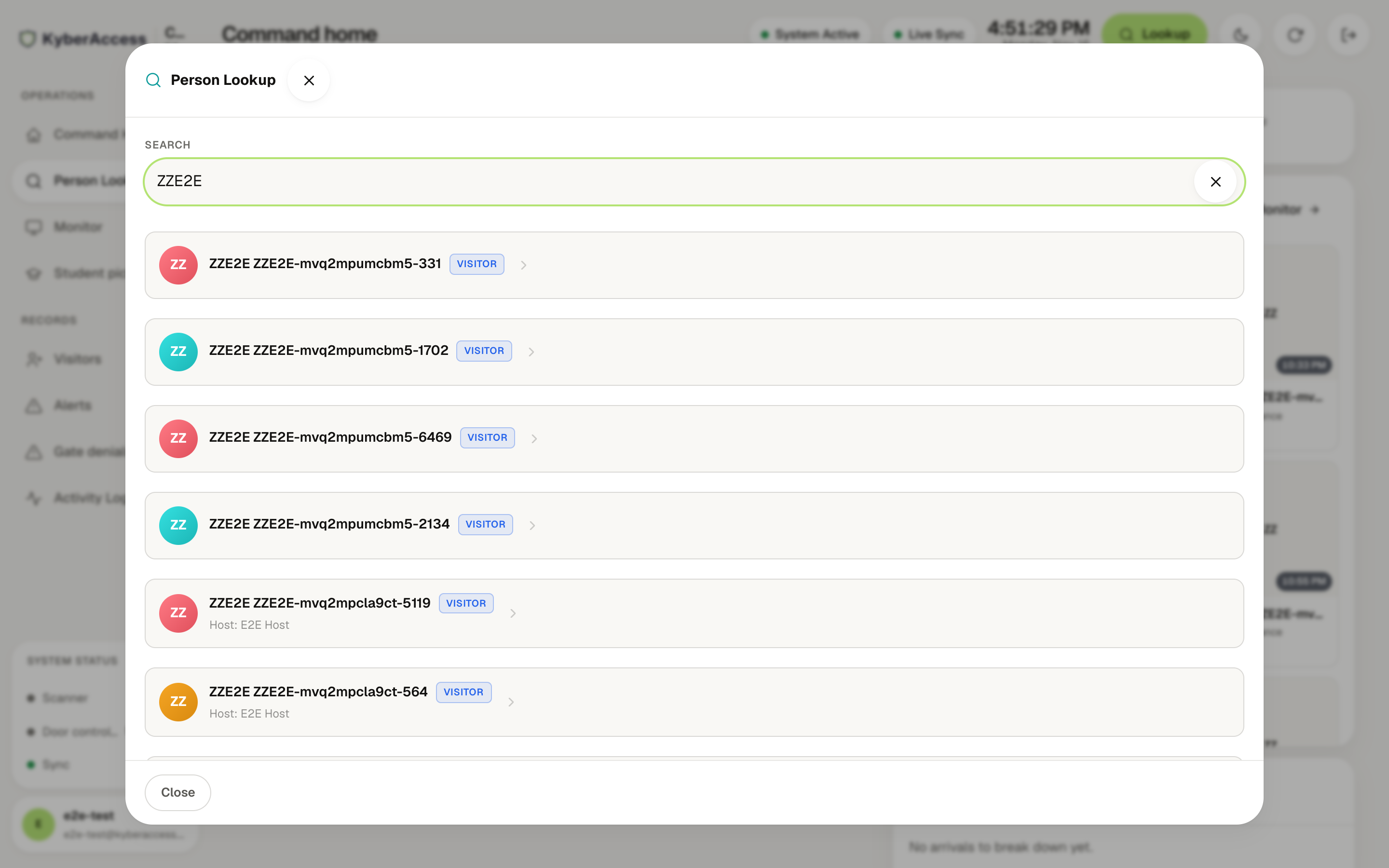
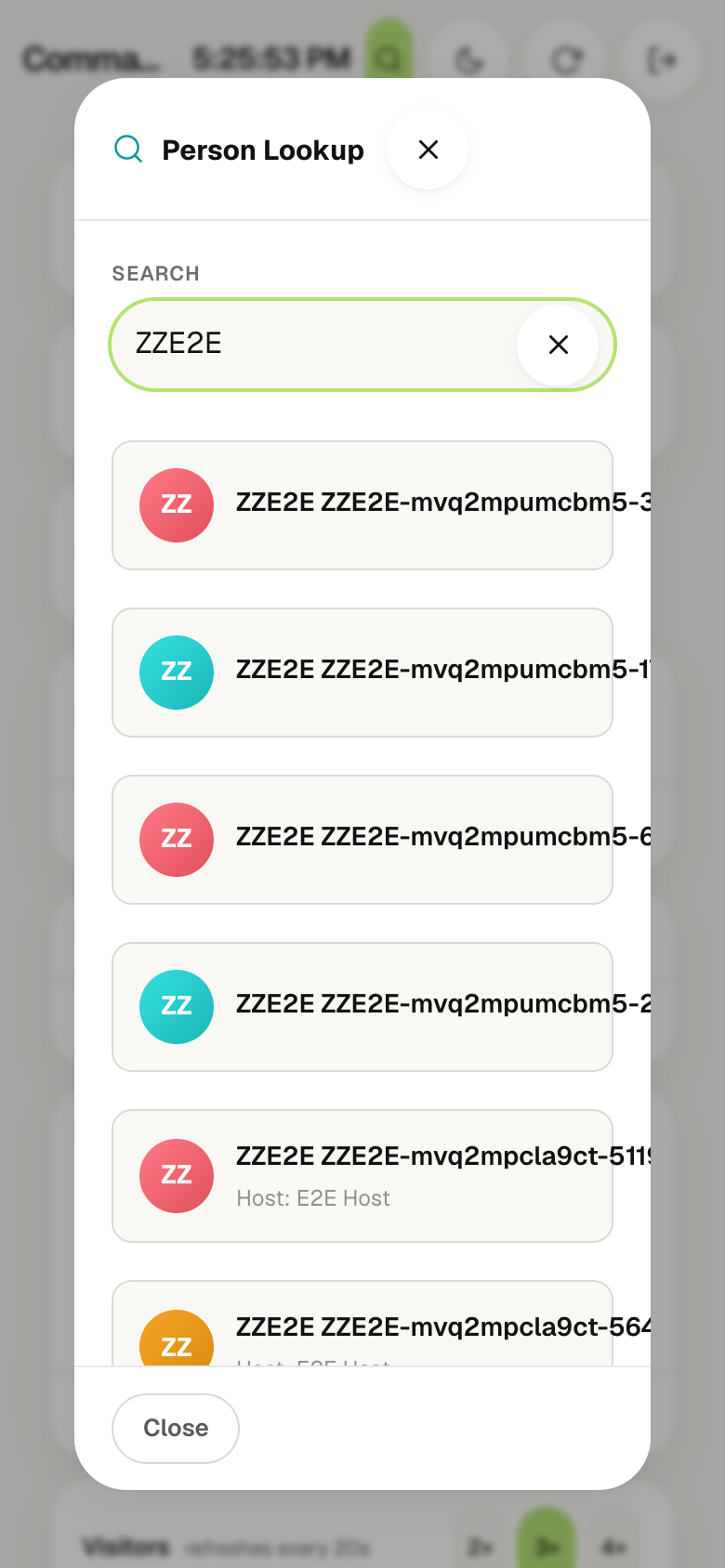
- Click Person Lookup in the left menu, or Lookup at the top right (the magnifier on a phone). You can also click Look up a person under Most recent arrival.
- Type at least 2 characters of a name, email, company, phone number or badge number in Search. Phone numbers match however they are typed: (555) 010-2030, 555-010-2030 and 5550102030 all work. Results appear as you type, up to 20, people on site first.
- A green ● ON-SITE label means the person is checked in right now.
- Click a person to see their photo, badge number, Not on premises or on-site status, and their last 10 visits with date, time and status.
- Click Back to results to search again, or Close when done.
What happens next
Lookup only reads. It does not check anyone in or out. To check someone in, click Check in visitor in guard mode; to check them out, open Visitors in guard mode.
Settings that change this
- None. Every guard-mode user can search all visitors of your organization.
Troubleshooting
- Someone isn't found → they have never visited, or they are a student or staff member → search People in the dashboard (admins), or check them in as a new visitor.
- A phone number search finds nothing → no person has that number on file, or fewer than 3 digits were typed → type more of the number, or search by name.
- The same person appears more than once → they visited under slightly different names or emails → pick the entry with the most recent visit; an admin can correct the details in People or contact support to merge them.