People is your directory of everyone KyberAccess knows: visitors, parents, staff, students, contractors and volunteers. Use it to look someone up, fix their details, enroll a door card, or start an action like issuing a credential.
Menus: steps show the app launcher first and the classic menu in brackets. See Find your way around to tell which one you have.
Who this is for
Owners, admins, front desk staff and security. Anyone who can see Visitors can open People.
Find someone
- Open People: in the Apps panel under Shared records, on the Home sidebar, or below the divider in any app's sidebar (classic menu: People in the sidebar, under Operations; on a phone, tap People in the bottom bar).
- Type a name, email or phone number in Search name, email, phone…. The search covers your whole directory, however large.
- Or click a role tab (for example Parents or Contractors) to show one group. A tab appears only when someone has that role.
- Click a column title (Name, Role, Email, Last Activity, Status) to sort.
- Click a row to open the person.
The tiles at the top show Total People, With Credentials, On Campus Now and New This Month. A green dot on a person's picture means they are on site.
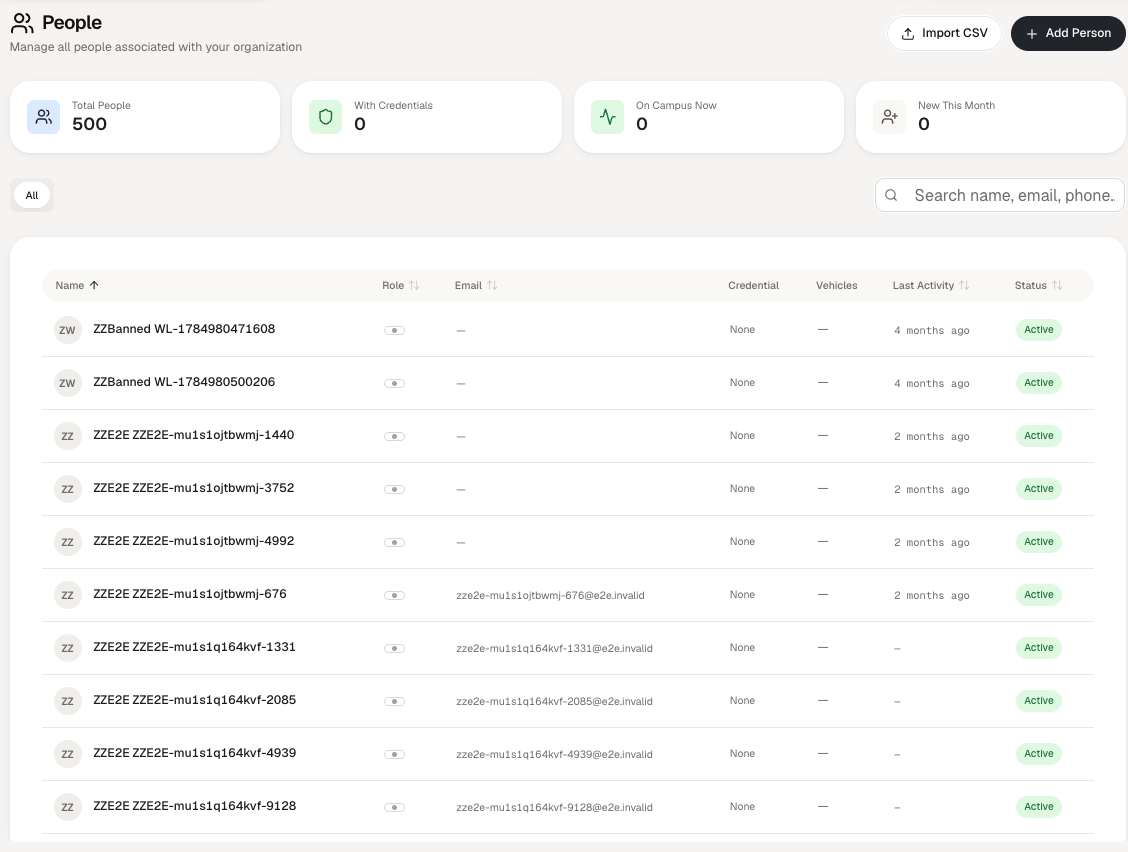
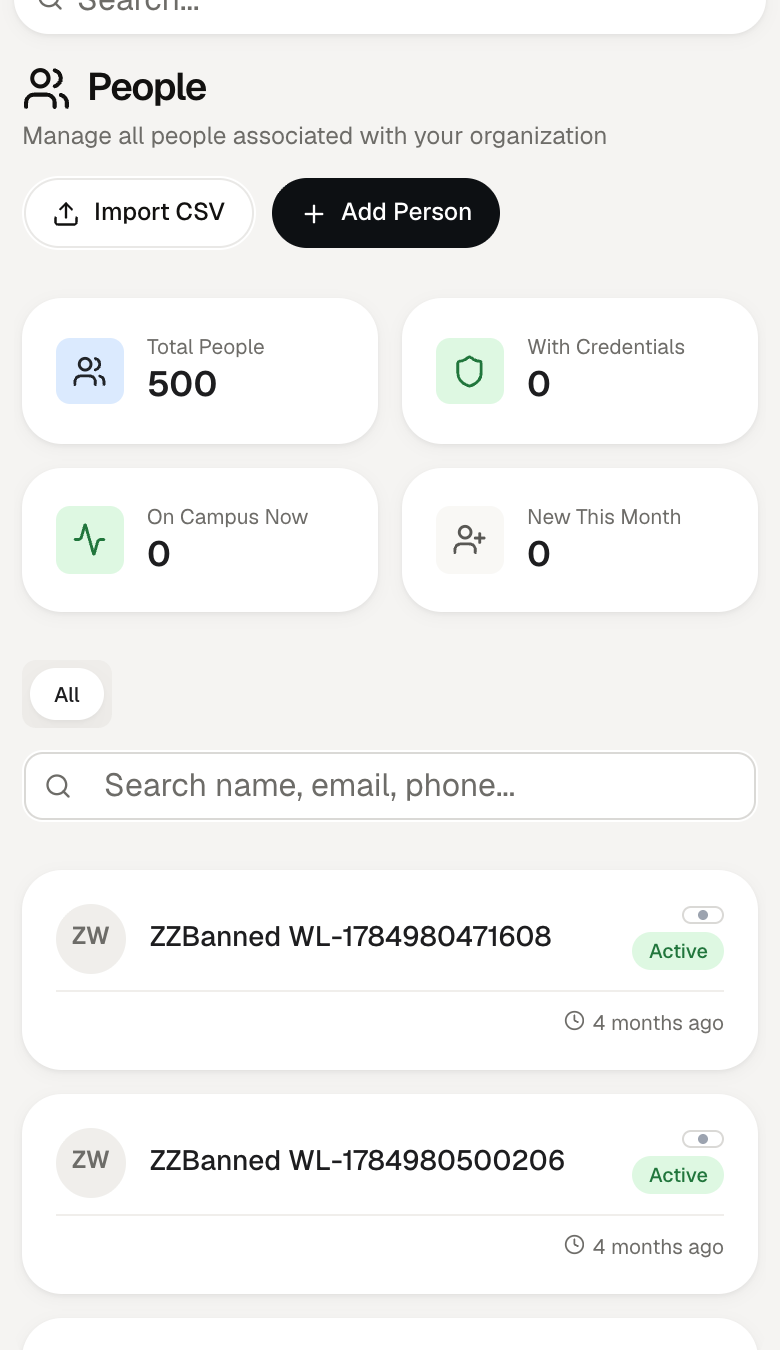
The list shows 25 people per page; use the page numbers at the bottom. The quick search (⌘K / Ctrl+K) also finds anyone in the directory by name, email or phone.
Open and edit a person
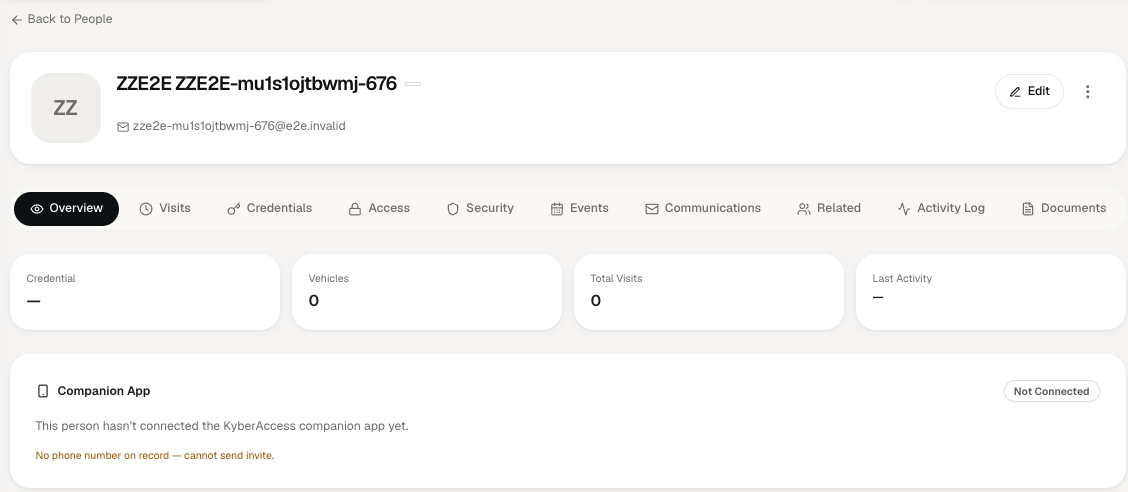
The person page has tabs: Overview, Visits, Credentials, Access, Security, Events, Communications, Related, Activity Log and Documents (signed waivers and forms).
To edit details: 1. Click Edit (top right). 2. Change First Name, Last Name, Email, Phone, Role, Department, Title, Company, Emergency Contact or Notes. 3. To enroll a door card or fob, click Tap card and tap the card on your desk reader, or type its ID. Click the remove icon to un-enroll a lost card. 4. Click Save Changes.
The ⋮ menu has more actions: Add Vehicle, Issue Credential, Run BG Check, Register for Visit, Send Email, Add to Watchlist and Deactivate.
Add people
- One person: click Add Person, fill in First Name, Last Name, Email, Phone and Role (and Department for faculty and staff, Company for visitors and contractors), then click Add Person.
- Many people: click Import CSV, choose a file with the columns
firstName, lastName, email, phone, role, department, company, check the preview, and click Import. Roles other than faculty, staff, parent, student, contractor and visitor are imported as visitor. - Automatically: visitors are added when they check in at the kiosk or register for an event. Schools connected to Veracross or another student information system get parents, students and staff from the nightly sync; the role comes from SIS Mapping in Settings › People & roles › Person types (classic menu: Configure › Visitor policies › People Roles).
What happens next
- Edits take effect right away everywhere the person appears, including the kiosk's returning-visitor lookup and the guard card.
- Deactivate marks the person inactive. It does not revoke a credential; do that from Credentials.
- People synced from your student information system can be overwritten by the next sync. Fix those details in the source system.
Troubleshooting
- I can't find someone I know is in the system. Check the spelling and clear the role tab. Search matches first and last name, email and phone, not department.
- The role I want is not in the list. Add or turn it on in Settings › People & roles › Person types (classic menu: Configure › Visitor policies › People Roles).
- The card I enrolled is not recognized at the reader. Re-enroll it with Tap card while the reader is connected to this computer, and make sure the person is Active.
- The CSV import added people as "visitor". Use one of the six role names listed above in the role column.
- Duplicate people. The same person registered twice with different spellings or emails. Edit one record to match, or contact support to merge them.
Related articles
- Visitor types and people roles
- Issue a credential to one person
- Keep a watchlist of people who are not allowed in