KyberAccess uses two separate lists that are easy to mix up: - Visitor types are what a visitor picks on the kiosk ("Parent", "Contractor", "Interview"). They describe one visit. - People roles label everyone in your People directory ("Parent", "Faculty", "Student"). They describe the person.
This article shows where each list lives and what each one changes.
Menus: steps show the app launcher first and the classic menu in brackets. See Find your way around to tell which one you have.
Who this is for
Owners and admins.
Visitor types (the kiosk list)
Set them up
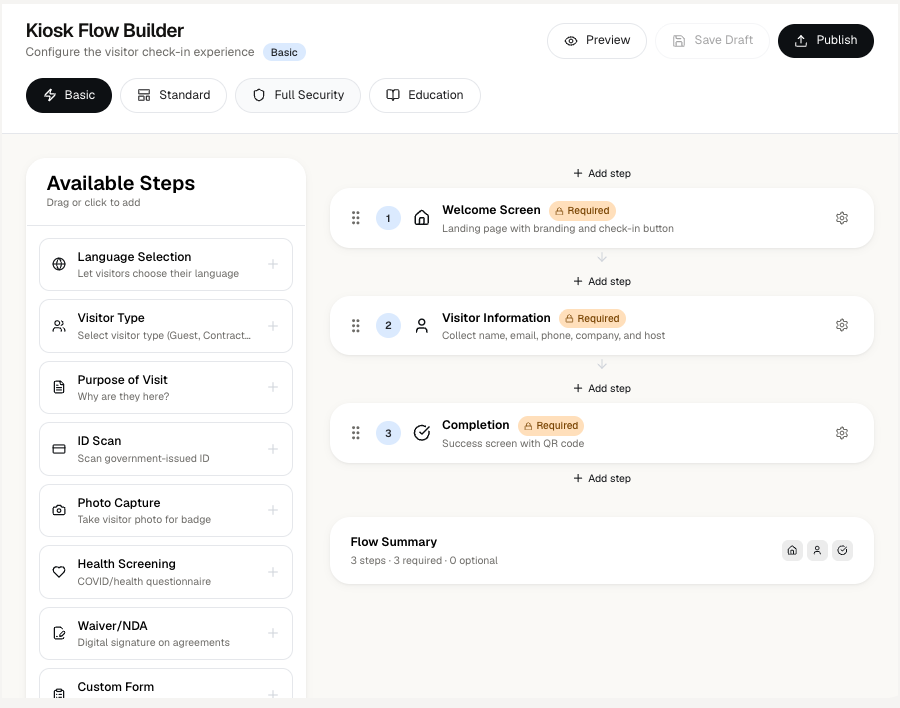
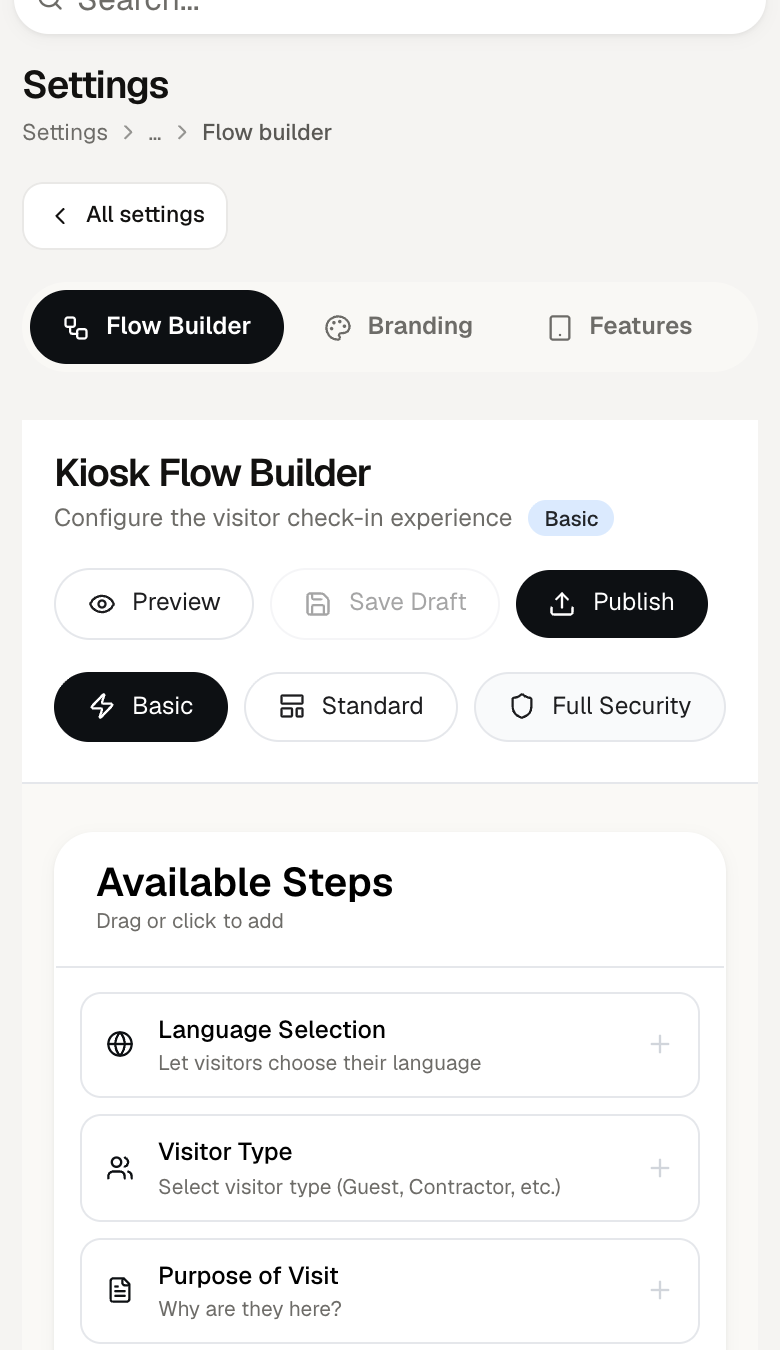
- Go to Settings › Apps › Front Desk › Kiosk flow (classic menu: Configure › Kiosk › Flow builder).
- If Visitor Type is not in your flow, click it under Available Steps to add it.
- Click the gear on the Visitor Type step.
- Edit the Visitor Types list. Add, rename, remove and reorder entries. The default list is Guest, Contractor, Vendor, Interview.
- Optional: turn on Allow Custom Entry so visitors can type their own reason.
- Click Publish. The iPad picks up the new list the next time it loads its settings.
What visitor types change
| What | How |
|---|---|
| Which kiosk steps a visitor sees | Turn on Conditional Logic on any step (ID Scan, Health Screening, Waiver/NDA, Custom Form…) and choose only when visitor type is or unless visitor type is. |
| Whether the Company field shows | Visitor Information step › Only show Company for these visitor types. |
| The badge | The badge prints the visitor type. |
| Filters and reports | Visitors › All Types filter, and CSV exports. |
| Contractors | A visitor who picks exactly Contractor can be found with the Contractor filter on Visitors. |
If you never add a Visitor Type step, the iPad uses your active people roles that make sense for walk-ins (Parent, Guardian, Visitor, Contractor, Vendor, Volunteer and similar). With none of those, it shows Visitor, Contractor, Delivery, Interview.
People roles (the directory list)
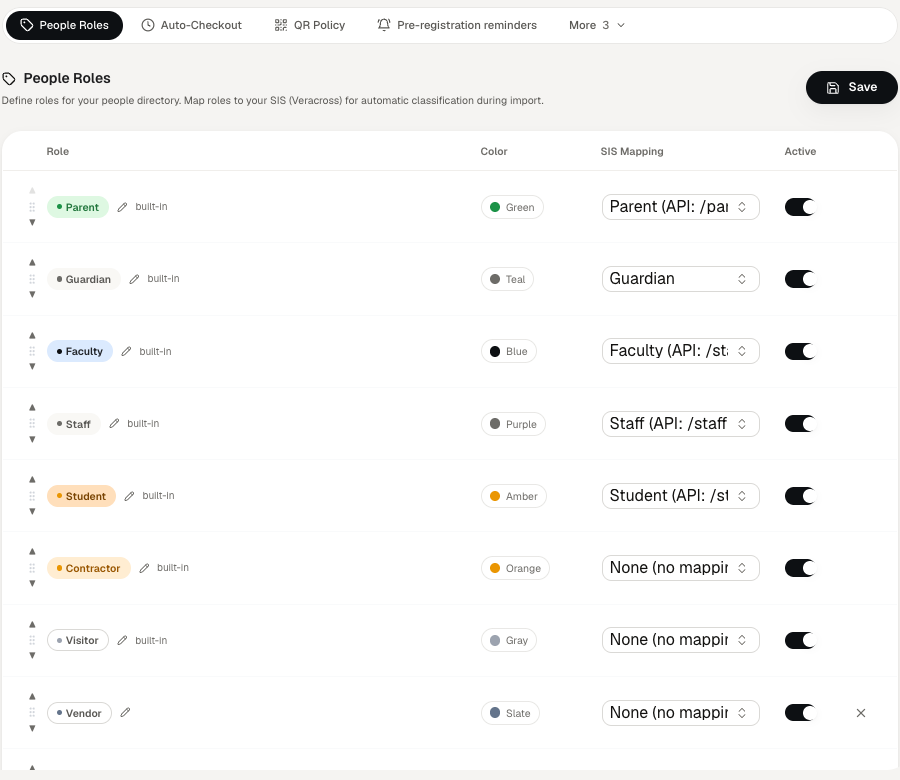
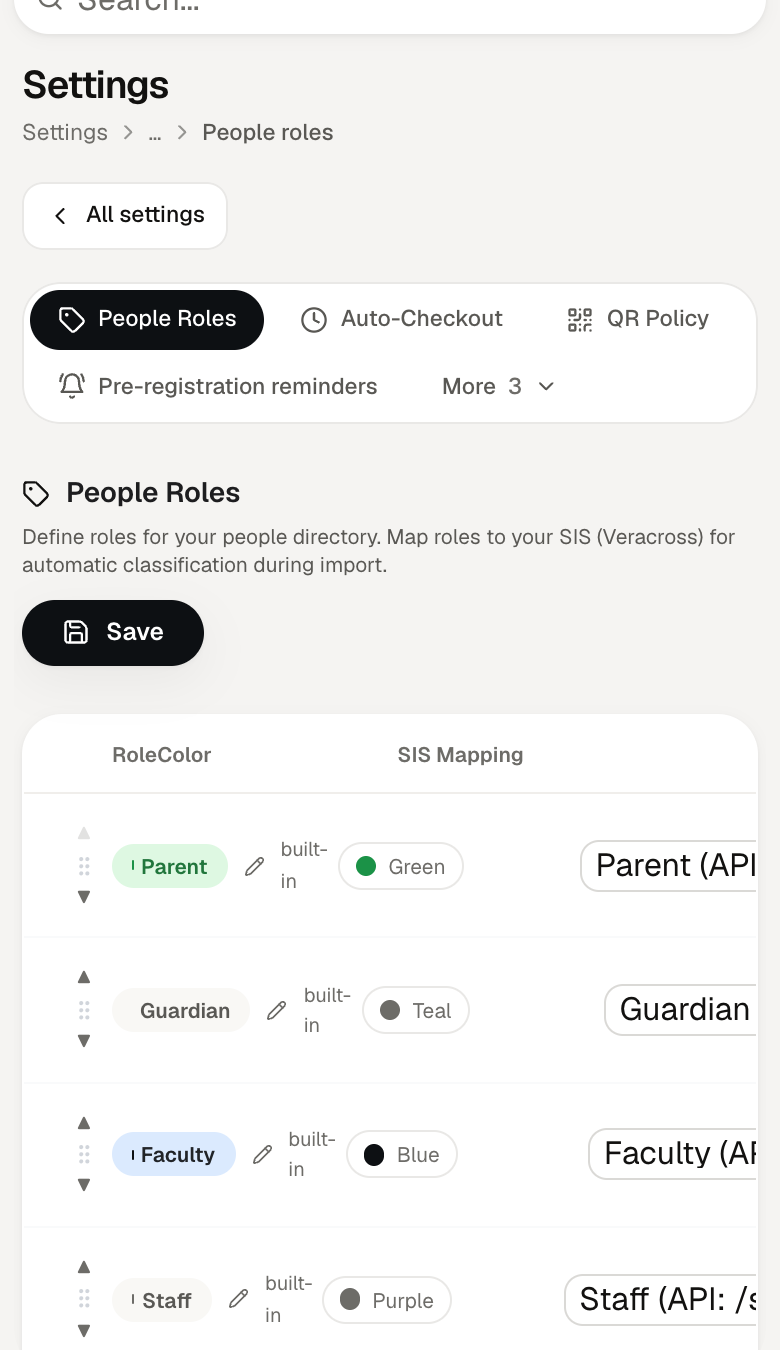
- Go to Settings › People & roles › Person types (classic menu: Configure › Visitor policies › People Roles).
- Each row is a role. You can:
- rename it (pencil icon),
- change its Color (the colored label in People),
- set its SIS Mapping, so people imported from Veracross or another student information system get this role automatically,
- turn it off with Active,
- reorder it with the arrows.
- Add your own role in Add custom role…, then Add Role.
- Click Save.
Built-in roles (Parent, Guardian, Faculty, Staff, Student, Contractor, Visitor) can be renamed or turned off but not deleted.
What people roles change
- The tabs and colored labels on the People page, and the Role choice when you add or edit a person.
- How imported people are classified (through SIS Mapping).
- The kiosk visitor list, only when the flow has no Visitor Type step (see above).
Settings that change this
| Setting | Where | Default |
|---|---|---|
| Visitor Types | Settings › Apps › Front Desk › Kiosk flow › Visitor Type step (classic: Configure › Kiosk › Flow builder › Visitor Type step) | Guest, Contractor, Vendor, Interview |
| Allow Custom Entry | same step | off |
| People Roles | Settings › People & roles › Person types (classic: Configure › Visitor policies › People Roles) | 9 roles, 7 built-in |
Troubleshooting
- I changed visitor types but the iPad shows the old list. Click Publish (not only Save Draft), then restart the kiosk app or wait for it to refresh.
- A contractor does not appear under the Contractor filter. The type must be exactly "Contractor". "Contractors" or "Vendor" are not counted.
- A conditional step never shows. Check the visitor type spelling matches exactly, including capitals.
- I renamed a people role and older articles mention "Visitor types" under Visitor policies. That tab was removed; visitor types live only in the Flow builder now.
Related articles
- Build your kiosk check-in flow
- Require a waiver or NDA
- Find and edit people
- Track contractors on site