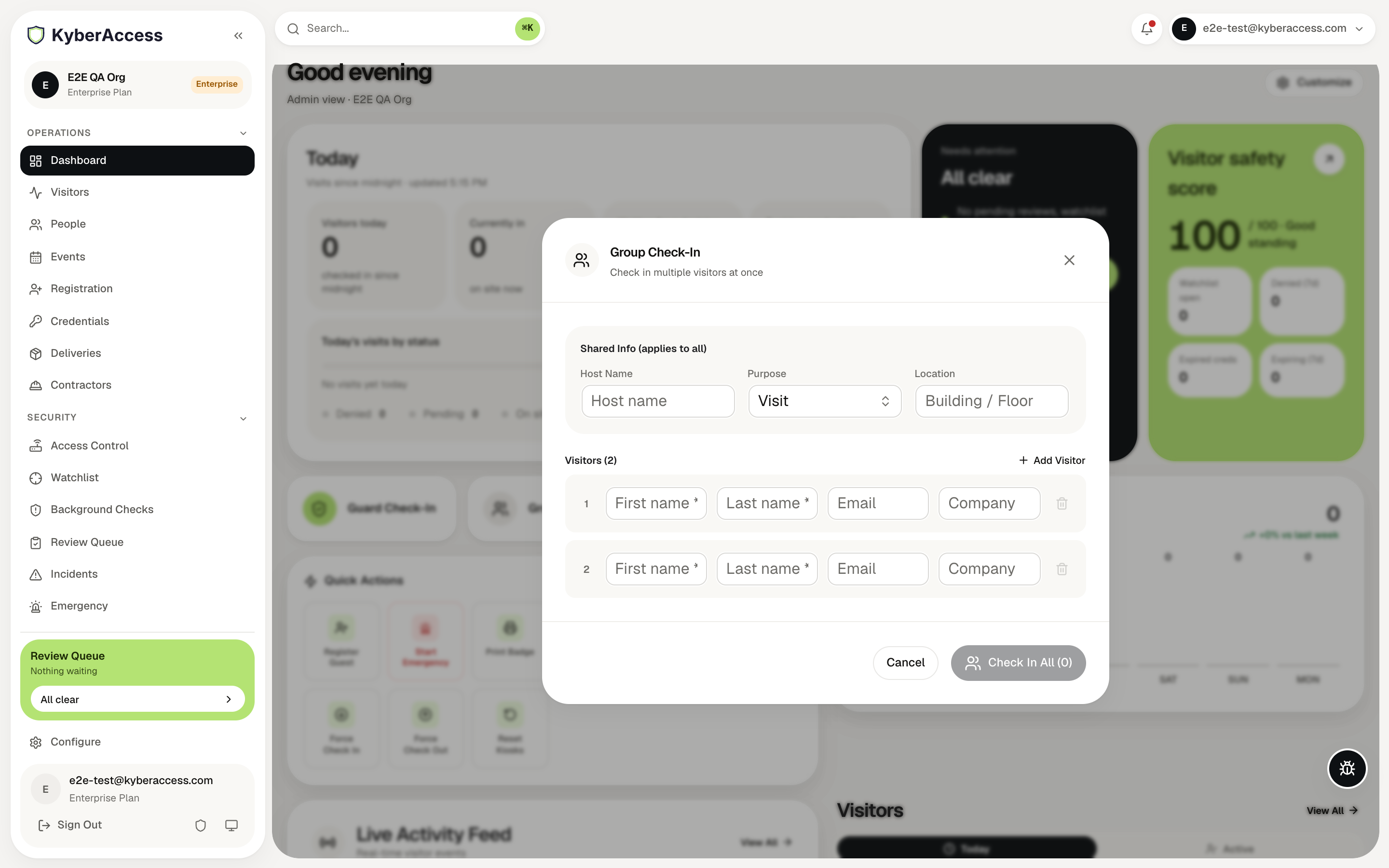
When several people arrive together, check them all in from one form instead of one by one. Use Group Check-In on the dashboard. Each person gets their own visit and shows up on site, on the security monitor and in today's log.
Who this is for
Front desk, owners and admins who use the full dashboard. All plans.
Before you start
- At least two people, each with a first and last name.
- Optional: the host they are visiting, and an email for anyone who has visited before so their existing record is reused.
Steps
Watch this part: Front desk fallback (2:09). Or click Watch how at the top of the Group Check-In window.
- Go to Dashboard and click Group Check-In (next to Guard Check-In). The Group Check-In window opens: "Check in multiple visitors at once".
- Under Shared Info (applies to all), enter the Host Name, pick a Purpose (Visit, Meeting, Delivery, Interview or Contractor) and a Location.
- Under Visitors, fill in First name and Last name for each person. Email and Company are optional.
- Click Add Visitor for more rows. Use the bin icon to remove a row.
- Click Check In All. The button shows how many people will be checked in.
- Read the summary, Group Check-In Complete, with a green check or red cross for each person. Click New Group for another group, or Done.
What happens next
- Each person is checked in at the Main Entrance with the host you entered, and appears in On site now in guard mode and on the security monitor.
- Each person is checked against your watchlist by full name. A match is not checked in, shows a red cross in the summary, and raises a watchlist alert.
- No background check runs at Group Check-In. Each row shows the person's status, usually Checked in · not background-checked (or BG check on file if they already have an in-date check).
- Visitors who gave an email that's already in People are matched to that record and their visit count goes up. Everyone else gets a new record.
- No badges print from this window. Print badges from each person's visit, or from the kiosk.
- To check the group out, use guard mode's Visitors page or the security monitor.
Plan a group visit in advance
Use the Group Check-In page (app.kyberaccess.com/group-checkin) for a group you know is coming: a field trip, tour, contractor crew or conference. 1. Click New Group Visit. Enter the group name, type, host, date and time, and add each member's first and last name (email, phone and company are optional). 2. Save. The group shows as Scheduled. 3. On the day, open the group and click Check In All, or tick members and click Check In Selected, or use the check-in button on one member's row. 4. When they leave, click Check Out All or check members out one by one.
Each member checked in gets their own visit and shows on site, on the security monitor and in today's log; a member who gave an email already in People is matched to that record. The group shows Checked in while anyone is on site and Completed once everyone has been checked out. Badges print from Print All Badges.
Settings that change this
- Watchlist: names that are blocked.
Troubleshooting
- "At least 2 visitors with names are required" → fewer than two rows have both names → add a second person, or use Guard Check-In for one person.
- One person has a red cross → watchlist match or a connection error → open the Review Queue and Watchlist; if it was a connection error, check that person in with Guard Check-In.
- Check In All is greyed out on a planned group → everyone is already checked in, or the group was cancelled → check the member list.
- Visitors are duplicated in People → they were entered without an email → add emails next time so records are reused.