KyberAccess connects to your student information system (SIS), Google Workspace, Slack and Microsoft Teams, single sign-on, text messages, and a few other systems. This article tells you which connections work today, which ones are only partly built, and where to set each one up.
Who this is for
Owners and admins. Integration pages live under Settings › Integrations (classic menu: Configure › Integrations — sidebar footer Configure, then Integrations under Integrations in the settings menu). Only owners and admins can save changes on most of them.
Before you start
- Some integrations depend on your plan. The Marketplace (link at the top of the Integrations page) shows each one as Included, Included with your plan, No extra charge or Contact us. Contact us means it is not in your plan yet; select it to send our team a request.
- Have an admin account at the other system ready (for example a Veracross API client or a Google Workspace super admin).
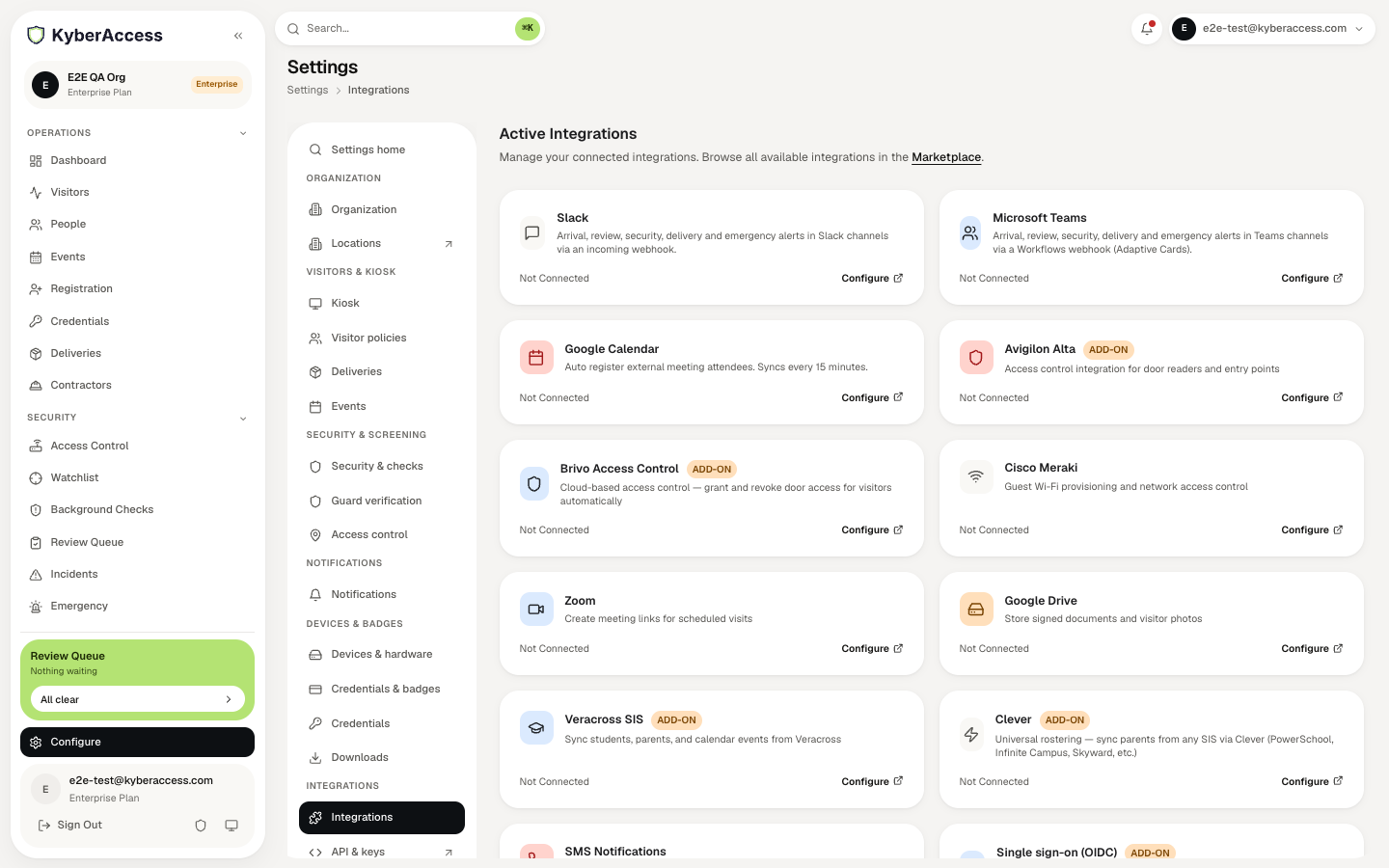
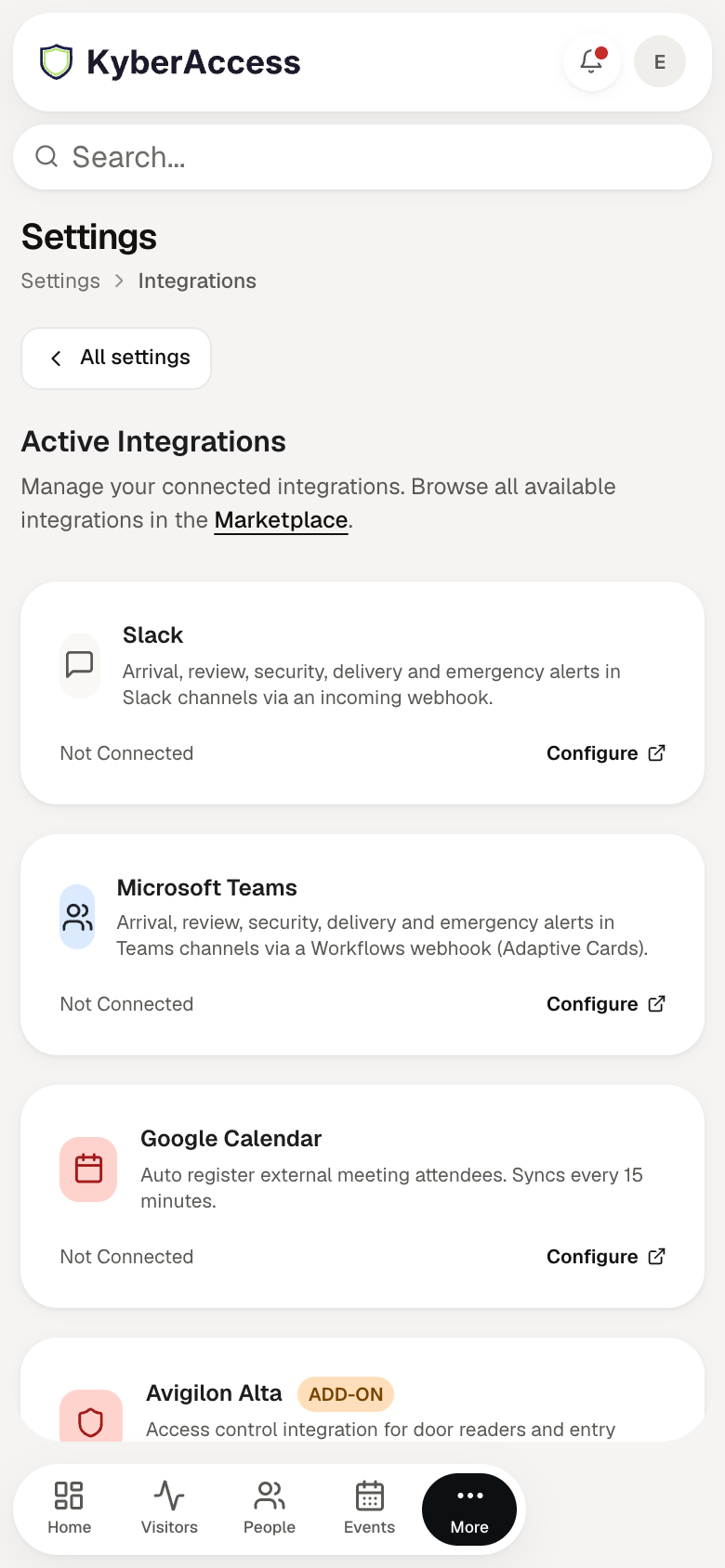
Menus: steps show the app launcher first and the classic menu in brackets. See Find your way around to tell which one you have.
What works today
| Integration | What it does | Where |
|---|---|---|
| Veracross | Imports students, parents and guardians, households and authorized pickups. Runs every night once connected (switch on, Auto-sync nightly ticked), and on demand. Optionally writes student check-ins back. | Settings › Integrations › Student information system › Veracross (classic: Configure › Integrations › Veracross) |
| Infinite Campus | Imports students and staff over OneRoster 1.1 or 1.2, nightly or on demand. Guardian contacts come through, but not who may pick a student up. | Settings › Integrations › Student information system › Infinite Campus (classic: Configure › Integrations › Infinite Campus) |
| Google Workspace | Imports students, faculty and staff from your Google directory by organizational unit. Runs when you select Sync. | Settings › Integrations › Google Workspace (classic: Configure › Integrations › Google Workspace) |
| Slack and Microsoft Teams | Post visitor arrivals, held check-ins, watchlist or screening flags, deliveries and emergencies to channels. | Settings › Integrations › Slack / Microsoft Teams (classic: Configure › Integrations › Slack / Microsoft Teams) |
| Single sign-on | Staff sign in with Google Workspace, Microsoft Entra ID, Okta or another OpenID Connect provider. | Settings › Security & policies › Single sign-on (classic: Configure › Integrations › Single sign-on, also under Security & checks) |
| Text messages (SMS) | Texts hosts when their visitor arrives or leaves, sends visitor passes, delivery notices and visit reminders by text. Sent from KyberAccess's own number. | Works without setup. See Send text messages (SMS). |
| KyberWatch | Shows your KyberWatch guards on site, shifts and the clock-in QR code inside KyberAccess. | Settings › Integrations › KyberWatch (classic: Configure › Integrations › KyberWatch) |
| Webhooks | KyberAccess sends a signed message to your server when a visitor checks in or out, is denied, or is approved by an admin. | See Webhooks. |
Not available yet
These open a …isn't available yet notice in the app. Contact support or ask from Marketplace if you need one. - PowerSchool, Blackbaud, Clever and ClassLink: see Connect PowerSchool, Blackbaud, Clever or ClassLink. - Google Calendar and Outlook Calendar auto-registration: see Connect Google or Outlook Calendar. - Brivo, Avigilon Alta door unlocking and Cisco Meraki guest Wi-Fi: see Brivo, Avigilon Alta and Cisco Meraki. - Zapier: see Automate with Zapier. - API keys for your own software: see API keys and API docs. - Salesforce, HubSpot, Workday, Zoom, Google Drive and DocuSign.
Payment providers for paid event registration (Stripe, Authorize.Net) are covered with event registration.
What happens next
After you connect a SIS, the data shows up in People, in Dismissal & pickup (classic menu: Student Pickup), in event guest lists (Add Guests › Import from SIS), and in Settings › Apps › Access › Access hardware (classic menu: Configure › Access control › Integrations), which lists what each connected source provides and when it last synced.
Settings that change this
- Marketplace buttons: only owners and admins can turn on an included integration; paid add-ons send a request to our team instead of turning anything on.
Troubleshooting
- An integration isn't listed under Active Integrations → the page only lists integrations that are turned on or included in your plan → open the Marketplace and select the card, or go straight to its page from the table above.
- You see "Contact us" on a card → it isn't in your plan → select the card and send the request.