Let staff sign in to KyberAccess with your school's Google Workspace, Microsoft Entra ID, Okta or any OpenID Connect (OIDC) identity provider. You register an app at your provider, paste its details into KyberAccess, and prove you own your email domain with a DNS record.
Who this is for
- Owners and admins set it up. Others can view the page but not change it.
- Single sign-on is an Enterprise feature.
- SAML is not supported; use your provider's OIDC option (Okta, Entra ID and Google all have one).
Before you start
- Admin access to your identity provider.
- Access to your domain's DNS to add a TXT record.
- Your provider must send each user's email address in the sign-in token.
Menus: steps show the app launcher first and the classic menu in brackets. See Find your way around to tell which one you have.
Steps
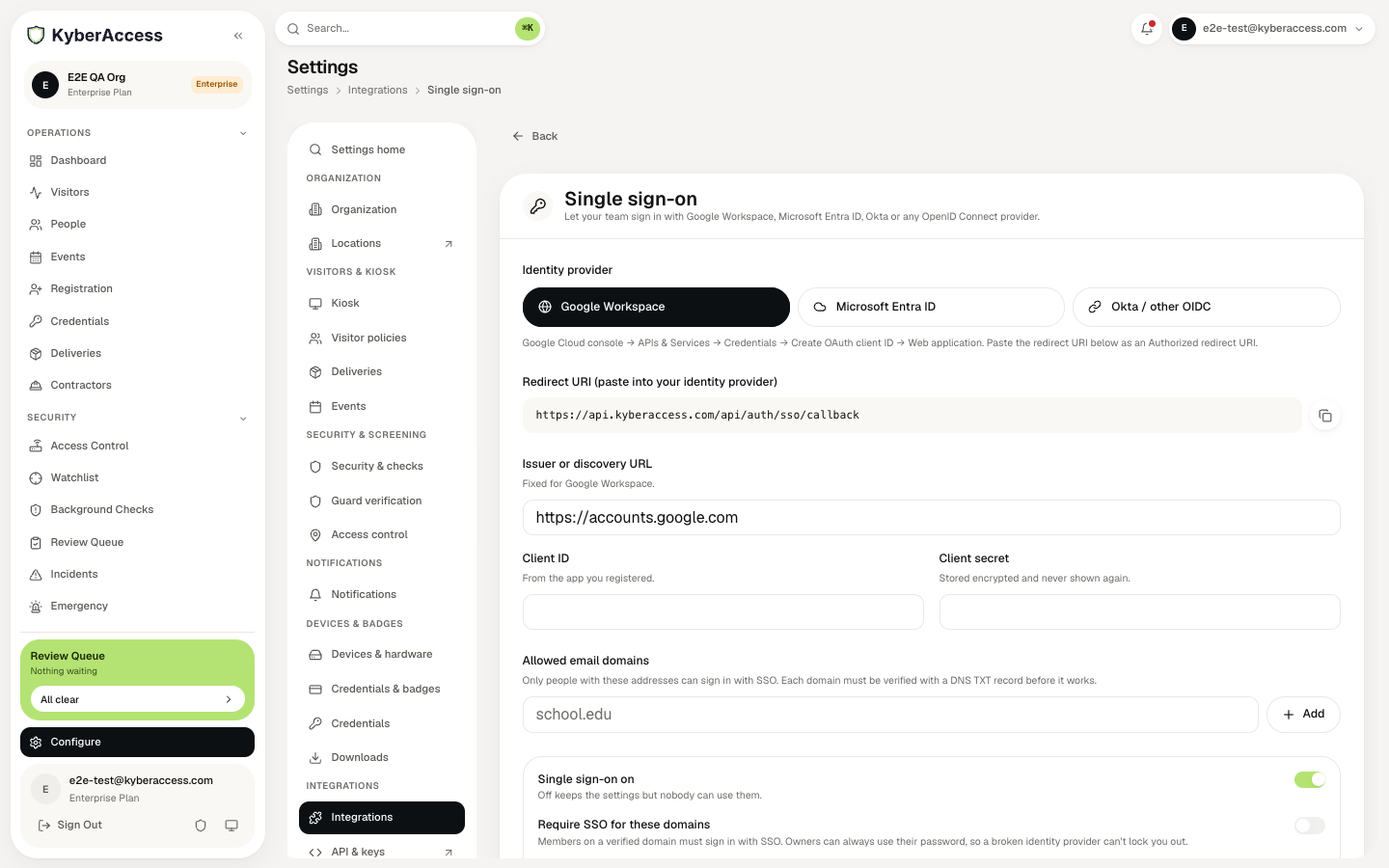
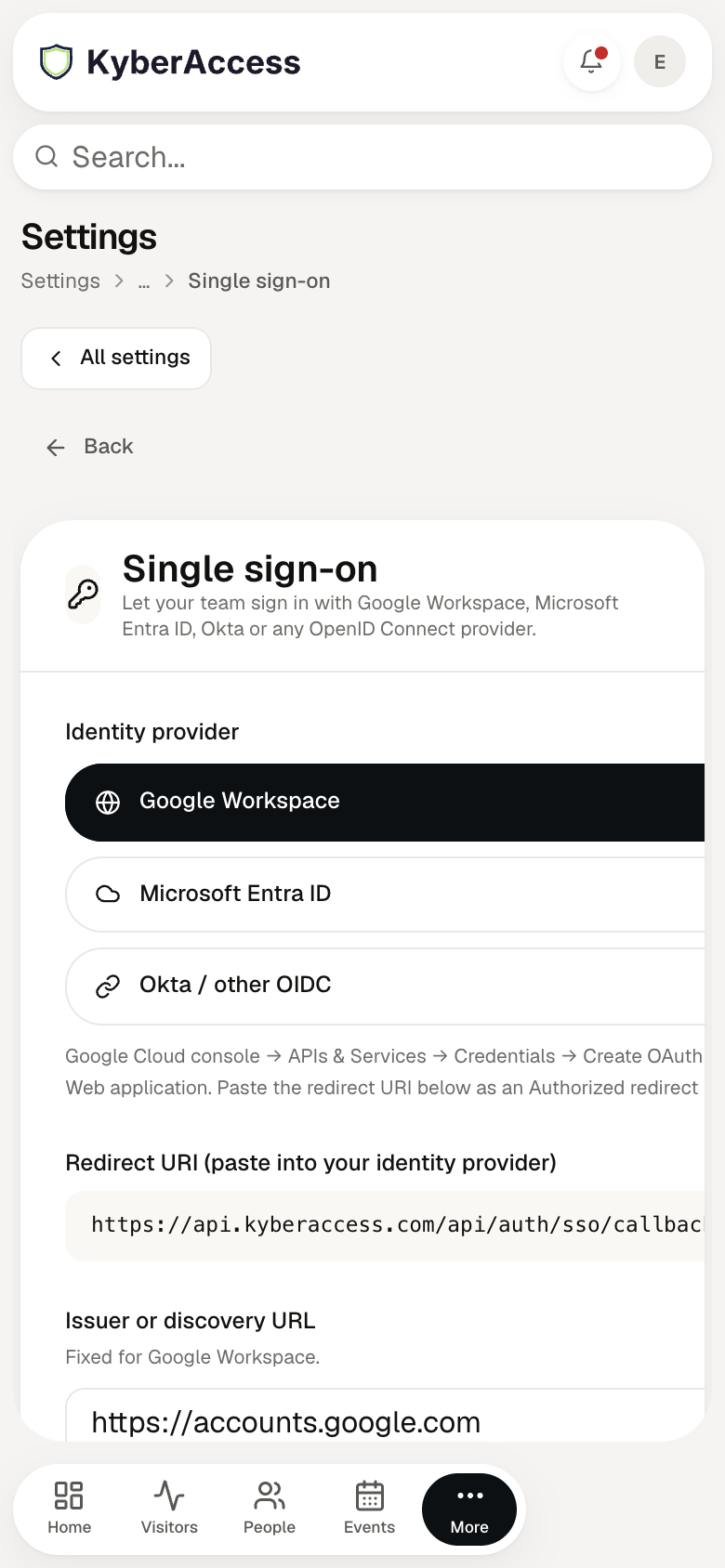
- Open Settings › Security & policies › Single sign-on (classic menu: Configure › Integrations › Single sign-on, also at Configure › Security & checks › Single sign-on).
- Under Identity provider, select Google Workspace, Microsoft Entra ID or Okta / other OIDC. The hint under the buttons says where to create the app:
- Google: Google Cloud console › APIs & Services › Credentials › Create OAuth client ID › Web application.
- Entra: Entra admin center › App registrations › New registration (Web). Create a client secret and add the optional email and xms_edov ID-token claims.
- Okta: Applications › Create App Integration › OIDC › Web Application (authorization code).
- Select the copy button next to Redirect URI (paste into your identity provider) and add that address to your app as an authorized redirect URI. It is
https://api.kyberaccess.com/api/auth/sso/callback. - Enter Issuer or discovery URL (fixed for Google; for Entra
https://login.microsoftonline.com/<tenant-id>/v2.0; for Okta your authorization server's issuer), Client ID and Client secret. - Under Allowed email domains, type your domain (for example school.edu) and select Add. Public mail domains such as gmail.com are refused.
- Select Save.
- For each domain, add the TXT record shown at your DNS host: Name / host
_kyberaccess-sso.<your domain>with the Value shown. Then select Verify. The domain changes from Not verified to Verified. - Select Test connection. You should see Connection works.
- Copy the Sign-in link for your team and share it with staff.
What happens next
- On the sign-in page, a staff member who types an email on a verified domain sees Single sign-on available and Continue with SSO. The sign-in link skips that step.
- Only people already on your team can sign in, unless you turn on Create accounts on first sign-in.
- Passwords keep working until you turn on Require SSO for these domains.
Settings that change this
| Setting | Default | Effect |
|---|---|---|
| Single sign-on on | On once saved | Off keeps the settings but nobody can use them. |
| Require SSO for these domains | Off | Members on a verified domain must use SSO. Owners can always use their password, so a broken identity provider can't lock you out. Needs at least one verified domain. |
| Create accounts on first sign-in | Off | On: anyone on an allowed domain gets an account the first time, with the Role for new accounts you choose. Owner and Admin can't be given this way. |
| Remove | – | Deletes the SSO setup after you confirm Remove single sign-on? |
Troubleshooting
- "TXT record not found yet at _kyberaccess-sso.…" → DNS hasn't updated → wait a few minutes and select Verify again; check the record name has no doubled domain.
- "… is already verified by another organization." → another KyberAccess account claimed that domain → contact support.
- Test connection lists a failed step → read the step: a wrong issuer, client ID/secret, or a missing redirect URI are the usual causes → fix it at your provider, then test again.
- Staff see "Your account is not set up for this organization yet." → they aren't on your team → invite them, or turn on Create accounts on first sign-in.
- "Verify at least one domain and keep SSO on before requiring it." → no verified domain yet → verify first, then require SSO.