Add staff to KyberAccess by sending each person an invitation by email. They choose a password and land in your account with the role you picked. You can resend, revoke, change roles and remove people later.
Video: invite someone with a role
Chapters: How roles work (0:00), Find your roles (0:19), Make your own role (0:47), Invite someone (1:07), What they see (1:29). Chapter 4 shows the invitation, Pending Invitations and the invite link on a phone. Smaller file for phones: 720p video.
Who this is for
Owners and Admins.
Before you start
- Decide each person's role. See Roles and what each one can do.
- Have each person's work email. If your school uses single sign-on, use the address they sign in with there.
- Your plan may limit the number of staff seats. See Settings › Billing & modules › Plan & invoices (classic menu: Configure › Billing & usage).
Menus: steps show the app launcher first and the classic menu in brackets. See Find your way around to tell which one you have.
Steps
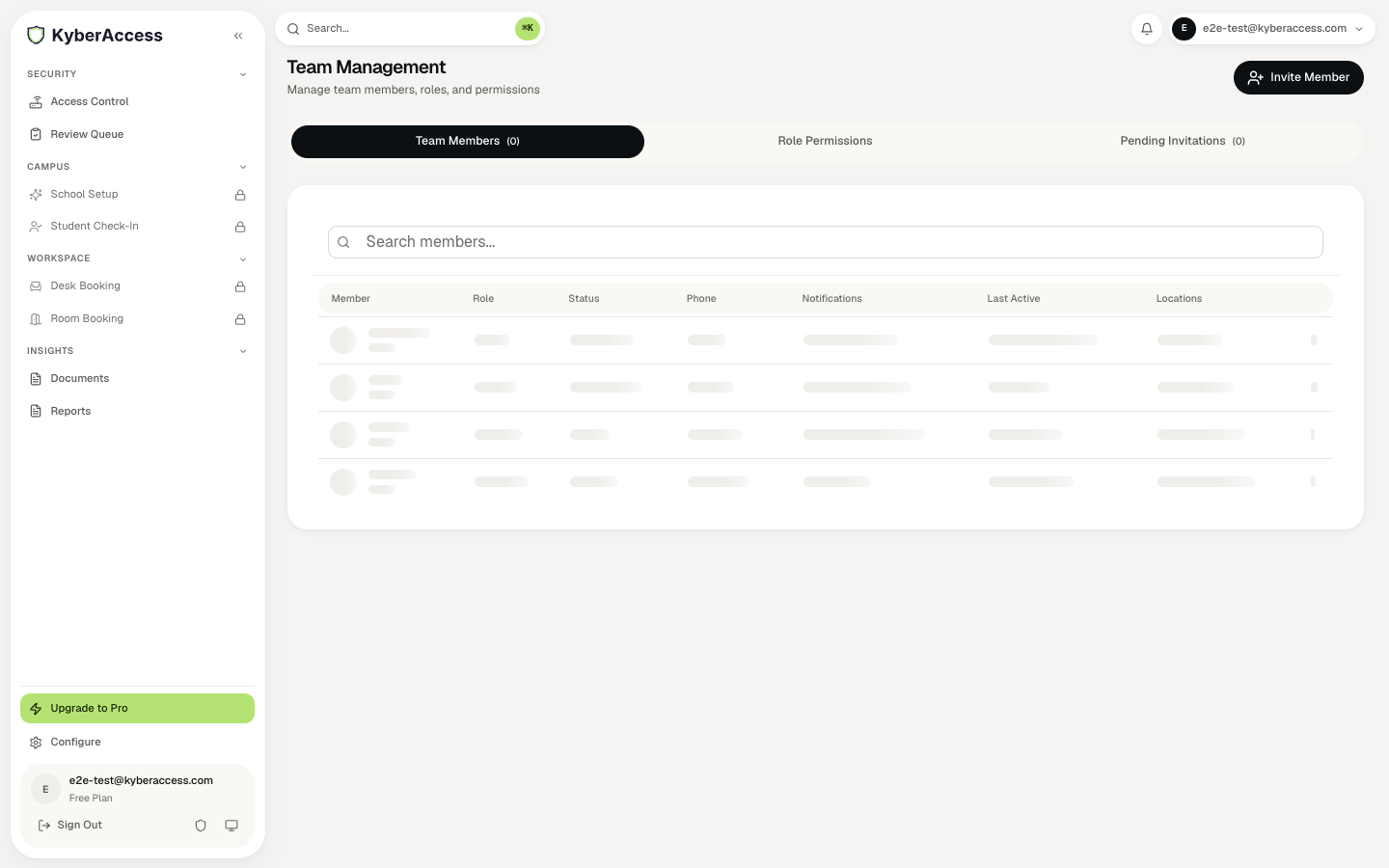
- Go to Settings › People & roles › Team & roles (classic menu: Configure › Team & roles). This opens Team Management (you can also go to app.kyberaccess.com/team).
- Select Invite Member.
- Enter the Email, and optionally First Name and Last Name.
- Choose a Role. It starts on Viewer. You can't invite someone as Owner.
- Select Send Invitation.
Only Owners and Admins can invite people. Every member sees every site; limiting a member to one building isn't available yet, and the invite window says so.
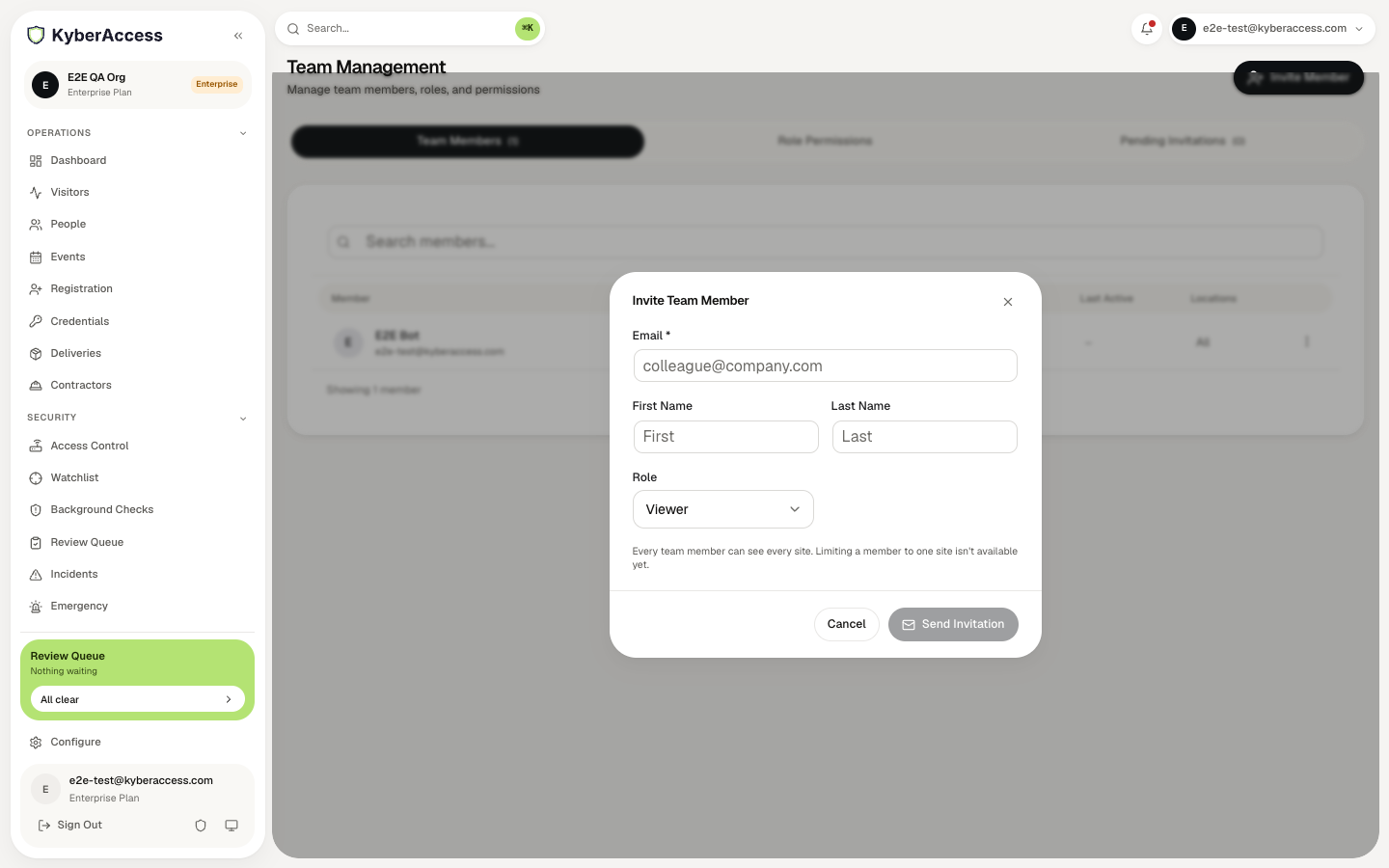
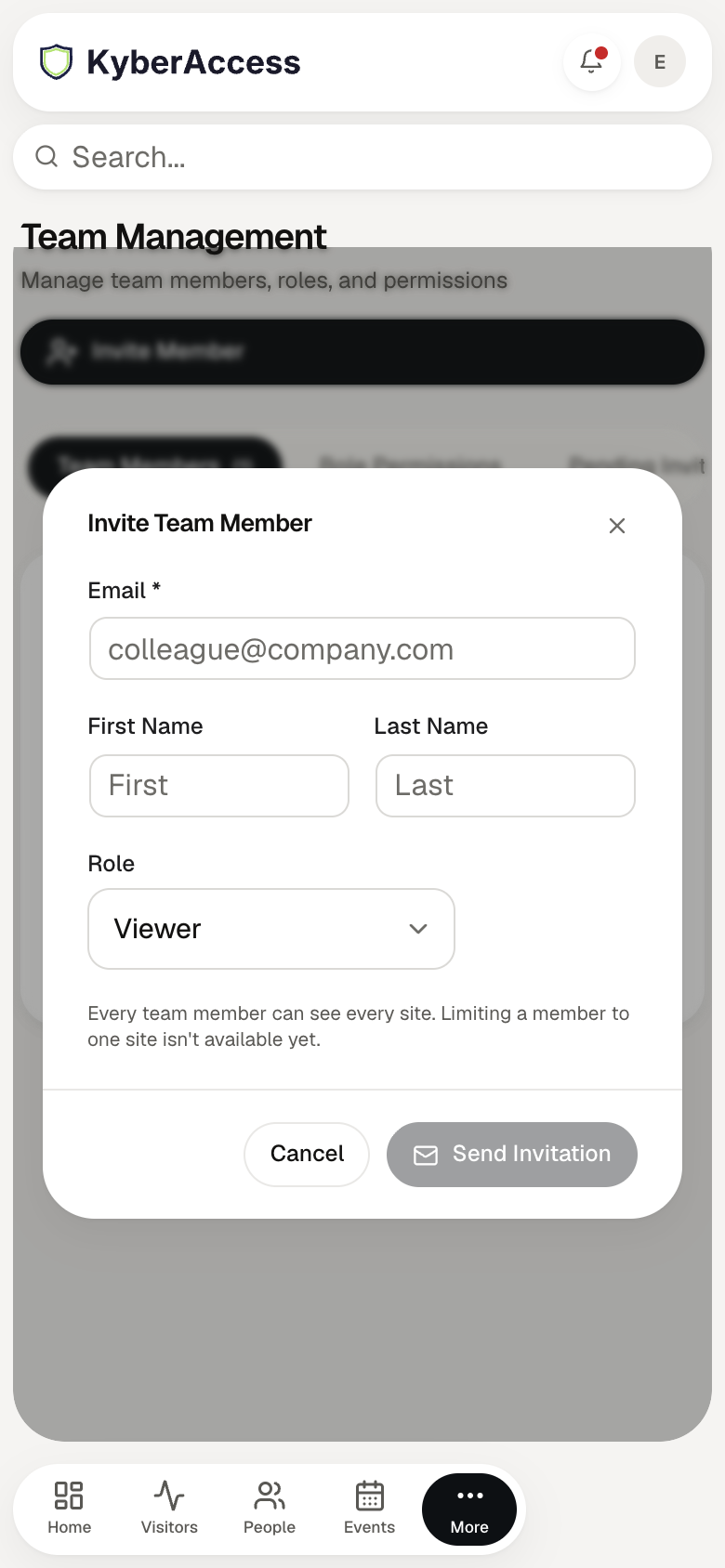
You should see "Invitation sent to …". If you see "Invitation created for …, but the email could not be sent. Use Resend.", the invitation exists but no email left. Resend it (below).
What the new person does
- They open the email "You've been invited to join your school on KyberAccess" and select Accept invitation.
- The page shows "You've been invited as role", with the role's name as you see it in KyberAccess (for example Front Desk / Security or your custom role's name).
- New to KyberAccess: they enter their name and a password (at least 8 characters) and select Create Account & Join. Already have an account: they select Log in and then Log In & Join.
- They land on the dashboard (or guard mode for Guard and Front Desk / Security).
The email address they use must be the one you invited. The invitation link keeps working until they accept it or you revoke it; it doesn't expire on its own.
What happens next
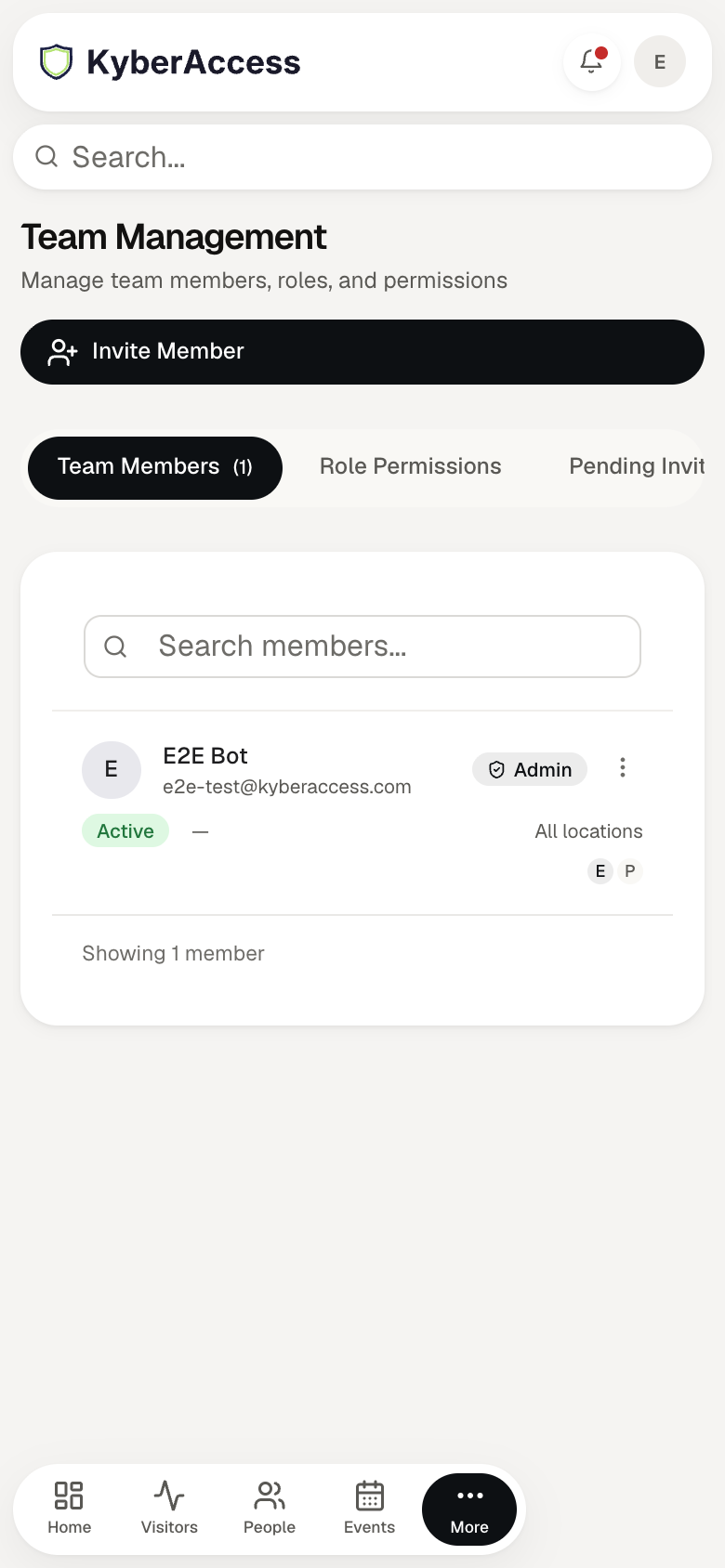
- Until they accept, the person is listed on the Pending Invitations tab.
- Once they join, they move to Team Members with status Active.
- Their sidebar shows only the pages their role allows.
Resend or cancel an invitation
On Pending Invitations, each row has two buttons: - Resend: sends the email again with the subject "Reminder: You've been invited to join …". - Revoke: deletes the invitation. The link stops working.
Someone was added but can't sign in
If a team member shows Can't sign in yet under their name, they were added without finishing an account. Owners and Admins can fix it from the ⋮ menu on their row: - Email setup link: emails them a one-time link to choose a password. - Copy setup link: shows the link so you can send it yourself (KyberAccess doesn't email it).
A setup link works once and expires after 7 days. Creating a new link cancels the old one.
Change a role or details
- On Team Members, select ⋮ on the person's row, then Edit Member.
- Change First Name, Last Name, Role, Status (Active or Disabled), and their notification preferences (Email, Push, and a Phone Number (for SMS)).
- Select Save Changes.
A Disabled member can no longer use your account.
Remove someone
On Team Members, select ⋮, then Remove, and confirm. The Owner can't be removed.
Settings that change this
| Setting | Where | Default | Effect |
|---|---|---|---|
| Role | Invite Member / Edit Member | Viewer | What the person can see and do |
| Create accounts on first sign-in | Settings › Security & policies › Single sign-on (classic: Configure › Security & checks › Single sign-on) | Off | When on, staff on your verified email domain get an account the first time they sign in with SSO, without an invitation |
| Role for new accounts | same page | Viewer | Role given to those SSO accounts |
Troubleshooting
- "This email has already been invited." There is already a pending invitation. Use Resend on Pending Invitations.
- "This user is already a team member." They are on Team Members already. Use Edit Member to change their role.
- The invitation never arrived. Ask them to check spam, then select Resend. If it still doesn't arrive, use their exact sign-in address or try Email setup link once they appear on Team Members.
- "Email does not match invitation." They tried to join with a different address. They must use the address you invited.
- The invitation link says "Invitation Not Found". It was revoked, or already accepted. Send a new invitation.
- "Invitation Already Accepted". They already joined. They should sign in at app.kyberaccess.com/login.
- "Only an owner or admin can change the team." Your role can't invite or edit members. Ask an Owner or Admin.
- "Password must be at least 8 characters" when accepting. Choose a longer password.