Every staff account has one role. The role decides which pages a person sees and which actions they can take. KyberAccess has seven built-in roles, and owners and admins can create custom roles and adjust each role's permissions.
Video: Roles, who sees what
Chapters: How roles work (0:00), Find your roles (0:19), Make your own role (0:47), Invite someone (1:07), What they see (1:29). The video shows Roles & app access, making a custom role and inviting someone with it. Smaller file for phones: 720p video.
Who this is for
Owners and Admins choosing roles for their team. Only Owners and Admins can change roles or permissions.
Before you start
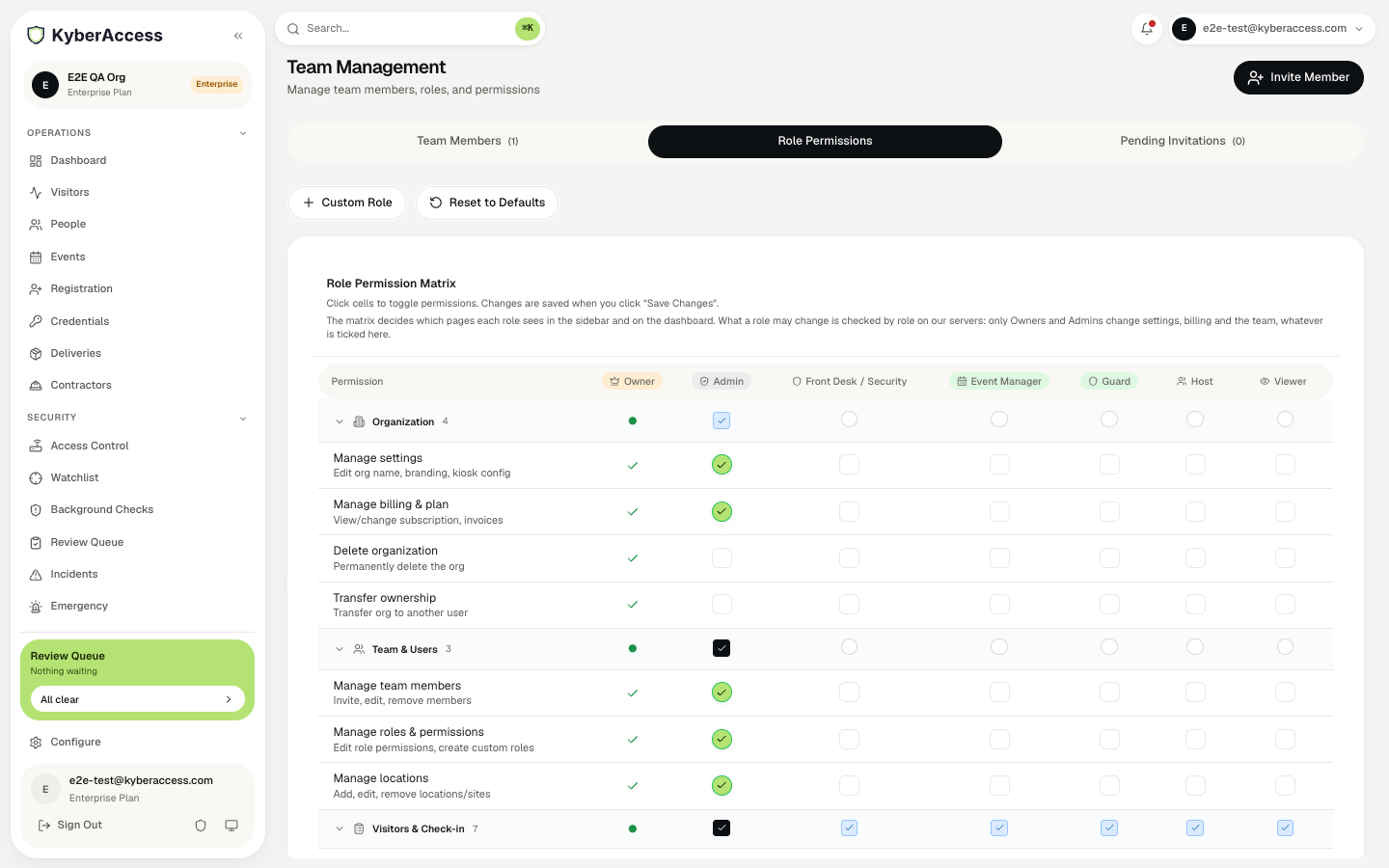
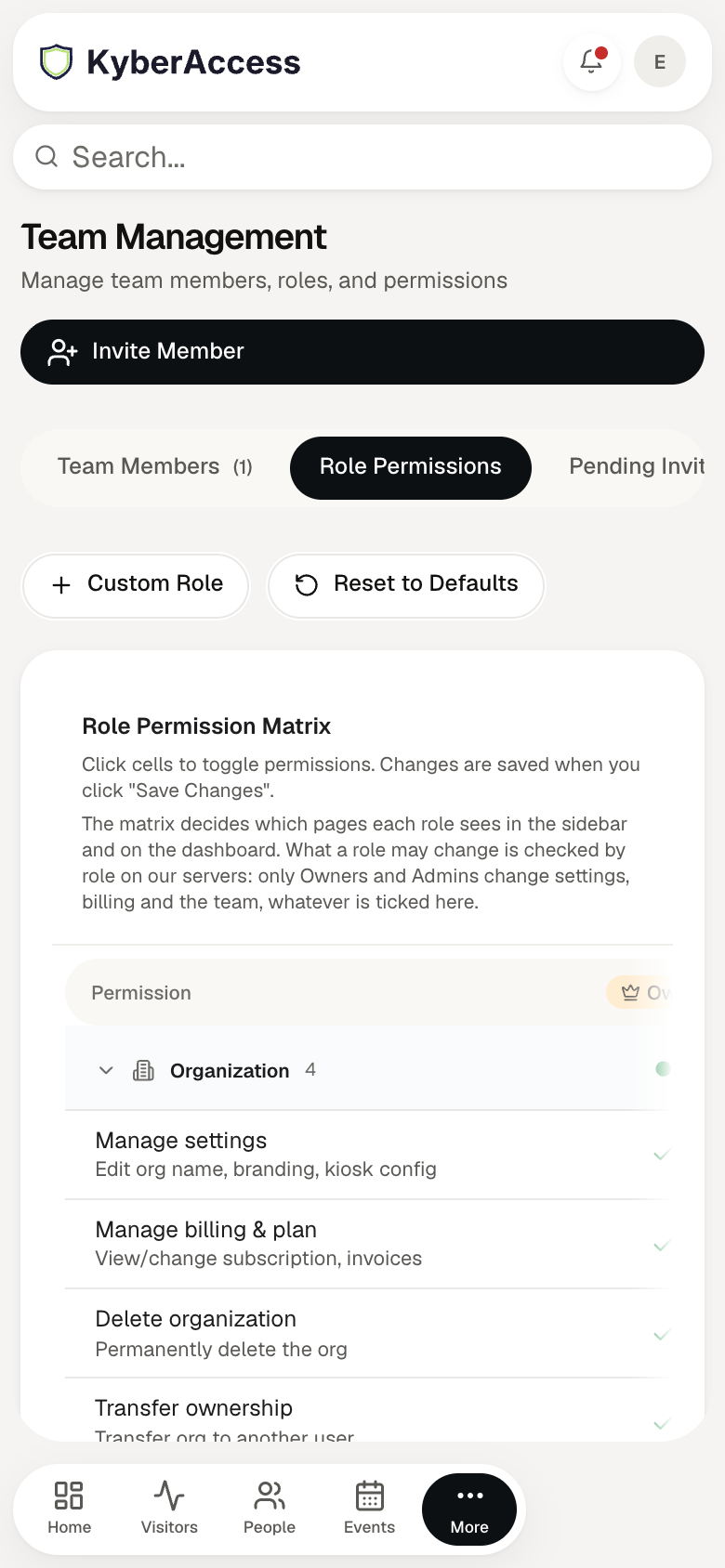
Open Settings › People & roles › Team & roles (classic menu: Configure › Team & roles). This opens the Team Management page. The Role Permissions tab shows the full permission matrix. If your organization uses the app launcher, the Roles & app access tab shows the same roles app by app.
Menus: steps show the app launcher first and the classic menu in brackets. See Find your way around to tell which one you have.
The built-in roles
| Role | Best for | Can open Settings |
|---|---|---|
| Owner | The account holder. Everything, always. | Yes |
| Admin | Office manager, principal, IT: runs the system day to day | Yes |
| Front Desk / Security | Front office and security staff who check people in and handle held visitors and early dismissals. Opens in guard mode. | No |
| Event Manager | Staff who run events and registration | No |
| Guard | Gate and door staff. Opens in guard mode. | No |
| Host | Teachers and staff who expect visitors | No |
| Viewer | Read-only reporting | No |
New invitations start as Viewer until you pick another role. The Owner role can't be given through an invitation. Only an Owner can make someone else an Owner, or change or remove an Owner.
A member whose role was saved under another spelling (for example "front-desk" or "front desk") is treated as Front Desk / Security. A role name that isn't a built-in role or one of your custom roles can't be saved.
What each role can do by default
The matrix on Role Permissions groups permissions into Organization, Team & Users, Visitors & Check-in, Events & Scheduling, Credentials & Passes, Security & Compliance, Analytics & Reports, Hardware & Devices, and Advanced. In short:
- Owner: every permission, and it can't be reduced.
- Admin: everything except Delete organization and Transfer ownership: settings, billing, team and roles, visitors, events, credentials, screening, watchlist, emergency, reports, access control, integrations.
- Front Desk / Security: check visitors in and out, see all visitors, approve or deny visitors, print badges, deliveries, background checks, watchlist, incidents, emergency actions, access control, activity log, campus features (student pickup, tardy, hall pass). No settings, billing or team.
- Guard: check in and out, see visitors, print badges, background checks, watchlist, incidents, emergency actions, access control, activity log.
- Event Manager: manage events, register guests, analytics, email tracking.
- Host: see only their own visitors, register guests for themselves, approve or deny their visitors, view events.
- Viewer: see only their own visitors, view events, analytics and the activity log.
Roles & app access (app launcher)
Organizations that use the app launcher get an extra tab, Roles & app access. Open Settings › People & roles › Roles & app access (classic menu: not available; use Role Permissions under Configure › Team & roles). It shows the same roles as Role Permissions, but one row per app your organization has and one column per role.
Video: what each role sees in the app menu
Each role sees only the apps and pages it can use. The video shows the app launcher your team will see. Chapter 2 covers the Apps panel and chapter 4 shows the same person in every app. Open the video (2 minutes 36 seconds, captions on). Smaller file for phones: 720p video.
Chapters:
- Home (0:00)
- App button & launcher (0:22)
- Inside an app (1:01)
- People in every app (1:22)
- Search everything (1:46)
- On your phone (2:10)
Each cell is a level:
| Level | Means |
|---|---|
| None | Cannot open the app |
| Read | Can view, cannot change. Only offered for apps that have a read-only level. |
| Use | Can do the daily work |
| Manage | Use, plus the app's settings |
| Partial | The role holds some of the app's permissions (set key by key on the classic Role Permissions matrix). It keeps exactly those until you pick a level. |
- Built-in roles are marked Preset and are read-only here. Their levels come from the defaults above (or your Role Permissions changes).
- Custom roles are marked Custom and have a dropdown in each cell. Add one with New role name and Add role. When you change something, Unsaved changes to … appears with Discard and Save. After saving you see Role access saved.
- The Workspace row controls Desk and Room Booking. It now has its own permission; nobody lost or gained it when it was added.
- Manage opens Settings for that role, but our servers still let only Owners and Admins save settings (see below).
Confirm access for these roles
Some people may hold a role name that isn't set up in your organization (for example teacher, principal, vice-principal or IT). Today they get Viewer access. The Confirm access for these roles card lists each one with the number of people, "Today: Viewer", and a recommended role (Host for teachers, Admin for principals, vice-principals and IT). Only an Owner sees the Confirm Host access / Confirm Admin access button; everyone else sees "Only the owner can confirm". Nothing changes until the Owner confirms.
Where each role lands after signing in
With the app launcher: - Owner and Admin: Home. - Front Desk / Security: Front Desk on a computer, Guard on a phone. - Guard: Guard. - Event Manager: Events. - Host, Viewer and custom roles: the last app they used. A Host's default is Front Desk › Expected.
In launcher organizations, Front Desk / Security and Guard can also open the apps their role already has (for example Front Desk, Students or Security) and leave guard mode with Exit guard mode.
With the classic menu, the Role Permissions matrix works exactly as described in this article.
Some actions are always limited by role
Whatever you set in the matrix, these are checked by role on our servers: - Owner and Admin only: inviting, editing, disabling and removing team members, resending invitations, changing roles and saving Role Permissions; Settings (Settings, or Configure in the classic menu), single sign-on, review queue alert settings, running background checks for a group, and issuing account setup links to staff. - Owner only: making someone an Owner, and changing or removing an Owner. - Owner, Admin and Front Desk / Security only: opening the Review Queue detail and ID images, and deciding on held visitors. - Owner, Admin and Front Desk / Security only: suspending, reactivating, revoking, reissuing and renewing credentials. Guard, Host, Viewer, Event Manager and custom roles can't.
Change what a role can do
- Open Settings › People & roles › Team & roles (classic menu: Configure › Team & roles) and open Role Permissions.
- Select a cell to turn that permission on or off for a role. Select a group row to turn the whole group on or off.
- Select Save Changes.
Reset to Defaults puts every role back to the defaults above (you still need to save).
Create a custom role
- On Role Permissions, select Custom Role.
- Enter a Role Name and create it.
- Turn on its permissions in the matrix and select Save Changes.
With the app launcher you can also create a custom role on Roles & app access (see above, and Create custom roles).
The new role appears in the Role list when you invite or edit a member. You can't delete a custom role while anyone still has it.
What the matrix controls today
The permission matrix decides which pages appear in each person's sidebar and dashboard (the Role Permissions tab says this too). The Dashboard itself is open to every role; its cards hide themselves when the role can't open the page behind them. The role-based limits in the section above are enforced separately. Treat the matrix as "what people see", and choose the role itself for anything sensitive: a Guard given the Manage settings permission still can't change settings, because Settings is Owner and Admin only.
Change someone's role
- On Team Members, select the ⋮ menu on the person's row, then Edit Member.
- Choose the new Role and select Save Changes.
The change applies the next time their page loads.
Settings that change this
| Setting | Where | Default | Effect |
|---|---|---|---|
| Role permission matrix | Settings › People & roles › Team & roles › Role Permissions (classic: Configure › Team & roles › Role Permissions) | Defaults above | Which pages each role sees |
| Roles & app access (launcher organizations) | Settings › People & roles › Roles & app access (classic: not available) | Presets for built-in roles | Which apps each custom role can open, and at what level |
| Role for new accounts | Settings › Security & policies › Single sign-on (classic: Configure › Security & checks › Single sign-on) | Viewer | Role given to people created on first SSO sign-in |
Troubleshooting
- A staff member can't see a page or app. Check their role on Team Members, then the matching row on Role Permissions (or the app's row on Roles & app access).
- A role shows Partial. It holds only some of that app's permissions. Pick None, Read, Use or Manage and select Save to give it a clean level, or leave it as is.
- Teachers or principals only get Viewer access. Their role isn't set up yet. The Owner can confirm the recommended access on the Confirm access for these roles card.
- A Front Desk or Guard account only ever sees guard mode. That is by design for those roles, with two exceptions they can open: Student Check-In (for early dismissals) and Emergency (to run the roll call). Give them Admin if they need the full dashboard and settings.
- "You need Owner or Admin access to edit permissions." Only Owners and Admins can change the matrix.
- "Only an owner or admin can change the team." Your role can't invite, edit or remove members. Ask an Owner or Admin.
- "Only an owner can make someone an owner, or change or remove an owner." Ask the Owner to make the change.
- "… is not a role here." Pick a built-in role, or create the custom role on Role Permissions first.
- "Cannot delete role — N member(s) assigned". Move those members to another role first.
- My Profile shows the wrong role. My Profile › Organization › Role shows the role you hold in the organization you are viewing. If you belong to more than one organization, switch organizations from your account menu.