Make a role with your own name, such as "Nurse" or "Athletics Coordinator", and choose which pages people with that role see. Read "What a custom role controls" before you rely on one: a custom role decides what appears in the sidebar, not what our servers allow.
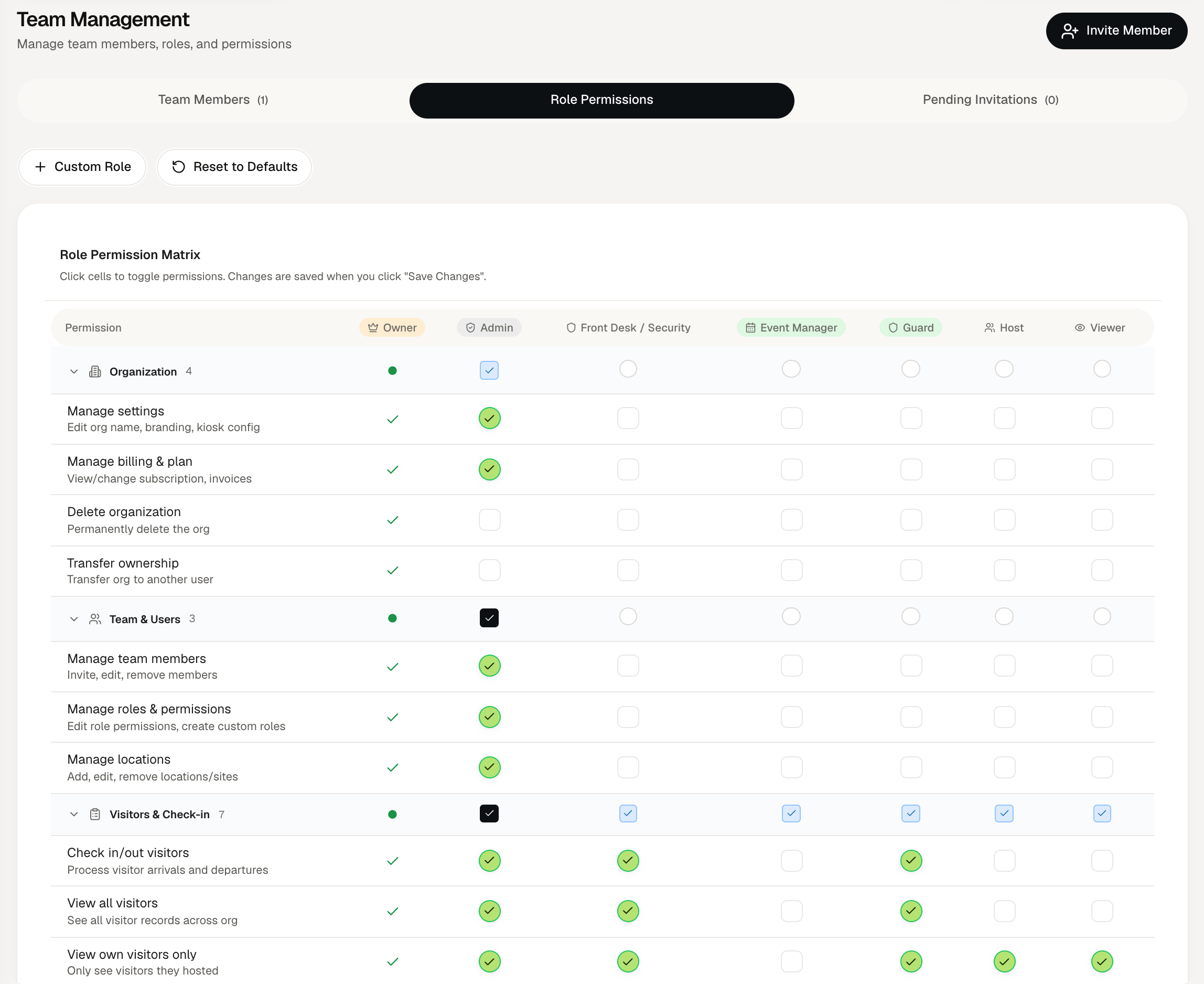
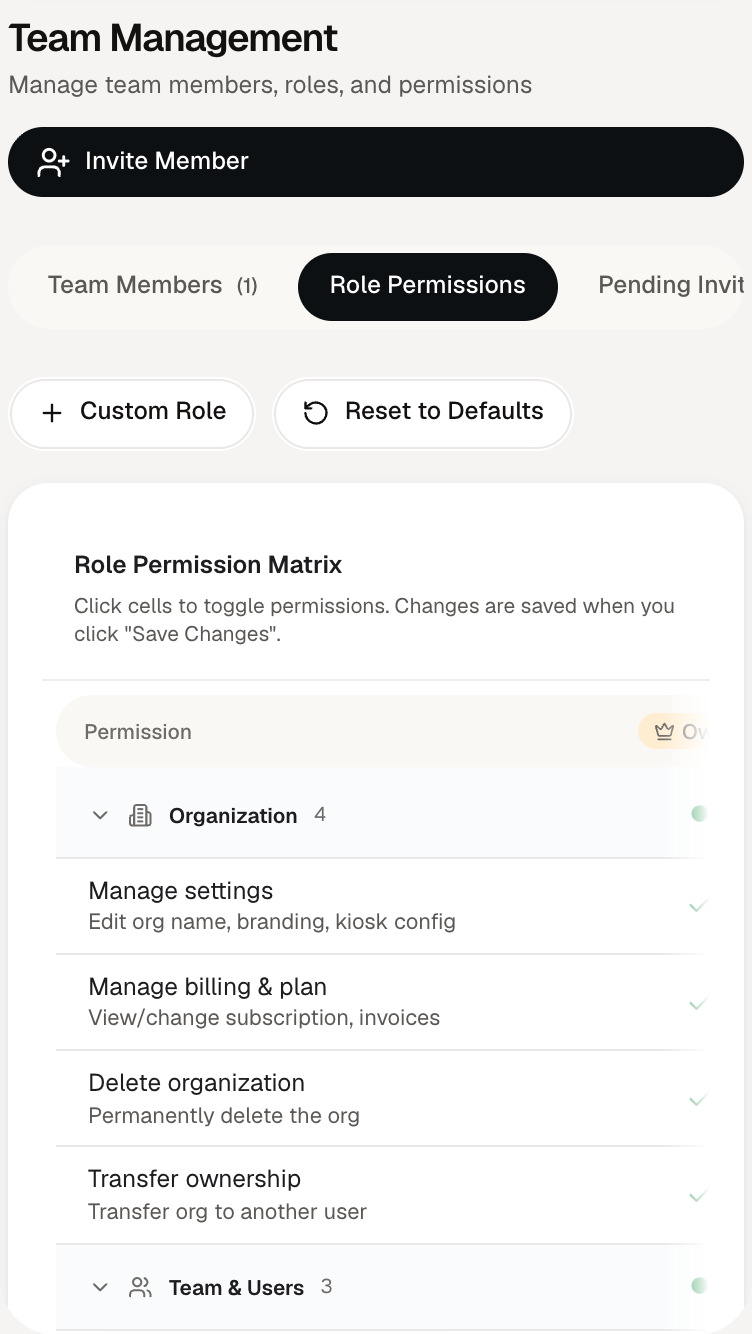
Video: make your own role
Chapters: How roles work (0:00), Find your roles (0:19), Make your own role (0:47), Invite someone (1:07), What they see (1:29). Chapter 3 shows making a role called Office staff on Roles & app access. Smaller file for phones: 720p video.
Who this is for
- Owners and admins. Other roles see "You need Owner or Admin access to edit permissions."
- All plans.
Before you start
- List what the new role should see, for example visitors and deliveries but not settings.
- Check whether a built-in role already fits (see Roles and what each one can do). A built-in role is safer for anything sensitive.
Menus: steps show the app launcher first and the classic menu in brackets. See Find your way around to tell which one you have.
Steps
With the app launcher
- Open Settings › People & roles › Roles & app access. The Roles & app access table shows one row per app your organization has and one column per role.
- Type a name in New role name, for example "Nurse", and select Add role. The role appears as a new column marked Custom.
- In each app's row, pick a level for the role: None, Read, Use or Manage (see "Levels" below).
- Select Save. You see Role access saved. Until you save, the bar reads Unsaved changes to …; Discard throws the changes away.
You can still fine-tune single permissions on the Role Permissions tab (steps below).
Classic menu
- Click Configure, then Team & roles. The Team Management page opens.
- Click the Role Permissions tab.
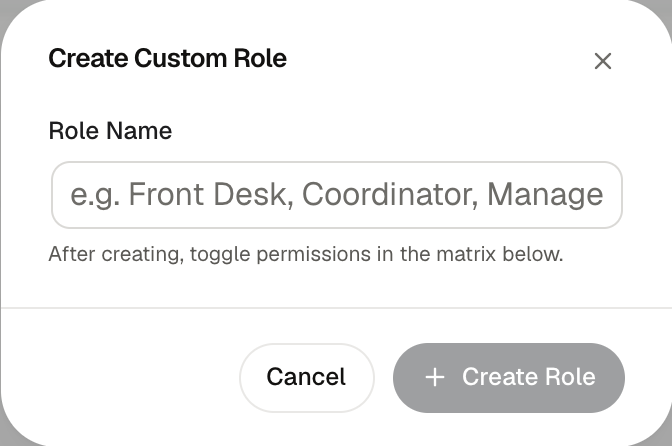
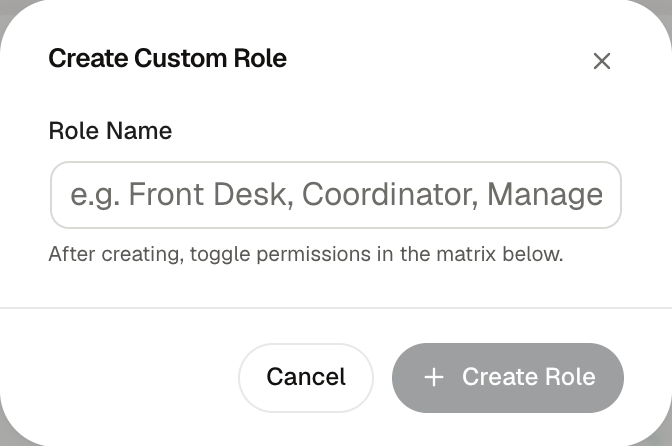
- Click Custom Role.
- Type a Role Name, for example "Nurse". Click Create Role. The role appears as a new column in the Role Permission Matrix, with nothing ticked.
- Tick the permissions the role needs. Click a group row (such as Visitors & Check-in) to tick or clear the whole group.
- Click Save Changes. You see Role permissions saved. The role isn't kept until you save.
Levels (app launcher)
| Level | Means |
|---|---|
| None | Cannot open the app |
| Read | Can view, cannot change. Only offered for apps that have a read-only level. |
| Use | Can do the daily work |
| Manage | Use, plus the app's settings. Settings saving is still Owner and Admin only. |
| Partial | The role holds some of the app's permissions, set one by one on Role Permissions. It keeps exactly those until you pick a level. |
- Built-in roles show Preset and can't be changed on this tab.
- The Workspace row controls Desk and Room Booking. Nobody lost or gained it when this row was added.
Confirm access for these roles
If some people hold a role name that isn't set up in your organization (for example teacher, principal, vice-principal or IT), the Confirm access for these roles card appears above the table. Each line shows "Today: Viewer" and a recommended role. Only an Owner can select Confirm Host access or Confirm Admin access; other admins see "Only the owner can confirm". Their access doesn't change until the Owner confirms, and confirming turns that name into a saved custom role.
Give the role to someone
- On the Team Members tab, click ⋮ on the person's row, then Edit Member.
- Choose the new role in Role (custom roles are marked "custom") and click Save Changes.
You can also pick it in Invite Member.
Delete a custom role
- On Role Permissions (open Settings › People & roles › Team & roles; classic menu: Configure › Team & roles), click delete under the role's name in the matrix header.
- Click Save Changes.
You can't delete a role while someone still has it ("Cannot delete role — N member(s) assigned"). Move those people to another role first.
What a custom role controls
- Sidebar and dashboard only. The ticks decide which pages a person sees in the menu.
- Our servers check the person's role name, not the ticks. Settings, billing, team management, single sign-on, group background checks and the Review Queue decisions are limited to Owner and Admin (plus Front Desk / Security for the Review Queue). A custom role can never do those things, even with Manage settings ticked.
- These pages follow a permission. Access Control follows Access control / Gateway, Review Queue follows Background checks, School Setup follows Manage settings, Student Check-In follows Campus features, Documents follows View all visitors, and Reports follows Generate reports. Desk and Room Booking follows the Workspace row on Roles & app access; the classic matrix has no tick for it, so roles keep the access they had.
- Opening a page the role can't use usually shows empty data or an error rather than a clear "no access" message.
Use a custom role to tidy the menu for a group of staff. For anything that must be blocked, choose a built-in role.
What happens next
- The person's sidebar changes the next time their page loads.
- Changes to a role apply to everyone who has it.
Settings that change this
| Setting | Where | Default | Effect |
|---|---|---|---|
| Role Permission Matrix | Settings › People & roles › Team & roles › Role Permissions (classic: Configure › Team & roles › Role Permissions) | Built-in defaults | Which pages each role sees |
| Roles & app access (launcher organizations) | Settings › People & roles › Roles & app access (classic: not available) | Presets for built-in roles | Which apps each custom role can open, and at what level |
| Reset to Defaults | Settings › People & roles › Team & roles › Role Permissions (classic: Configure › Team & roles › Role Permissions) | — | Puts every built-in role back to its defaults. Custom roles stay; save to apply. |
Troubleshooting
- "Role name already exists or is invalid" → a role with that name exists, or the name has no letters or numbers → choose another name.
- The new role isn't in the Role list when I edit a member → you didn't click Save Changes (or Save on Roles & app access) after creating it → create it again and save.
- A cell shows Partial → the role has only some of that app's permissions → pick a level and select Save, or leave it.
- Someone with a custom role sees an empty sidebar → no permissions were ticked → tick at least Visitors & Check-in and save.
- Someone with a custom role still sees Access Control or Reports → the role has Access control / Gateway or Generate reports ticked → clear the tick (or set the app to None) and save.
- I ticked Manage settings but they still can't open Configure → Settings is Owner and Admin only → give them Admin if they really need settings.