How long KyberAccess keeps your data, how ID photos are protected, and what the Compliance Center does. Read "What actually gets deleted" first: the retention periods you choose are saved and checked every night, but they don't delete anything until KyberAccess support turns deletion on for your organization.
Who this is for
- Owners and admins. The Compliance Center is part of the Enterprise plan; other plans see an upgrade notice on that tab.
What actually gets deleted
Every night at 4:00 AM ET, KyberAccess deletes, for each active organization: - Activity log entries older than 90 days. These are the entries on Activity Log and Audit Trail. - Student pickup card-scan records older than 90 days.
Our team can set a different period for your organization, and can set ID photos, ID numbers, photos and dates of birth to be cleared after a number of days for a visitor type (for example Contractor after 7 days). The visit history and name stay. To ask for either, email support@kyberaccess.com.
Your Data Retention choices: checked nightly, deleted only once turned on
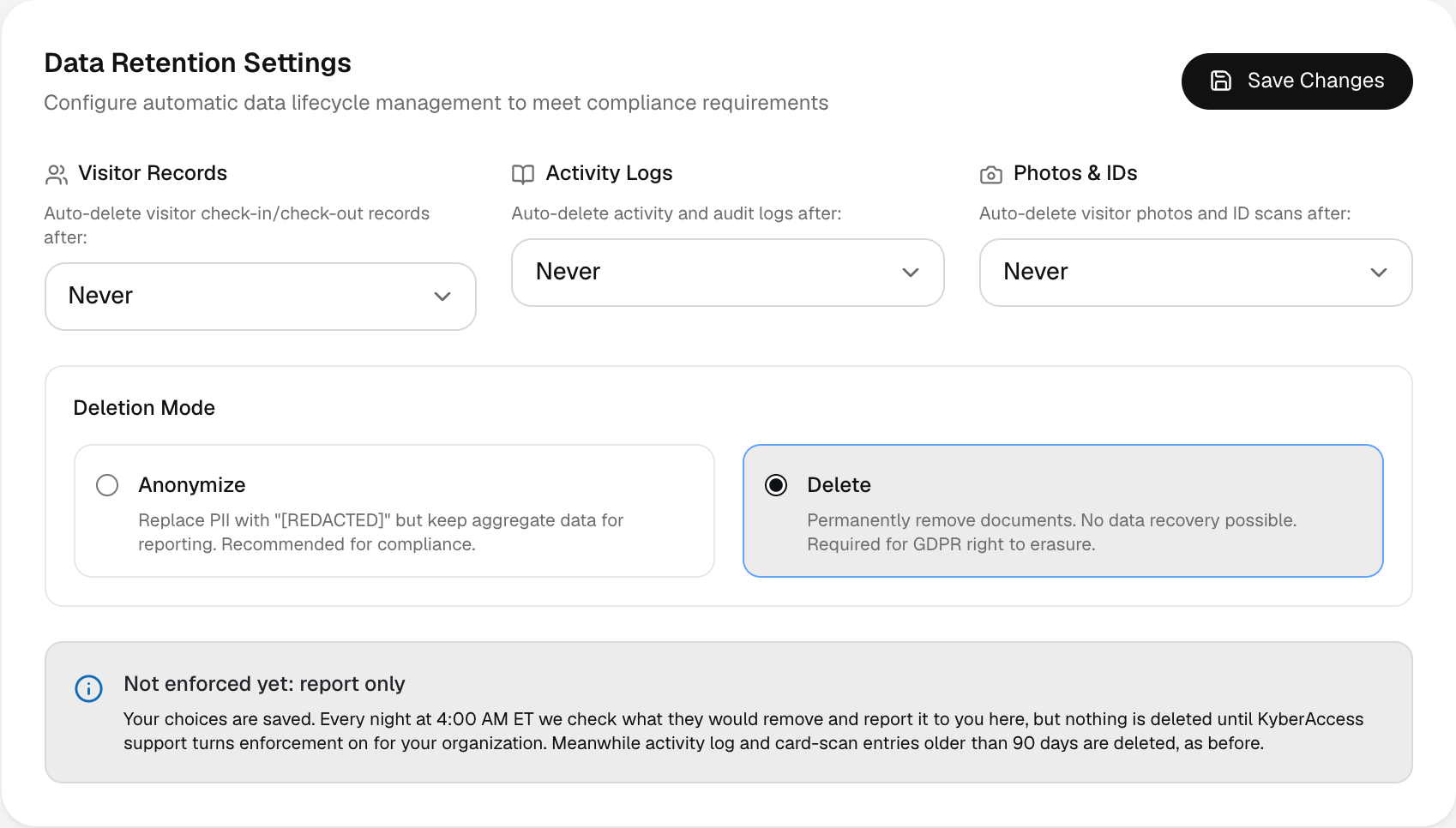
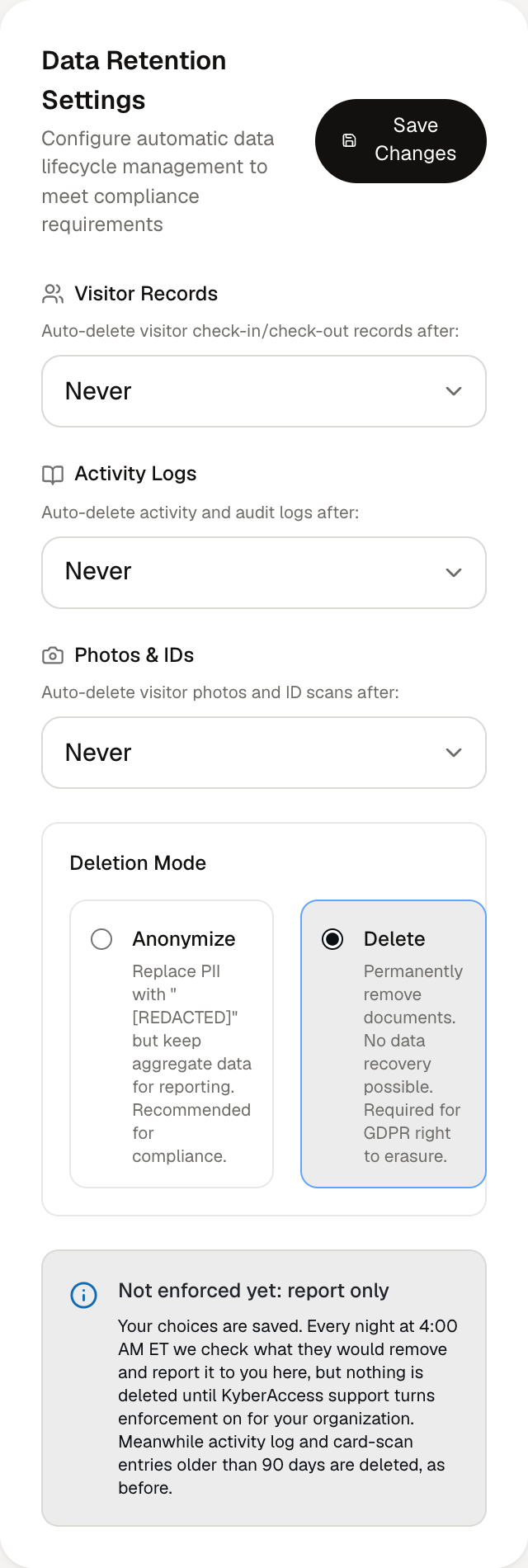
The periods you pick under Compliance › Data Retention (Visitor Records, Activity Logs, Photos & IDs and Deletion Mode) are saved for your organization and used by the same 4:00 AM job, in two stages: 1. Report only (the starting state). Each night the job counts what your choices would remove and shows it at the bottom of the page, for example "12 visit records, ID data on 3 people would be removed once enforcement is on. Nothing was deleted." Nothing is deleted or changed because of your choices. 2. Enforced. When you ask support@kyberaccess.com to turn deletion on, the page shows Automatic deletion is on for your organization. From then on, each night: - Visitor Records: finished visits older than your period are deleted, or, with Anonymize, kept with the name replaced by "[REDACTED]". Visitors still on site are never touched. - Photos & IDs: ID photo, ID number, photo and date of birth are cleared from people whose last visit is older than your period. The person record and their visit history stay. People with an active credential, and students and staff, keep theirs. - Activity Logs: your period replaces the 90 days above (Never keeps them).
Everything else is kept until you or we remove it: people, credentials, signed documents and event records.
If you need activity older than 90 days for an audit, export it from Activity Log or Reports before it ages out.
How ID photos and selfies are protected
- ID photos and selfies are private. They're only shown to signed-in staff of your organization, through links that expire after a short time.
- Only Owners, Admins and Front Desk / Security can open ID images in the Review Queue.
Use the Compliance Center
- Click Configure, then Security & checks › Compliance.
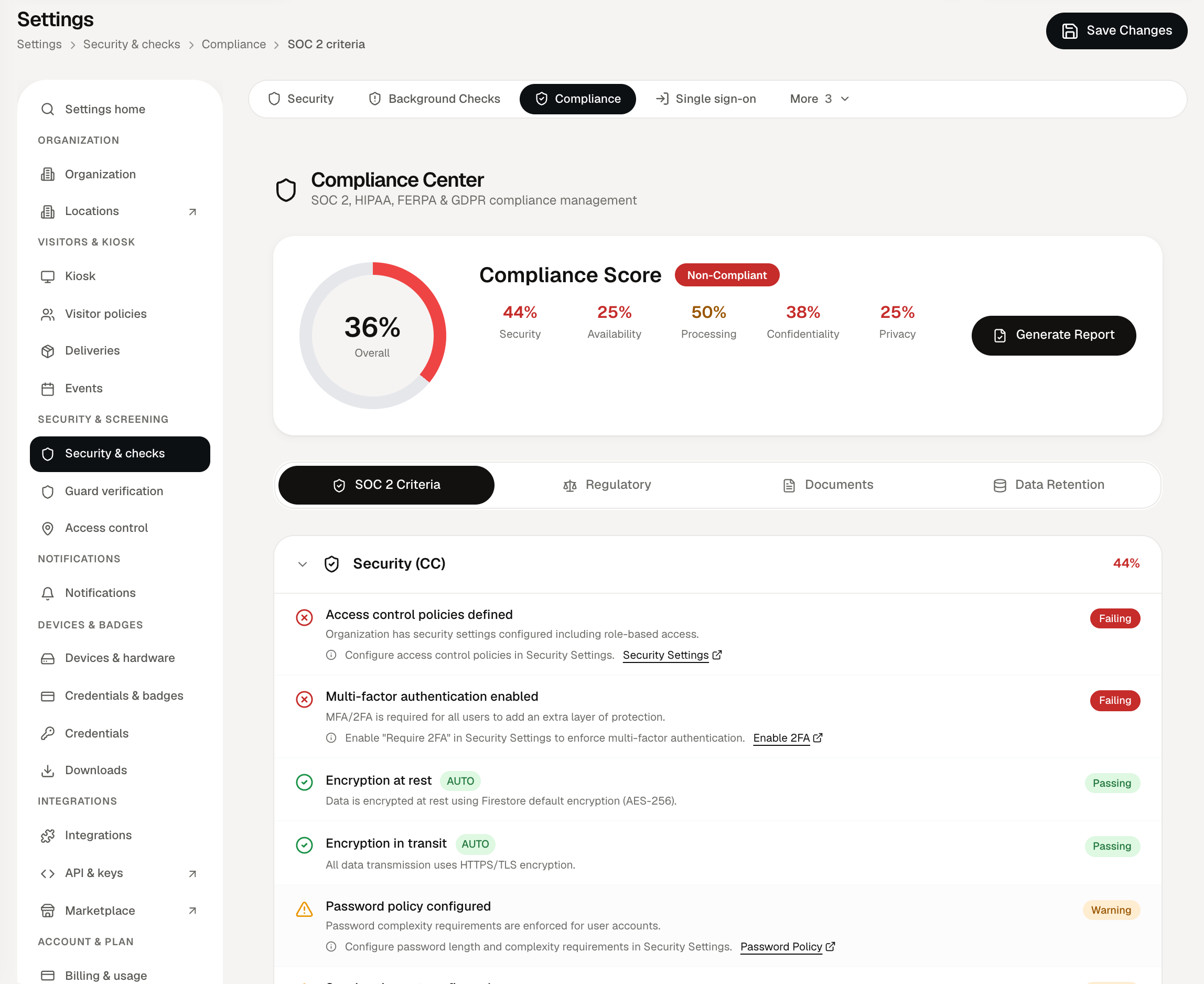
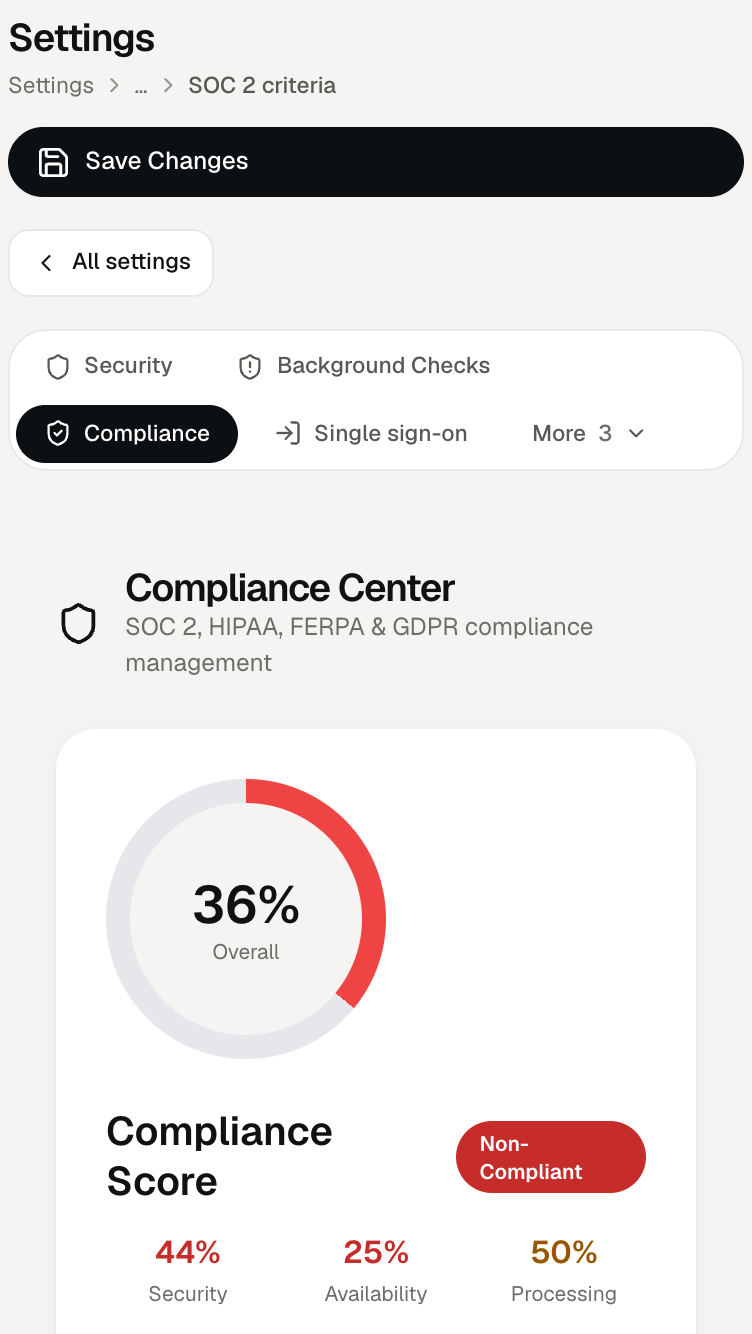
- The Compliance Score shows a percentage for Security, Availability, Processing, Confidentiality and Privacy, scored from your KyberAccess settings plus items you tick yourself.
- Open SOC 2 Criteria or Regulatory (HIPAA, FERPA, GDPR) to see each check as Passing, Warning, Failing or manual. Items marked manual are policies you confirm yourself; tick them when they're in place.
- Click Generate Report, then Download PDF to print or save the report.
- Under Documents, click Add Document to keep a list of your policies (name, Type, Expiry Date, Notes). Documents expiring within 30 days are flagged Expiring Soon.
The score is a self-assessment checklist for your own records. It isn't a certification and doesn't change how KyberAccess handles data. Access control policies, Multi-factor authentication and Password policy are manual items: review them (for example ask staff to add a passkey on their Profile) and tick them. Items KyberAccess provides, such as encryption and daily database backups, pass automatically.
Settings that change this
| Setting | Where | Default | Effect |
|---|---|---|---|
| Activity log retention | Set by our team on request | 90 days | Age at which activity log and card-scan entries are deleted |
| Clear ID data by visitor type | Set by our team on request | Off (kept) | Clears ID photo, ID number, selfie and date of birth after N days |
| Visitor Records, Activity Logs, Photos & IDs, Deletion Mode | Security & checks › Compliance › Data Retention | Never / delete | Reported nightly; applied once support turns deletion on |
| Manual checks, documents | Security & checks › Compliance | — | Your compliance score and records only |
Change your Data Retention choices
Only Owners and Admins can change these. 1. Click Configure, then Security & checks › Compliance, then Data Retention. 2. Pick Visitor Records, Activity Logs and Photos & IDs periods and a Deletion Mode. 3. Click Save Changes. Until deletion is turned on, the message says your choice is saved and not enforced yet. 4. Check the box at the bottom the next morning to see what your choices would remove.
The Compliance Center's retention checks show Passing only once deletion is turned on.
Troubleshooting
- Activity older than three months is missing from Activity Log → entries are deleted after 90 days → ask us to lengthen the period, and export what you need regularly.
- I set Photos & IDs to 30 days but old ID photos are still there → your choice is report-only until deletion is turned on → check the nightly report at the bottom of Data Retention, then email support@kyberaccess.com to turn it on.
- Someone still has their ID photo after the period → they hold an active credential, or are a student or staff member; those are kept.
- A parent asks us to delete their data → there's no delete button on People today → email support@kyberaccess.com with the person's name and we'll handle the request.
- The Compliance tab shows an upgrade notice → it's an Enterprise feature.