Activity Log and Audit Trail are two views of the same record: check-ins and check-outs, credentials issued, pickups, watchlist alerts, sync runs and other events KyberAccess writes as they happen. Use Activity Log to browse and Audit Trail to filter by date and export a CSV.
Who this is for
- Activity Log: owners, admins, security, viewers. Included in every plan.
- Audit Trail: owners and admins, on Pro or Enterprise.
Before you start
- Both pages show the 200 most recent entries for your organization. A busy site fills 200 entries in a day or two, so export often if you need a longer history.
- These pages record system events. They do not record which staff member changed a setting.
Menus: steps show the app launcher first and the classic menu in brackets. See Find your way around to tell which one you have.
Steps
Browse recent activity
- Open Activity: in the Apps panel under Shared records, or on the Home sidebar (classic menu: in the sidebar, under Insights, click Activity Log).
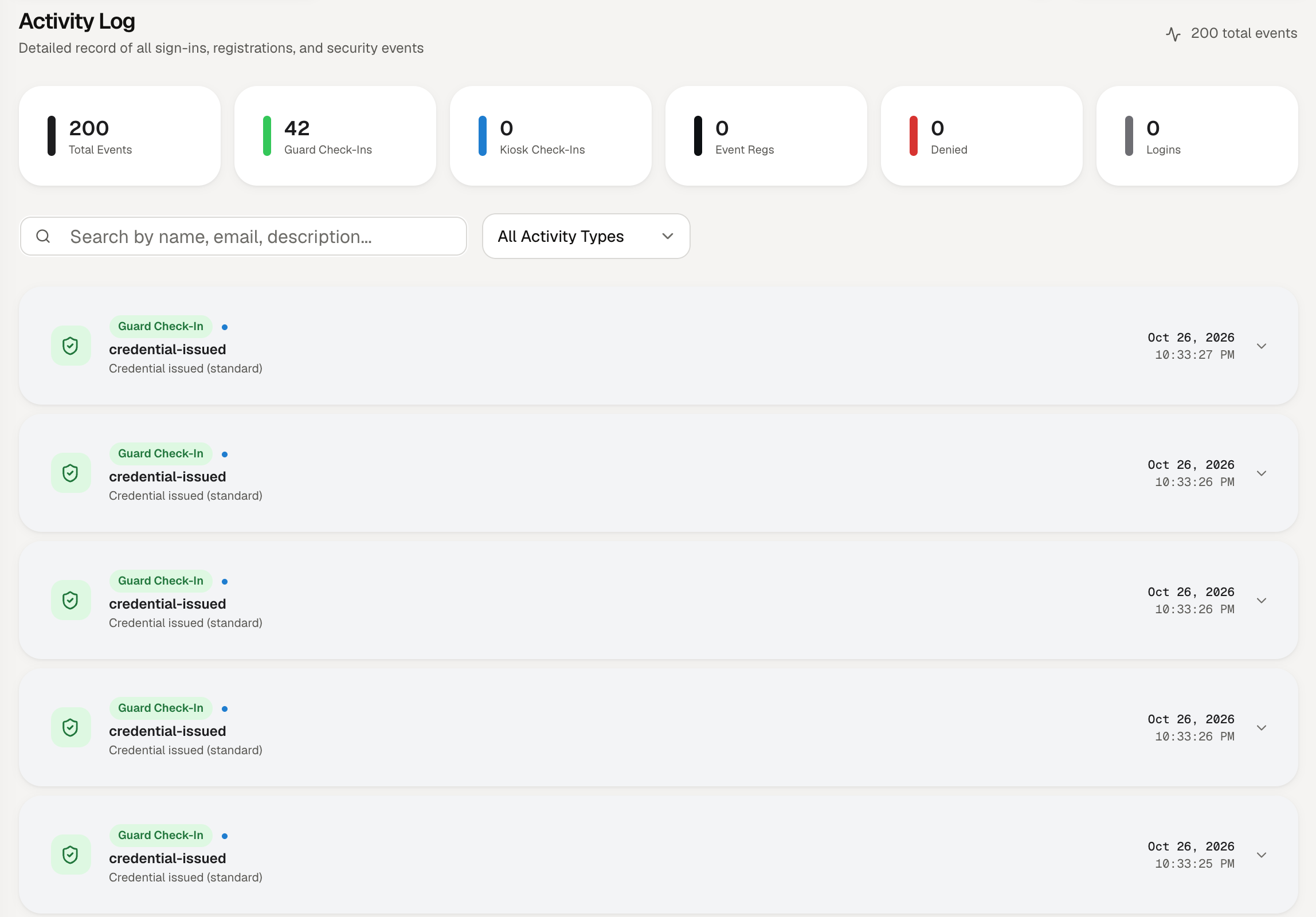
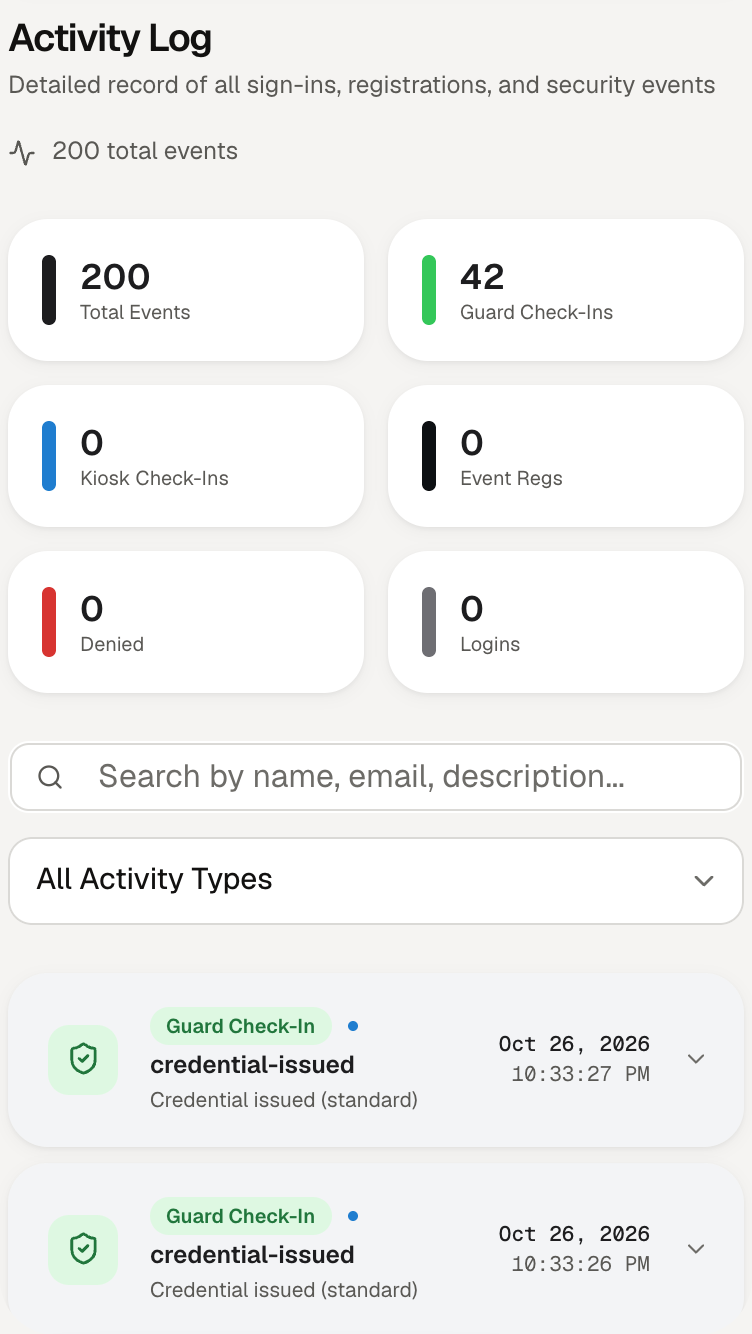
- Type in Search by name, email, description..., or pick a type in All Activity Types.
- Click the arrow on an entry to see its details. Use the page buttons at the bottom; there are 25 entries per page.
Filter and export the audit trail
- Open Apps › Insights › Audit trail (classic menu: Audit Trail in the sidebar, under Insights).
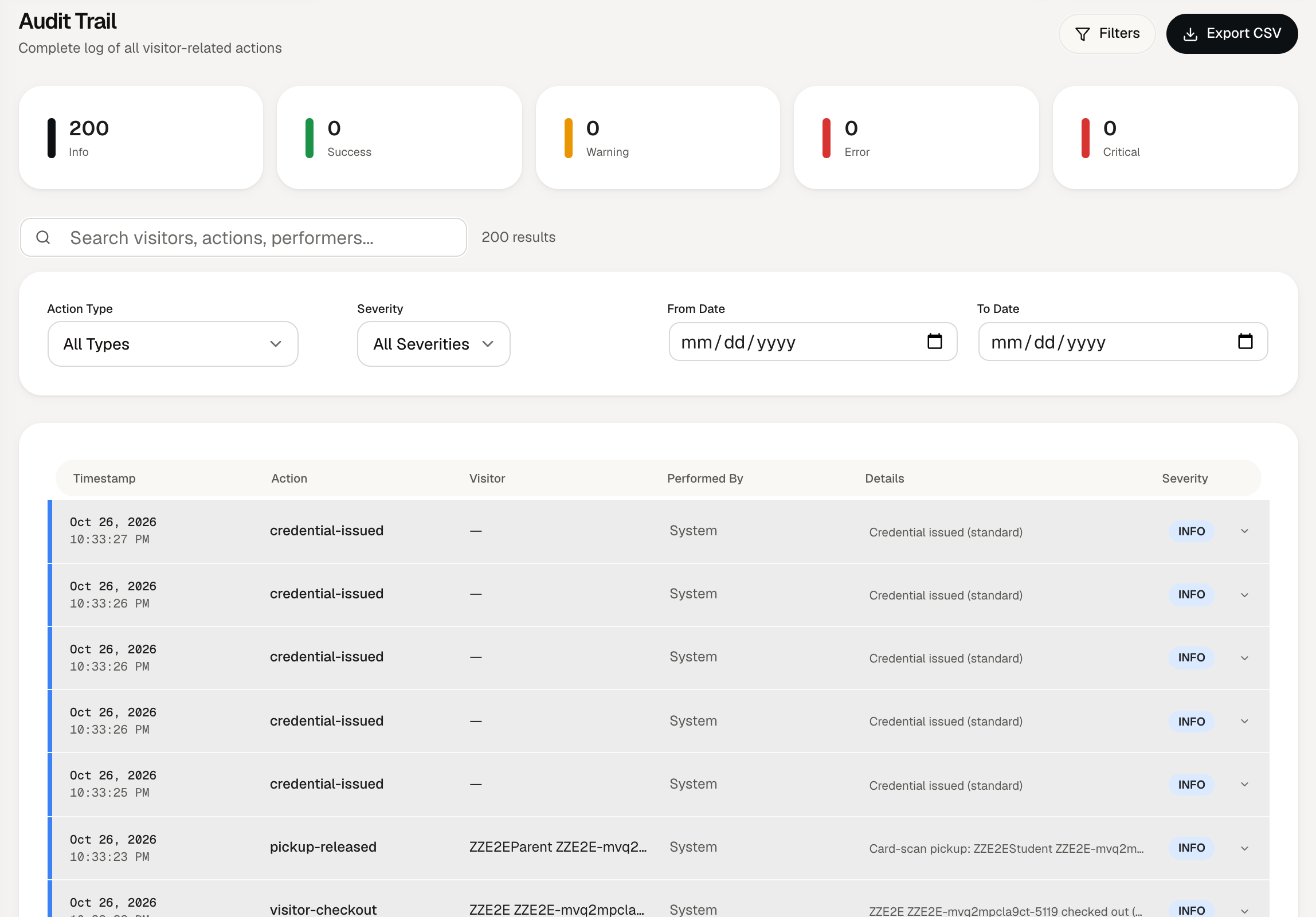
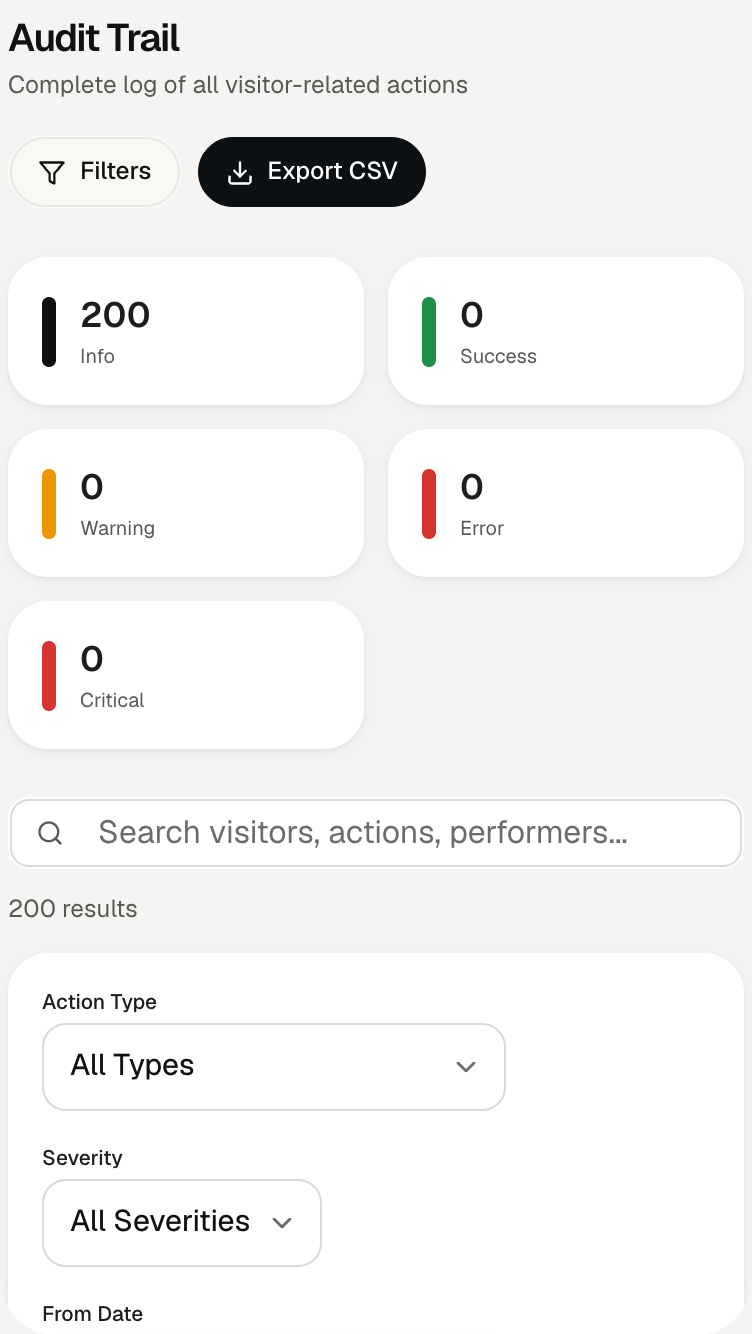
- Click Filters and set Action Type, Severity, From Date and To Date.
- Click Export CSV to download the filtered entries.
What is recorded
Entries you will commonly see (the Action column on Audit Trail):
| Entry | When |
|---|---|
| kiosk-check-in, kiosk-check-out | A visitor checks in or out at the kiosk |
| guard-check-in, visitor-checkout | Staff check a visitor in or out |
| auto-checkout | A visit is closed automatically after 12 hours |
| credential-issued | A credential is created |
| pickup-released, early-dismissal-requested | Student pickup and dismissal |
| watchlist-alert | Someone matched the watchlist |
| infinite_campus_sync | An SIS sync ran |
| gateway-offline, gateway-online | A turnstile gateway lost or regained its connection |
What happens next
Entries are written the moment the event happens and appear the next time you open the page. Nothing is deleted from here by you; older entries simply fall off the 200-entry view.
Settings that change this
| Setting | Where | Default | Effect |
|---|---|---|---|
| Plan | Settings › Billing & modules › Plan & invoices (classic: Configure › Billing & usage) | — | Audit Trail needs Pro or Enterprise |
Troubleshooting
- Entries like credential-issued or auto-checkout have a green "Guard Check-In" badge → The badge falls back to Guard Check-In for any entry type it doesn't have a label for. Read the bold line under the badge for the real type.
- The Event Regs, Denied and Logins tiles always show 0 → KyberAccess doesn't write those entry types to this log today. Use Events, Reports › Denied Entries and Team & roles (Settings › People & roles › Team & roles; classic menu: Configure › Team & roles) instead.
- Every Audit Trail entry says "System" and "INFO" → The log doesn't record who performed an action or a severity yet, so the Performed By column and the Severity filter are not useful today.
- I can't find something from last month → Only the 200 most recent entries load. For visits, use Run and export reports; for door scans, use Apps › Access › Activity (classic menu: Configure › Access control › Activity & reports).
- I need to know who changed a setting → Not recorded on these pages. Contact support.