Every credential keeps a history: when it was issued, which events it joined, each gate scan and kiosk check-in (admitted or refused), and every status change with who made it and why. You can read it for one person or for your whole organization.
Who this is for
Owners, admins and other staff who can open Credentials. Credentials need the Pro plan or higher.
Before you start
Know what's recorded: - Gate scan: a turnstile or door reader connected to KyberAccess read the QR code. - Kiosk check-in: someone scanned their credential QR code at the iPad kiosk. - Registrations, RSVPs, invitations, renewals, suspensions, revocations, expiry, Wallet pass and reminder emails, and whenever staff view the ID details. - Not recorded here: QR scans in Guard mode. Those appear in the guard's log and on the visitor's record.
Menus: steps show the app launcher first and the classic menu in brackets. See Find your way around to tell which one you have.
See one person's history
- Open Apps › Access › Credentials (classic menu: Credentials in the sidebar, under Operations) and search for the person.
- Select their row. The side panel shows ID on file and Recent activity.
- Select Open full credential, then the Timeline tab.
- Optional: tick Scans & check-ins only to hide everything except gate scans and kiosk check-ins.
Each line shows what happened (for example Gate scan — admitted, Kiosk check-in — refused, Revoked (for cause)), the event if there is one, the time, and the staff member or "system".
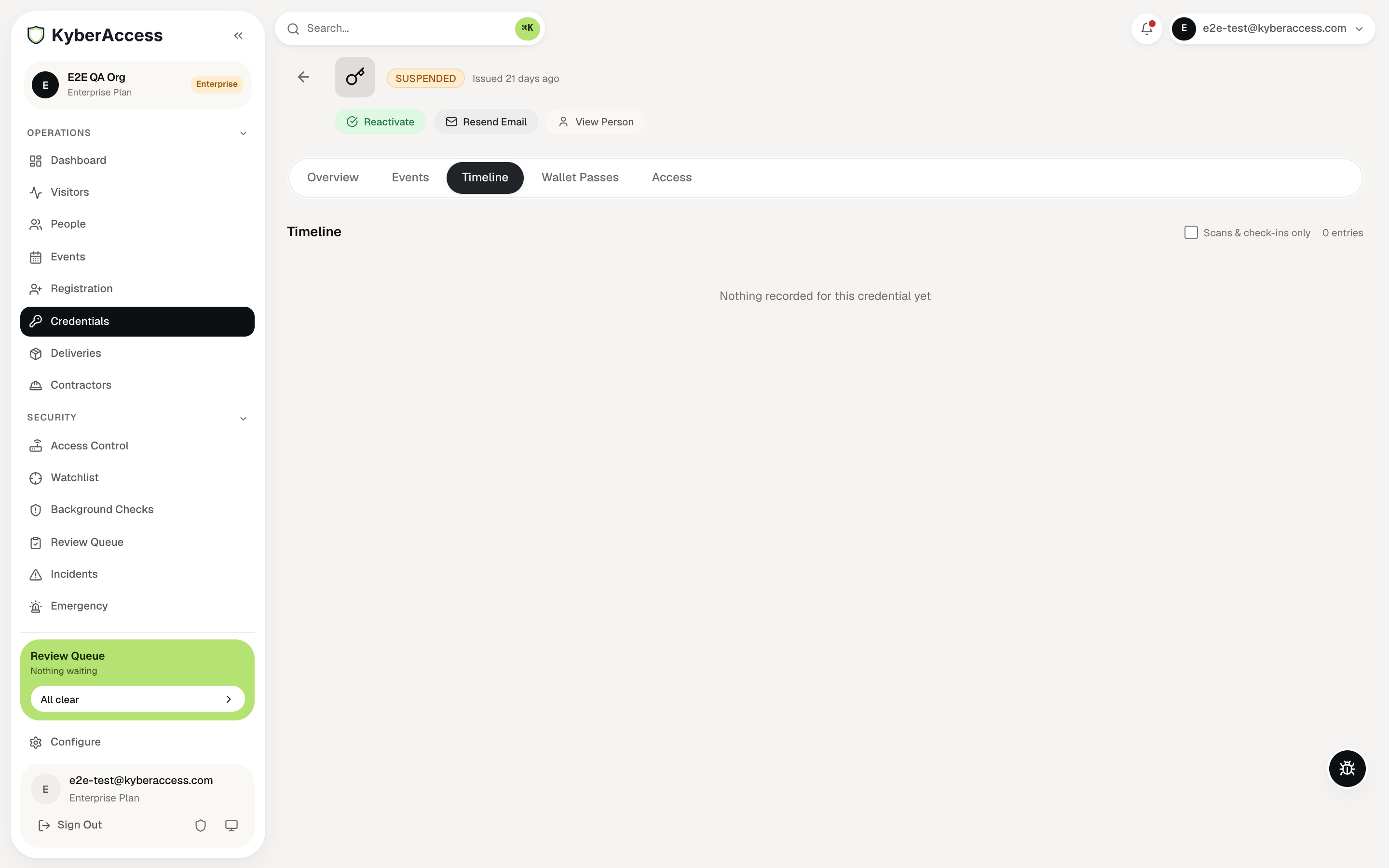
The Events tab on the same page lists the events this credential was granted by, attached to, or used at.
See activity across your organization
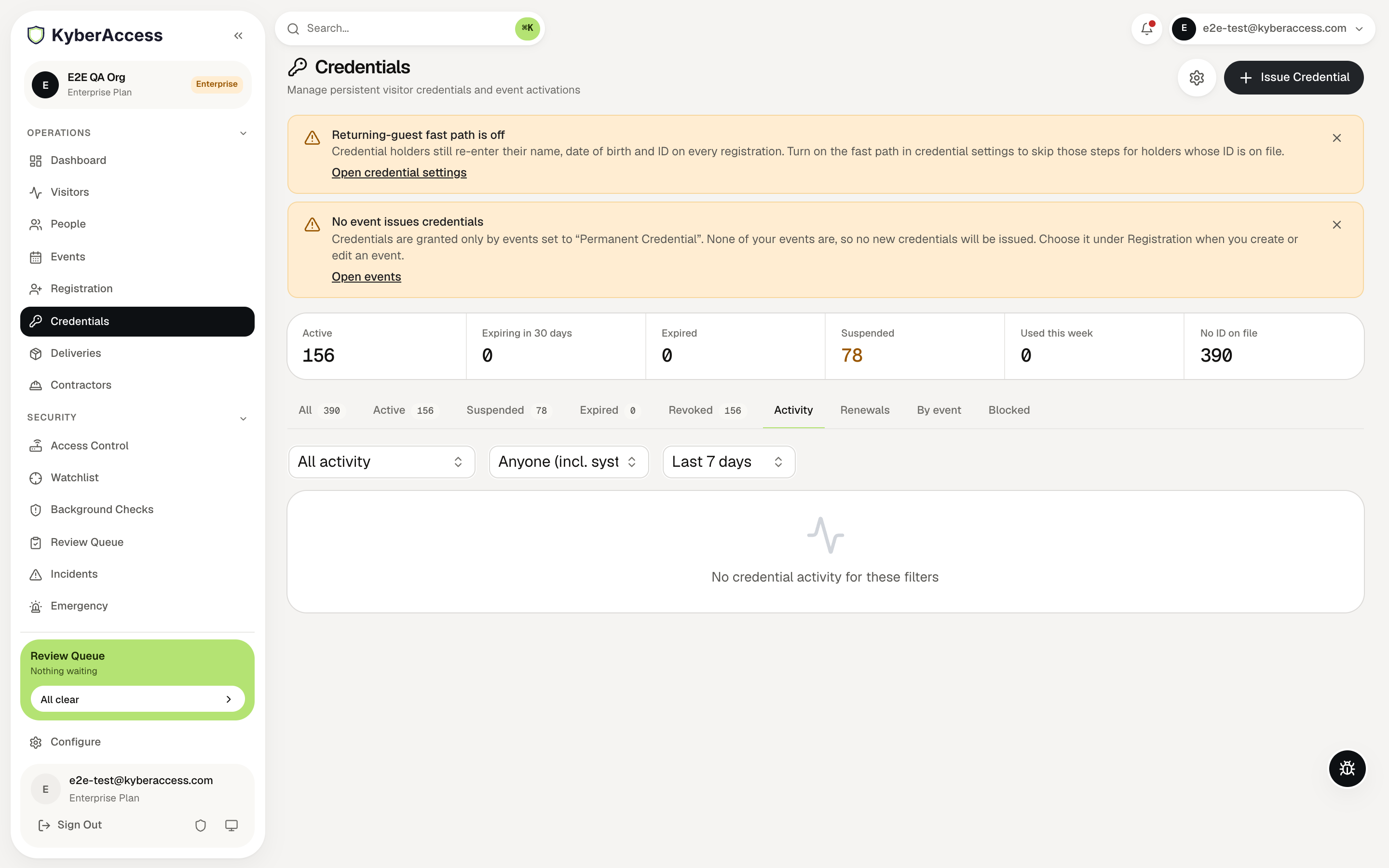
- Open Credentials and select the Activity tab.
- Filter by:
- kind: All activity, or a group such as All scans & check-ins, All status changes, All issued & events, All invites & registration, All passes & reminders, All id on file, or one kind;
- person: Anyone (incl. system) or one staff member;
- date: Today, Last 7 days (default), Last 30 days, All time or Custom dates (MM/DD/YYYY).
- Select Load more at the bottom for older entries.
Other quick views
- List columns: on Credentials, the list shows Last used / uses for each credential. Sort by Last used or Uses with Sort by, and use the Never used filter to find credentials nobody has scanned. Columns lets you show or hide columns.
- Summary cards: Used this week counts credentials scanned in the last 7 days. Select a card to filter the list.
- By event tab: per event, how many credentials it Issued and Reused, how many holders used the Fast path, Registered, were Invited, said RSVP yes, and were Admitted at least once.
- Export: tick credentials and select Export for a spreadsheet. Owners and admins also get contact details.
What happens next
History is permanent: entries can't be edited or deleted. Viewing a person's date of birth or ID number (View ID details (logged) on the credential page, owners and admins only, reason required) adds an ID details viewed line.
Troubleshooting
- "No credential activity for these filters": widen the date range to All time, or set kind to All activity.
- A scan at the front desk isn't listed: Guard mode scans aren't recorded on the credential. Check Visitors or the guard's Today's Log.
- Last used says "Never used" but the person came in: they were checked in by name, not by scanning their credential QR code.
- Kiosk check-in — refused: the credential was suspended, revoked or expired at that moment. Open the credential to see its status.